Set Up Text Alerts and Manager Notifications
Last updated: Jun 25, 2026, 11:27 AM
Want to optimize staff communication in your restaurant during operating hours? Manager text alerts allow restaurant employees to request immediate assistance from managers and support staff by sending text messages in real time from Toast POS devices to recipients' mobile phones. These notifications can be used to uphold bartender safety, request manager approval for the use of a promotional discount or signal an unsatisfied guest. In addition, manager notifications allow managers to send notifications directly to POS devices.
Set Up Text Alerts
In Toast Web, you have the ability to enable text alerts and create pre-written messages that can be sent via text message to specific users from the POS. For example, you may want to be able to send a text alert to a manager if a meal was comped. At this time, these text alerts are not automatic - the user on the POS will need to manually send a text alert from the POS.
In order to set up and manage text alerts, you must have the 3.27 Send Notifications permission assigned to your account. To learn more, check out the Permissions Reference Guide.
To set up text alerts, there are three things to configure: messages, recipients, and senders. Let's get started!
- In Toast Web, navigate to Front of house > Employee SOS > Text alert.
- Select Yes for the Enable Text Alerts setting.
Continue to manage the SMS messages you want to use for your restaurant.
Configure Message Content
The text alert feature comes with four preset SMS (Short Message System) text messages:
- Customer satisfaction assistance required
- Increase in volume, assistance required
- Urgent guest issue, immediate assistance needed!
- Comp / void / discount requested
After you've enabled text alerts, you'll have the ability to add, edit, reorder, or delete the messages as needed in the SMS Messages section of the text alert setup page. Once your messages are configured as desired, it's time to determine which employees recieve the text alerts and who is able to send them from your POS device.
Configure Text Alert Users and Message Recipients
Underneath the SMS Messages section of the text alert setup page, you'll see the Who can receive SMS alerts setting. On this list, you can select which roles (such as "Owner" or "Manager") will receive the text alerts to the phone number they've set up for their Toast Web account.
To learn how employees can add their phone number, check out this Support Center article: Update Your Toast Web User Account.
The last section of the text alert setup page shows the Who can send SMS alerts setting. Here, you can check off all jobs that will be allowed to send text messages from the POS system.
Note: Employees need to be assigned a job to send messages.
Save and publish all changes made on the text alert setup page.
Send a Text Alert From the POS
To send a text alert from the POS device, follow these steps:
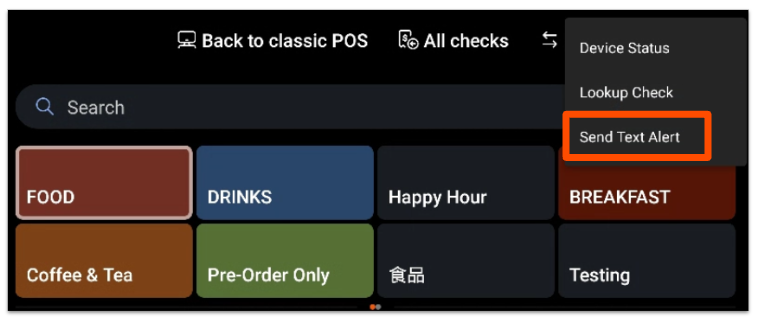
- Select the three-dot overflow icon (⋮) on the top right corner of your device screen and select Send Text Alert.
- Select the preset text alert you'd like to send.
- Select the employee(s) you'd like to send the alert to.
- Select Send.
Employees in job roles set up to receive alerts will receive a text message with the selected alert.
Every text alert will contain the following information:
- Sender's Name: The name of the employee who is currently logged into the device used to send the alert.
- Alert Content: The preset message selected.
- Point of Origin: The name of the POS device used by the employee to send the alert.
Note: For multi-location restaurant groups, the alert will contain the name of the restaurant location instead of the name of the POS device.
Send Manager Notifications to POS Devices
You can also send notifications to POS devices from Toast Web to help communicate important information during peak business hours.
Here are some examples of how this may come in handy:
- Alert staff if the kitchen is running behind
- Alert takeout staff to quote longer pickup/delivery times on orders
- Communicate with staff if a particular station is in need of assistance
Follow these steps to send a notification to your POS:
- In Toast Web, navigate to Front of house > POS notifications > Send notifications.
- Fill in the details of your message.
- Select a Restaurant (or restaurants!) if you are part of a multi-location group.
- Optional: Select the Device Type(s) and Job(s) that should receive this notification.
- Enter your message text.
- Select Send.
The message will now show up as a notification when users sign in to a device. The user can select the yellow bell icon to view notifications and can select Clear to remove the notification once they've read it. At this time, the capability to remove the yellow bellow icon is unavailable.
All Active Notifications are listed at the bottom of this page. If you no longer wish for notifications to be sent to your POS devices, you can choose to delete an active notification by selecting the trash can icon next to the notification.