Toast Inventory: Generate Purchase Orders & Receive Inventory (Australia, Canada, Ireland and UK)
Last updated: Apr 27, 2026, 12:23 PM
Learn how to manage the full purchasing lifecycle in Toast Inventory by creating purchase orders, emailing suppliers, and receiving inventory via invoices. This guide covers how to track deliveries and ensure accurate stock levels and ingredient costs across your restaurant.
| This feature is currently in a Beta testing release in Australia, Canada, Ireland and the UK. |
- Toast Inventory: Orders and Deliveries Overview
- Create a Purchase Order (PO)
- Edit a Purchase Order
- Send or Download a Purchase Order
- Receive Against a Purchase Order
- Use Invoices to Receive Inventory
- Stock Level Updates
- Additional Resources
Toast Inventory: Orders and Deliveries Overview
You can access the Orders & deliveries page by navigating to Inventory > Orders & deliveries in Toast Web. The Orders & deliveries page is where you can view, create, and manage your purchase orders (POs), or receive via invoice if desired.
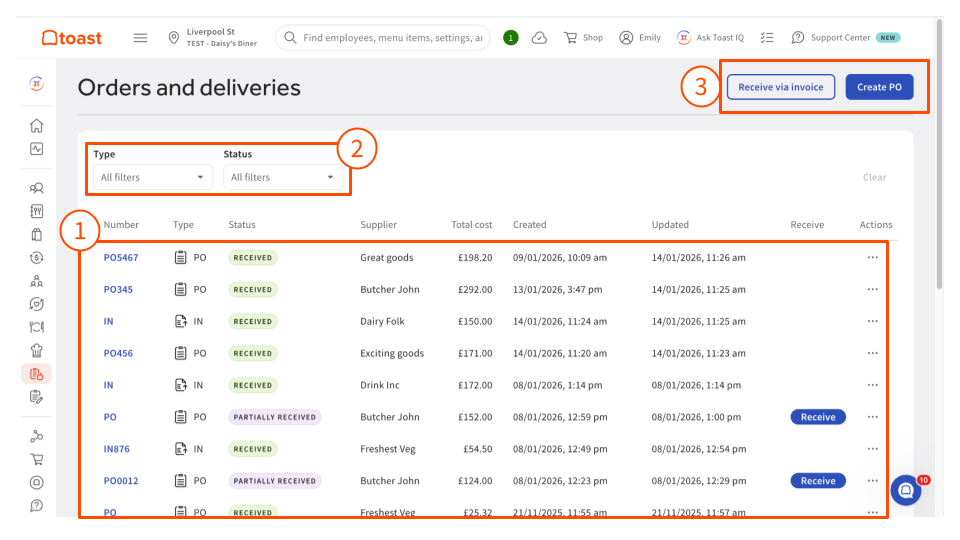
- On the page, you’ll see a table that contains all POs and invoices.
- You can use the Type and Status drop-downs to narrow down your visible rows.
- In the top right corner, you’ll see buttons to Create PO or Receive via invoice.
Create a Purchase Order (PO) in Toast Inventory
- Select Create PO at the top of the Orders & deliveries page. This will open a new Purchase order.
- Open the Supplier drop-down and select the supplier for this PO. Supplier details will appear on the page – you can select the pencil icon to make updates to these supplier details if needed.
- Optional: Select Expected on date and add a PO notes that will appear on your purchase order. The expected date can be helpful for filtering your purchase order list or planning for additional staff as needed to receive inventory.
- Select + Add Item to find the items you’d like to add to your purchase order. There are several options to help you filter your item list and identify what you want to order.
- Select the plus sign next to an individual item to add it to the PO, or select Add all to include all items that are visible on the page.
- To order an item that is not currently listed, select the Add drop-down list, and choose Create New Item to add additional items to the purchase order.
- Select the X in the top right corner of the pop-up when you’re finished adding items to go back to the draft of your purchase order.
- Back on the purchase order creation page, you can enter the Quantity, Unit, and Cost for each item you want to add to your order. These fields may be prefilled based on previous POs for your convenience. The Estimated subtotal column will update automatically based on any changes.
- At the bottom of the purchase order creation page, you’ll see the total due to your supplier, along with the Minimum required spend for the supplier.
- Select Save as draft at the top right corner of the page when you’re finished editing your purchase order.
Back to top
Edit a Purchase Order in Toast Inventory
When a purchase order (PO) is created, it is initially saved as a draft, allowing you to return to it later.
Purchase Order/Invoice adjustments can be applied to an entire purchase order or to specific items. Adjustments give your POs a level of precision at the same level as your supplier invoices. This means better cost accuracy, more transparency, and easier tracking for your business. Adjustments can be made before ordering, during receiving, or after receiving.
To make changes to a purchase order, select it from the table on the Orders and deliveries page to open up the PO details.
- If a PO is in ordered or draft state, you can edit the Expected on date; the PO notes to the supplier; make changes to the PO/Invoice Number, Quantity, Unit, or Item cost and add or remove items.
- If a PO is in a received or partially received state, you can only edit the Expected on date. You can account for changes to the items ordered in the receiving workflow. See the Receive Against a Purchase Order section of this article for more details.
- If a PO is voided or cancelled, it cannot be edited.
Send or Download a Purchase Order in Toast Inventory
Once you’ve created a purchase order draft, you’ll see the following options for exporting or sending your PO to your supplier.

- Select the send icon (to the left of the Edit button) to email your PO to your supplier directly from Toast Web. You’ll be able to edit your email details and see a preview of your PO before sending it. If you send an email, your PO will automatically update from draft to ordered status.
- You can resend a PO at any time using the same steps.
- Alternatively, you can select the Export or download (down arrow) icon if you want to save your PO as a PDF or .CSV file to submit to your supplier. If you download your PDF or CSV, you’ll need to select the Mark as ordered button in order to update from draft to ordered status.
After a PO is ordered (either by sending an email or selecting the Mark as ordered button), you’ll have the ability to select the printer icon at the top of the page to print the PO or Invoice for your records.
Receive Against a Purchase Order in Toast Inventory
When you’re ready to receive your inventory from your supplier, you can receive against a PO in Toast Inventory:
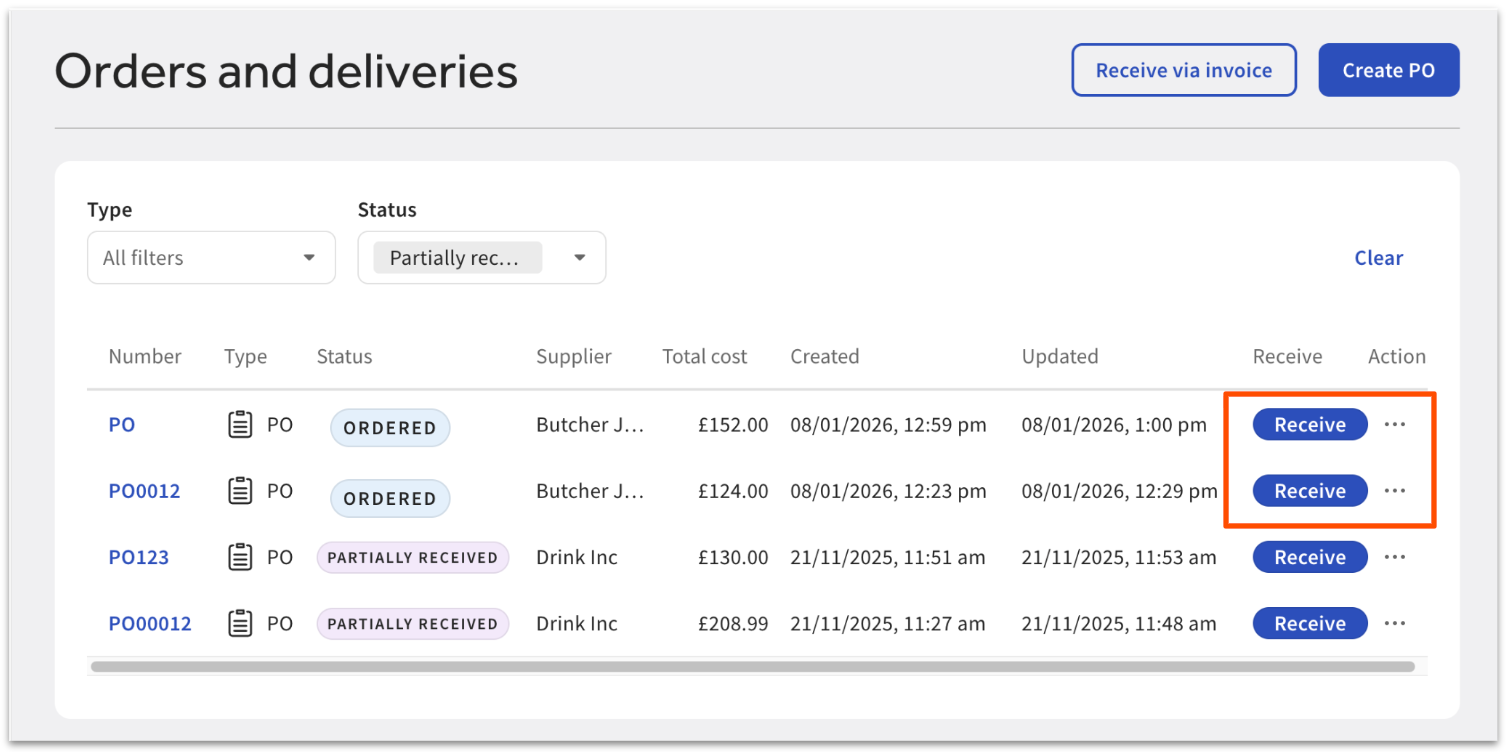
Navigate to the Orders and deliveries page in Toast Web. Any ordered or partially received PO will have a Receive button on the PO table.
When you receive against a PO, if you make changes to any quantity (for example, if you ended up ordering a lower quantity of a certain item), the total amount on the PO will be updated to match what you actually received. Any other item-level changes you make to cost or price on a PO will be saved to that item for reporting purposes (like your COGS: cost of goods sold).
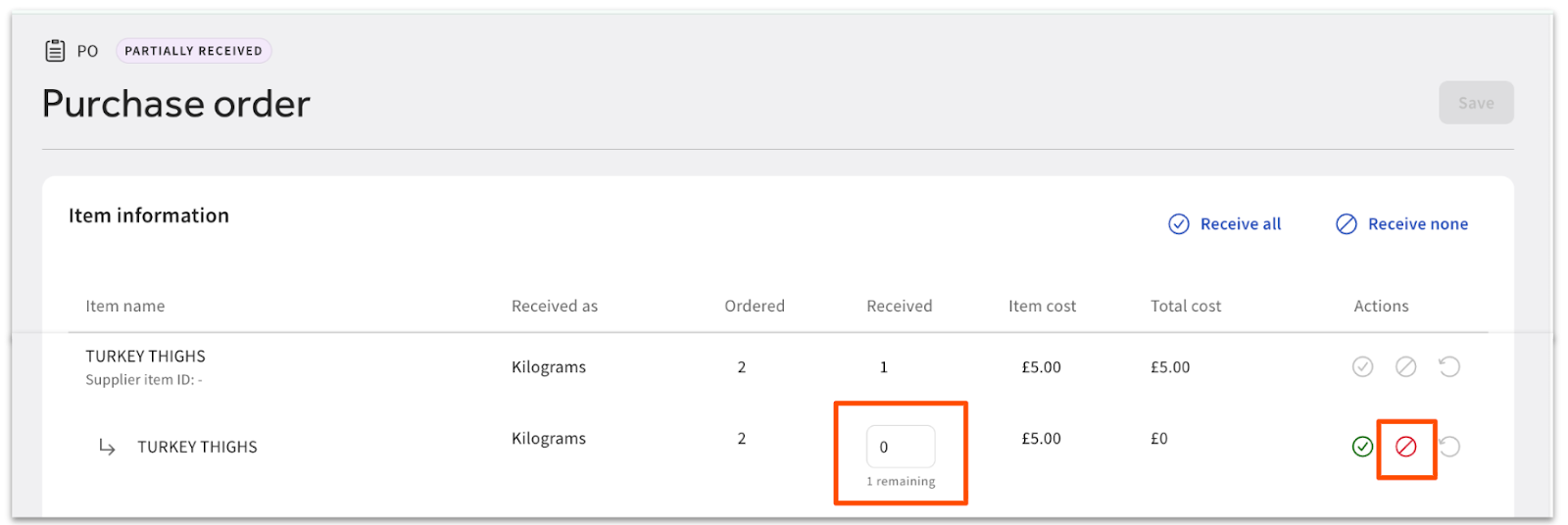
If something has changed and you will not be receiving a quantity of an item, you can use the receiving workflow from the Orders and deliveries page and select Won’t be received from the Actions options for that line on the PO.
If you are expecting to receive the outstanding later, for example, they are expected to arrive on a different date, you can record the currently received amount, and the system will keep the PO/Invoice open for the remaining quantity until such time as it is received.
Use Invoices to Receive Inventory in Toast Inventory
If your business doesn’t need to create or manage POs in Toast Inventory, you can also receive inventory via invoice by selecting the Receive via invoice button at the top of the Orders and deliveries page, next to the Create PO button.
On the invoice page, you can select a supplier, enter a PO or invoice number and invoice notes, and add the items that you are receiving.
Stock Level Updates in Toast Inventory
Receiving stock, either via a PO or invoice, automatically updates inventory levels. If items were on the Reorder Suggestions list due to low or zero stock, those quantities will be adjusted based on what you’ve received. For more information, see the article Get Started with Toast Inventory (Australia, Canada, Ireland and UK).
Additional Resources
- Get Started with Toast Inventory (Australia, Canada, Ireland and UK)
- Get Started With Recipes (Australia, Canada, Ireland and UK)
- Toast Inventory: Stock Depletion (Australia, Canada, Ireland and UK)