Toast Payroll: Get Help With ACA Filing
Last updated: Oct 9, 2026, 3:46 PM
The deadline to distribute 1095-C forms to employees under the Affordable Care Act (ACA) is March 2, 2026. Learn more about how to prepare for filing.
| This article only applies to customers who are using Toast Payroll's Classic Benefits module. This does not apply to SimplyInsured customers through Toast Payroll Pro or customers who use the deductions-only method. |
- ACA Filing Timeline
- ACA Pre-Work
- Step 1: Complete the ACA Checklist Questionnaire
- Step 2: Review Toast Payroll ACA Checklist Items
- Step 3: Complete the ACA Audit
ACA Filing Timeline
- Ongoing/Monthly: ACA Reporting
- Log into Toast Payroll and navigate to Benefits > View and manage health benefits > ACA Reporting.
- If you do not see Benefits on the left side of the screen, select Payroll from the Toast Web navigation rail on the left to make the Toast Payroll navigation rail appear.
- Employers can use the ACA Reporting tools in Toast Payroll to better assess ACA eligibility for employees based on the hours an employee worked and whether coverage is offered. Even if you have not been tracking ongoing or monthly eligibility, Toast Payroll may still file 1095-C forms on your behalf.
- Log into Toast Payroll and navigate to Benefits > View and manage health benefits > ACA Reporting.
- January 9, 2026: Recommended completion date for Toast's ACA Filing Checklist Questionnaire.
- January 27, 2026: Deadline to submit all Toast Payroll ACA Checklist filing items in the Classic Benefits module.
- Navigate to Benefits > View and manage health benefits > Apply for ACA filing for a helpful list of information Toast Payroll will need to submit your documents. If you do not see Benefits on the left side of the screen, select Payroll from the Toast Web navigation rail on the left to make the Toast Payroll navigation rail appear.
- NEW! February 6, 2026: Deadline to request that Toast Payroll print and ship Form 1095-Cs. Due to the Paperwork Burden Reduction Act, Toast will no longer automatically ship these forms unless they are requested.
- To request printing and shipping, contact us at benefitsops@toasttab.com.
- March 2, 2026: IRS deadline to distribute ACA forms (1095-C) to employees.
- Employers must to distribute paper forms to employees who did not opt into electronic forms. Electronic forms will be available in the system prior to this deadline.
- March 31, 2026: IRS electronic ACA form deadline.
- Following your review, Toast Payroll will transmit any applicable forms to the IRS on your behalf.
ACA Pre-Work
Before filing your ACA documents in the Classic Benefits module, it is essential to complete the Toast Payroll Employee Coverage Data Import. There are two ways to complete the Employee Coverage Data Import:
- If you have fully utilized the Toast Payroll Classic Benefits Module for the entire year, you can complete the ACA Specification Form. Once completed, the system will then auto-generate the Employee Coverage Data Import.
- If you have a self-insured medical plan, additional steps may be necessary to complete the ACA Specification Form. See below for more information.
- If you have not fully utilized the Toast Payroll Classic Benefits Module for the entire year, you can still manually complete the Employee Coverage Data Import.
- If you had medical deductions set up for 2025, but not medical benefits, you will still need to manually complete the Employee Coverage Data Import.
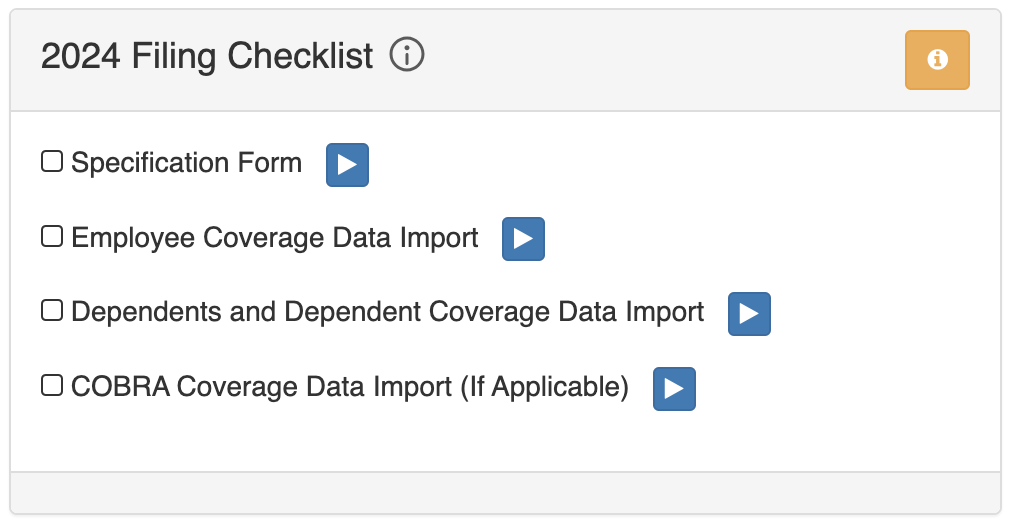
To ensure a smooth filing process, each step below should be completed according to the ACA Filing Timeline. Due dates are listed in red on the filing checklist on the ACA Dashboard. To access the dashboard, log into Toast Payroll and navigate to Benefits > View and manage health benefits > Apply for ACA filing. (If you do not see Benefits on the left side of the screen, select Payroll from the Toast Web navigation rail on the left to make the Toast Payroll navigation rail appear.)
- Complete ACA Checklist Questionnaire
- Review Toast Payroll ACA Checklist Items
- Complete the ACA Audit
Step 1: Complete the ACA Checklist Questionnaire
Log into payroll.toasttab.com and navigate to Benefits > View and manage health benefits > Apply for ACA filing. (If you do not see Benefits on the left side of the screen, select Payroll from the Toast Web navigation rail on the left to make the Toast Payroll navigation rail appear.) From the ACA Dashboard here, you can find the Filing Checklist Questionnaire displayed on the left panel.
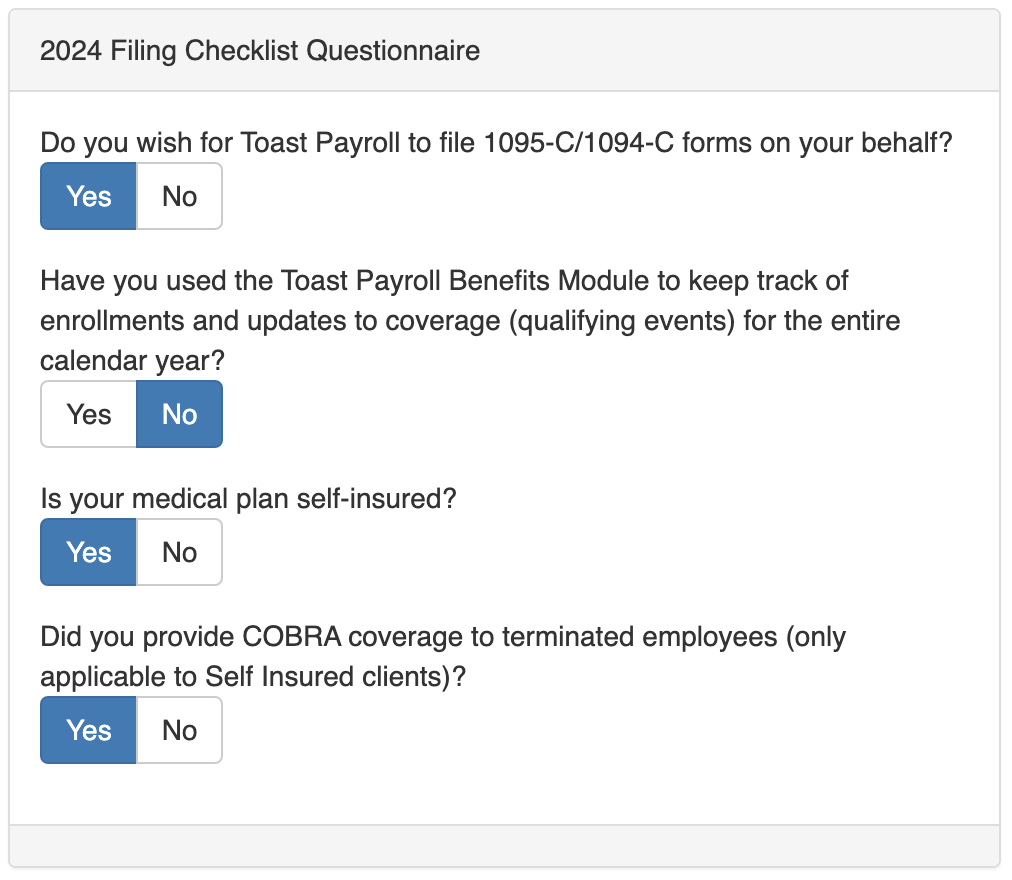
Consider the following as you fill out this questionnaire:
- Is your medical plan self-insured? Self-insured medical plans have special filing requirements. Please refer to your benefits broker/carrier or a licensed professional if you have questions about your specific filing requirements.
- Have you used the Toast Payroll Classic Benefits module to assist with tracking employee eligibility for the year? Toast Payroll may need additional information from you if you have not utilized the Toast Payroll Classic Benefits module for the entire 2025 year.
- Is the dependent data listed in Toast Payroll up-to-date? Dependent data can be an important factor for ACA filing under self-insured plans. If any updates to dependent data do not appear, additional information may be necessary.
After completing the questionnaire, an updated filing checklist with corresponding dates will be visible on the right panel of the page. Your Filing Checklist items automatically generate based on your responses in the ACA Checklist Questionnaire.
Step 2: Review Toast Payroll ACA Checklist Items
Specification Form
This form is only available if you are using the Toast Payroll Classic Benefits Module. Watch this short video or follow the steps below:
To access the Specification Form:
- Log into Toast Payroll and navigate to Benefits > View and manage health benefits > Apply for ACA filing.
- If you do not see Benefits on the left side of the screen, select Payroll from the Toast Web navigation rail on the left to make the Toast Payroll navigation rail appear.
- From the Filing Checklist, select the blue start button for Specification Form.
- Begin by indicating if Toast Payroll should not file for any employees who were offered medical coverage or where ACA filing is not required. The system will provide a default answer of No.
- Select Next to proceed to the next step.
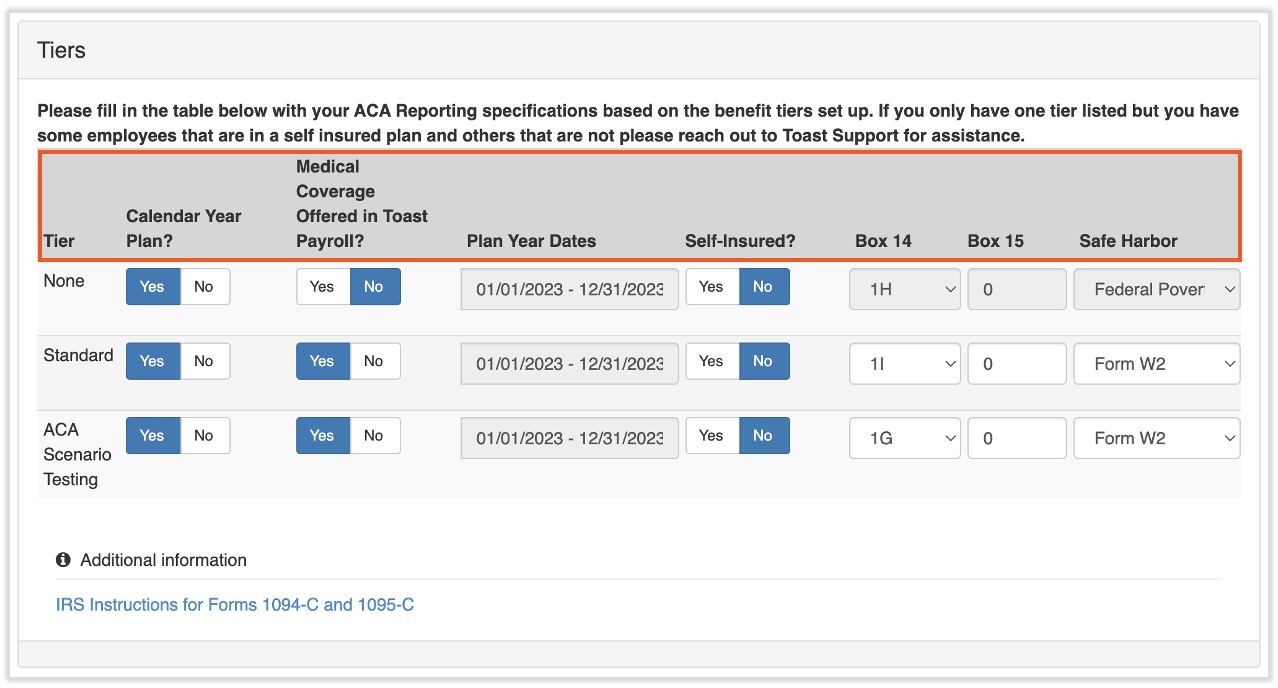
- On the following page, you will be asked to complete filing information specific to each Benefit Tier. The system will then prompt you with questions to enter the filing information for each Benefit Tier. Step 4 will ask you to provide the following information:
- Calendar Year Plan - A calendar year plan begins on January 1st and ends on December 31st. Select Yes or No for each Benefit Tier. Not all medical plans run on a calendar year plan. If your medical plan renewal was mid-year, please select No. You will then be asked to fill in the beginning and end plan year dates for each applicable benefit tier. For example, if your medical plan renews on September 1, 2026, you would input "01/01/2026 - 08/31/2026" in the first Plan Year Dates box, and you would then input "09/01/2026 - 12/31/2026" in the second Plan Year Dates box.
- Medical Coverage Offer - Indicate whether a specific benefit tier was offered medical coverage through the Toast Payroll Classic Benefits module.
- Self-Insured - Indicate if the applicable benefit tier was offered a self-insured medical plan.
- If you are self-insured and your benefit tier displays either N/A or None for the tier listed, you can mark the tier as Self-insured before selecting Finish.
- If you only have one tier listed, but some of your employees were self-insured, please email the Benefits & Business Services Team at benefitsops@toasttab.com so a new tier can be added for you.
- Box 14, Box 15, and Safe Harbor (Box 16) - Although box 14, 15, and Safe Harbor will auto-populate, you must still review each field. For assistance completing these fields, click here for instructions.
- Select Finish to complete the process.
ACA Filing Imports (If Applicable)
Once you complete the ACA Checklist Questionnaire and Specification Form steps, the system may auto-generate additional tasks for you to complete. These tasks may include:
- Employee Coverage Data Import;
- Dependents and Dependent Coverage Data Import; or the
- COBRA Coverage Data Import.
These imports inform the Toast system how to import your data into your ACA forms. If prompted to complete these imports, here are the steps to follow:
Employee Coverage Data Import
This import is necessary if you did not use the Toast Payroll Classic Benefits module for the entire year.
If you have used the Toast Payroll Classic Benefits module for a portion of the year, or if you began fully utilizing the module in the middle of the year, you will only need to complete the Employee Coverage Data Import for the months that you did not use the module. For example, if you started using the module in April, the report will automatically populate data from April through December. You would then manually enter any additional information for January through March.
Note: If you notice a discrepancy after importing the Employee Coverage Data Import, you have the option to fix the data and complete the import for a single employee. To upload a file for a single employee, upload a file with a single row for the appropriate employee, making sure to list the employee number in Column A (Match Value).
To complete the Employee Coverage Data Import, watch this short video or follow the steps listed below:
- Log into payroll.toasttab.com and navigate to Benefits > View and manage health benefits > Apply for ACA filing.
- If you do not see Benefits on the left side of the screen, select Payroll from the Toast Web navigation rail on the left to make the Toast Payroll navigation rail appear.
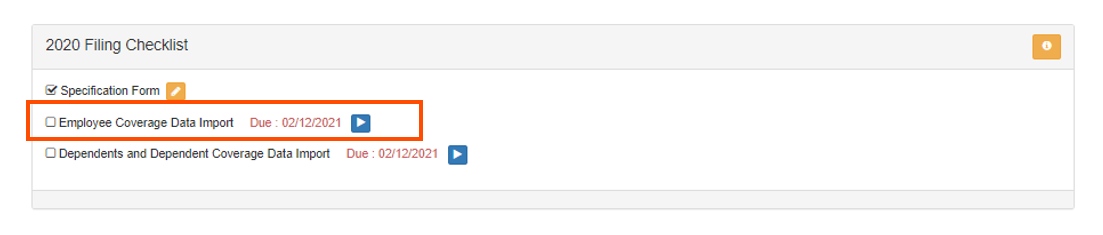
- From the Filing Checklist, select the blue start button for Employee Coverage Data Import. Select Download to export the employee coverage data into a pre-populated spreadsheet.
- The export will generate eligible employees based on the specifications you have put in place. However, it may also include terminated employees who did not work in the filing year, so be sure to filter those out. If employees are missing from the exported spreadsheet, you can hire them into Toast Payroll. Once added to Toast Payroll, a new exported spreadsheet will include the updated employee information.
- The export will generate eligible employees based on the specifications you have put in place. However, it may also include terminated employees who did not work in the filing year, so be sure to filter those out. If employees are missing from the exported spreadsheet, you can hire them into Toast Payroll. Once added to Toast Payroll, a new exported spreadsheet will include the updated employee information.
- The export will list a column for Boxes 14, 15, and 16 for every month of the year, for each employee. This article explains the purpose of each box and the coding options for each section. Use this as a guide for determining the appropriate codes for each employee.
- The export will auto populate based on existing Toast data. If you did not use the Toast Payroll Classic Benefits module, this data must be audited and adjusted to accurately reflect your company's filing data.
- Next, review the file format to ensure the column order is in the original order and no headers have been changed. Be sure to save this file as a .csv before uploading. Upload the file into Toast Payroll by selecting Choose File.
- Uploading the file into Toast Payroll may take several minutes, depending on the file contents. Please do not refresh your screen as the file is uploaded.
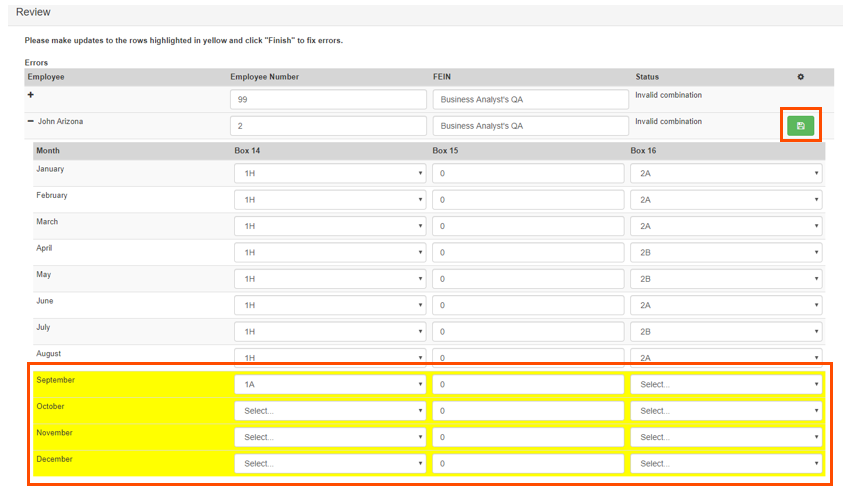
- When the file has been uploaded, you will then see an option to Review the Imported Records for Errors.
- A file with invalid or missing information can result in an error. This error will be flagged for your attention and will prevent the file from being imported until it is corrected. Correct an error in the file by selecting the "+" symbol and updating the information in rows that are highlighted. You will then be able to select the Save option at the top of the file.
- If the file contains a significant amount of errors, another option is to fix the imported file that was saved on your computer and upload the corrected copy.
- Once the file has been loaded, select Finish at the bottom of the page to complete the import.
Dependents and Dependent Coverage Data Import
This import may only be necessary if the Toast Payroll Classic Benefits module was not utilized for the entire ACA year and there was a self-insured medical plan. If one or more of your medical plans are self-insured, ACA regulations may require information regarding dependents. This information can be included by completing the Dependent Coverage Data Import, which can be found on the ACA Checklist.
Similar to the Employee Data Coverage Import, the Dependent Coverage Data Import file will also automatically populate with dependent information and coverage details based on the data listed in Toast Payroll. If a dependent's information or coverage details are missing from the file, the information must be manually added to the file before importing the file into Toast Payroll.
Note: Column A (Export ID) should contain a value of "0" in a dependent's row.
To include all dependents for the calendar year in the file, watch this short video or follow the steps below:
- Log into Toast Payroll and navigate to Benefits > View and manage health benefits > Apply for ACA filing.
- If you do not see Benefits on the left side of the screen, select Payroll from the Toast Web navigation rail on the left to make the Toast Payroll navigation rail appear.
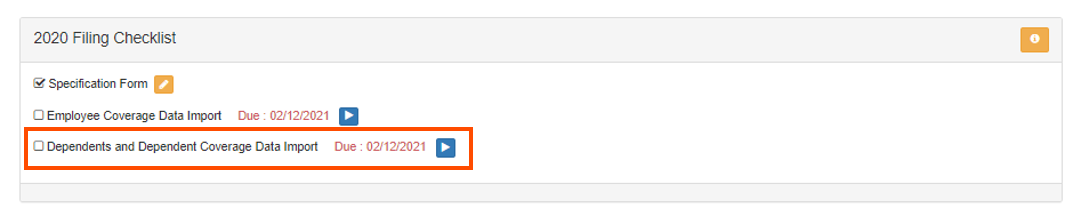
- From the Filing Checklist, select the blue start button for Dependents and Dependent Coverage Data Import. Select Download to export the dependent coverage data listed in Toast Payroll into an automatically populated spreadsheet.
Columns will be listed for January through December. For each column, please enter either "0" or "1" to reflect if the dependent had coverage during the corresponding month. In the context of these columns, the number 0 will indicate that a dependent is not covered by a medical plan. The number 1 will indicate that a medical plan covered a dependent.
To add a dependent who is not currently listed in Toast Payroll, please complete the following fields for the dependent:
- Export ID: The Export ID 0 indicates a new record.
- Employee Number: The Employee Number should match what is currently listed in Toast Payroll.
- FEIN: The FEIN should match what is currently listed in Toast Payroll.
- Employee First Name: The employee's first name should match what is currently listed in Toast Payroll.
- Employee Last Name: The employee's last name should match what is currently listed in Toast Payroll.
- First Name: This field refers to a dependent's first name that is currently listed for the employee in Toast Payroll.
- Last Name: This field refers to a dependent's last name that is currently listed for the employee in Toast Payroll.
- SSN: This field refers to a dependent's social security number that is currently listed for the employee in Toast Payroll.
- Birth Date: This field refers to a dependent's date of birth that is currently listed for the employee in Toast Payroll.
- Gender: This field refers to a dependent's last name that is currently listed for the employee in Toast Payroll. Valid entries are Male, Female, or Does Not Wish to Identify.
- Dependent Type: This field refers to a dependent's relationship with the employee. Valid entries are Child, Spouse, and Domestic Partner.
- Is Student: This field asks whether the dependent is currently a student. Valid entries are Yes or No.
- Disabled: This field asks whether the dependent is currently disabled. Valid entries are Yes or No.
- Use Employee Address: This field asks whether the dependent should share the same address as the employee. Valid entries are Yes or No.
- If Yes is selected, the address fields listed below can be left blank and the address for the dependent will automatically populate with the employee's address.
- If No is selected, the address fields listed below must be entered.
- Address 1
- Address 2 (optional field)
- City
- State
- Zipcode
- Next, review the file format to ensure the column order is in the original order. You will then be able to select Save to save the file on your computer. Upload the file into Toast Payroll by selecting Choose File. Uploading the file into Toast Payroll may take several minutes, depending on the file contents. Please do not refresh your screen as the file is uploaded.
- When the file has been uploaded, you will then see an option to Review the Imported Records for Errors. A file with invalid or missing information can result in an error. This error will be flagged for your attention and will prevent the file from being imported until it is corrected.
- You can correct an error in the file by selecting the "+" symbol and updating the information in rows that are highlighted. You will then be able to select the Save option at the top of the file.
- If the file contains a significant amount of errors, another option is to fix the imported file that was saved on your computer and upload the corrected copy.
- Once the file has been loaded, select Finish at the bottom of the page to complete the import.
COBRA Coverage Data Import
This import may only be necessary for Classic Benefits module users if terminated employees listed in Toast Payroll were covered by a self-insured medical plan after termination. See details from the IRS website.
Employers with self-insured medical plans may be required to report COBRA coverage. If one or more of your medical plans are self-insured, COBRA regulations may require additional information. This information can be included by completing the COBRA Coverage Data Import, which can be found on the ACA Filing Checklist.
Note: This import file will contain records for employees that did not work for the entire calendar year. Please review the employees and determine if any employees were enrolled in COBRA coverage for at least one month prior to importing the report into Toast Payroll. Any former employees who you determine did not elect COBRA coverage can be removed from the file.
To include COBRA coverage data for the calendar year in the file, watch this short video or follow the steps below:
- Log into Toast Payroll and navigate to Benefits > View and manage health benefits > Apply for ACA filing.
- If you do not see Benefits on the left side of the screen, select Payroll from the Toast Web navigation rail on the left to make the Toast Payroll navigation rail appear.
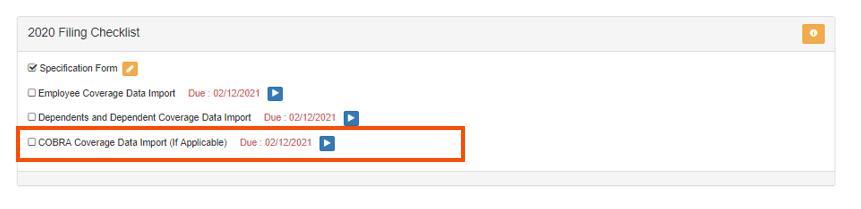
- From the Filing Checklist, select the blue start button for COBRA Coverage Data Import (If Applicable).
- Select Download to export the COBRA coverage data listed in Toast Payroll into an automatically populated spreadsheet.
Columns will be listed for January through December. For each column, please enter either "0" or "1" to reflect if the employee had COBRA coverage during the corresponding month. In the context of these columns, the number 0 will indicate that an employee was not covered by a medical plan. The number 1 will indicate that the employee was covered by a medical plan.
Note: The export will generate employees based on the specifications you have put in place. If terminated employees are missing from the exported spreadsheet, you can hire them into Toast Payroll. Once added to Toast Payroll, an HR plus user has the option to terminate the employee's employment record in Status Changes. A new exported spreadsheet will then reflect the former employee's information.
- Next, review the file format to ensure the column order is in the original order and headers have not been changed. Be sure to save this file as a .csv before importing. You will then be able to select Save to save the file on your computer. Upload the file into Toast Payroll by selecting Choose File. Uploading the file into Toast Payroll may take several minutes, depending on the file contents. Please do not refresh your screen as the file is uploaded.
- When the file has been uploaded, you will then see an option to Review the Imported Records for Errors. A file with invalid or missing information can result in an error. This error will be flagged for your attention and will prevent the file from being imported until it is corrected.
- You can correct an error in the file by selecting the "+" symbol and updating the information in rows that are highlighted. You will then be able to select the Save option at the top of the file.
- If the file contains a significant amount of errors, another option is to fix the imported file that was saved on your computer and upload the corrected copy.
- Once the file has been loaded, select Finish at the bottom of the page to complete the import.
Step 3: Complete the ACA Audit
Before submitting your ACA Filing Data, it is recommended that you audit your filing data. Follow these steps to review your filing data. Any HR+ user can access the ACA Dashboard by logging into payroll.toasttab.com and navigating to Benefits > View and manage health benefits > Apply for ACA filing. (If you do not see Benefits on the left side of the screen, select Payroll from the Toast Web navigation rail on the left to make the Toast Payroll navigation rail appear.)
- Select the Reporting tab and scroll down to the ACA Filings section.
- Select one or all FEINs.
- Select the year.
- Select Review Filing Data. This will generate a CSV file with the 1095-C data for all employees eligible for a 1095-C form. This report may take a few minutes to load.
Inside the report, you will find 1095-C Box 14, 15 and 16 values for each month of the calendar year (e.g. Box 14-1 = Box 14 value for January). Employees may be issued multiple 1095-C forms if they worked full-time equivalent hours or were offered coverage in multiple FEINs. This report will also include key indicators such as hire dates and termination dates.
Listed below are some notable items to review in filling data, and update if necessary before Toast Payroll's deadline. Please note that if you anticipate making a large number of changes to your data, we recommend first reviewing the Making Edits section below before making any changes on the Filing Data report.
- Invalid Combination
- If an invalid combination error appears, there may be an invalid Box 14 and Box 16 code combination in the file.
- Missing or Blank Information
- If information is missing from the file, an asterisk may appear in the applicable fields that are missing information. Information may be missing because the data was not automatically generated from or imported to Toast Payroll.
- Multiple FEINs per Employee
- If you have employees who worked under more than one FEIN, the Toast Payroll system will generate a 1095-C for each FEIN in which the employee worked. The IRS Instructions state that for each full-time employee of an ALE member, there must be only one form 1095-C filled for employment with that ALE member. When auditing your data, you can consolidate records for any employees listed multiple times (for multiple FEINs) by choosing one FEIN to file under, and then noting that the employee wasn't eligible for coverage under the other FEINs. To note that the employee wasn't eligible for coverage under the other FEINs, you will need to update the codes listed for those records.
Make Edits
If you have a few edits to make, the simplest way to do this is by manually updating the affected employee's ACA Filing Data in their respective employee profile. To make updates to employee coding:
- Navigate to the employee's ACA Filing Data under the employee's profile > Benefits tab.
- Learn how the new Toast Payroll navigation works by visiting Navigate Toast Payroll Within Toast Web.
- Select Edit and make changes on the page.
If you have a larger number of edits, you can make the changes through an import file. To do this, we recommend the following steps:
- Log into Toast Payroll and navigate to Benefits > View and manage health benefits > Apply for ACA filing.
- If you do not see Benefits on the left side of the screen, select Payroll from the Toast Web navigation rail on the left to make the Toast Payroll navigation rail appear.
- On the ACA Dashboard, go to the Filing Checklist Questionnaire.
- If you haven't done so already, select No for question 2 which asks if you have used the Toast Payroll Classic Benefits module to track enrollments. Even if you did use the module, toggle this to No so that you can access the import file.
- To the right of the questionnaire, select the Edit pencil next to the Employee Coverage Data Import.
- Select Download to access a file with your 1095-C data.
- Make all necessary edits to the file.
- Return to the ACA Dashboard to import the data back into the system.
Check out this quick demo on how to download and import the file:
This content is for informational purposes and is not intended as legal, tax, HR or any other professional advice. Please contact an attorney or other professional for advice.