Toast Payroll: Get Started With the Classic Benefits Module
Last updated: Oct 13, 2026, 5:17 PM
| This article only applies to customers who are using Toast Payroll's Classic Benefits module (legacy customers only). This does not apply to SimplyInsured customers through Toast Payroll Pro or customers who use the deductions-only method. |
- Benefit Tiers
- Offer Benefits to New Hires
- Offer Benefits to Newly Eligible Employees
- Employees Moving to a Different FEIN
- Classic Benefits Module FAQ
- Additional Resources
Benefit Tiers
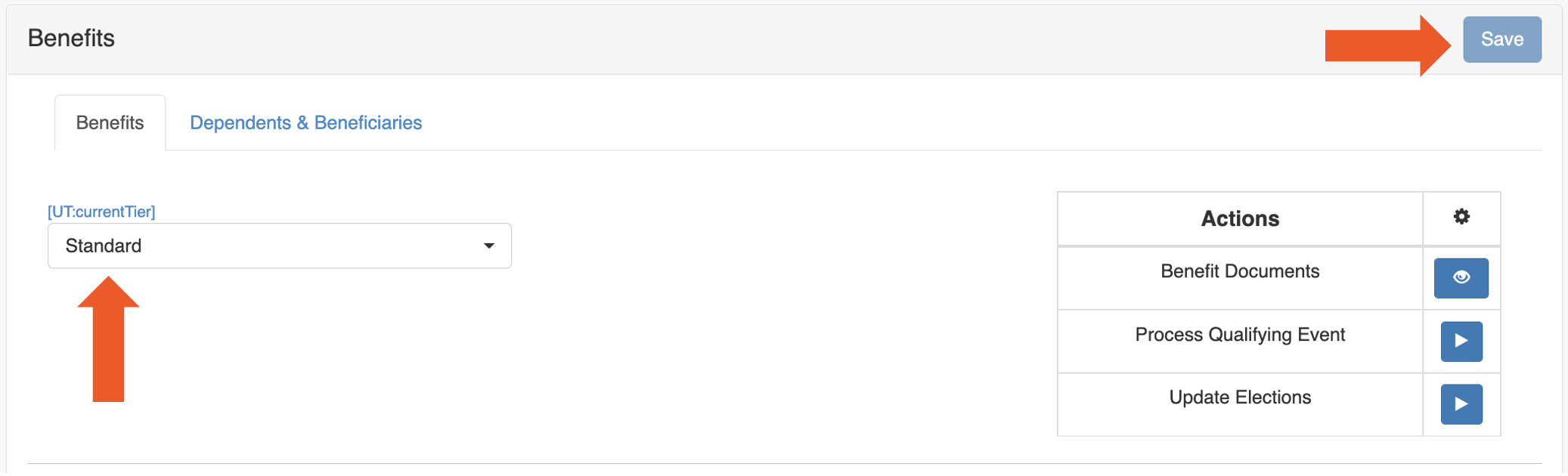
- An employee's benefit offering is determined by the Benefit Tier assigned to their profile. See the screenshot below to locate an employee's benefit tier.
- You may have different benefit tiers set up in Toast Payroll if your benefit offerings differentiate between groups of employees. Common reasons would be differing employer contributions, waiting periods, or benefit plans offered to certain groups. These groups may be labeled based on full-time status, location, or tenure.
- If an employee is in a non-eligible benefit tier (typically labeled None or Non-Eligible), they will not have access to enroll in benefits. If you are using the Toast Payroll ACA module, these non-eligible benefit tiers are often indicators that the employee's hours are being measured through the ACA Dashboard.
Offering Benefits to New Hires via the Classic Benefits Module
- During the new hire process, employees should be assigned to their appropriate benefit tier upon their date of hire.
- Any employees who are eligible for benefits upon hire will automatically have a benefit effective date based on your benefit plan waiting rules. You may review your benefit plan waiting rules on the Benefits Plans tab of the Classic Benefits module dashboard. For example, a waiting period may be 60 days plus the first of the month from an employee's date of hire.
- Any employees who are not immediately eligible for benefits should be left in a non-eligible benefit tier while their eligibility status is measured.
Offering Benefits to Newly Eligible Employees via the Classic Benefits Module
- If you are using the Toast Payroll ACA module to track employee hours and measure eligibility throughout the year, you may offer newly-eligible employee benefits directly through the ACA Dashboard. Take a look at a step-by-step guide of our ACA Reports here.
- If you are not using the Toast Payroll ACA module to track employee hours and measure eligibility, you will want to update an employee's benefit tier on their profile:
-
- Navigate to the employee's Toast Payroll profile and select the Benefits page. Use the drop-down menu under the Benefits tab to view or update their Benefits Tier.
- Learn how the new Toast Payroll navigation works by visiting Navigate Toast Payroll Within Toast Web.
- Learn how the new Toast Payroll navigation works by visiting Navigate Toast Payroll Within Toast Web.
- After selecting Save, you will see the employee populate as eligible on the Pending Enrollments tab of the Benefits Dashboard.
- Next, notify your newly eligible employee of the pending enrollment and instruct them to process a qualifying life event.
- Once the qualifying life event has been processed, you will need to notify your carrier of the employee's newly elected benefits.
- Navigate to the employee's Toast Payroll profile and select the Benefits page. Use the drop-down menu under the Benefits tab to view or update their Benefits Tier.
Employees Moving to a Different FEIN
While using the Classic Benefits module, any time an employee moves to a new FEIN, they will need to either re-enroll in benefits or you may update elections on their behalf so that deductions pull through to payroll under the new FEIN.
Classic Benefits Module FAQ
Is there a report that can show when employees are eligible for benefits through the Classic Benefits module?
Toast recommends using the Per Pay Period Employee Payroll Audit Report. This can be found by navigating to Reports > Standard and searching for this report. Toast cannot further advise on how to view employees eligible for benefits. (When you select Reports in Toast Payroll, you should see a URL that begins with payroll.toasttab.com. Visit Navigate Toast Payroll Within Toast Web to learn how the new Toast Payroll navigation works.)
Theres also the ACA Work Month report. Select Reports and its the very first report shown here.
How do I record the total cost of benefit premiums on Form W-2s?
The Affordable Care Act (ACA) requires that employers who issued more than 250 Form W-2s in the previous year (per FEIN) report the total cost of benefit premiums in Box 12 of the Form W-2 under code DD. If this applies to you, let us know which deductions to include on the Form W-2 by selecting the blue chat dot in the lower-right corner of any Toast Payroll page. The IRS has some helpful tips for more information on which deductions to include.
-
-
- If you have used Toast Payroll's Benefits package for the entire year, both the employee and employer portion of benefit premiums should automatically be captured and no further action is needed for recording.
- If you do not use our Benefits package and have not been recording the employer portion of the benefit premiums, you can import this information on a payroll. Please reach out to us for assistance on how to import onto a payroll. Select the blue chat button in the lower-right corner of any Toast Payroll page.
-
How do I file my ACA reporting and end-of-year?
Toast Payroll Pro customers who do not use SimplyInsured can continue to file their Form 1095-C/1094-C documentation through the existing manual process.
Additional Resources
- Toast Payroll: Get Help With the Classic Benefits Module
- Toast Payroll: Benefit Plans
- Toast Payroll: Plan Your Open Enrollment Period
- Toast Payroll: Review Pending Enrollments
- Toast Payroll: Update Elections and Qualifying Events
- Toast Payroll: Utilize ACA Reporting
- Toast Payroll: Get Help With ACA Filing
This content is for informational purposes and is not intended as legal, tax, HR, or any other professional advice. Please contact an attorney or other professional for advice.