Toast Payroll: Document Courier
Last updated: Jul 14, 2026, 1:50 PM
The Document Courier lets you send files to staff and view files sent to you by Toast or your staff.
Locate the Document Courier
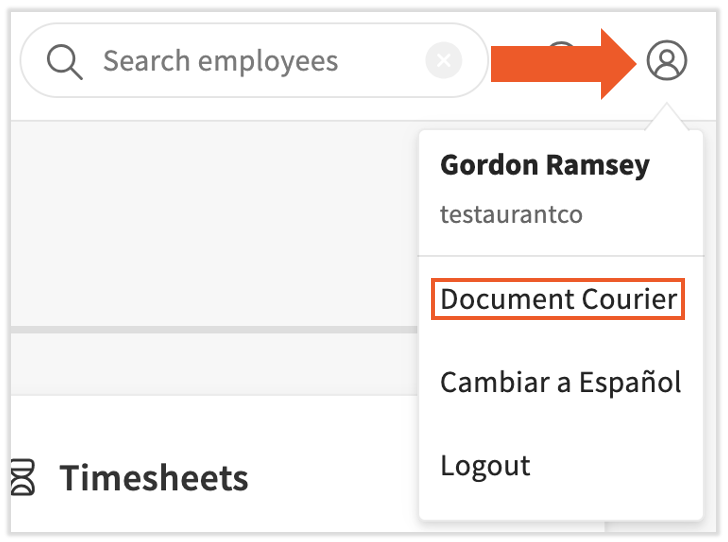
Once logged into Toast Payroll, select the avatar icon in the upper-right corner and choose Document Courier.
The page has two tabs at the top. The Document Courier tab allows you to send files and documents to other members of your staff. You'll also see any files your staff have sent to you. The My Reports tab contains each payroll report you have run recently.
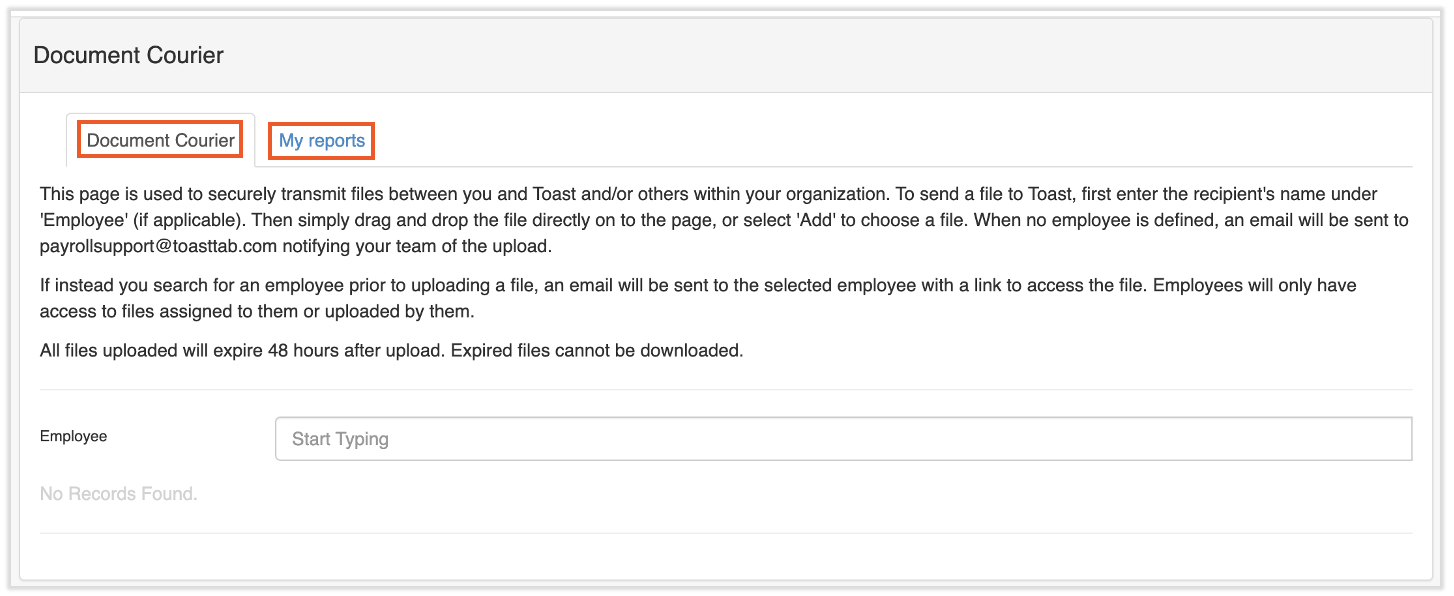
Document Courier Tab
All security roles have access to the Document Courier. Employees can send files to their manager, or anyone they have access to in the system. If no employee is selected to receive the file, Toast Payroll is notified about the upload, and only our internal team will have access to open the file.
Note: All files uploaded to the Document Courier will expire 48 hours after their initial upload. For this reason, we do not suggest uploading files for Toast representatives to access. Rather, start a chat with Toast Payroll by selecting the blue chat dot in the lower-right corner of any page. Then select the paperclip icon to upload your file for a Toast representative.
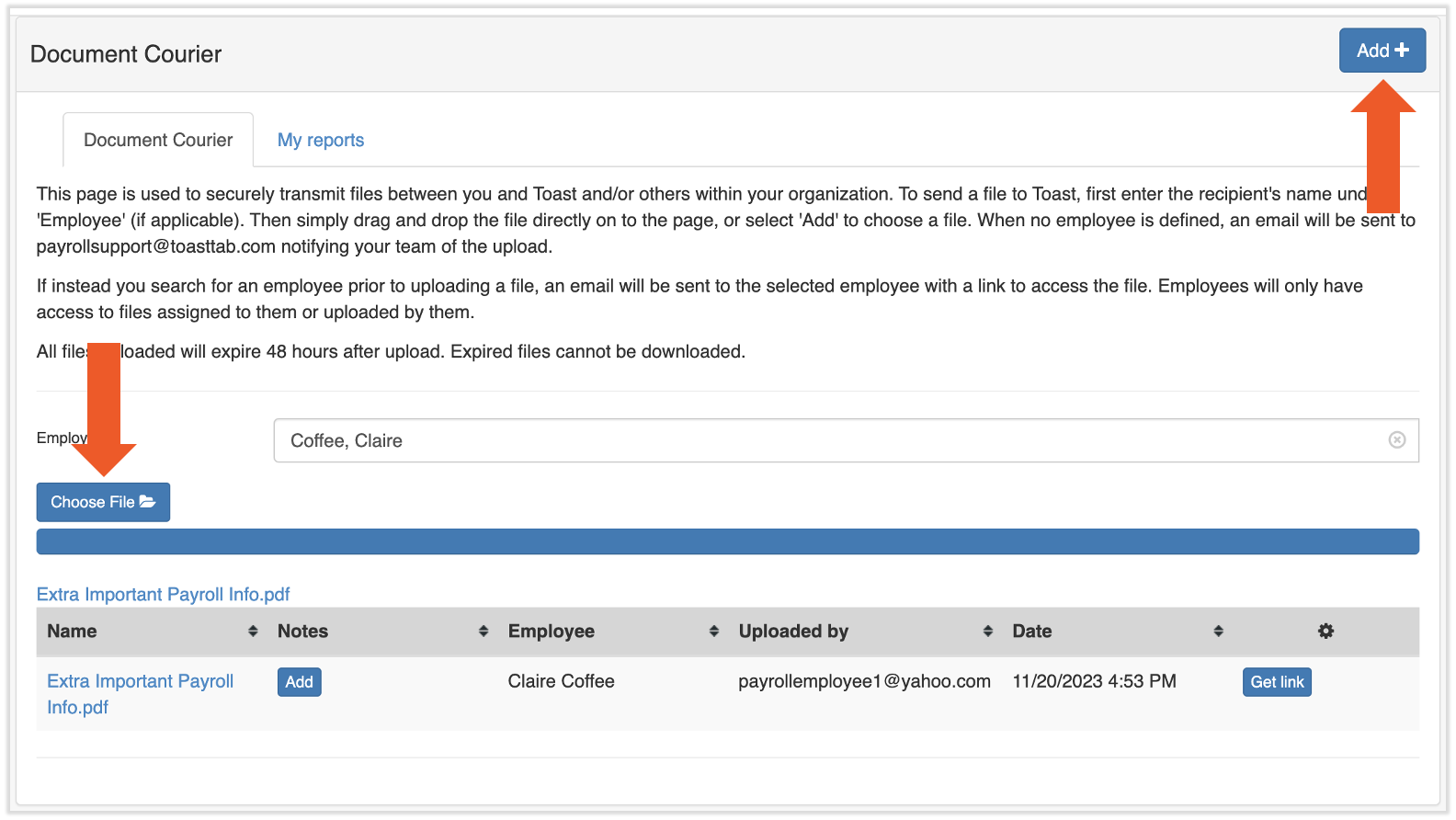
- To send a file, type an employee's name into the Employee field. Toast Payroll will attempt to autofill this field for you.
- Next, select the new Add+ button in the upper-right corner. This button is only available to HR+ users.
- You will now see the Choose File button towards the lower-left corner of this module. Select this button to open your explorer and choose a file to send. After these three steps, your screen should look similar to this:
- At this point, the file has been successfully uploaded. Optionally, you may select the Add button in the Notes column to attach notes to the file.
- The employee you specified is sent an email notification indicating they have a document in their Document Courier. They can view it by selecting the link in the email.
Note: HR+ users will be able to see the Document Courier history for the entire company.
Document Courier: My Reports Tab
After certain data-heavy reports are queued up through the Report Library, you will be redirected to the My Reports tab of this page. This page automatically refreshes every 30 seconds, but you can also use Refresh button.
Reports here can appear in one of three statuses: Queued, Processing, and Download.
- Queued reports are in line waiting to be run. This commonly occurs when the system is experiencing high volume, but reports rarely last over one minute in this state.
- Processing reports are currently gathering all data and assimilating it into your report. Your report will be ready in the next several seconds.
- Download indicates that a report is complete. Select this link to download and view your report.
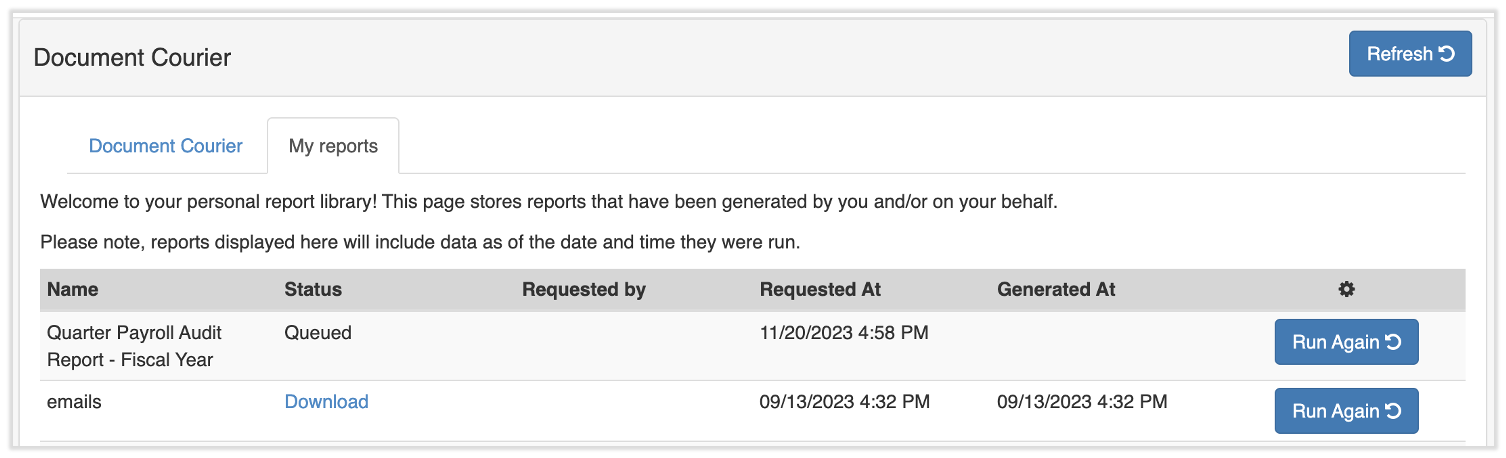
You may also rerun your reports by selecting the Run Again button. Keep in mind that using this feature will run the report with the same data parameters you had originally specified.
This content is for informational purposes and is not intended as legal, tax, HR, or any other professional advice. Please contact an attorney or other professional for advice.