Toast Payroll: Make a Pay Change
Last updated: May 15, 2026, 5:20 PM
Update an employee's pay rate in Toast Payroll, including retroactive changes, bulk pay changes, and secondary job rates.
- Before You Begin
- Give One Employee a Raise or Pay Change
- Give Multiple Employees a Raise (Bulk Pay Change)
- Update Secondary Rates via Spreadsheet Upload
- Update Timesheet Rates After a Pay Change
- Frequently Asked Questions
- Related Articles
Before You Begin
Applies to: Toast Payroll
Permissions needed:
- HR+ Security Role, or Manager Security Role (for direct reports only)
What you'll accomplish: Update an employee's pay rate so the new amount applies to the correct payroll cycle and timesheets.
Important: Pay changes must be saved before you select Preview to open a payroll. If the payroll is already open, you must reset the payroll before the new rate will appear.
Give One Employee a Raise or Pay Change
Discover how to make a pay change using the Pay Change Drawer.
- In Toast Payroll, navigate to the employee's overview page and select Change pay. The Pay Change Drawer opens on the right side of your screen. The first field is pre-populated with the employee's current salary or hourly rate.
- Enter the new rate in the first field.
Note: If a future pay change is already scheduled, you cannot save a new one until the previous change is applied or deleted. Select the trashcan icon to delete the pending future pay change before proceeding.
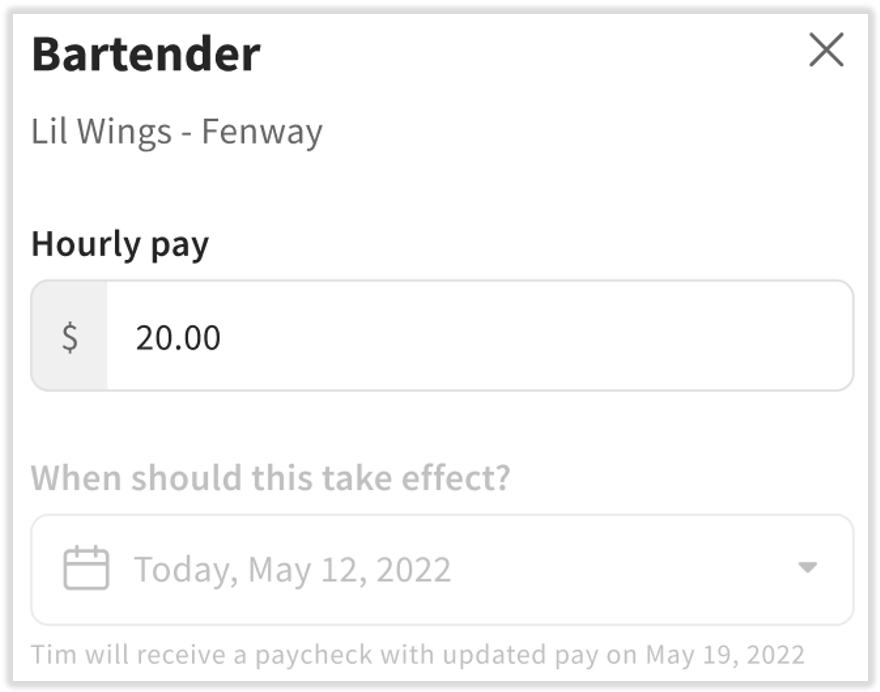
Set the Pay Change Effective Date
- Select the When should this take effect date. This date can be in the past. For reference, Toast Payroll displays pay dates as solid blue circles and pay period start dates as dotted blue circles on the calendar.
- If the selected date falls within a timesheet that has not been approved, Toast Payroll automatically adjusts the employee's pay for all recorded hours back to the effective date. Timesheets reflect this change once approved into the payroll run, if applicable.
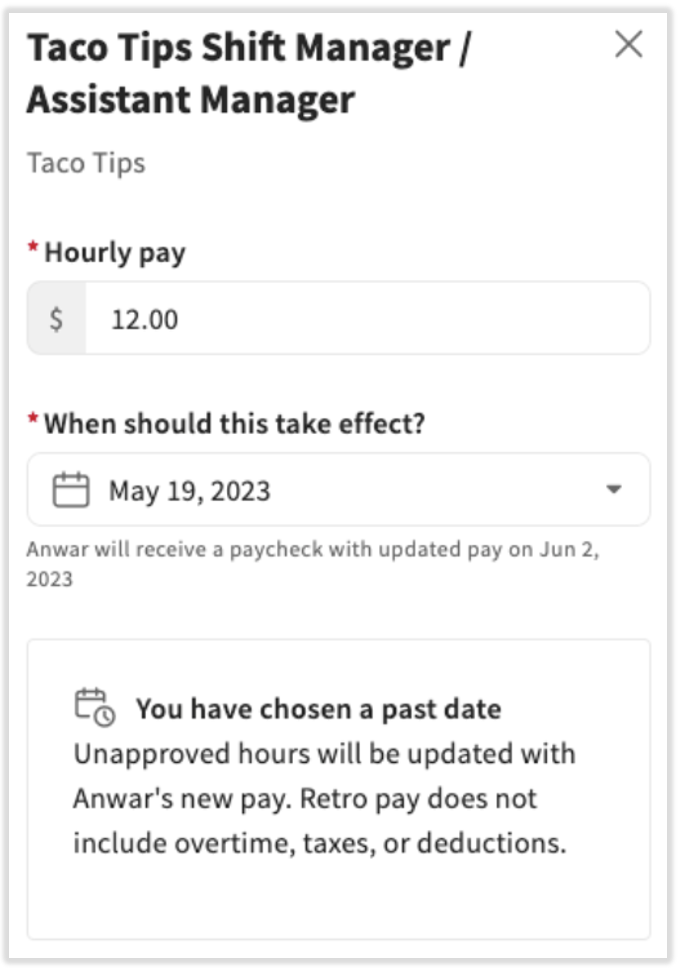
Handle Retroactive Pay for Past Dates
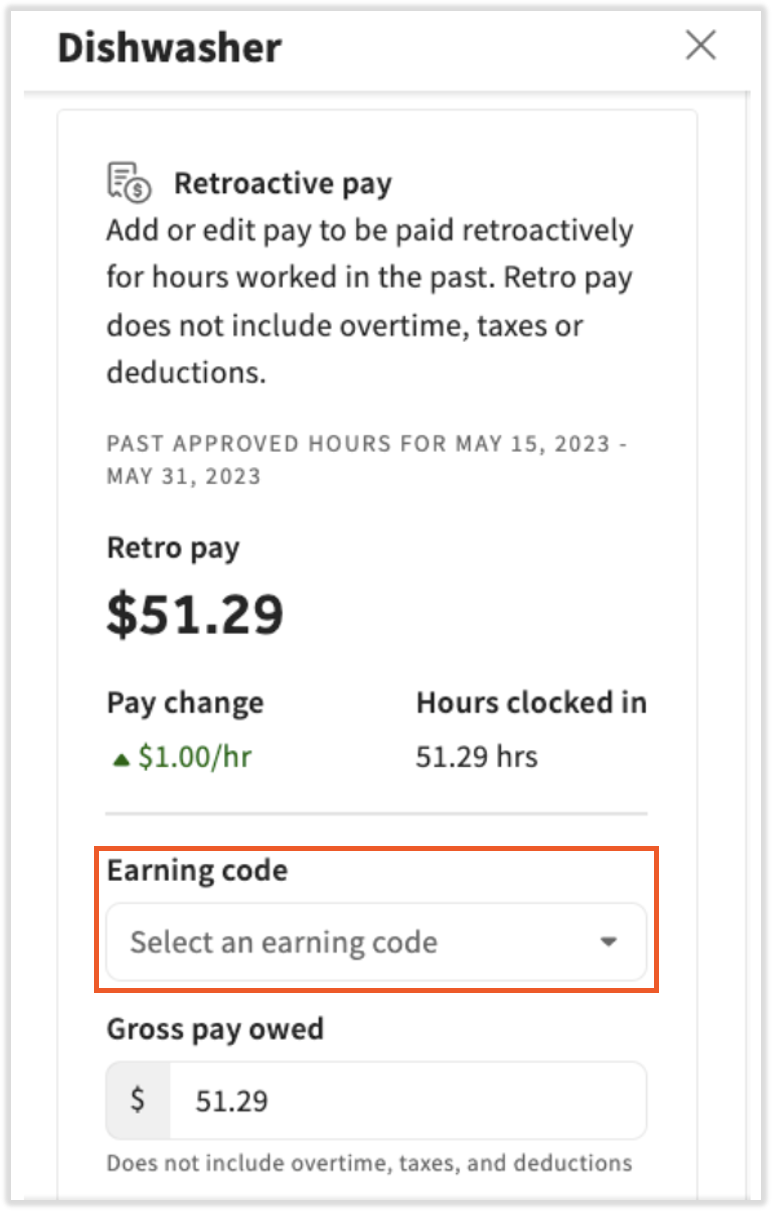
- If the selected date falls within a timesheet that has already been approved, the Retroactive pay calculator appears. Use this calculator to add retroactive pay as a one-time lump sum payment for the hours the employee worked from the effective date through the current pay period.
- Select the earning code to record the retro pay (for example, Retro Pay).
Important: The Retroactive pay calculator does not account for blended overtime pay or deductions occurring during those dates. The employee is taxed on these earnings when they are calculated on a payroll run, in accordance with the earning code you selected.
- Select Save to finalize the pay change.
Expected outcome: The new rate syncs with Toast Web. For a current pay change, the employee's profile reflects the updated rate immediately. For a future pay change, the rate is applied on the effective date.
Review a Scheduled Future Pay Change
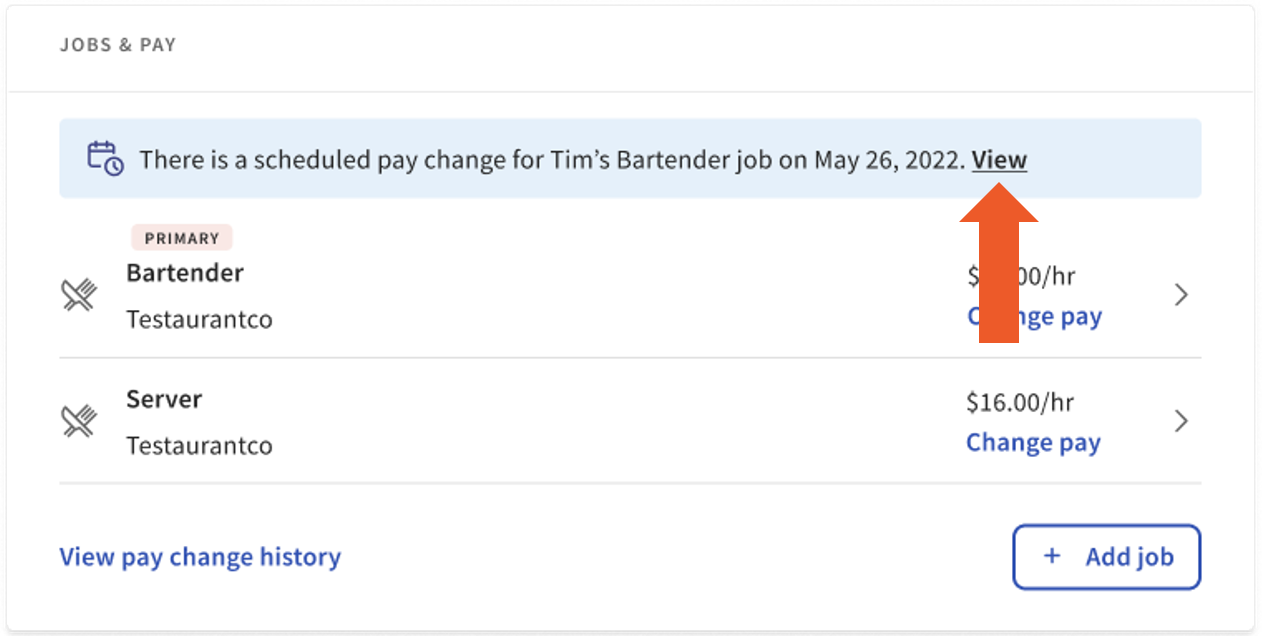
If the pay change is set to a future date, a blue banner appears above the employee's job(s) on their profile.
Select View to revisit or edit the scheduled pay change.
Verify the Change During Payroll Processing
During the Employee Earnings step of payroll, verify the pay change details.
If the employee is hourly, confirm the correct wage is applying to the correct number of hours.
To set a reminder to check this on the day you process payroll, use a Payroll To Do.
Expected outcome: The single employee pay change is complete.
Give Multiple Employees a Raise (Bulk Pay Change)
Important: Pay changes must be saved before you select Preview to open a payroll.
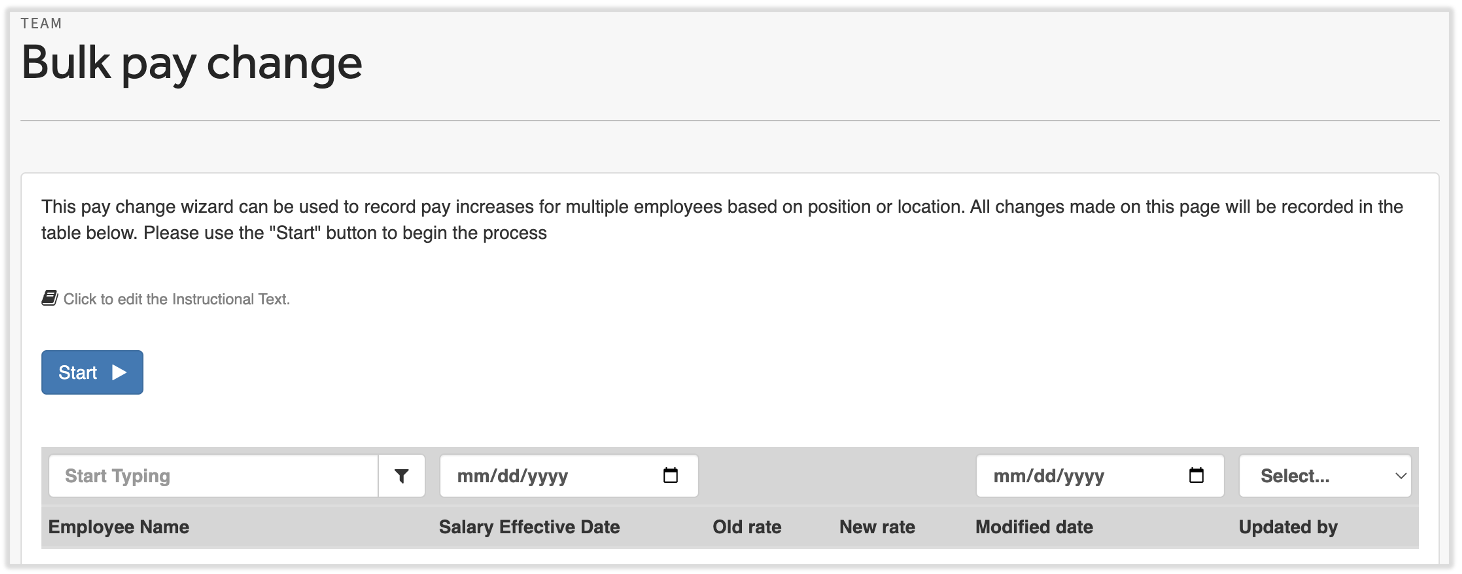
- Navigate to Team > Team Actions > Bulk pay change.
- Select Start to begin the pay change process.
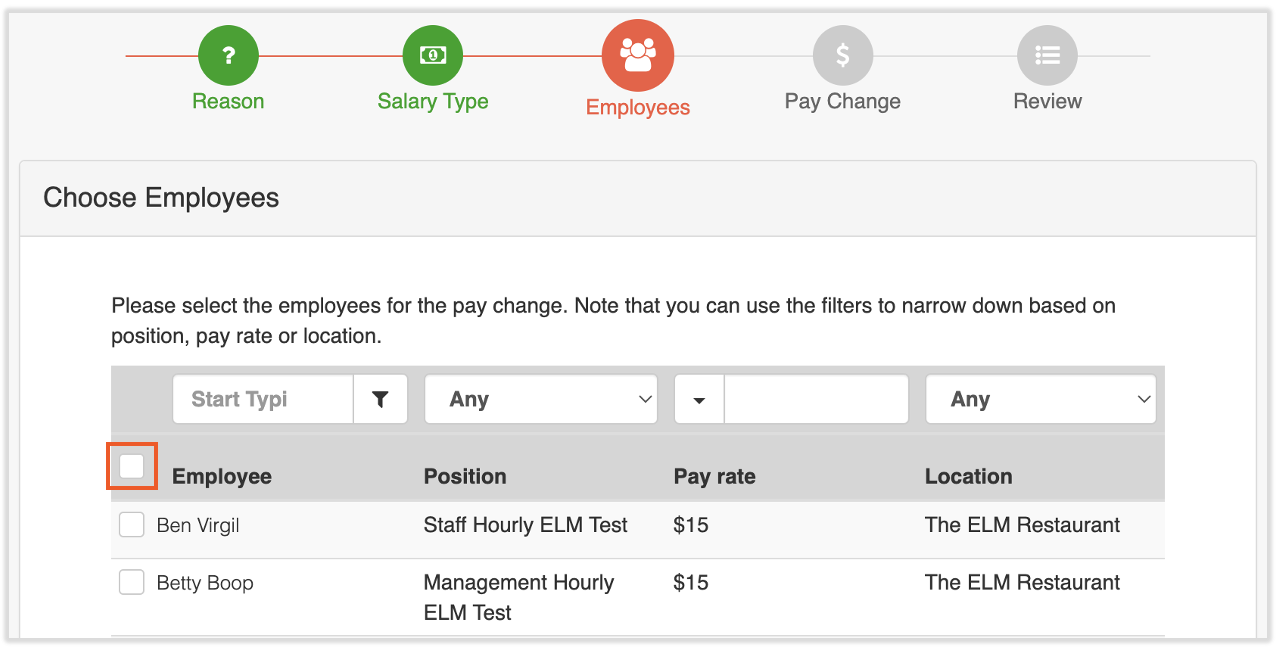
- Reason step: Select a reason code from the drop-down menu. Minimum Wage Increase is commonly selected here.
- Salary Type step: Select Hourly or Salary. You can only update one salary type at a time.
- Employees step: Select the employees whose rate you want to update. To update all employees at once, select the checkbox to the left of the Employee column header to select everyone.
- Pay Change step: Select either Full Amount (enter the new rate directly) or Differential (enter the amount to change the rate by). Then enter the rate change effective date. Select whether to apply this change to secondary rates (jobs):
- If you select Yes, the rate update applies identically across all primary and secondary jobs for each employee.
- If you select No and employees have secondary rates that also need updating, follow the steps in Update Secondary Rates via Spreadsheet Upload.
- Review step: Verify your selections. Select Finish to submit.
Expected outcome: The bulk pay change is applied. All selected employees' profiles reflect the updated rates.
Update Secondary Rates via Spreadsheet Upload
Use this process when employees have secondary job rates that were not updated during a bulk pay change, or when you need to set different rates per job per employee.
- Navigate to Settings > Payroll > Jobs.
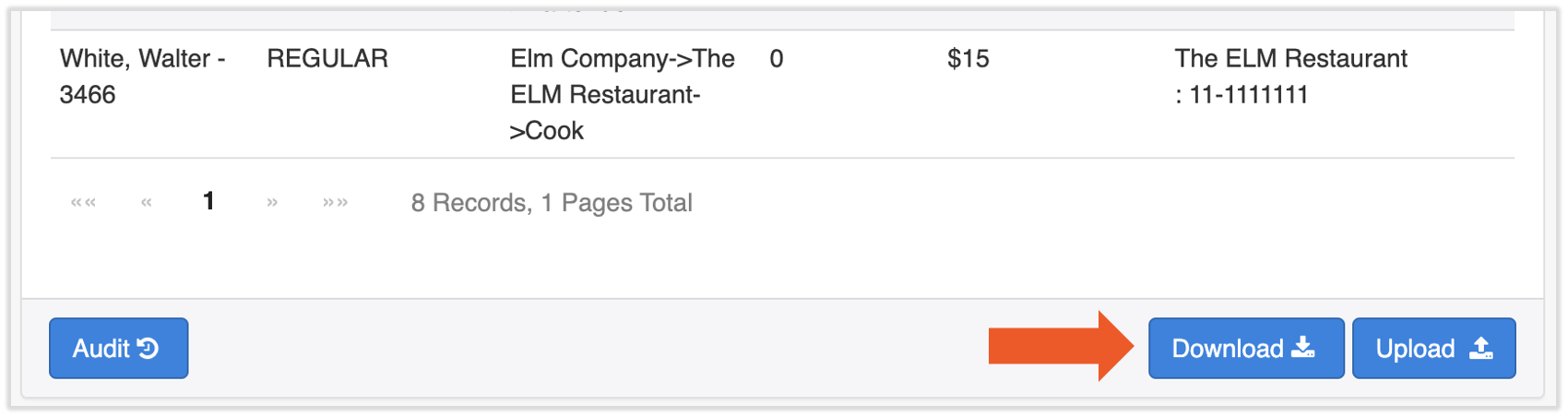
- Scroll to the bottom of the page and select Download.
- Open the downloaded spreadsheet file. Toast recommends making a copy before editing — save one copy as a record of rates before the update, and use the second copy for your edits.
- Update the Hourly Rates column only.
Note: Check for duplicate job roles with different rates. Duplicate jobs with conflicting rates can cause discrepancies during payroll.
- If you are uncertain about the import process, test with a single employee first: update only that employee's row, complete the upload steps below, then navigate to their profile and verify the job rates changed correctly. Once confirmed, repeat the full import for all remaining employees.
- Save your updated file in .csv format (not .xls or .xlsx).
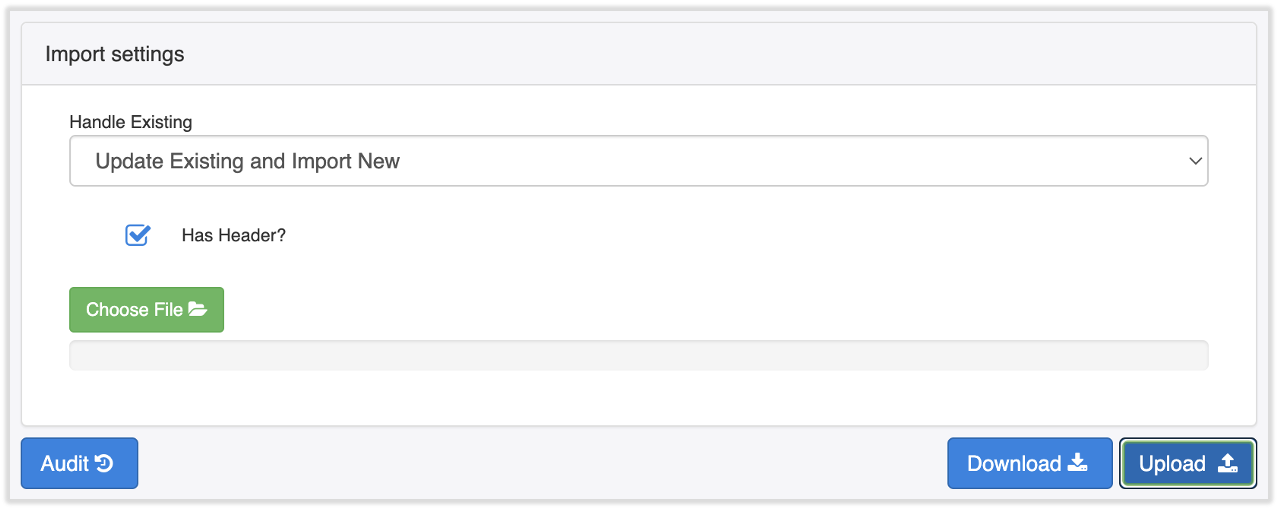
- Return to the Jobs page and select Upload.
- Scroll down and select Update Existing and Import New.
- Select Choose file and select the .csv file you just saved.
- Select the Upload button beneath the file.
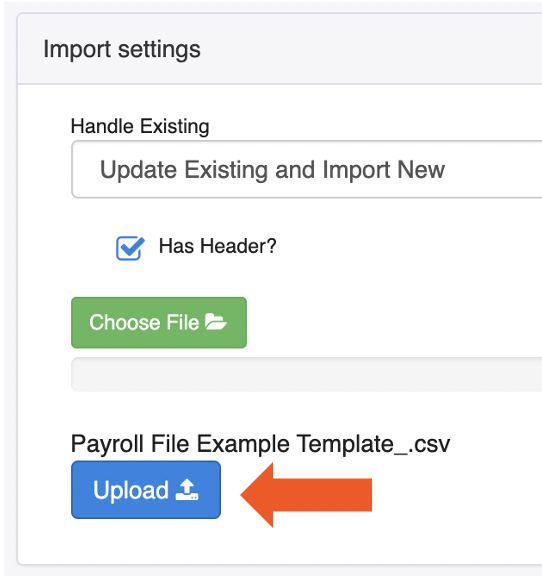
Expected outcome: Secondary rate updates are complete. Navigate to the employee's profile and select their jobs to confirm the new rates appear correctly.
Update Timesheet Rates After a Pay Change
Use this process when employees have open timesheet entries recorded at the old pay rate that need to be corrected manually.
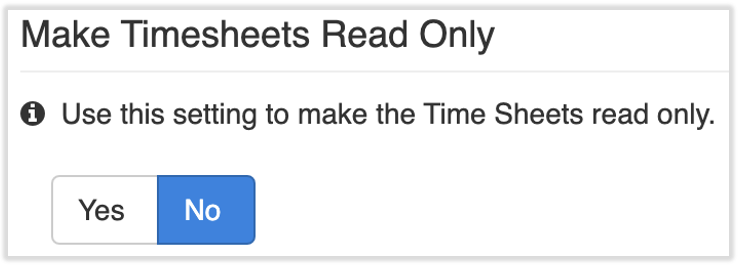
- Navigate to Settings > Timekeeping > Settings.
- Confirm the Make Timesheets Read Only setting is set to No. This allows you to edit timesheets in Toast Payroll.
- Navigate to Time.
- Select the applicable employee's Timesheet link.
- Select a Date link on the timesheet to load the entry details.
- Select the Update Rate Upon Save checkbox. This resaves the employee's punch at the updated rate.
- Select Save.
- Repeat this action for every clock in/out entry, per employee, until all timesheet entries reflect the updated rate.
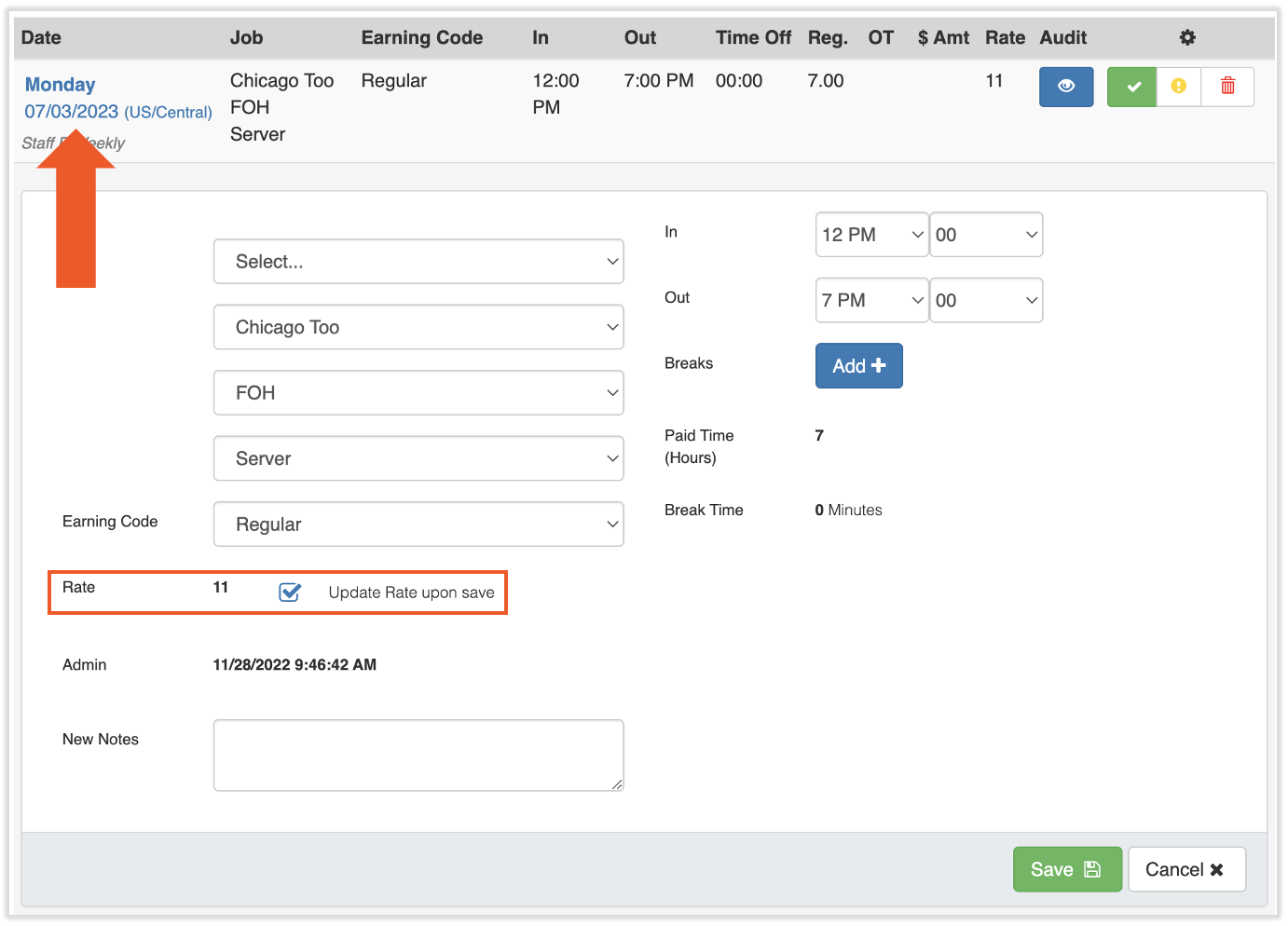
Expected outcome: All timesheet entries show the new rate. The bulk pay change process is now complete.
Frequently Asked Questions
Can I back-date a pay change (give a raise effective from a past date)?
Also asked as:
-
- How do I give a retroactive raise?
- Can I change an employee's pay from a date in the past?
- How do I back-date a wage increase?
Yes, you can back-date a pay change to a past date. When selecting the When should this take effect date on the Pay Change Drawer, choose any past date.
- If the date falls within an unapproved timesheet, Toast Payroll automatically adjusts recorded hours back to that date at the new rate.
- If the date falls within an approved timesheet, the Retroactive pay calculator appears. Use it to issue a one-time lump sum payment for the difference. See Handle Retroactive Pay for Past Dates.
Does Toast Payroll automatically calculate retro pay when I back-date a pay change?
Also asked as:
-
- Will retro pay be automatic?
- Do I have to manually calculate back pay?
Toast Payroll automatically calculates retro pay only when the effective date falls within a timesheet that has not been approved. In that case, the system applies the new rate to all recorded hours back to the effective date with no additional steps.
If the timesheet has already been approved, you must use the Retroactive pay calculator to issue a one-time lump sum. The calculator does not account for blended overtime or deductions during that period.
My pay change is saved, but it isn't showing in the current payroll. What do I do?
Also asked as:
-
- My raise isn't applying to payroll
- The employee is still being paid at the old rate
- New rate not showing in payroll run
This happens when the pay change was saved after the payroll was already opened (after selecting Preview). To apply the change to the current payroll, reset the payroll, then reopen it. The updated rate will appear in the payroll run.
Can I give different employees different raise amounts in a bulk pay change?
Also asked as:
-
- Can I update different rates for each person?
- Can bulk pay change do different amounts per employee?
No, the bulk pay change tool applies one rate adjustment across all selected employees at once. To set different amounts per employee, either complete individual pay changes through the Pay Change Drawer, or use the secondary rates spreadsheet upload to assign unique rates per job per employee.
Where can I see an employee's pay history after making a change?
Also asked as:
-
- How do I see old pay rate?
- Is there an audit log for pay changes?
You can view an employee's pay change history by going to the employee's Overview Page and selecting "View Pay Change History."
Related Articles
- Toast Payroll: Reset a Payroll
- Toast Payroll: Manage Timesheets
- Toast Payroll: Employee Earnings Step
- Toast Payroll: Get Started With Payroll To Dos
This content is for informational purposes and is not intended as legal, tax, HR, or any other professional advice. Please contact an attorney or other professional for advice.