Toast Payroll: Set a Payment Method
Last updated: Sep 11, 2026, 10:39 AM
Choose how to be paid in Toast Payroll—paper check, direct deposit, or Toast Pay Card—and confirm your selection.
- Before You Begin
- Set Up Your Payment Method
- Set Up Direct Deposit
- Identity Verification for Direct Deposit
- Set Up Paper Check
- Set Up the Toast Pay Card
- View or Confirm Your Current Payment Method
- Download the MyToast App
- Frequently Asked Questions
- Related Articles
Before You Begin
Applies to: Toast Payroll
Permissions needed:
- Employee, Manager, or HR+ security role — every user can manage their own payment method
- HR+ security role — required to add, update, or remove a direct deposit account on behalf of another user
What you'll accomplish: Select how you want to be paid (paper check, direct deposit, or Toast Pay Card) and confirm your selection in Toast Payroll.
Set Up Your Payment Method
Employees, managers, and HR+ users select a payment method on the same page in Toast Payroll. The system defaults to paper check until you make a selection.
- In Toast Payroll, navigate to My Profile > Employment > Payment Method.
- Select the tile for the method you want to use: Paper check, Direct deposit, or Toast Pay Card (if your employer offers it).
- Follow the steps for your chosen method. Any change you make triggers identity verification — Toast texts a six-digit code to the phone number on file with your Toast account.
- Enter the six-digit code into the pop-up in Toast Payroll to confirm the change.
Expected outcome: A green confirmation banner appears at the top of the Payment Method page and your selected method is saved automatically. You do not need to select a Save button.
Note: Toast representatives will never ask you for your six-digit verification code. Do not share it with anyone.
Set Up Direct Deposit
Direct deposit sends your wages directly into your bank account on payday. Employees and managers add their own direct deposit account using Plaid, an industry leader in validating bank account information. HR+ users with the right permissions can also add a direct deposit account manually on behalf of another user.
- In Toast Payroll, navigate to My Profile > Employment > Payment Method.
- Select the Direct deposit tile, then select + Add bank account.
- Select Verify when prompted to confirm your identity. Toast texts a six-digit code to the phone number on file. Enter the code into the pop-up in Toast Payroll.
- If the pop-up does not appear, disable your ad blocker and retry. You can re-enable the ad blocker once you finish.
- In the Plaid window, enter your phone number and select Continue.
- Find and select your bank. Use the search bar if you do not see it in the list.
- Sign in to your online banking account using the credentials Plaid requests.
- Select the account you want to use as your direct deposit account, then select Continue.
- When the Success message appears, select Continue to save.
Expected outcome: Your saved bank account appears at the bottom of the Payment Method page and a green confirmation banner appears at the top.
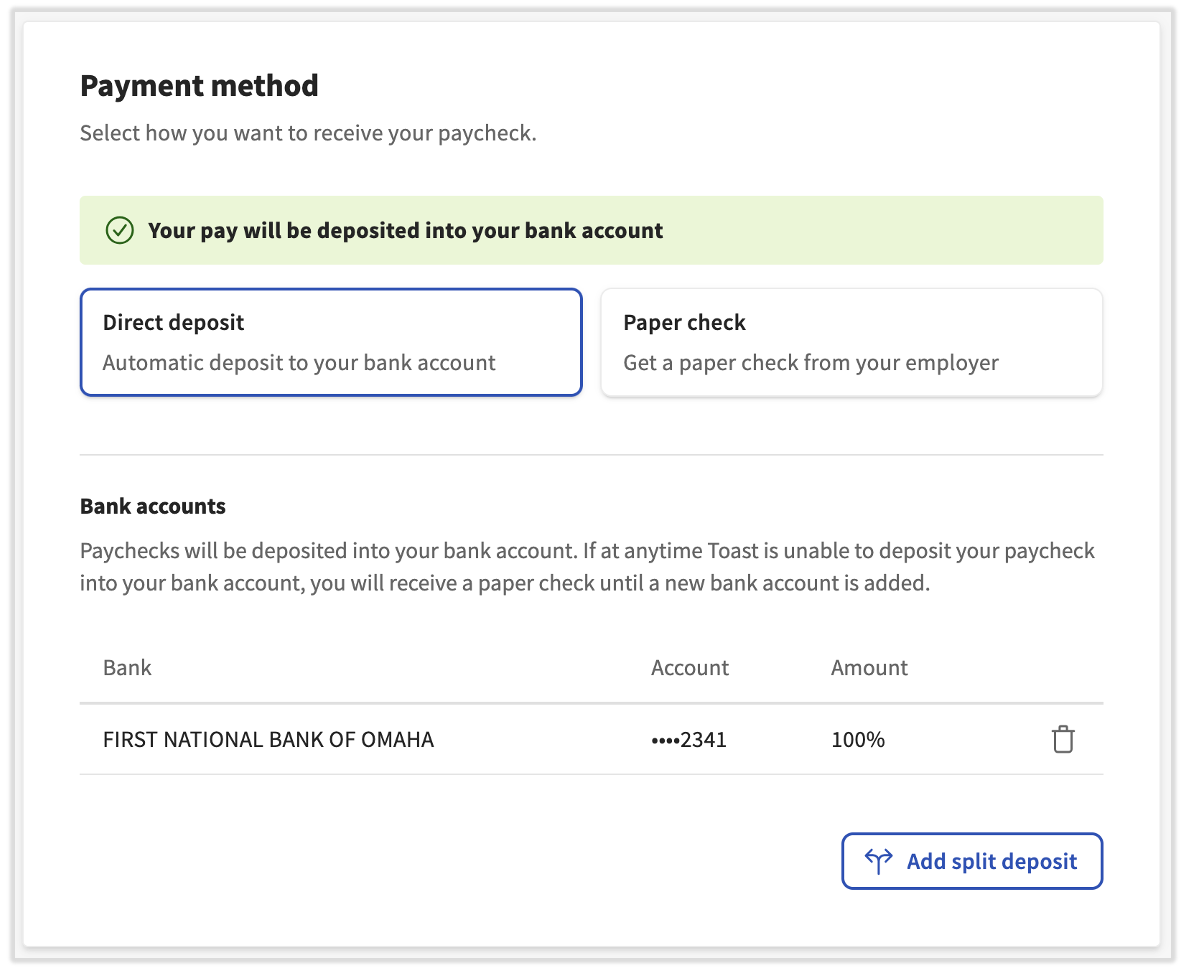
Note: If your bank is not listed in Plaid, or Plaid returns an error, ask an HR+ user at your business (usually the owner or another HR contact) to add your direct deposit account manually. For security purposes, employees and managers cannot enter direct deposit information manually for themselves. For full Plaid steps, manual entry steps, the two-account split deposit, removing an account, and troubleshooting Plaid errors, see Toast Payroll: Get Help With Direct Deposit Accounts.
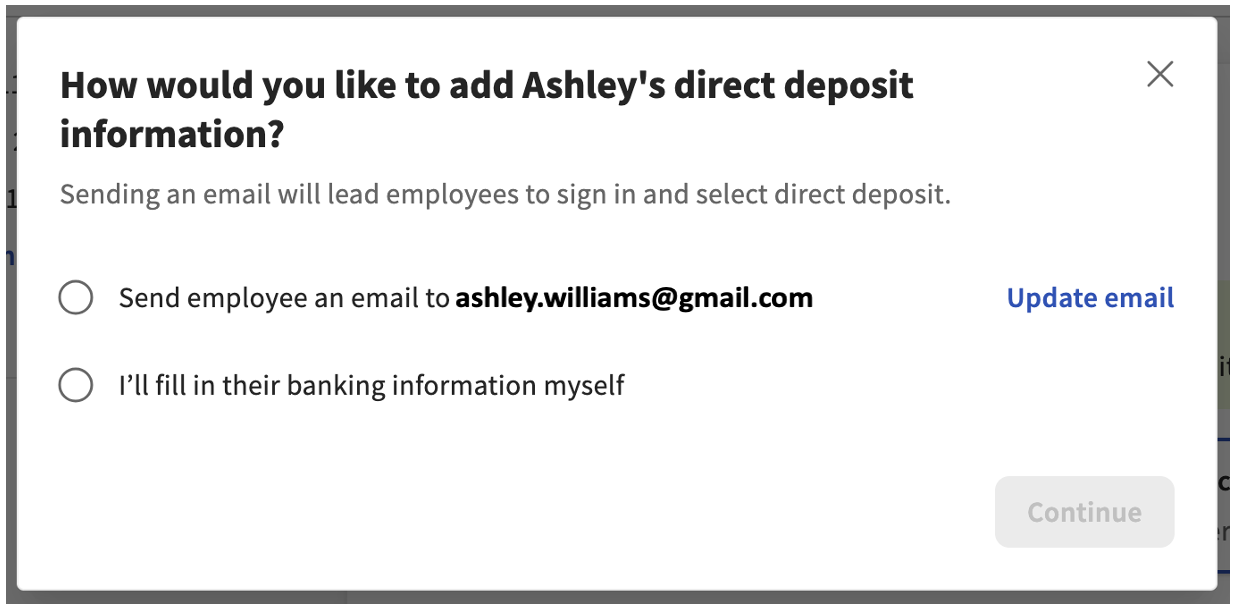
HR+ users who want to add a direct deposit account for an employee will see the following pop-up. Sending an email will alert your employee to log in and enter their info. Filling it in yourself will let you manually enter direct deposit information on an employee's behalf. This action will trigger the identity verification steps. See the Add a Direct Deposit Account Manually (Without Plaid) section of Toast Payroll: Get Help With Direct Deposit Accounts for details.
Add a Split Deposit (Two Accounts)
Toast Payroll allows up to two direct deposit bank accounts per employee. To split your paycheck between two accounts, add a primary direct deposit account first.
- In Toast Payroll, navigate to My Profile > Employment > Payment Method.
- Select Add split deposit. If this button does not appear, add a primary direct deposit account first using the steps above.
- Complete identity verification by entering the six-digit code Toast texts to you.
- In the Plaid pop-up, select an existing bank from your list or select + Add new account to link a new bank.
- After adding the second account, select Split deposit settings.
- Select the %/$ toggle to choose how to split your deposits.
- Enter the amount or percentage for each account.
- If you choose %, the two fields must add up to 100%.
- If you choose $, enter the amount for the first account; the rest goes to the second account.
- To switch which account is first, drag the six dots to the left of an account above or below the other account.
- Select Save.
Expected outcome: Both accounts appear on the Payment Method page with your split percentages or dollar amounts displayed.
For full step-by-step split deposit instructions and screenshots, see Toast Payroll: Get Help With Direct Deposit Accounts.
Change or Remove a Direct Deposit Account
To switch banks or remove an account, return to the Payment Method page.
- In Toast Payroll, navigate to My Profile > Employment > Payment Method.
- To remove an account, select the trashcan icon next to it. To replace an account, remove the existing account first, then add the new one using the steps in Set Up Direct Deposit.
- Confirm your choice by selecting Yes, delete account.
- Complete identity verification by entering the six-digit code Toast texts to you.
Expected outcome: The removed account no longer appears on the Payment Method page. If you replaced an account, the new account appears in its place.
Note: If a payroll has already been started before a direct deposit account was added or changed, the system will not see the new account for that pay run, and the employee will be paid by paper check for that pay run.
Identity Verification for Direct Deposit
As of April 2026, Toast Payroll texts a six-digit identity verification code to the phone number on file whenever a user adds, removes, updates, or splits a direct deposit account. This protects your bank account information from unauthorized changes.
When the verification code does not arrive or you cannot complete this step:
- Confirm that the phone number on file with your Toast account is current. To update your phone number, see Toast Payroll: Get Help With Employee Resources.
- If the pop-up does not appear when you select Verify, disable your ad blocker and retry the action. Re-enable the ad blocker once you finish.
- Wait a full minute and re-select the action (such as + Add bank account or the trashcan icon) to resend the code.
- If you still cannot receive the code, contact Toast Customer Care.
Note: Toast representatives will never ask you for your six-digit verification code. Do not share it with anyone, even someone claiming to be from Toast.
Set Up Paper Check
To receive your wages as a paper check, select the Paper check tile on the Payment Method page. Paper check is the default if you do not select another method.
- In Toast Payroll, navigate to My Profile > Employment > Payment Method.
- Select the Paper check tile.
Expected outcome: A green confirmation banner appears, and Paper check is now your selected payment method.
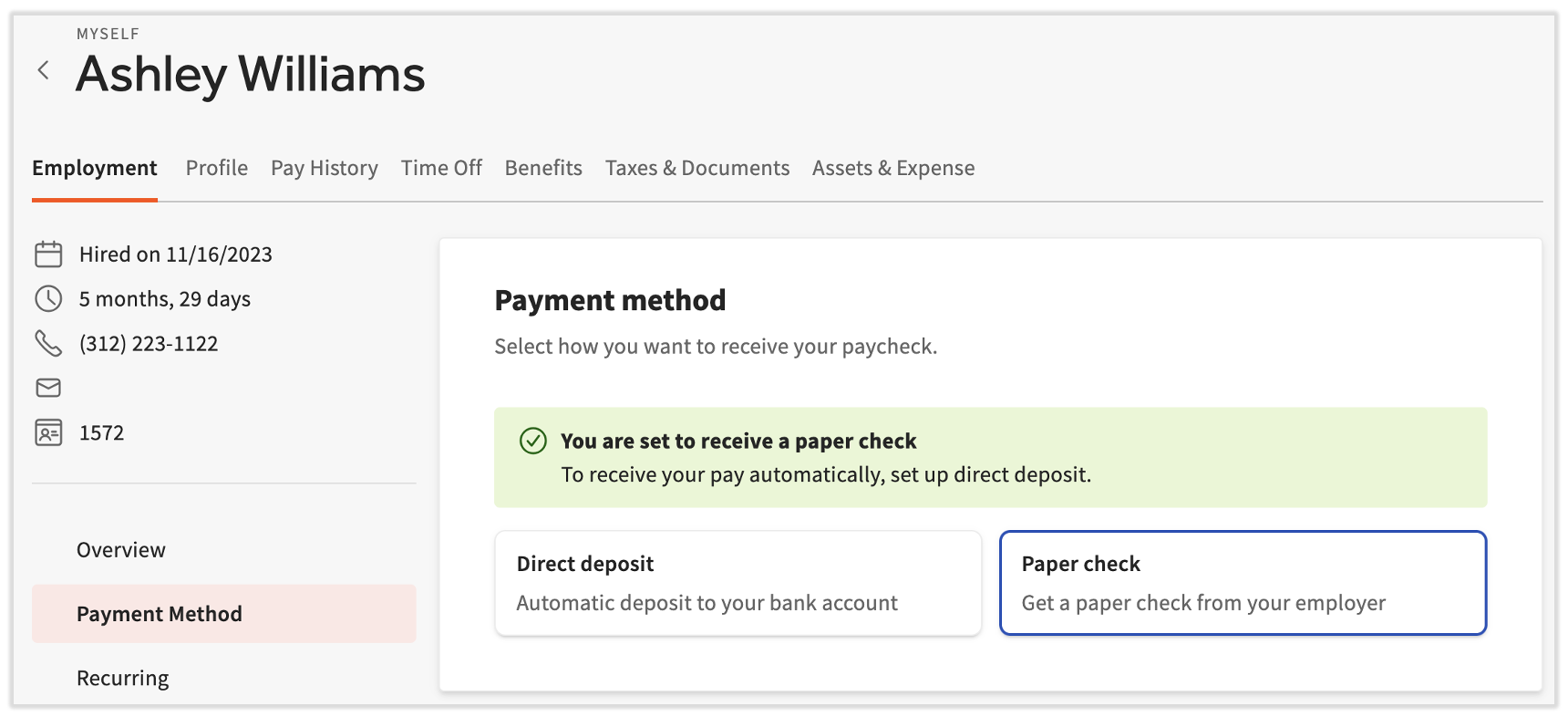
How and when you receive your paper check depends on the paycheck delivery option your employer has set up — self-written, self-printed, or Toast-printed. For details on each delivery option and how to track a Toast-printed check, see Toast Payroll: Paycheck Delivery FAQ.
Set Up the Toast Pay Card
The Toast Pay Card is a free prepaid debit card that can be used anywhere Mastercard is accepted. It is an alternative to a paper check or direct deposit and does not require a bank account. Your employer must sign up for the Toast Pay Card program before you can select it as a payment method.
- In Toast Payroll, navigate to My Profile > Employment > Payment Method.
- Select the Toast Pay Card tile.
- Follow the prompts to order and activate your Toast Pay Card. Activation continues in the MyToast app.
Expected outcome: Toast Pay Card is selected on the Payment Method page, and you receive activation instructions for the MyToast app.
Note: If you do not see the Toast Pay Card tile, your employer may not be signed up for the Toast Pay Card program, or your employment record may not yet be eligible for the program (for example, you are listed as a rehire). Contact your employer to confirm program enrollment.
For card features, eligibility, how to access your funds, transfer limits, and how to cancel your card, see Toast Pay Card: Employee FAQ.
View or Confirm Your Current Payment Method
Your current payment method is displayed on the Payment Method page at the top of the screen. The selected tile is highlighted, and any saved direct deposit accounts are listed at the bottom of the page.
To view the history of changes to a direct deposit account, navigate to My Profile > Employment > Payment Method and select History near the bottom of the page. This page shows all additions and changes made to your direct deposit account.
Download the MyToast App
After setting your payment method, you can manage your pay details from your phone using the MyToast app. From the Payment Method page, a banner prompts you to download the app.
Use your phone to scan this QR code. It will direct you to the Apple App Store or the Google Play Store where you can directly download the app. If you have questions about downloading the app, installing the app, or logging in, visit Get Started With the MyToast App.

Expected outcome: The MyToast app downloads to your device. You can use the Pay tab to view paystubs, order a Toast Pay Card, take PayOuts (if your employer offers them), and update payment details.
For everything the MyToast Pay tab supports, see The MyToast App: Pay.
Frequently Asked Questions
What happens if I never select a payment method?
If you never select a payment method, you are paid by paper check. Paper check is the default selection in Toast Payroll until an employee chooses direct deposit or the Toast Pay Card.
Also asked as:
- What if no payment method is selected?
- What is the default payment method in Toast Payroll?
Do I need to save my payment method changes in Toast Payroll?
You do not need to save your payment method changes in Toast Payroll. Any updates you make on the Payment Method page are saved automatically once you confirm them with identity verification.
Also asked as:
- Is there a Save button on the Payment Method page?
- Where is the save button for direct deposit?
How do I change my direct deposit to a different bank?
To change your direct deposit to a different bank, navigate to My Profile > Employment > Payment Method, remove your existing direct deposit account using the trashcan icon, and then add the new account using Plaid. Each action requires you to enter the six-digit verification code Toast texts to the phone number on file.
Also asked as:
- How do I update my direct deposit?
- How do I switch banks for direct deposit?
- How do I change my direct deposit to a different account?
Can I split my paycheck between two bank accounts?
You can split your paycheck between two bank accounts. Toast Payroll allows up to two direct deposit accounts per employee. After adding your primary account, select Add split deposit on the Payment Method page (My Profile > Employment > Payment Method) and follow the prompts to add a second account and set the split by percentage or dollar amount.
Also asked as:
- How do I add a second direct deposit account?
- Can I send part of my pay to a different bank?
What happens if my bank isn't supported by Plaid?
If your bank is not supported by Plaid, ask an HR+ user at your business to add your direct deposit account manually on your behalf. For security purposes, employees and managers cannot enter direct deposit account information manually for themselves. For full manual-entry steps, see Toast Payroll: Get Help With Direct Deposit Accounts.
Also asked as:
- My bank is not on Plaid. How do I add direct deposit?
- How do I enter direct deposit without Plaid?
- Can I use my routing and account number instead of Plaid?
Why didn't I receive the six-digit verification code?
If you did not receive the six-digit verification code, first confirm that the phone number on file with your Toast account is current. To update your phone number, see Toast Payroll: Get Help With Employee Resources. If the pop-up does not appear in Toast Payroll, disable your ad blocker and retry the action. If you still cannot receive the code, contact Toast Customer Care.
Also asked as:
- I'm not getting the verification text
- The code never arrived
- Why isn't the verification pop-up showing up?
Can a manager change an employee's direct deposit?
A manager cannot change an employee's direct deposit account. Only HR+ users have the ability to manually add or update a direct deposit account for another user. Managers can view, add, or update only their own direct deposit account using Plaid.
Also asked as:
- Can a manager set up direct deposit for staff?
- Why can't I update my employee's direct deposit?
How do I set up Toast Pay Card if the option doesn't appear?
If the Toast Pay Card option does not appear on your Payment Method page, your employer may not be signed up for the Toast Pay Card program, or your employment record may not be eligible for the program. Contact your employer to confirm program enrollment. For employer enrollment details, see Toast Payroll: Get Started With Toast Pay Card - Employer Guide.
Also asked as:
- Why don't I see the Toast Pay Card option?
- How do I sign up for paycard?
- How do I get a Toast Pay Card?
Related Articles
- Toast Payroll: Get Help With Direct Deposit Accounts
- Toast Pay Card: Employee FAQ
- Toast Payroll: Paycheck Delivery FAQ
- Get Started With the MyToast App
- Toast Payroll: Unsuccessful Direct Deposits
This content is for informational purposes and is not intended as legal, tax, HR, or any other professional advice. Please contact an attorney or other professional for advice.