Toast Payroll: Get Help With Your Payroll
Last updated: Aug 14, 2026, 2:38 PM
Find the most common cause and quickest fix for Toast Payroll roadblocks before, during, or after running payroll, including when to contact Customer Care.
- Before You Begin
- Quick Fix
- Before Running Payroll
- During Payroll
- After Running Payroll
- Frequently Asked Questions
- Before You Contact Customer Care
- Related Articles
Before You Begin
Applies to: Toast Payroll
Permissions needed:
- HR+ user with access to the affected pay group
What you'll accomplish: Identify and resolve common payroll roadblocks at each stage of the payroll run — before, during, or after submission.
Quick Fix
Use this table to jump to the most common cause and the quickest fix for each symptom. The "Self-Service?" column tells you whether you can resolve the issue on your own or whether you need to contact Customer Care.
| Symptom | Most Common Cause | Quick Fix | Self-Service? |
|---|---|---|---|
| Employee missing from payroll / not showing up | Hire date is after the pay period start, employee is on leave or terminated, or the pay group does not match | To resolve an employee missing from payroll or not showing up, verify their hire date against the pay period start, check their leave or termination status, and confirm their pay group configuration matches. Full steps: see Employee Missing From Payroll below. | Yes |
| Timesheet did not populate or sync to payroll | Timesheet was not approved, or employee was unmapped or recently unarchived | If a timesheet did not populate or sync to payroll, verify that the timesheet has been fully approved, check if the employee was unmapped, or confirm if they were recently unarchived. Full steps: see Missing or Incorrect Timesheets below. | Yes |
| Wages, salary, or hourly rate is wrong | Pay change was not applied before payroll, or salary hours field does not match pay frequency | To fix an incorrect wage, salary, or hourly rate, verify if the pay change was applied before processing the payroll or check if the salary hours field conflicts with the pay frequency. Full steps: see Wage Information Is Incorrect below. | Yes |
| Overtime hours or rate is incorrect | Single-rate vs. blended overtime rules apply differently | If your overtime hours or rates are incorrect, evaluate whether your setup requires single-rate or blended overtime rules, as they apply differently. Full steps: see Overtime Is Incorrect below. | Yes |
| Taxes are incorrect | Work tax location, Form W-4 settings, or IRS tax tables | If employee taxes are incorrect, check the work tax location settings, review the individual Form W-4 configurations, and confirm compliance with current IRS tax tables. Full steps: see Taxes Are Incorrect below. | Partial — tax advice requires CPA |
| Payroll Out of Balance error | System mismatch between Employee Earnings and Review and Submit steps | If you encounter a Payroll Out of Balance error caused by a system mismatch between Employee Earnings and the Review and Submit stages, contact Customer Care immediately via the blue chat dot in the lower-right corner. | No — agent action required |
| Payroll was submitted but employees weren't paid | Direct deposit returned, bank account locked, or salary set to $0 for a location | If a payroll was submitted but employees were not paid due to a returned direct deposit, a locked bank account, or a salary error, review your internal funding status. Full steps: see Payroll Was Incorrect below. | Partial — bank-side issues require Customer Care |
| Need to reopen, cancel, or edit a submitted payroll | Payroll cannot be reopened or cancelled once submitted | Because a payroll cannot be manually reopened or cancelled once submitted, you must implement an approved payroll correction process. Workaround instructions: see Reopen or Edit a Submitted Payroll below. | Yes — choose the correct workaround |
| Live (paper) checks have not arrived / were lost | Shipping delay, third-party courier, or stop payment needed | If your live paper checks have not arrived or were lost due to courier/shipping delays, evaluate if a stop payment is required at your bank. Full steps: see Toast-Printed Paper Checks Have Not Arrived below. | Partial — stop payments require your bank |
| Employee was missed off the payroll run | Employee not added before payroll was submitted | If an employee was completely missed off the payroll run because they weren't added prior to submission, process a separate off-cycle payroll run. Full steps: see Toast Payroll: Missed Employee or Missed Pay on Payroll below. | Yes |
Before Running Payroll
Missing or Incorrect Timesheets
Timesheets must be verified and approved before running payroll, unless the automatically approve timesheets feature is enabled.
If an employee should appear on the Time page but does not have visible time entries, they may be unmapped.
If a timesheet or time entry needs edits, or a timesheet needs to be unapproved, the steps depend on whether automatic approval is on or off. See Toast Payroll: Manage Timesheets for the steps that match your setup.
Once payroll has begun, the Preview Payroll step highlights any unapproved timesheets associated with that specific payroll.
Even with automatically approved timesheets enabled, you'll still be notified about exceptions, such as an employee who forgot to clock out.
If a timesheet did not populate or sync to payroll:
- Confirm the timesheet was approved on the Time page (or that automatic approval is enabled).
- If the employee was recently unarchived or rehired, allow time for the sync to complete. If the timesheet still does not appear on the Employee Earnings step after sync, contact Customer Care.
Quick Calcs
Quick calcs are typically used when an employee receives wages outside of Toast Payroll. A quick calc allows you to record these wages, without paying the employee through Toast, for tax purposes and IRS compliance.
During Payroll
Action Items and Insights
On the Preview Payroll step, you may see entries listed in the Action Items or Insights tile. Toast Payroll has identified these as items to address before processing payroll. Examples include employees who have not clocked out or timesheets that have not been approved. Address each item to process payroll successfully.
Import Files
Imported files on the Employee Earnings step are commonly used for tip imports, but can hold any earnings, deductions, or benefits. An import template must be created within the system to allow Toast to read your file. Then you can use the template to add data to your payroll. Imported files must be in CSV format.
Once a template has been created, modifying the column headers in row 1 of the template typically results in an import error. Do not include the $ symbol in your spreadsheet.
Many tip import issues come from missing levels on the spreadsheet or in the template. For example, if your business has multiple locations, Toast Payroll needs the location level on the spreadsheet and mapped to its counterpart in Toast POS. Otherwise, it defaults to the first location level, even if the employee does not work there.
Wage Information Is Incorrect
If an employee's salary or hourly wage is incorrect or out of date, you can apply a pay change.
To apply a pay change to only a single payroll:
- Locate the employee on the Employee Earnings step.
- Select the three dots (...) next to the hourly or salary earning.
- Select Edit Earning.
- Select Advanced Options and scroll to the bottom.
- Edit the Earning Rate.
Expected outcome: The new rate applies to this payroll only and does not change the employee's record going forward.
To apply a pay change to all future payrolls, a pay change is required. Navigate to the Employment tab of the employee's profile and select Change pay. This must be done before beginning payroll if you want the change to apply to the current payroll.
If you recently changed your pay frequency (for example, from biweekly to weekly) and salaried employees are not receiving the right amount: the salary hours field on each salaried employee's profile may still be set for the old frequency. Confirm the hours field matches the new frequency (for example, 40 hours for weekly, 80 hours for biweekly), and update each affected salaried employee. If the issue persists, contact Customer Care.
If you submitted payroll for multiple locations and one location's check came in at $0 or did not arrive: confirm the salary on file for the affected location. A salary set to $0 for one location while another is correctly set will produce no paycheck for the $0 location. Update the salary for that location and use the "record a payment" off-cycle feature (or a regular off-cycle for multiple employees) to correct the missed pay. Read Toast Payroll: Set Up and Configure Off-Cycle Payrolls to see the steps for recording a payment or creating and submitting an off-cycle.
Missing or Incorrect Earnings or Deductions
When a specific payroll has incorrect or missing earnings or deductions, one-time changes can be made directly within the payroll. If the missing or incorrect earning or deduction is recurring, change it on the employee profile instead. See Toast Payroll: Add or Edit Earnings & Deductions for either scenario.
Overtime Is Incorrect
When overtime hours or rates are incorrect, this can be the result of a few different factors.
- If the employee works one job at one rate, start with Toast Payroll: Manage Overtime.
- If the employee's overtime is calculated with different jobs paying at different rates, blended overtime (also known as weighted average overtime) applies.
Taxes Are Incorrect
Toast Payroll calculates employee taxes using three things: the employee's work tax location, their Form W-4 settings, and tax tables provided by the IRS. When taxes do not appear as expected, review each of these.
Note: Toast Payroll cannot advise beyond this. Contact a CPA or tax specialist for further advice.
Employee Missing From Payroll (Not Showing Up)
Also asked as: "Employee missing from payroll," "an employee is not showing up," "employee didn't get input on the last cycle"
If a staff member does not appear on the Employee Earnings step of payroll, work through these checks in order. Most cases are resolved by checking pay group, pay period eligibility, and employment status.
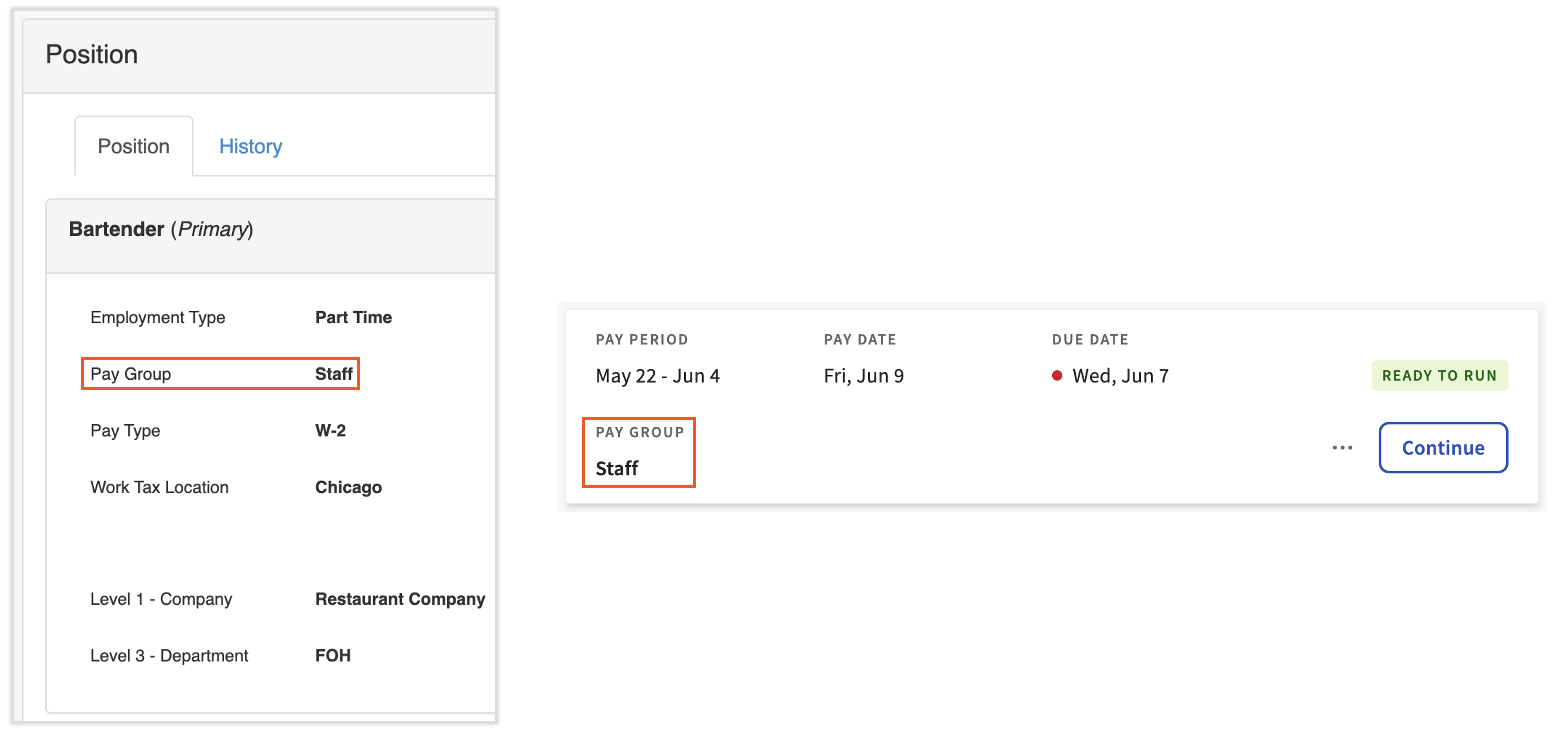
Step 1: Confirm the employee's pay group matches the payroll's pay group.
The employee's pay group is on their Position page. The pay group assigned to the payroll is on the Pay Cycle Dashboard. These must match for the employee to be part of the payroll run.
Step 2: Confirm the employee was active for some part of the pay period.
If the employee was hired after the pay period, terminated before the pay period, or was on leave of absence for the entire period, they will not appear in the available employees list. This is the most common cause when a recently hired employee is missing.
- Open the employee's profile and check the Position start date.
- If the start date is after the pay period start, the employee will not auto-sync to payroll. You can manually add them to this payroll run as a temporary fix, but the start date should be corrected for future payrolls.
- For status changes, see Toast Payroll: Make an LOA Status Change.
Step 3: If the employee is in the right pay group and was active during the pay period, manually add them.
You can manually add an employee to a single payroll run. Use this as a temporary fix only — investigate why the employee did not auto-sync so it is corrected for future runs.
Expected outcome: The employee appears on the Employee Earnings step of the current payroll, and the cause has been documented for future payrolls.
Payroll Out of Balance
It is possible to receive this error while calculating a payroll between the Employee Earnings step and the Review and Submit step.
Self-service is not available for this error. Contact Customer Care via the blue chat dot in the lower-right corner of your page. When you contact Customer Care, share your pay group name, the payroll check date, and any error message text or screenshot.
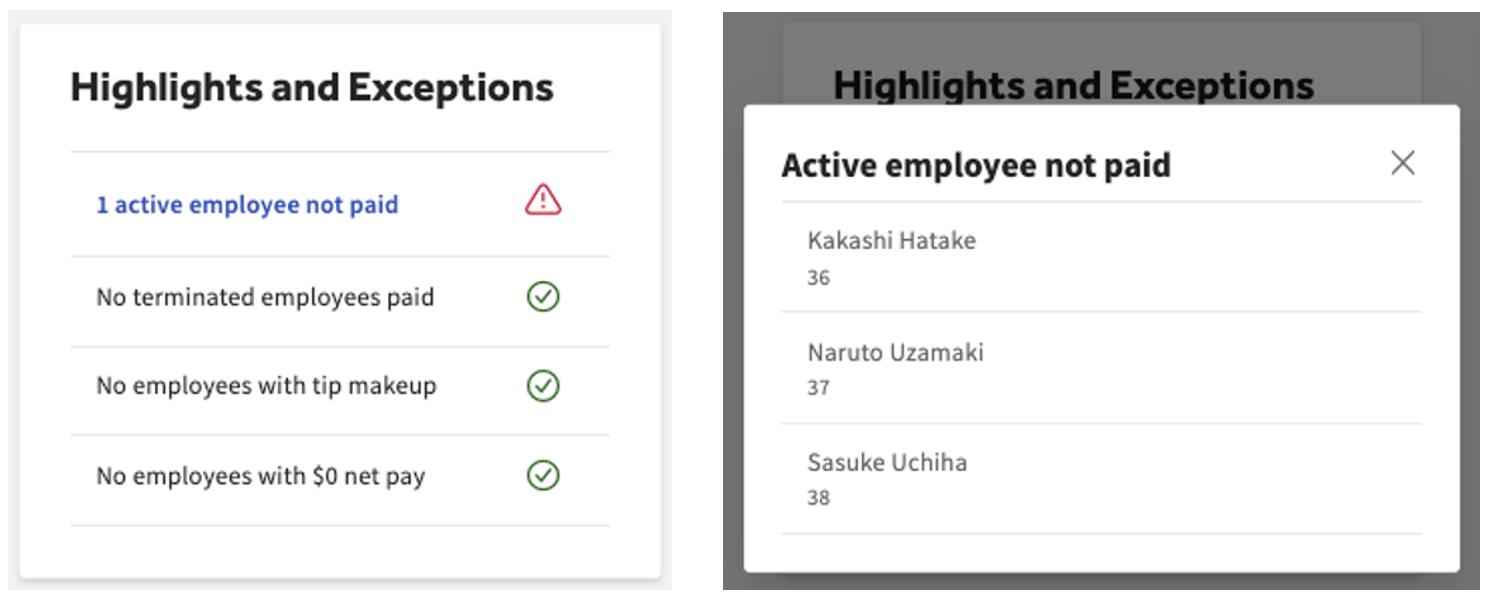
Highlights and Exceptions
This tile appears on the Review and Submit step of payroll. If any of the four categories in this tile are hyperlinked, select the link to display the employees impacted by that category. This is an important audit point that helps you catch common errors before posting payroll. See Tip Makeup below if employees are populating with tip makeup.
Tip Makeup
Tip makeup is the added amount of earnings a tipped employee needs to receive in order to make minimum wage based on their current hours, wages, and tip amounts. The payroll system applies this earning automatically for compliance and cannot remove it unless the hours, wages, or tip amounts are updated.
Review Payroll Reports
This is not a troubleshooting step, but it is best practice to review your payroll reports before posting each payroll. Reports give you one last look at every employee, their wage rates, earnings, deductions, and taxes. You may also view employer taxes, vendor checks, and the method employees will receive their wages.
After Running Payroll
Reopen or Edit a Submitted Payroll
Important: Toast cannot make changes to a payroll once it has been submitted. This includes payrolls that have not yet been swept.
If you discover an error after submitting payroll, you have two main paths:
- If you mistakenly left an employee off a payroll run, Toast Payroll offers three options to pay them. See Toast Payroll: Missed Employee or Missed Pay on Payroll for the full procedure.
- If a direct deposit was sent to the wrong bank account, a return of funds or an ACH reversal may be possible.
Verify Payroll Was Submitted (Did I Post?)
Verify your payroll was posted by navigating to Payroll > Past Payrolls. If the payroll appears there, it has been successfully submitted.
Errors With the QuickBooks Online Integration
Toast Payroll and QuickBooks Online have a direct integration named Payroll Accounting Sync. To learn whether you're eligible, see Get Started With Payroll Accounting Sync. If you are already using the sync and need help with a specific error, see Get Help With Payroll Accounting Sync.
Errors with syncing are generally noted in the follow-up email or on the Accounting Activity page in Toast Web. In many cases, the error involves an unmapped GL code. The email, the Accounting Activity page in Toast Web, and the Get Help With Payroll Accounting Sync article each include instructions on how to correct this.
When Employees Are Paid
Different scenarios determine when employees receive their pay based on when payroll was posted. See Toast Payroll: Get Help With When Employees Are Paid for the full timing details.
Payroll Was Incorrect (People Weren't Paid)
Also asked as: "people weren't paid," "I did not receive a check," "payroll was submitted but no direct deposit"
Sometimes payroll is submitted only to discover an error afterward.
Important: Toast cannot stop or cancel a payroll that has been submitted.
You have a few options to correct an error on a submitted payroll. Choose the path that matches your situation.
If an employee was overpaid or underpaid by a small amount and the next payroll is in the same quarter:
- The easiest path is to account for the difference on the next payroll. For example, if an employee was overpaid by $100, you can create a payroll to-do to remind you to manually remove $100 in wages from their next paycheck.
If the error cannot be corrected on a future payroll, choose one of:
- Run an off-cycle payroll.
- Use the "record a payment" feature.
- Perform a stop payment through your bank.
- Request an ACH reversal through your bank.
Note: Stop payments and ACH reversals are completed through your financial institution, not Toast Payroll.
If payroll was submitted, you see "Payroll posted successfully," but employees were not paid (no direct deposit, no debit from your bank account):
- This is most often a bank-side issue — for example, your bank held or rejected the transaction, or an account on file is locked. Self-service is not available for this scenario. Contact Customer Care via the blue chat dot in the lower-right corner of any Toast Payroll page. Bring the information listed in Before You Contact Customer Care.
Toast-Printed Paper Checks Have Not Arrived
When the Toast-Printed paycheck delivery option is selected, the primary payroll user receives an email when payroll is submitted. This email is typically received the day before checks arrive, since Toast uses next-day shipping. The email includes a tracking number for online reference to package status.
Note: Toast Payroll does not guarantee tracking information or arrival dates and times because we use a third party to deliver live checks.
Any package shipped by UPS creates a tracking number that can be viewed in Toast Payroll. The number appears on the Review step of the payroll around 7 p.m. CST on the day payroll was posted. Select the tracking number to view more details. Packages shipped via FedEx or bike courier do not display a tracking number.
If checks were delivered but have gone missing or were lost in transit:
- A stop payment or ACH reversal must be initiated through your financial institution. Toast Payroll cannot place a stop payment on live checks.
- Contact Customer Care via the blue chat dot in the lower-right corner so they can record the issue and help you decide whether to issue replacement checks via the "record a payment" feature or on an off-cycle payroll.
Frequently Asked Questions
Can I add hours after the payroll has been submitted?
Hours cannot be added to a payroll after it has been submitted. To pay an employee for missed hours, choose one of the three options in Toast Payroll: Missed Employee or Missed Pay on Payroll: record a payment and pay manually, create and run an off-cycle payroll, or add the hours to the next scheduled payroll.
What do I do if an employee was incorrectly overpaid?
If an employee was overpaid, you have a few options depending on timing. If the next scheduled payroll is in the same quarter, the easiest fix is to remove the overpayment amount from their next paycheck. If the next payroll is in a different quarter, you can request an ACH reversal through your bank, perform a stop payment, or create and run an off-cycle payroll to correct the record. See Reopen or Edit a Submitted Payroll for details on each option.
My employee's paycheck was direct deposited but hasn't shown up in their account yet — what do I do?
First, confirm the payroll was submitted successfully by navigating to Payroll > Past payrolls. if the payroll appears here, it was submitted successfully. If it was submitted on time and the deposit still hasn't posted, have the employee check with their bank or banking app directly — deposits to online banks and fintech apps can sometimes post later in the day than deposits to traditional banks, even when Toast Payroll processed the deposit on schedule. If the deposit still hasn't appeared after checking with the bank, see Payroll Was Incorrect (People Weren't Paid) or contact Customer Care with the employee's name and pay date.
How can I tell if an ACH reversal was successful?
ACH reversals are processed through your financial institution, not through Toast Payroll. To confirm whether a reversal was successful, check with your bank for the reversed transaction. If the reversal failed, your bank will notify you.
Why is my employee's timesheet not populating in payroll?
A timesheet that does not populate is most often caused by an unapproved timesheet, an unmapped employee on the Time page, or an employee who was recently unarchived or rehired and whose data has not yet synced. Confirm the employee is mapped, the timesheet is approved, and that any recent profile change has had time to sync. If the timesheet still does not populate, contact Customer Care.
Can I cancel or reopen a payroll after I submit it?
No. Once payroll has been submitted, Toast cannot reopen or cancel it — even before it is swept. To correct an error, use one of the options in Reopen or Edit a Submitted Payroll or in Payroll Was Incorrect.
Why didn't my salaried employees receive the right amount after I changed pay frequency?
When you change pay frequency (for example, from biweekly to weekly), the salary hours field on each salaried employee's profile may still reflect the old frequency. Update the Pay Period Hours field on the Position Details page of an employee's profile to match the new frequency — for example, 40 hours for weekly or 80 hours for biweekly. Do this for every affected salaried employee.
Before You Contact Customer Care
If your issue is one of the agent-only scenarios above (Payroll Out of Balance, payroll submitted but employees were not paid, lost or missing checks requiring stop payment, FEIN or pay group changes for ownership transfers), gather this information first so the Customer Care agent can resolve your case faster:
- The pay group name and check date for the affected payroll.
- Any error message text — copy the exact wording or attach a screenshot.
- The names or employee IDs of the employees affected.
- Your POS passcode (often required for verification).
- A short summary of what you have already tried.
- For bank-side issues, the bank account on file and whether you have already contacted your bank.
To reach Customer Care, select the blue chat dot in the lower-right corner of any Toast Payroll page.
Related Articles
- Toast Payroll: Run Your Payroll
- Toast Payroll: Get Help With Payroll Processing Errors
- Toast Payroll: Missed Employee or Missed Pay on Payroll
- Toast Payroll: Verify Payroll Was Submitted
- Toast Payroll: Payroll Processing and Paystub FAQ
This content is for informational purposes and is not intended as legal, tax, HR, or any other professional advice. Please contact an attorney or other professional for advice.