Toast Payroll: Payroll Processing and Paystub FAQ
Last updated: Oct 9, 2026, 12:40 PM
Answers to frequent questions about preparing, running, and verifying payroll in Toast Payroll, plus paystub options.
- Before You Run Payroll
- During Payroll
- How do I start a payroll?
- Can I upload spreadsheets into payroll?
- What are these notifications for unreceived tips or unapproved timesheets?
- How do I make adjustments to payroll?
- How do I confirm a payroll is accurate before finalizing?
- How do I submit payroll?
- What does the ACH authorization pop-up mean?
- After You Submit Payroll
- What happens after my payroll is submitted?
- I just submitted payroll but it is not showing. Did it submit?
- Can I edit a submitted payroll? Is it too late to make an adjustment?
- What is the Connect to QuickBooks button for?
- What if I left an employee off of a payroll run?
- When will my employees receive their paycheck?
- Where can I find historical payroll data by location?
- Paystub FAQ
- Can Toast Payroll add a company's phone number to the paystub?
- Can Toast Payroll add Time Away From Work balances to the paystub?
- Can Toast Payroll add an employee's tip-out percentage to the paystub?
- Will employees on direct deposit receive paper paystubs in the check package?
- Will my employees be notified when they receive a paystub?
- Related Articles
Before You Run Payroll
When do I need to submit payroll?
Toast recommends submitting payroll no later than three business days before the check date. Submitting on this timeline gives any potential check shipping delays, weekends, or federal holidays less chance to affect when your employees are paid. For exact timing details, see Toast Payroll: Get Help With When Employees Are Paid.
What should I do before running a payroll?
Before running a payroll, complete the preparation checklist below. For the full preparation guide and recommended timeline, see Toast Payroll: Prepare to Run Payroll.
- Review and approve timesheets (unless automatically approve timesheets is enabled).
- Add any one-time earnings or deductions.
- Confirm your paycheck delivery setting. Employees who do not receive funds via direct deposit or the Toast Pay Card will be paid via live (paper) check.
- Prepare any custom earning files for import. This includes any tip-related earnings tracked outside of Toast Web according to your tip share policy.
How do I know if payroll is ready to be processed?
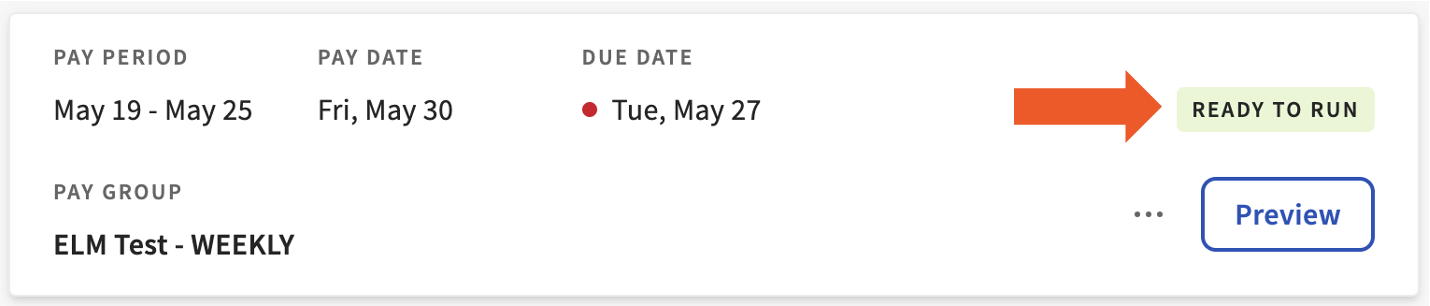
The payroll displays a badge labeled Ready to Run when the preparation steps above are complete.
How do I access my upcoming or previous payrolls?
Also asked as:
-
- How do I pull up old payroll reports?
- How do I go back to my first payroll?
- Can you look at my previous payroll documents?
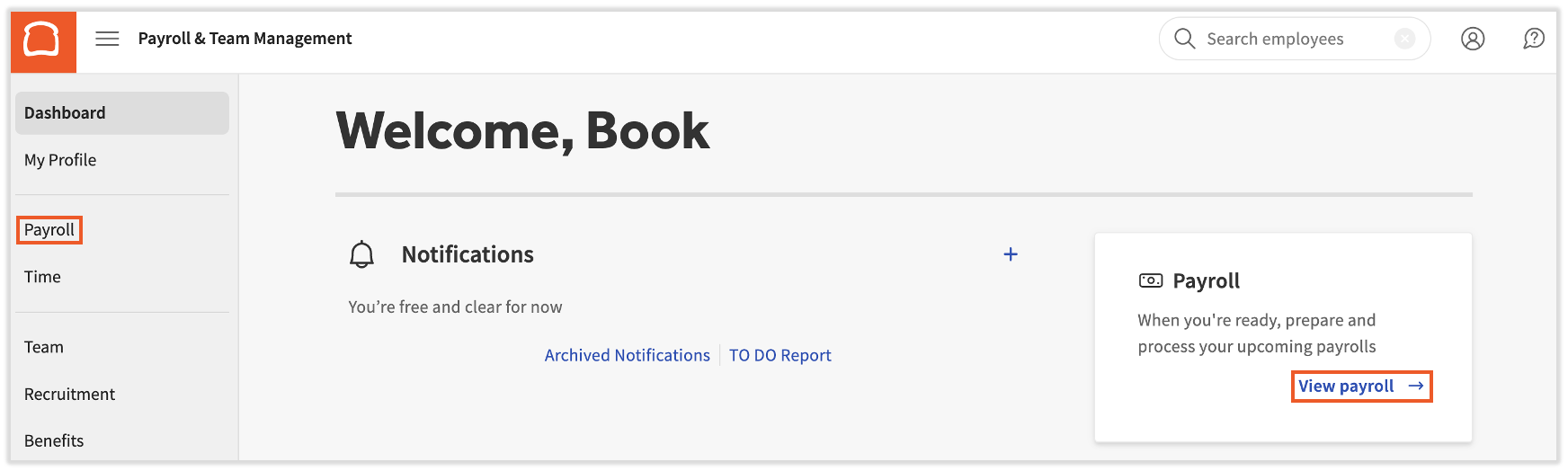
To access an upcoming payroll, log into Toast Payroll, select the Payroll tab in the left navigation rail, or select View payroll from the tile on your homepage. (When the Toast Web and Toast Payroll navigation menus are both visible, select Payroll from the Toast Payroll navigation menu.) Either path brings you to the Pay Cycle Dashboard with your current payrolls. From the Pay Cycle Dashboard, select the Past Payrolls tab to access submitted payrolls.
One of my payrolls disappeared before I finished it. How do I get it back?
Also asked as:
-
- Open the payroll from [date]
- Make my payroll from [date] visible on my dashboard
- Can you help me recover payroll from [date]
- I am not seeing my first payroll
If you do not see the payroll on the Pay Cycle Dashboard and its check date is in the past, Toast Payroll has likely cleared this space for the next payroll. Only one payroll per pay group can appear at a given time, and incomplete payrolls fall into the same category.
To bring this payroll back to the Pay Cycle Dashboard:
- Select the blue chat button in the lower-right corner of any Toast Payroll page.
- Include your company code, the name of the pay group, the check date of the missing payroll, and the new check date you want to pay employees on. The new check date must be at least two business days in the future.
- Once the payroll is restored, you can run and submit it as normal. If submitted on time, direct deposits occur on the new check date.
During Payroll
How do I start a payroll?
If you have completed the preparation steps, you can begin processing a payroll from the Pay Cycle Dashboard:
- Log into payroll.toasttab.com.
- Select View payroll from the homepage to open the Pay Cycle Dashboard.
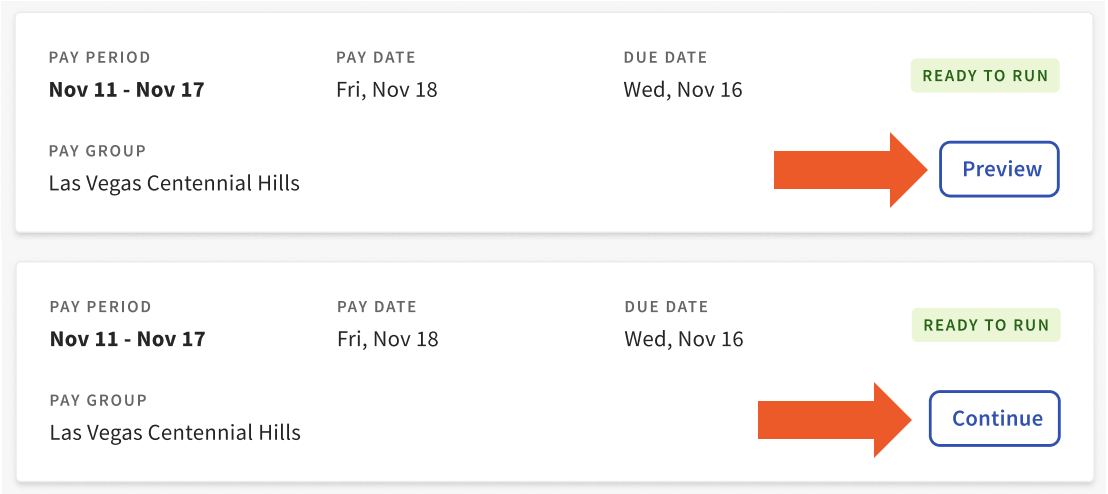
- Select Preview for the appropriate pay group to start a new payroll. To resume a payroll you have already started, select Continue for that pay group.
- Follow the step-by-step instructions in Toast Payroll: Run Your Payroll.
For a quick walkthrough of the steps you should take to review and complete a payroll run, watch this shorter video.
If you'd like a more in-depth look at the steps for a successful payroll run, check out this longer video complete with troubleshooting steps towards the end.
Can I upload spreadsheets into payroll?
Yes. Toast Payroll allows you to add custom imports to your payroll run. Custom imports are most commonly used for tips, prior payroll information, bonus amounts, and other files containing mass earnings. For setup and template details, see Toast Payroll: Configure Custom Payroll Imports.
What are these notifications for unreceived tips or unapproved timesheets?
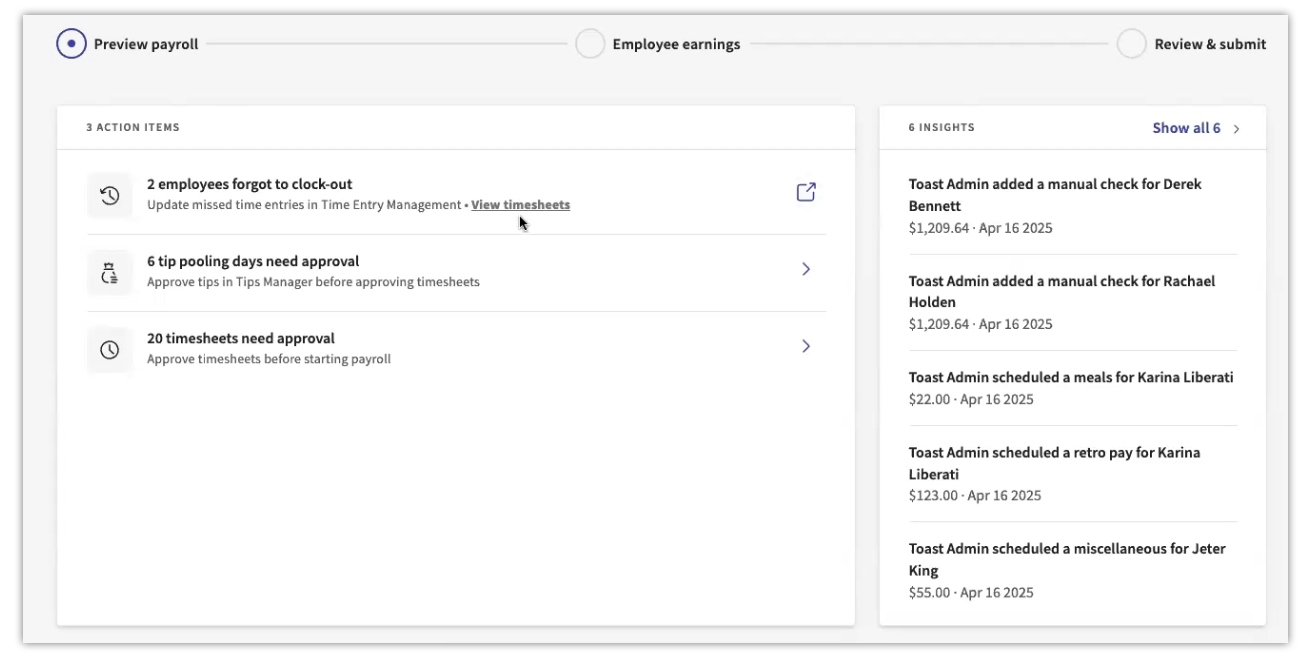
On the Preview Payroll step, Toast Payroll alerts you if information is missing from this payroll run. Under the Action Items card, select the link or the caret icon to view what is missing.
You can choose to have Toast Payroll automatically approve timesheets. Even with automatic approval enabled, Toast recommends reviewing each timesheet on the Time page. See Toast Payroll: Manage Timesheets to learn how the feature works.
How do I make adjustments to payroll?
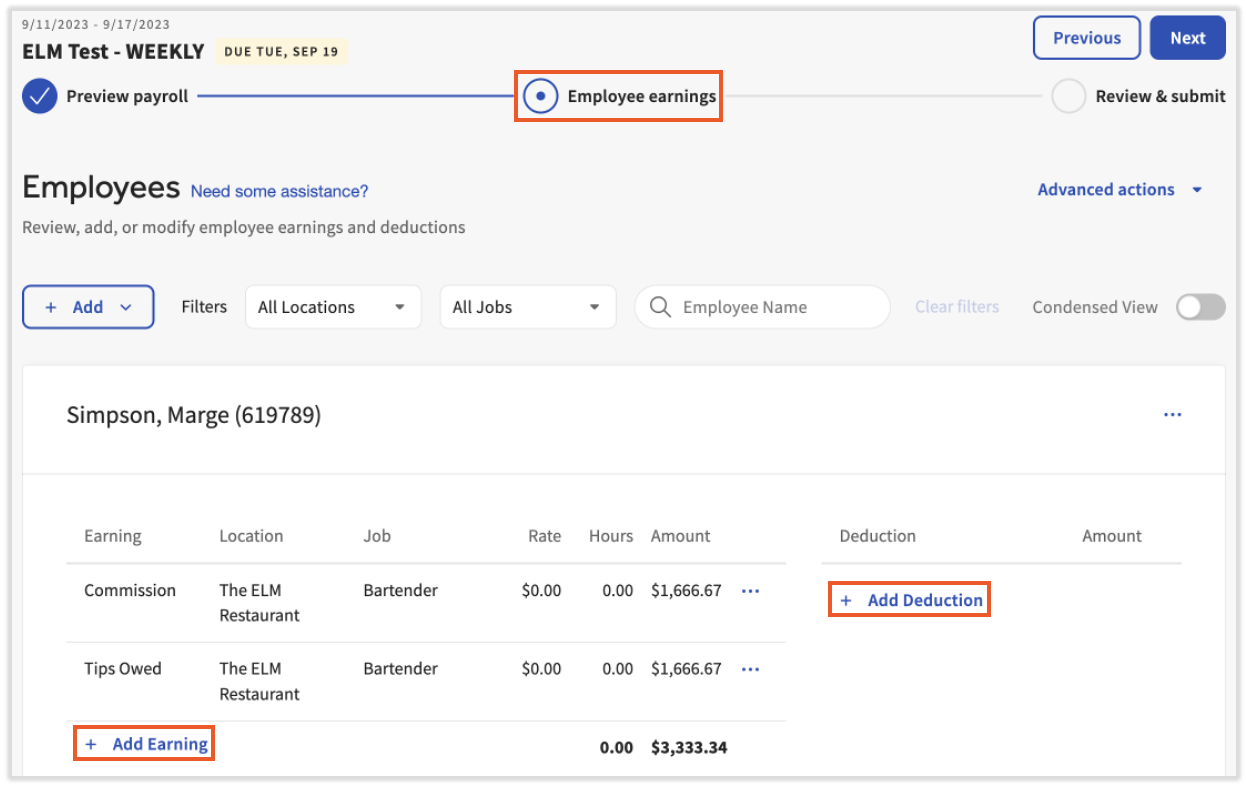
Most payroll earnings and deductions flow through automatically or via your custom imports, but sometimes one-off adjustments are needed. Make these adjustments during the Employee Earnings step of the payroll process. For step-by-step instructions, see Toast Payroll: Employee Earnings Step.
How do I confirm a payroll is accurate before finalizing?
Once the Employee Earnings step is accurate, select Next. This action does not submit your payroll; it brings you to a review step. Toast recommends selecting any Highlights and Exceptions links to scan the employees in those categories. Before submitting payroll, browse the payroll reports and other data with these questions in mind:
- Is the number of employees on payroll in line with my expectations?
- Is the number of hours on payroll in line with my expectations?
- Are the total payroll expenses in line with my expectations?
- Are tips present, if applicable?
- Is anyone receiving tip makeup?
- Have any one-off adjustments been entered and reviewed?
How do I submit payroll?
Once you have double-checked your payroll for accuracy, select Submit on the Review & Submit step to finalize and submit payroll.
Important: This action is final. If you discover an issue after submitting, you cannot reopen, edit, or cancel the payroll. See the next question for the correction options available.
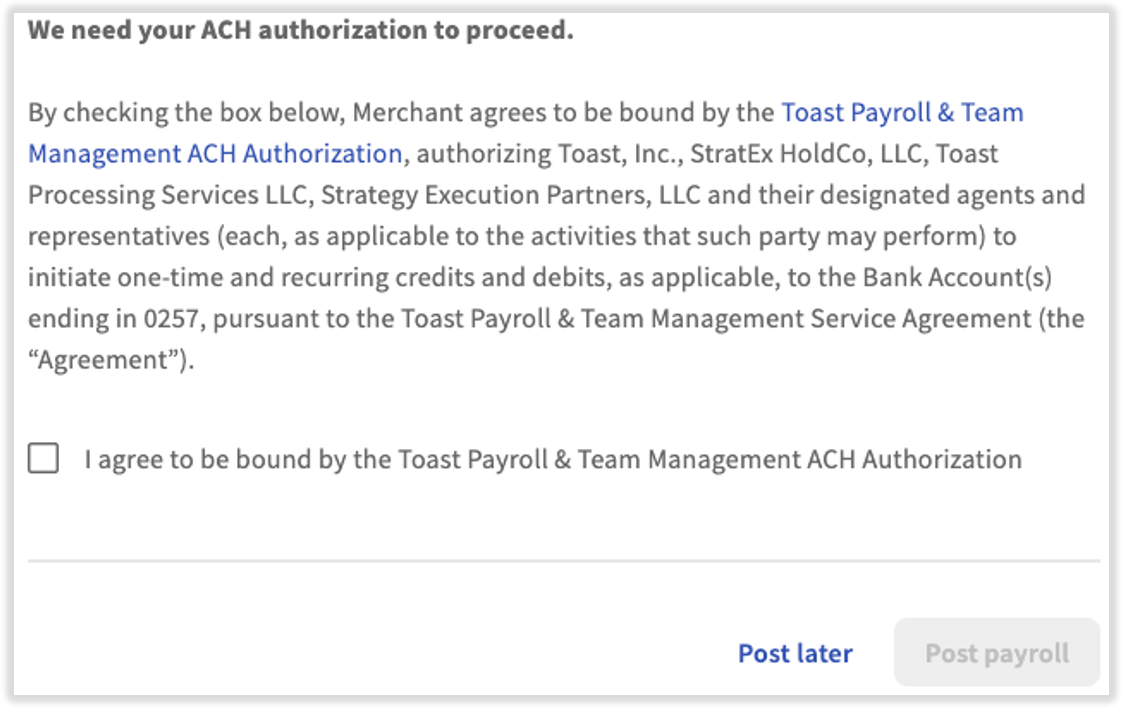
What does the ACH authorization pop-up mean?
If you are submitting your very first payroll, or if you have recently changed your company bank account on file, you will see a message indicating that Toast Payroll needs your authorization. The authorization lets Toast Payroll perform ACH credits and debits with your bank account. After selecting the checkbox and selecting Post payroll, this message will not appear again unless the company bank account is changed in the future.
After You Submit Payroll
What happens after my payroll is submitted?
Once payroll is submitted, Toast Payroll:
- Collects and remits payroll liabilities on your behalf, including direct deposits, taxes, and garnishments.
- Records payroll activity in employee profiles for use in quarterly and annual payroll filings.
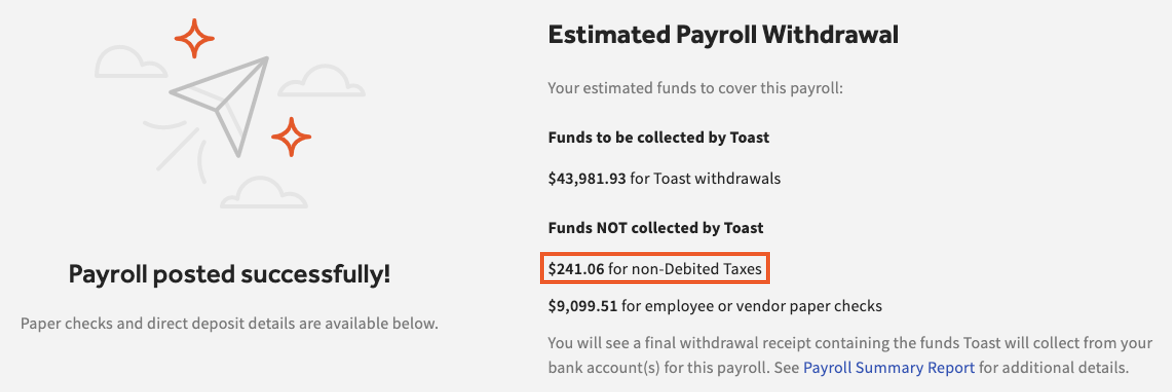
- Displays the Estimated Payroll Withdrawal on the Review step. Use this to plan for the funds needed to cover this payroll. The estimate updates to a verified Toast Payroll Withdrawal Receipt once the payroll is swept.
- Calculates Hawaii state-mandated disability insurance (HI SDI), New York family leave insurance (NY FLI), and NY SDI in employee checks.
- Toast does not debit for or pay calculated NY SDI and NY FLI funds, and has not done so in the past. Toast has also never collected or paid calculated HI SDI funds.
- For more information about NY SDI and FLI and how your company complies with the New York requirement, see the state's Workers' Compensation Board website or Toast Payroll: Tax Management in New York.
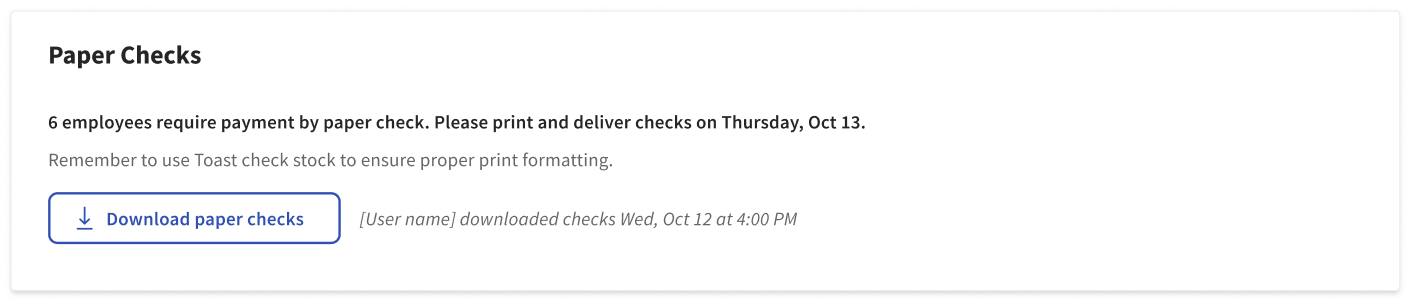
If you selected Toast-Printed as your paycheck delivery option, Toast prints and ships checks for employees who do not receive direct deposit or use Toast Pay Cards. UPS tracking numbers become available around 7 p.m. CST on the day payroll was submitted. Select a tracking number to view the package's details. Tracking numbers are not available for FedEx or bike couriers.

If you selected the Self-Printed paycheck delivery option, Toast Payroll delivers a PDF for employees on the paper check method.
I just submitted payroll but it is not showing. Did it submit?
Also asked as:
-
- Why is my payroll I just submitted not showing up to pay my employees?
- I believe I submitted my payroll but it is not showing
If you successfully submitted, you saw a Payroll posted successfully! message after pressing the Submit payroll button. To verify a payroll was submitted after you have left that page:
- In Toast Payroll, select View payroll from the homepage to open the Pay Cycle Dashboard.
- Select the Past Payrolls tab.
- Review the Submitted at column. If your payroll appears here with a date and time, it was submitted successfully. If it says Missed, it was not submitted yet, but you can select Submit to reopen the payroll and make edits (this will not automatically submit it).
- For payrolls with a date and time, select View to review the payroll withdrawal receipt, highlights and exceptions, and payroll reports.
- If the payroll is not on the Past Payrolls tab, look on the Upcoming Payrolls tab. Payrolls on the Upcoming Payrolls tab have not yet been submitted.
Expected outcome: You should see your payroll on the Past Payrolls tab with a withdrawal receipt and reports available.
All HR+ users with access to a pay group also receive an email notification once payroll is submitted, including the date and time and an estimated Toast Payroll withdrawal amount.
Can I edit a submitted payroll? Is it too late to make an adjustment?
Also asked as:
-
- Is it too late to make an adjustment?
- Would it be possible to open the payroll I just submitted?
- I need a payroll period to be reopened
No. Once a payroll is submitted, Toast Payroll cannot reopen, edit, or cancel it — this includes payrolls that have not yet been swept. You have a few options to correct an error on a submitted payroll:
- Account for it on the upcoming payroll. For example, if an employee was overpaid by $100, you can manually remove $100 in wages from their next paycheck. This should only be attempted if both payrolls are in the same quarter. See Toast Payroll: Add or Edit Earnings & Deductions.
- Run an off-cycle payroll. See Toast Payroll: Set Up and Configure Off-Cycle Payrolls.
- Request a void. See Toast Payroll: Request a Void. A void must be done within the same quarter as the original payroll to avoid amendments.
- Use an ACH reversal for a wrong-account direct deposit. See Toast Payroll: Unsuccessful Direct Deposits.
What is the Connect to QuickBooks button for?
After posting payroll, you may see a button labeled Connect to QuickBooks. If you use QuickBooks Online and Toast Payroll, you can directly sync your payroll data to QuickBooks Online. See Get Started With Payroll Accounting Sync for setup instructions. More accounting software connections will be available in the future.
What if I left an employee off of a payroll run?
Toast Payroll offers three different ways to calculate, report, and pay owed wages to an employee who was left off a submitted payroll. For each method and when to use it, see Toast Payroll: Missed Employee or Missed Pay on Payroll.
When will my employees receive their paycheck?
Pay timing depends on when you submit, paycheck delivery method, and federal holidays. For each scenario (submitted on time, submitted late, submitted on a weekend or holiday), see Toast Payroll: Get Help With When Employees Are Paid.
Where can I find historical payroll data by location?
You have two options:
- Ask Toast IQ in Toast Web. Toast IQ can display and analyze your payroll history. See Toast IQ AI Assistant Overview.
- In Toast Payroll, navigate to Payroll > Past Payrolls and select View to bring up the Confirmation page for a specific payroll. This page lets you access the reports specific to that single payroll. See Toast Payroll: Review Payroll Reports.
- When the Toast Web and Toast Payroll navigation menus are both visible, select Payroll from the Toast Payroll navigation menu.
Paystub FAQ
Can Toast Payroll add a company's phone number to the paystub?
Yes. Some states require employers to display a company phone number on each employee's paystub. To request this, select the blue chat button in the lower-right corner of any Toast Payroll page. Include the correct phone number in your request.
Can Toast Payroll add Time Away From Work balances to the paystub?
Yes. Time Away From Work (TAFW) balances can be added to paystubs. Select the blue chat button in the lower-right corner of any Toast Payroll page and specify whether this is for hourly employees, salary employees, or both.
Can Toast Payroll add an employee's tip-out percentage to the paystub?
No. Tip-out percentage on the paystub is not available at this time.
Will employees on direct deposit receive paper paystubs in the check package?
Not by default. If your company is set up for Toast-Printed paycheck delivery or Self-Printed paycheck delivery, you can turn this on or off by selecting the blue chat button in the lower-right corner of any Toast Payroll page. Customers can do this themselves by logging into payroll.toasttab.com and navigating to Settings > Payroll > Paycheck Delivery. If you do not see Settings on the left side of the screen, select Payroll from the Toast Web navigation rail on the left to make the Toast Payroll navigation rail appear.
Will my employees be notified when they receive a paystub?
Also asked as:
-
- Please disable employee paystub notifications
- I want employee paystub notifications disabled
Not by default, but the notification setting can be enabled or disabled. Select the blue chat button in the lower-right corner of any Toast Payroll page and specify whether you want employees notified via their email on file, an employee to-do, or both. You can also use the same path to disable existing paystub notifications.
Related Articles
- Toast Payroll: Prepare to Run Payroll
- Toast Payroll: Run Your Payroll
- Toast Payroll: Get Help With Your Payroll
- Toast Payroll: Missing Payroll
- Toast Payroll: Verify Payroll Was Submitted
This content is for informational purposes and is not intended as legal, tax, HR, or any other professional advice. Please contact an attorney or other professional for advice.