Toast Payroll: Prepare to Run Payroll
Last updated: Jun 23, 2026, 2:14 PM
Use this checklist before every payroll run to keep employee profiles, tips, and time entries accurate so payroll posts on the first attempt.
- Before You Begin
- Quick Reference: Pre-Payroll Checklist
- Set Your Paycheck Delivery Option
- Update Employee Profiles Before Payroll
- Prepare Tips
- Verify and Approve Time Entries
- Other Considerations
- Recommended Timeline
- Frequently Asked Questions
- Why is an employee missing from payroll?
- Why does an employee show more hours in payroll than on their timesheet?
- How do I edit and approve timesheets?
- Payroll says it is ready to run, but I still have timesheets to approve. What should I do?
- Are credit-card tips automatically added to each employee's check?
- How do I add a deduction or garnishment for an employee?
- I am switching to Toast Payroll. What do I do to prepare for my first payroll?
- Before You Contact Customer Care
- Related Articles
Before You Begin
Applies to: Toast Payroll, Toast Web (for time entry verification)
Permissions needed:
- HR+ user — required to set the paycheck delivery option, change employee pay, run payroll, and email employees about incomplete direct deposit
- Manager — can review and approve timesheets
What you'll accomplish: Your payroll will reach the Ready to Run status with verified employee profiles, approved tips, and approved time entries, so you can post payroll without action items blocking the Preview step.
Important: If you are not yet using your Toast POS devices and handhelds, you must post payroll four days before your check date. Once you are live on Toast POS, this date becomes more flexible, but before going live, this deadline must be enforced for security reasons.
Quick Reference: Pre-Payroll Checklist
Use this table to scan what to do, when to do it, and where in Toast Payroll the task lives.
| Task | When to Do It | Where in Toast Payroll | Self-Service? |
|---|---|---|---|
| Set paycheck delivery option | Once (then leave it), or as they happen | Settings > Payroll > Paycheck Delivery | Yes |
| Check direct deposit status | Each pay period | Settings > Payroll > Direct Deposit | Yes |
| Add new hires | As they happen, before pay period end | Team > +Add team member | Yes |
| Terminate departing employees | As they happen | Employee profile > Status tile > select the > caret icon | Yes |
| Add an employee created in Toast Web only | As discovered (look for Unpaid employee tag) | Team > employee row > three dots > Add employee to payroll | Yes |
| Update positions, hourly/salary, multi-job | As they happen | Employee profile > primary job > select the > caret icon | Yes |
| Update Form W-4 / tax info | As employees request | Employee profile > Taxes & Documents > Tax Forms | Yes (employee can self-serve) |
| Apply pay change | Before previewing payroll | Employee profile > Employment tab > Change pay | Yes |
| Add or update recurring deductions | As they change | Employee profile > Recurring tab | Yes |
| Add or update wage garnishment, child support order, lien, or levy | When you receive the order | Blue chat dot in lower-right of any Toast Payroll page | No — Customer Care must set up |
| Approve and send tips from Toast Tips Manager | Before approving timesheets (or every day for Pay Card users) | In Toast Web, Reports > Labor > Tip management | Yes |
| Verify time entries | After pay period ends, before payroll | In Toast Web, Reports > Labor > Time entry management | Yes |
| Approve timesheets | After pay period ends, before payroll (or auto-approve) | Time page in Toast Payroll | Yes |
| Add a Quick Calc | When wages were paid outside payroll | Employee profile > Quick Calc | Yes |
| Add a Payroll To-Do (bonus, one-time deduction) | At least one day before payroll | Pay Cycle Dashboard > Payroll To-Dos | Yes |
Set Your Paycheck Delivery Option
When an employee selects Paper check (not direct deposit or Toast Pay Card) as their payment method, you choose how the check reaches them — known as the paycheck delivery option. This is a company-wide setting that an HR+ user typically sets one time and does not change.
Review the three options and choose one in Toast Payroll: Paycheck Delivery FAQ. For employee payment method details, see Toast Payroll: Set a Payment Method.
Expected outcome: The paycheck delivery option saves at the company level and applies to all paper-check payments going forward.
Update Employee Profiles Before Payroll
Changes to employee profiles will not flow to payroll once you select the Preview button to start a payroll. Make these changes ahead of time to run payroll with ease.
Check Direct Deposit Status
You can easily check the status of each employee's direct deposit before payroll runs.
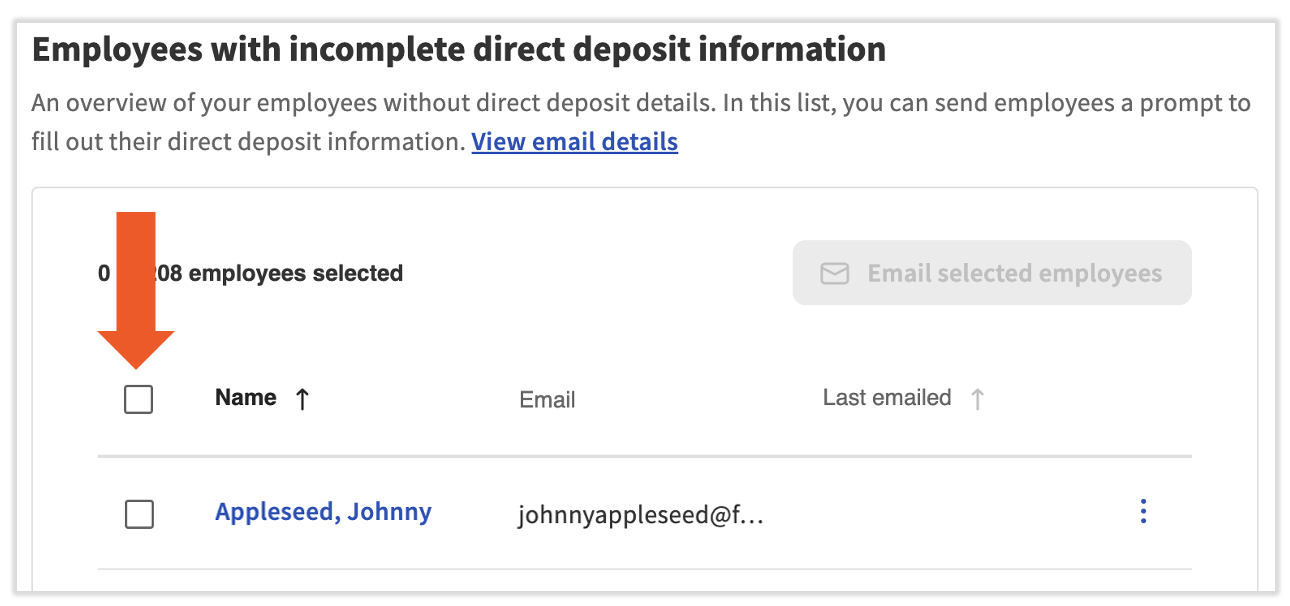
- In Toast Payroll, navigate to Settings > Payroll > Direct Deposit.
- View the Employees with incomplete direct deposit information section to see which employees need to finish their direct deposit setup.
- To alert affected employees, select the checkbox next to the Name column, then select Email selected employees.
Employees in the Employees with incomplete direct deposit information tile will not be paid via direct deposit until they take action. See Toast Payroll: Get Help With Direct Deposit Accounts for the steps you or your employee can use to add or update a direct deposit account.
Expected outcome: Affected employees receive an email and can complete their direct deposit setup before the payroll run.
Make Status Changes for Hires, Terminations, and Unpaid Employees
Employee status changes — hires, terminations, archives, and unpaid employees — must be reflected in Toast Payroll before the pay period ends so the right people are on the payroll.
If an employee was added in Toast Web but not Toast Payroll, they will not have a Toast Payroll profile and will not be paid. Toast Payroll flags them with an Unpaid employee tag.
- In Toast Payroll, navigate to Team and locate the employee with the Unpaid employee tag next to their name.
- Select the three dots on the right and select Add employee to payroll.
- Follow the new hire workflow to complete their Toast Payroll profile.
For more on resolving unpaid employees, see Toast Payroll: Manage Employee Mapping.
To onboard a new hire, navigate to Team > +Add team member. The employee must have a Hire Date that falls on or before the pay period end date in order to be included on that payroll. See Toast Payroll: New Hire Employees (Employer Guide) for the full new hire steps.
To terminate an employee, navigate to the employee's profile and select the > caret icon in the Status tile to begin the termination workflow. Terminated employees will not be included on payrolls beyond their termination date — set this as the last day of employment in the termination template. See Terminate or Archive an Employee in Toast Web or Toast Payroll.
Expected outcome: Each employee who should be paid on the upcoming payroll has an active Toast Payroll profile with the correct hire and status dates.
Note: The hire date and the position start date control whether an employee shows on a payroll. If an employee's Position start date falls after the pay period end, they will not auto-sync to that payroll even if their overall hire date is earlier.
Update Positions and Jobs
Has an employee's position or position settings changed? Are they moving from hourly to salary or salary to hourly? Are they working a different or additional job? Update these on the profile so payroll picks them up.
- On the employee's profile, select the > caret icon to the right of their primary job.
- Update position settings, change hourly to salary or salary to hourly, or add or edit additional jobs.
Maintaining these settings as changes happen — rather than at payroll time — speeds up payroll runs.
For full details, see Toast Payroll: Update Positions, Toast Payroll: Hourly to Salary Job Changes, Toast Payroll: Salary to Hourly Job Changes, and Toast Payroll: Assign or Change Employee Jobs or Locations.
Expected outcome: The employee's primary job, secondary jobs, and salary type are accurate on their profile and will flow into the upcoming payroll.
Update Tax Information
Has an employee requested changes to their Form W-4 recently? Has an employee changed marital status or had a child? These changes affect tax withholding and should be made before payroll.
Encourage employees to make these changes themselves through their employee account. If you need to do it on their behalf:
- Navigate to the employee's profile.
- Choose Taxes & Documents > Tax Forms tab.
- Update the Form W-4 fields.
For employee self-service steps, see Toast Payroll: Update Form W-4 Information.
Expected outcome: The employee's updated Form W-4 information saves and applies to the next payroll run's tax calculations.
Update Pay Rates
Were any employees given a raise? Was the minimum wage increased? Pay changes must be made on the employee profile before you start payroll if you want them to apply to the current run.
- On the employee's profile, select the Employment tab.
- Select Change pay for the appropriate job.
- Enter the new rate and effective date.
- Be sure the current rate is reflected on the employee's timesheet before approving it (if applicable).
For full details, see Toast Payroll: Make a Pay Change.
Expected outcome: The pay change is reflected on the employee's timesheet and will be used by the upcoming payroll.
Manage Recurring Deductions and Garnishments
Recurring deductions (like benefits) are managed by you on the employee profile. Wage garnishments — including child support orders, liens, and levies — are court-ordered and must be installed by Toast Customer Care.
To add or change a recurring deduction (employer-managed):
- Navigate to the employee's profile.
- Choose the Recurring tab.
- Add or edit the recurring deduction.
For full details, see Toast Payroll: Add or Edit Earnings & Deductions.
To add a wage garnishment, child support order, lien, or levy (Customer Care installs):
If your company received a garnishment order — even an amendment to an existing one — send the entire order to Toast via the blue chat dot in the lower-right corner of any Toast Payroll page. The Customer Care team will install it for you. Toast does not fill out worksheets or answer sheets included in the court order — that is the customer's responsibility.
For details on how garnishments work after setup, see Toast Payroll: Wage Garnishments FAQ.
Expected outcome:
- For recurring deductions: the deduction appears on the employee's Recurring tab and will be applied on the next regular payroll.
- For garnishments: Customer Care confirms the garnishment has been set up; a recurring deduction then appears on the employee's profile, and the system will deduct from each regular pay period thereafter.
Prepare Tips
Once you are ready to begin payroll, preparing tips is crucial for a smooth payroll run. Use the path that matches how your restaurant brings tips to payroll.
If your restaurant imports tip information from Toast Tips Manager:
- Make sure Toast Tips Manager is fully set up and synchronized.
- Approve and send the entire pay period's tips to Toast Payroll before approving timesheets.
- If you start a payroll run without sending tips from Toast Tips Manager, you will see an action item on the Preview Payroll step. You will also get a notification before you advance past that step.
For setup and pooling details, see Get Started With Toast Tips Manager.
If your restaurant directly syncs tips from Toast Web automatically:
- Tips appear on employee timesheets in Toast Payroll.
- Confirm the figures on those timesheets before approving them (if necessary).
If your business imports a spreadsheet containing tips:
- Download the Payroll Export report from Toast Web (if necessary).
- Review the tip sums for accuracy before beginning a payroll run.
For all tip processing methods and earning code details, see Toast Payroll: Manage and Integrate Tips.
Earning code rule: Tips paid outside of Toast Payroll should align with a Tips Paid earning code. Tips being paid through Toast Payroll should correspond to a Tips Owed earning code.
Expected outcome: All pay-period tips are present and approved before timesheets are approved, preventing duplicate timesheets caused by late tip submissions.
Verify and Approve Time Entries
Verifying time entries before payroll catches missing punches, wrong jobs, and unmapped employees so payroll posts with the correct hours the first time.
- Approve time away requests (if applicable). If your restaurant uses the TAFW module with Toast Payroll Pro, approve all applicable time away requests in Toast Payroll before approving timesheets or starting payroll. For details, see Toast Payroll: Get Started With Time Away from Work (TAFW).
- Verify time entries in Toast Web. In Toast Web, select Labor summary from the Quick Actions tile for an overview of all hours worked by employees. Set the date range at the top of the page to match your pay period dates and select Update.
- Edit any discrepancies in Time entry management. If you see discrepancies on the Labor Summary, navigate to Reports > Labor > Time entry management in Toast Web. Set the same date range. Edit any necessary time entries — Toast will immediately sync any changes to Toast Payroll. For details, see Edit Employee Time Clock Entries.
- Approve timesheets in Toast Payroll. Navigate to the Time page. Filter the page to a single payroll using the drop-down menu above the Payroll column. Select the checkbox in the left-hand corner of the gray headers bar to select every timesheet for that payroll. Then select Approve All at the bottom of the page. Be sure you are only approving timesheets for the intended payroll.
If automatic timesheet approval is enabled, you can skip step 4 — but verify time entries in step 2 anyway. Catching an error before payroll is submitted is far easier than fixing it after.
If time entries are missing for an employee, the cause is often a mapping issue between Toast Web and Toast Payroll. See Toast Payroll: Manage Employee Mapping to remap and resubmit time entries.
For complete timesheet management — auto-approval, unapproving, deleting, and open punches — see Toast Payroll: Manage Timesheets.
Note: If you do not have automatic timesheet approval enabled and you start a payroll run without approving timesheets, you will see an action item on the Preview Payroll step. You will also get a notification before you advance past that step. See Toast Payroll: Preview Payroll Step for what action items appear there.
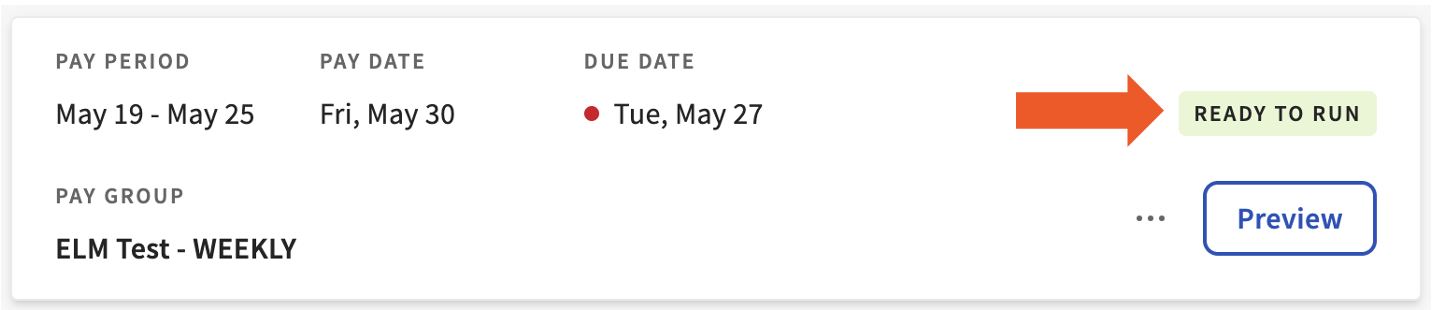
Expected outcome: Once all tips and time entries have been approved, you will see a Ready to Run confirmation on the Pay Cycle Dashboard so you know you can continue.
When you are ready to begin running payroll, follow the step-by-step instructions in Toast Payroll: Run Your Payroll.
Other Considerations
Quick Calcs
A Quick Calc records funds that an employee was already paid outside of Toast Payroll — for tax-reporting purposes — without paying them again through payroll.
A common scenario: hours were missed on a payroll but paid manually outside the system (cash, manual check, company check, payment app). A Quick Calc lets earnings, deductions, and taxes be processed for that payment without paying the employee a second time or recording hours.
For full details, see Toast Payroll: Issue Manual Checks (Quick Calcs).
Payroll To-Dos for Bonuses or One-Time Deductions
If you plan to give employees a bonus or apply a one-time deduction, enter these amounts ahead of time as a Payroll To-Do to save time on the day of running payroll.
For full details, see Toast Payroll: Get Started With Payroll To Dos.
Recommended Timeline
Toast suggests doing these things on this cadence so payroll day is fast and predictable.
| When | Tasks |
|---|---|
| Once (set and leave) | Paycheck delivery option |
| As they happen | Status updates; position or job changes; pay changes; tax information updates; recurring deductions; employee mapping |
| Once the pay period ends | Verify time entries; approve TAFW requests |
| At least one day before payroll | Gather tip imports (if necessary); approve timesheets (if necessary); add Quick Calcs and Payroll To-Dos |
Following this checklist makes running payroll most efficient and effortless on the day you process and submit it.
Frequently Asked Questions
Why is an employee missing from payroll?
An employee is missing from payroll most often because of a mismatch between their position start date and the pay period, an unpaid-employee tag (added in Toast Web but not Toast Payroll), or a pay group mismatch. Check three things in this order:
- Position start date. Open the employee's profile and confirm the position start date falls on or before the pay period end date. If the position starts after the pay period, the employee will not auto-sync to that payroll.
- Unpaid employee tag. Navigate to Team in Toast Payroll. If the employee shows an Unpaid employee tag, they were added in Toast Web but not Toast Payroll. Select the three dots > Add employee to payroll and complete their profile.
- Pay group match. On the employee's Position page, confirm their pay group matches the pay group of the payroll you are running. See Toast Payroll: Get Help With Your Payroll for the missing employee troubleshooting flow.
If the employee should have been paid on a payroll already submitted, you have three ways to pay them — see Toast Payroll: Get Help With Your Payroll.
Also asked as:
-
- "Why didn't one of my employees get a paycheck?"
- "An employee is missing from this payroll"
- "Why is my new hire not on payroll?"
Why does an employee show more hours in payroll than on their timesheet?
This usually happens because the Time entry management report and the Toast Payroll timesheet are showing different scopes — most often a different date range, a single shift instead of the full pay period, or hours split across two timesheets due to a position change or late tip sync.
- In Toast Web, open Reports > Labor > Time entry management and confirm the date range matches the pay period.
- Confirm you are viewing all of the employee's shifts, not a single day.
- In Toast Payroll, check the Time page for multiple timesheets in the same pay period for the same employee. Multiple timesheets can result from approving timesheets before the pay period ends, late tip submissions, position changes mid-period, or working in two different pay groups.
If you suspect the time entry sync is wrong, see the troubleshooting flow in Toast Payroll: Get Help With Timesheets.
Also asked as:
-
- "Hours don't match between timesheet and payroll"
- "Payroll has different hours than what employee worked"
How do I edit and approve timesheets?
To edit a time entry, fix it in Toast Web — not in Toast Payroll. Toast Payroll timesheet edits do not sync back to Toast Web and will cause reporting inaccuracies.
- In Toast Web, navigate to Reports > Labor > Time entry management.
- Edit the Time in, Time out, or Cash tips decl. fields directly, then select the check mark to save. Changes sync to Toast Payroll instantly.
- In Toast Payroll, navigate to the Time page, select the timesheet for the correct payroll, and select Approve (or use Approve All for multiple timesheets after filtering).
For full edit, unapprove, and re-open instructions, see Toast Payroll: Manage Timesheets.
Also asked as:
-
- "How do I approve timesheets?"
- "Can I edit timesheets in Toast Payroll?"
Payroll says it is ready to run, but I still have timesheets to approve. What should I do?
If the Ready to Run status appears but you still see unapproved timesheets, those timesheets may belong to a different payroll, the pay period may not have ended, or automatic timesheet approval is enabled.
- On the Time page, filter to the payroll you are running using the drop-down menu above the Payroll column.
- Approve only the timesheets for the intended payroll. Approving timesheets for a future payroll will create a second timesheet for the employee.
- If automatic timesheet approval is enabled, Approve buttons will not appear — timesheets will auto-approve when you start the payroll. See Toast Payroll: Manage Timesheets for the auto-approval setting.
Also asked as:
-
- "Payroll is ready to run but I have timesheets pending"
Are credit-card tips automatically added to each employee's check?
It depends on your tip processing method. If your restaurant uses Toast Tips Manager and you have approved and sent the pay period's tips to payroll, those tips appear on employee timesheets and are paid out through payroll. If your restaurant directly syncs tips from Toast Web, tip amounts appear on timesheets automatically. If you import a tip spreadsheet, you must upload it before payroll.
In all cases, confirm the tip totals on each employee's timesheet match the source data before approving the timesheet. For all three paths, see Toast Payroll: Manage and Integrate Tips.
Also asked as:
-
- "Do credit tips get added to payroll automatically?"
- "Are credit card tips paid out by me automatically added into each employees checks?"
How do I add a deduction or garnishment for an employee?
How you add a deduction depends on whether it is a recurring employer-managed deduction or a court-ordered wage garnishment.
- Recurring deduction (employer-managed). Navigate to the employee's profile > Recurring tab and add or edit the recurring deduction. For details, see Toast Payroll: Add or Edit Earnings & Deductions.
- Wage garnishment, child support order, lien, or levy. Toast Customer Care must install these. Send the complete order — every page, every worksheet — via the blue chat dot in the lower-right corner of any Toast Payroll page. Toast does not fill out worksheets or answer sheets in the order; that is the customer's responsibility. For background on how garnishments work, see Toast Payroll: Wage Garnishments FAQ.
Also asked as:
-
- "How do I set up child support deductions?"
- "How do I add a garnishment?"
- "How do I change payroll deductions?"
I am switching to Toast Payroll. What do I do to prepare for my first payroll?
Before your first payroll on Toast Payroll, your onboarding consultant should set up a kick-off call to walk you through running your first payroll and finalize any last steps. If you have not heard from your onboarding consultant, reach out through the blue chat dot in the lower-right corner of any Toast Payroll page so Customer Care can connect you.
While you wait, you can use this checklist to prepare:
- Verify the employee data imported from your previous provider — names, addresses, pay rates, tax info, direct deposit accounts.
- Confirm pay groups, pay frequencies, and check dates match what you expect.
- Verify and edit time entries in Toast Web for the upcoming pay period.
Your onboarding consultant will confirm the final cutover date and walk you through the first run. The Toast Payroll: Prepare to Run Payroll checklist applies to every payroll afterward.
Also asked as:
-
- "We are switching to Toast Payroll, what do I do next?"
- "First payroll on Toast — what do I need to do?"
Before You Contact Customer Care
Some payroll setup actions can only be completed by Toast Customer Care. The most common are wage garnishments, child support orders, liens, and levies — Toast installs these on your behalf for compliance reasons. Before contacting Customer Care for one of these, gather the items below to speed up resolution.
For a wage garnishment, child support order, lien, or levy, gather:
- The complete court order, including all pages and any worksheets or answer sheets
- The employee's full name as it appears in Toast Payroll
- Confirmation that the employee still works for your business (if not, notify the issuing agency — you do not need to collect from a former employee)
- The agency name and remittance details if not on the order
Send the order via the blue chat dot in the lower-right corner of any Toast Payroll page. The Customer Care team will install the garnishment and confirm to you when it is set up. A recurring deduction will then appear on the employee's profile.
Note: Toast Payroll does not set up medical child support orders. Follow the instructions on those orders outside of Toast Payroll.
For other payroll preparation issues, the troubleshooting flow in Toast Payroll: Get Help With Your Payroll covers missing employees, incorrect timesheets, missing or incorrect earnings or deductions, and out-of-balance payroll.
Related Articles
- Toast Payroll: Run Your Payroll
- Toast Payroll: Manage Timesheets
- Toast Payroll: Get Help With Your Payroll
- Toast Payroll: Manage Employee Mapping
- Toast Payroll: Preview Payroll Step
This content is for informational purposes and is not intended as legal, tax, HR, or any other professional advice. Please contact an attorney or other professional for advice.