Toast Payroll: Issue Manual Checks (Quick Calcs)
Last updated: Aug 10, 2026, 3:26 PM
Use a Quick Calc to record manual checks issued outside of Toast Payroll so wages, deductions, and taxes appear on employee tax records.
- Before You Begin
- What a Quick Calc Does (and Doesn't Do)
- When to Use a Quick Calc
- Calculate a Manual Check With a Quick Calc
- Use a Quick Calc for Tip Pool Amounts
- Delete Earnings or Deductions Before Attaching
- Delete a Quick Calc Already Attached to a Payroll
- Find Quick Calcs on Payroll Reports
- Frequently Asked Questions
- Related Articles
Before You Begin
Applies to: Toast Payroll
Permissions needed:
- A Toast Payroll security role that includes Quick Calc access. Users cannot run a Quick Calc for themselves, no matter their security role.
What you'll accomplish: Record a manual check that you wrote outside of Toast Payroll so the wages, deductions, and taxes are applied to the employee's tax records and appear on a future or off-cycle payroll.
What a Quick Calc Does (and Doesn't Do)
A Quick Calc is a tool used to record manual payroll checks issued outside of a payroll cycle. A Quick Calc must be attached to either a future payroll or an off-cycle payroll in order to document the record of payment for the employee.
A Quick Calc does not generate any funds for the employee, and it does not send deduction funds to vendors. When you attach it to a payroll or an off-cycle, Toast Payroll applies any wage, deduction, and tax information from the Quick Calc to the employee's tax records (Form W-2, 1099, etc.). If an employee or vendor should receive funds as a result of the Quick Calc, you (the employer) must generate the manual check outside of Toast Payroll.
The total taxes (including Quick Calcs) appear on the Payroll Summary report and the Payroll Withdrawal Receipt. The Payroll Summary report generates immediately after running payroll; the Payroll Withdrawal Receipt generates once Toast Payroll has swept payroll for the day at 4:20 p.m. CT.
Taxes generated from Quick Calcs are collected via the standard debit withdrawal process for the payroll the Quick Calc is attached to. You as the employer are responsible for the employer portion of taxes generated as a result of recording Quick Calcs.
Watch this short video to learn more about Quick Calcs and manual checks.
When to Use a Quick Calc
A Quick Calc is the right tool when you need to record payment activity that happened outside of Toast Payroll, or when you want to preview a paycheck calculation without paying the employee.
Common scenarios:
- An employee was paid manually (cash, manual or company check, or a payment app) for hours missed on payroll. The Quick Calc records the earnings, deductions, and taxes so they appear on the employee's Form W-2 without paying them twice.
- An employee was terminated before the current pay period ended and you need to record their final wages, severance, or tip payout.
- You need to add missing hours from a previous pay period.
- You need to align taxes during payroll adjustments — for example, reconciling tip amounts from credit card payments using earning codes like Tips Owed.
- You want to preview a paycheck (gross-to-net) if a variable such as a deduction or tax setting changes. A Quick Calc that is not attached to a payroll will not record earnings or taxes for the employee's Form W-2.
- You are about to terminate an employee and want to pay them their final wages ahead of the next check date. Use a Quick Calc to add the recorded hours, tips, and deductions, attach it to a payroll, and then pay the net amount via cash, a payment app, or company check.
A Quick Calc and manually adding an employee to payroll are the only two ways to pay an employee who was previously terminated in Toast Payroll. See Toast Payroll: Add an Employee to the Employee Earnings Step for the alternate method.
Calculate a Manual Check With a Quick Calc
This section walks through the full procedure: add earnings or deductions, calculate gross to net, and attach the Quick Calc to a payroll. Follow the steps in order. If you only want to preview a paycheck (without recording it on payroll), stop after the gross-to-net step.
Important: Before starting, confirm that a timesheet has not been approved and hours or tips have not synced from Toast Web with the same amounts as your Quick Calc. Duplicate entries cause the employee to be paid twice.
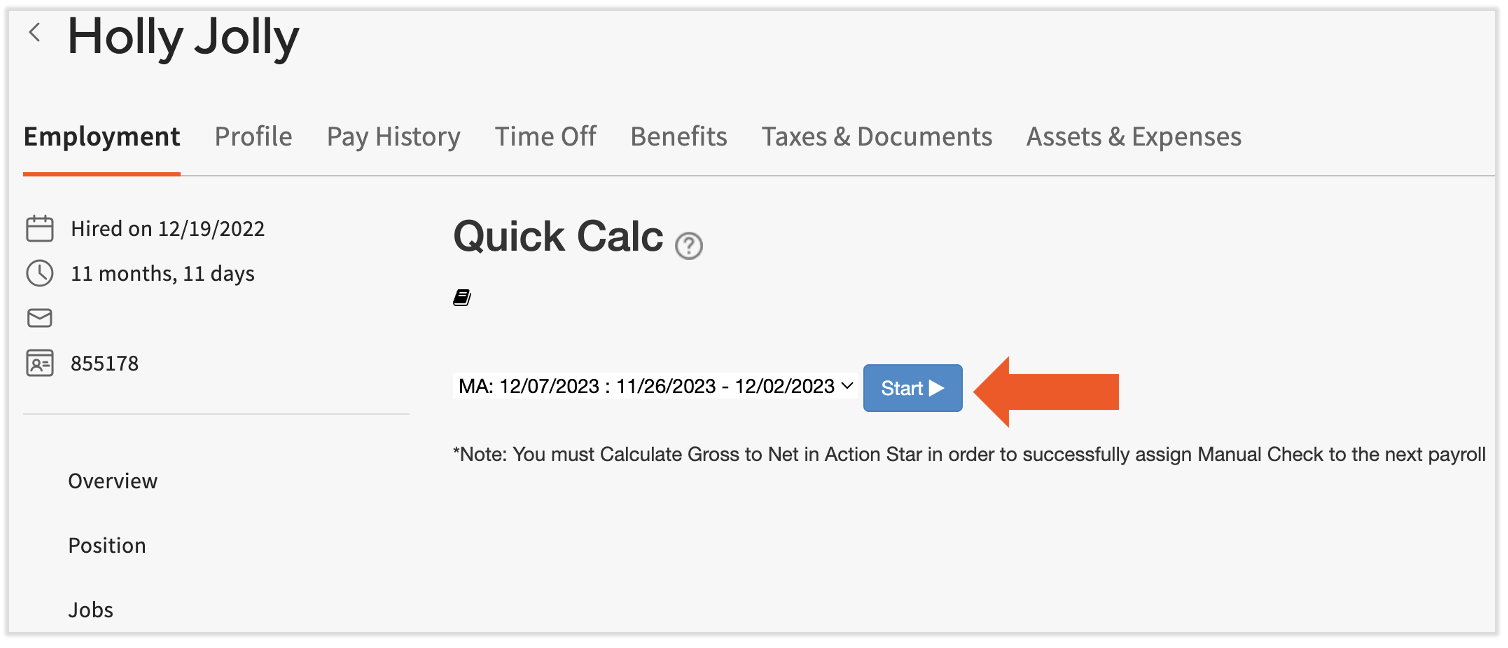
- In Toast Payroll, navigate to the employee's profile and select Quick Calc from the left side of the page.
- Select Start to continue.
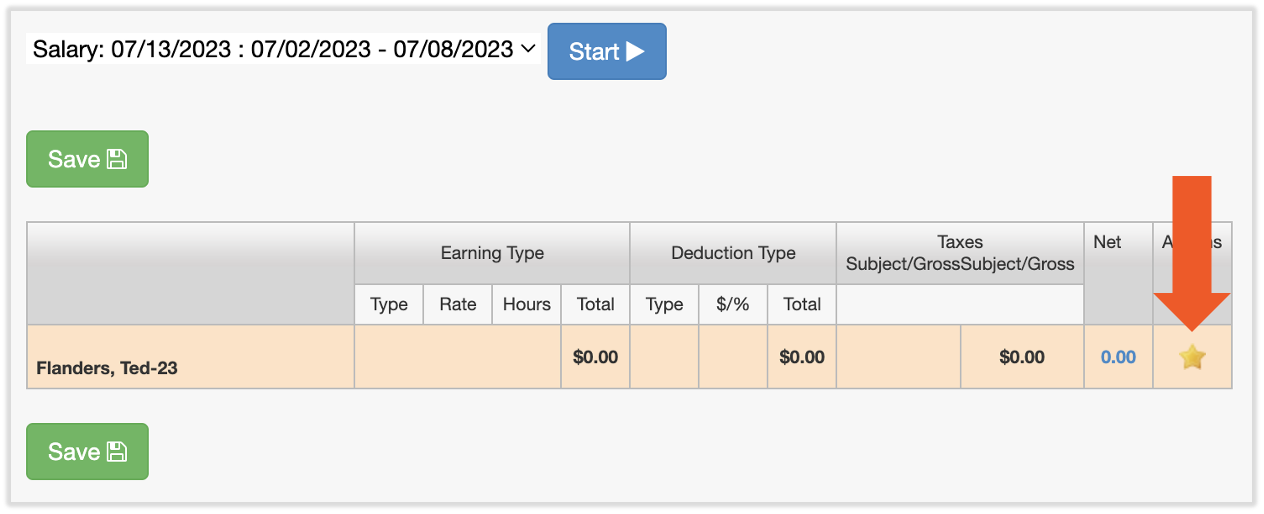
- Select the Actions star on the right side of the screen.
You may already see earnings or deductions in this table. These appear automatically if the employee has a recurring earning code or deduction code that applies to them every pay period — for example, a salaried employee will see their pay period's gross salary amount.
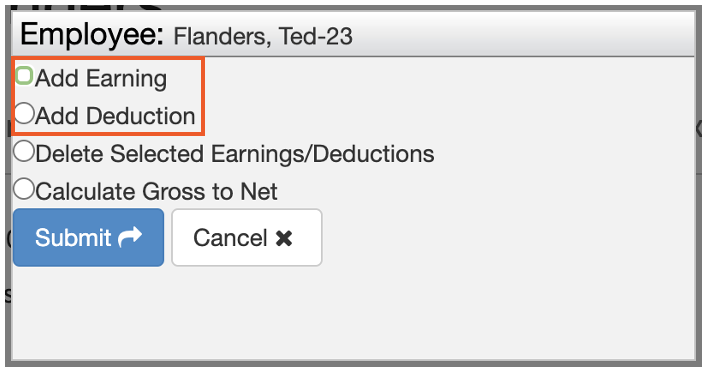
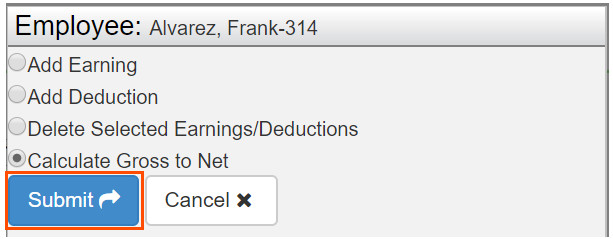
- From the pop-up, select Add Earning or Add Deduction, then select Submit.
- Enter the earning or deduction details.
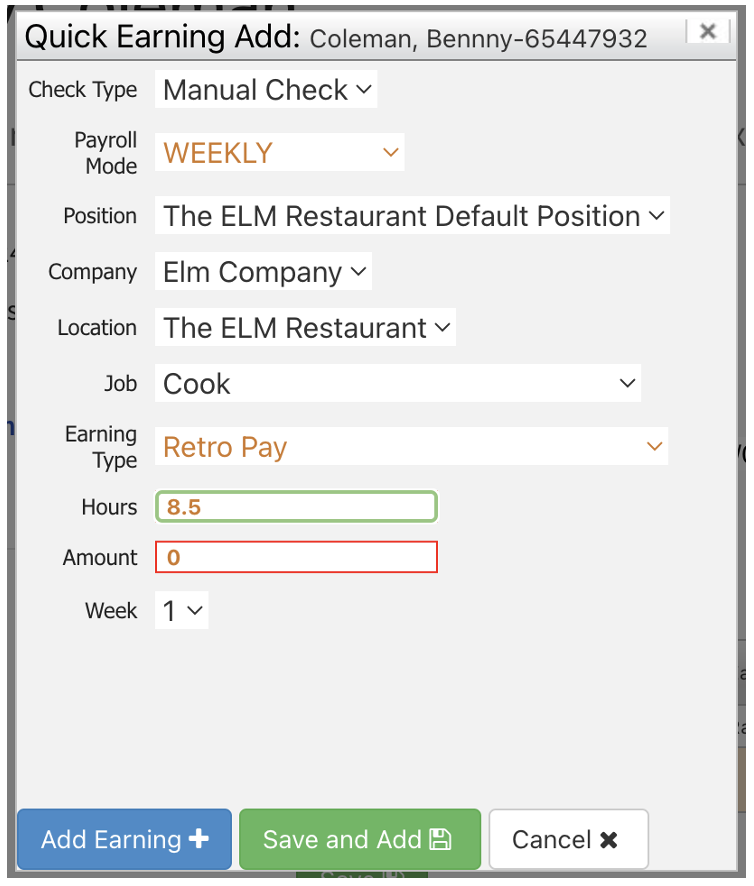
For an earning:
- Check Type: Leave as Manual Check.
- Payroll Mode: Defaults to the employee's primary check frequency (weekly, bi-weekly, semi-monthly, or monthly).
- Position/Company/Location/Job: Record earnings under the correct position and levels.
- Earning Type: Select an earning code.
- Hours: Enter the number of hours for hourly earnings.
- Amount: Enter a dollar amount for salary or flat-rate earnings.
- Week: Enter which week of the pay period the earning should apply to.
Note: Enter either Hours or Amount, not both. Which one to use depends on the Earning Type you selected.
For a deduction:
- Deduction Type: Select a deduction code.
- Amount: Enter the per-payroll amount if the deduction is a flat amount.
- Percentage: Enter the percentage if the deduction is taken as a percentage of wages.
Note: Enter either Amount or Percentage, not both. Which one to use depends on the Deduction Type you selected.
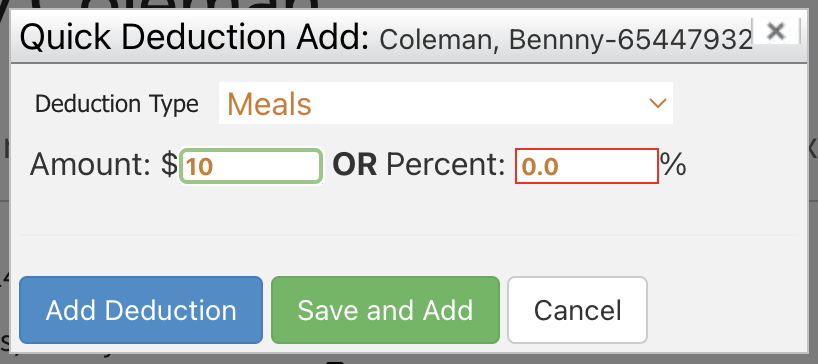
- Select Add Earning or Add Deduction to finalize. Select Save and Add instead to add multiple entries at once.
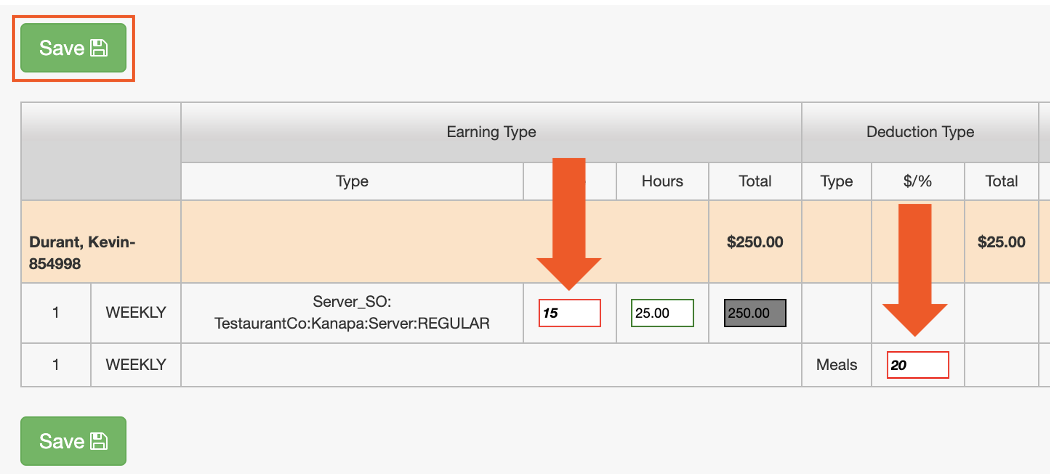
- To edit an entry from the main Quick Calc page, change the value in the Rate, Hours, or $/% field. The field changes from green to red when edited. Select the Save button to apply your changes; the field returns to green when saved.
- Once all earnings and deductions are entered, select the Actions star again and choose Calculate Gross to Net, then select Submit.
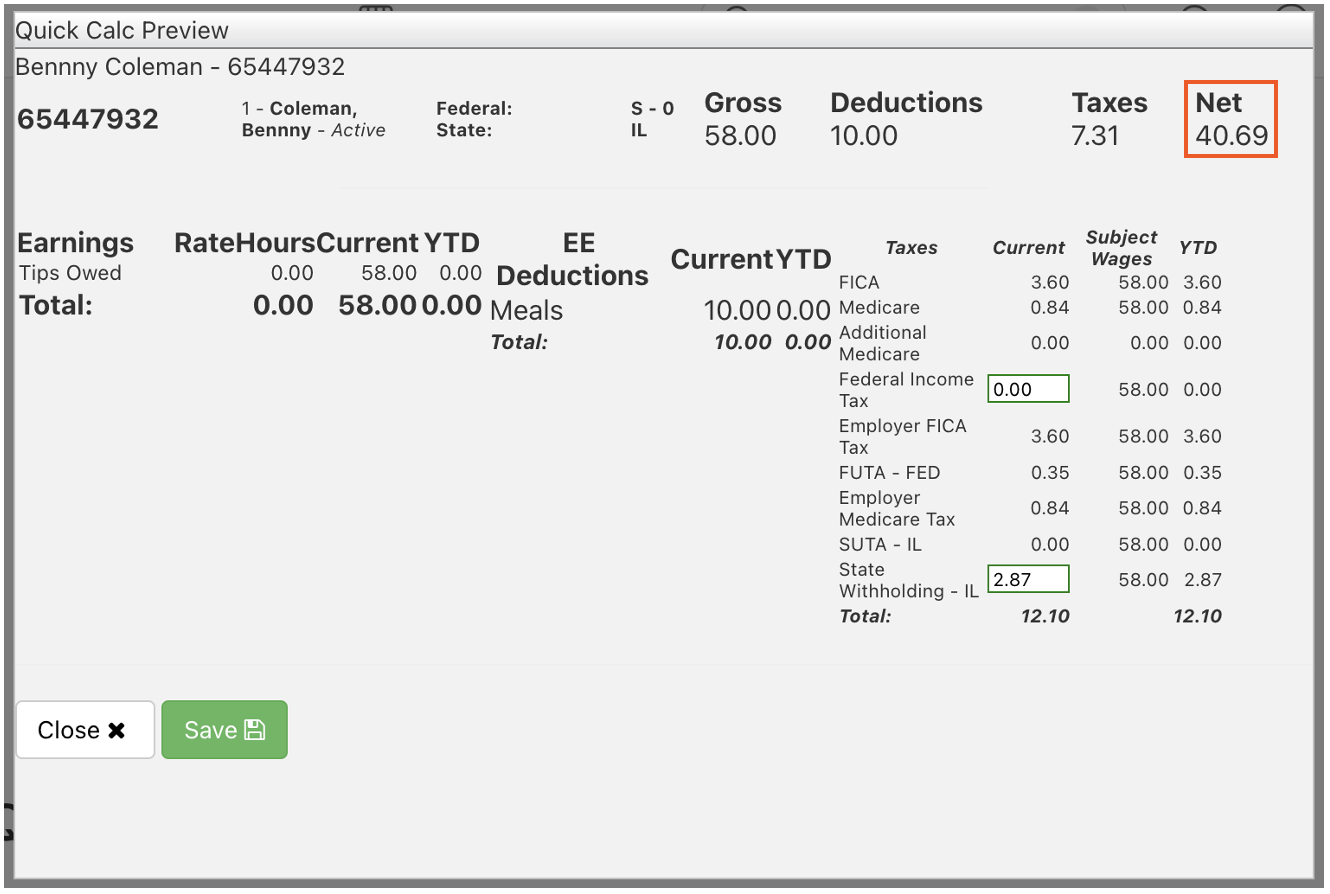
Expected outcome: A gross-to-net preview opens showing the calculated Net Pay in the top right corner. Continue to the next section to attach the Quick Calc to a payroll, or close the preview if you were only testing a calculation.
Calculate Gross to Net
The Calculate Gross to Net feature calculates earnings, deductions, and taxes and previews the full Quick Calc. A paystub generates with the same information after the payroll or off-cycle is posted.
Things to know about this preview:
- Net Pay appears in the top right corner. Note this number if you plan to write a manual check from your bank account.
- If you need to manually adjust federal or state income tax withholding, change the value in the green field. Select Save to apply changes — the field turns red when changed, and returns to green when saved.
- Use this feature to test potential tax and deduction impacts in scenarios where an employee's earnings are changing or prior payroll entries are missing.
You now have two options:
- If you were only testing a calculation, the Quick Calc information disappears when you leave this page. No payroll or tax record is created.
- If the Quick Calc should be applied to a payroll, select Close and continue with the steps in the next section to attach it.
Expected outcome: The gross-to-net preview shows the Net Pay amount, taxes withheld, and any deductions. Nothing is recorded against payroll until you complete the next section.
Attach a Quick Calc to a Payroll
After gross-to-net is calculated and saved, attach the Quick Calc to a future or off-cycle payroll so the earnings and taxes are recorded.
- Scroll down to the Select Payroll field. The system defaults to the next available payroll. Choose the payroll to attach this Quick Calc to.
- Enter a check number. This is commonly done for accounting purposes because the check is being written outside of Toast Payroll.
- Select Submit.
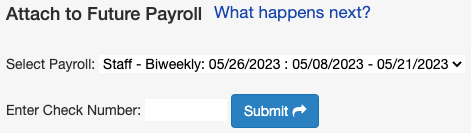
Expected outcome: The Quick Calc is attached to the selected payroll. It appears in the Employee Detail Report (pre-payroll and post-payroll reports) with a distinct dotted border and the indication (Manual Check). The earnings and deductions on this Quick Calc do not move any funds to the employee or to a deduction vendor.
After the payroll posts, the Quick Calc and the recording of the manual check appear on the employee's Paystubs page and in the MyToast app. Use the Net Pay amount from the Calculate Gross to Net preview when you write the check from your bank account.
Use a Quick Calc for Tip Pool Amounts
There are situations where you need to run a Quick Calc for an employee who is part of a tip pool, but the tip pool has not been applied to payroll yet. The method depends on how you manage tip pooling.
If you use your own method for tip pooling (outside of Toast): Add the tip amounts from each day as a lump Tips Owed or Tips Paid earning code on the Quick Calc.
If you use Toast Tips Manager: Use the Tip Management report to locate tip amounts before they have been sent to payroll.
- In Toast Web, navigate to Reports > Labor > Tip management.
- Select one day in Ready status to open the By Day view. Note the Tips and gratuity after pooling amount per employee for that day.
Note: Days with an In Progress status are not yet finalized and should not be included.
- Repeat for any other applicable days and combine the amounts.
- Add the combined amount to the Quick Calc as a Tips Paid or Tips Owed earning code, depending on your restaurant's configuration.
Important: These tip amounts are still set to be paid through Toast Payroll once the tip pools are approved and sent over. To avoid paying tips out twice, set a payroll To-Do as a reminder to manually remove this amount from the Employee Earnings step of your payroll.
Expected outcome: The tip pool amount is recorded on the Quick Calc and ready to be attached to a payroll. The Employee Earnings step still needs to be updated when the tip pool syncs.
Delete Earnings or Deductions Before Attaching
You can remove individual earnings or deductions from a Quick Calc only before the Quick Calc has been attached to a payroll.
- Select the checkbox in the Actions column next to each entry you want to delete.
- Select the Actions star.
- Choose Delete Selected Earnings/Deductions.
- Select Submit.

Expected outcome: The selected earnings or deductions are removed from the Quick Calc. The remaining entries stay in place.
Delete a Quick Calc Already Attached to a Payroll
You can delete a Quick Calc that is already attached to a payroll, but only before you reach the Review and Submit step of that payroll.
- In Toast Payroll, navigate to Payroll > Manual checks (in the Quick Actions menu on the right).
- From the Select Payroll dropdown, choose the payroll with the attached Quick Calc.
- Delete one Quick Calc at a time by selecting the trash can icon to the right of the entry. To delete multiple Quick Calcs at once, select the checkboxes on the left for each one. To delete all Quick Calcs for the payroll, select the box at the top of the Name column.
- Select Delete at the bottom of the screen.
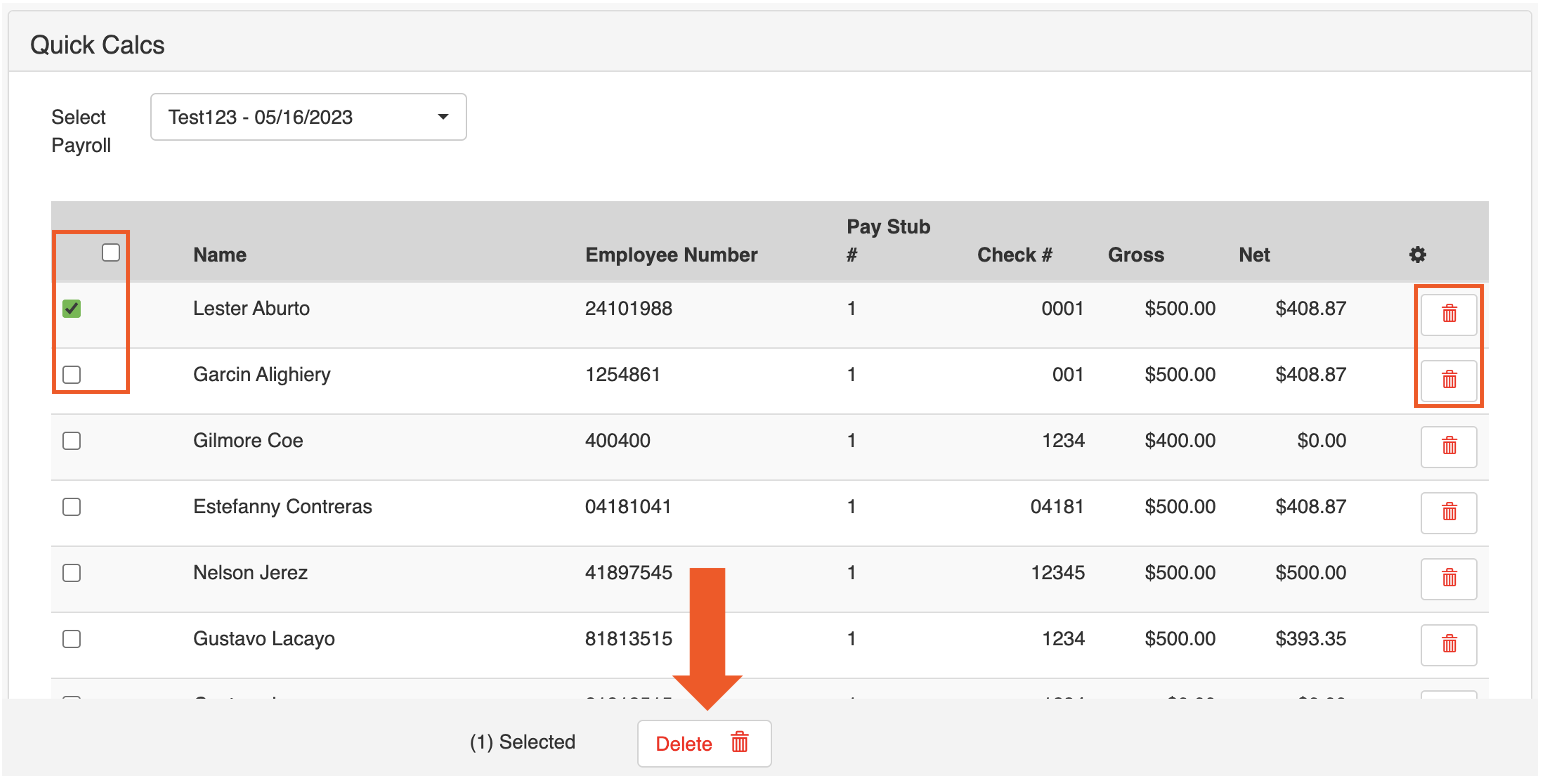
Expected outcome: The selected Quick Calcs are removed from the payroll. The Employee Earnings step updates when refreshed.
A Quick Calc can be added or deleted as long as you have not reached the Review and Submit step of payroll. When you add or delete a Quick Calc on an open payroll, the Employee Earnings step updates when refreshed. To add a Quick Calc to an open payroll, follow the steps in Calculate a Manual Check With a Quick Calc. To delete a Quick Calc from an open payroll, use the four-step procedure in this section.
Find Quick Calcs on Payroll Reports
Processed Quick Calcs appear in two reports after calculating and posting your payroll. To find these reports for a past payroll, navigate to Payroll > Past Payrolls > View, then select the appropriate report from the Reports tile.
Payroll Summary Report
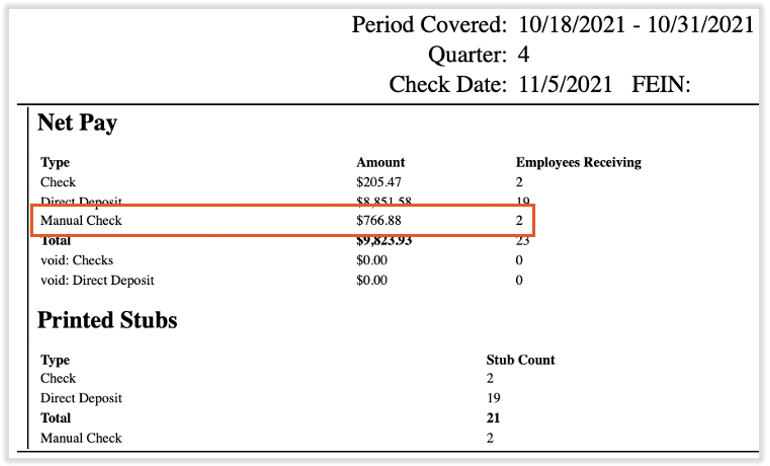
In the top right corner of the Payroll Summary Report, find the Net Pay section and look for Manual Check — this indicates a Quick Calc was processed within the payroll. The total amount of all Quick Calcs and the number of employees who received them is also displayed.
Employee Detail Report
Scroll through the Employee Detail Report to locate individual manual checks and their details. They are recognized by the dotted border and the indication (Manual Check).
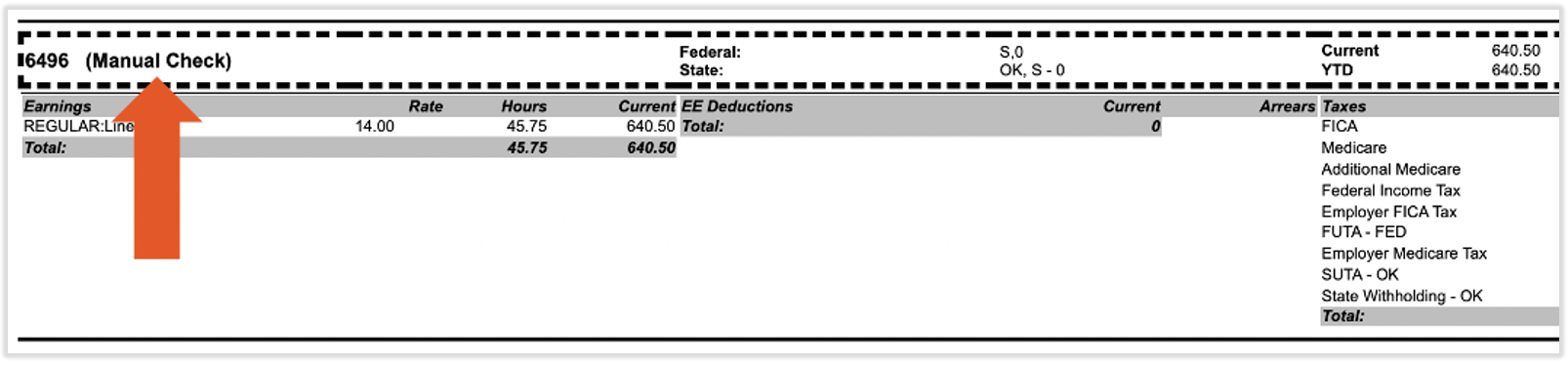
You can also use the Employee Detail Report to detect and resolve discrepancies in payroll entries before performing a Quick Calc or processing a manual check.
Expected outcome: You can confirm that a Quick Calc was recorded on a payroll by locating it in either of these two reports.
Frequently Asked Questions
How Do I Print or View the Paystub for a Quick Calc?
To view or print the paystub for a Quick Calc, wait until the payroll the Quick Calc is attached to has been posted. Once the payroll posts, the Quick Calc appears on the Paystubs page of the employee's profile and in the MyToast app — you can view or print it from either location.
If the payroll has not yet been posted, the Quick Calc is visible on the Employee Detail Report (pre-payroll version) with a dotted border and the (Manual Check) indication, but the formal paystub is not generated until the payroll posts.
Also asked as:
-
- "How do I print a paystub from a quick calc"
- "Where can I find the paystub for a quick calc check"
- "How do I get the paystub for that"
- "How can I find the paystub after running a quick calc"
Can I Edit a Quick Calc After Attaching It to a Payroll?
No, a Quick Calc cannot be edited once it is attached to a payroll. It can only be deleted. This safeguard ensures the exact gross and net amounts are accurate, because the manual check may have already been processed.
If you need to adjust amounts for a manual check that has not yet been given to the employee, delete the existing Quick Calc and create a new one. Use the Delete a Quick Calc Already Attached to a Payroll procedure, then return to the employee's profile and follow Calculate a Manual Check With a Quick Calc to create a new Quick Calc.
Also asked as:
-
- "Can a quick calc be edited once it's attached to a payroll"
- "How do I fix a quick calc check"
- "I used the wrong check number on a quick calc"
How Do I Do a Quick Calc for a Salaried Employee?
To run a Quick Calc for a salaried employee, navigate to the employee's profile, open the Quick Calc page, and select Start. The page may already show the employee's recurring gross salary amount for the pay period because salary is a recurring earning code. If you do not want to include the existing salary amount (for example, you only want to pay a pro-rated amount for part of the pay period), delete the existing salary earning before adding the new one. See Delete Earnings or Deductions Before Attaching.
For pro-rated salary, add a new earning using the correct earning code and enter the Amount field with the pro-rated dollar amount. Leave the Hours field blank.
Also asked as:
-
- "How do I generate a quick calc for a salaried employee, pro-rated"
- "How do I do a quick calc to cut a term check for a salaried manager part way through the pay period"
- "What do I put into the hours and amount boxes for a salaried employee"
How Do I Use a Quick Calc to Pay a Terminated Employee?
Use a Quick Calc to pay an employee whose termination date was before the current pay period or whose final wages need to be recorded after their last shift. Navigate to the terminated employee's profile and follow the procedure in Calculate a Manual Check With a Quick Calc.
If the employee was terminated in Toast Payroll and the system says you need to rehire them in order to add a Quick Calc, contact Toast Customer Care — this can require account-level support to resolve.
Also asked as:
-
- "I need to pay a terminated employee"
- "How can I pay an employee a final check"
- "Can I do a quick calc for an employee who was let go"
Will Hours Added Through a Quick Calc Affect Overtime Calculations?
No, it does not affect overtime. Quick calcs are manual checks recorded on payroll, mainly for tax purposes.
Also asked as:
-
- "If I enter a check number and add a Quick Calc check to our upcoming payroll, will those hours affect his OT on the upcoming pay period"
- "Does a quick calc count toward overtime"
Why Are Federal and State Taxes Not Being Calculated on My Quick Calc?
There's three reasons this may occur:
-
- The employee has not filled out their tax info (federal and/or state Form W-4). Employees can use Toast Payroll: Update Form W-4 Information to enter their tax info in Toast Payroll.
- You may have selected a non-taxable earning code.
- The employee's earnings may not be large enough to qualify for taxation. Speak to a tax professional, an attorney, or the IRS for more information about this situation.
Also asked as:
-
- "I just completed a quick calc for a final manual check. I didn't see that no federal or state taxes were taken out. How do I figure out what that amount should be"
- "Why did my quick calc not include federal or state tax"
What Does "No Available Pay Periods" Mean on the Quick Calc Screen?
You may not have any future payroll dates set up for the pay group. if this is the case, contact Customer Care. Also, the employee may be terminated and needs to be rehired.
Also asked as:
-
- "Quick calc screen says no available pay periods"
- "There are no pay periods showing up in quick calc"
Why is the Action Star Not Working or Not Showing Up on Some Employee Profiles for Quick Calcs?
There can be different reasons for this. If an employee's profile does not contain a work tax location or a position, the action star can disappear or be disabled until those are added. Also, the employee's Original Hire Date must be within the pay period that you're trying to apply a quick calc to. When this date is after the pay period, the action star will not appear.
Related Articles
- Toast Payroll: Set Up and Configure Off-Cycle Payrolls
- Toast Payroll: Employee Earnings Step
- Toast Payroll: Get Started With Earning Codes
- Toast Payroll: Get Started With Deduction Codes
- Toast Payroll: View Your Paystub or Timesheet
This content is for informational purposes and is not intended as legal, HR, tax, or any other professional advice. Please contact an attorney or other professional for advice.