Toast Payroll: Use XPunch for Timekeeping
Last updated: Oct 16, 2026, 3:48 PM
| The XPunch feature is no longer available for new customers joining Toast Payroll. However, the XPunch time clock system is still available for all current customers who use it. |
Where is XPunch?
- Begin by logging in to Toast Payroll.
- Once you're logged in, note your company code in the URL. The company code will come after "payroll.toasttab.com".
- Then, navigate to your company's XPunch homepage by going to https://payroll.toasttab.com/xpunch/[INSERT COMPANY CODE].
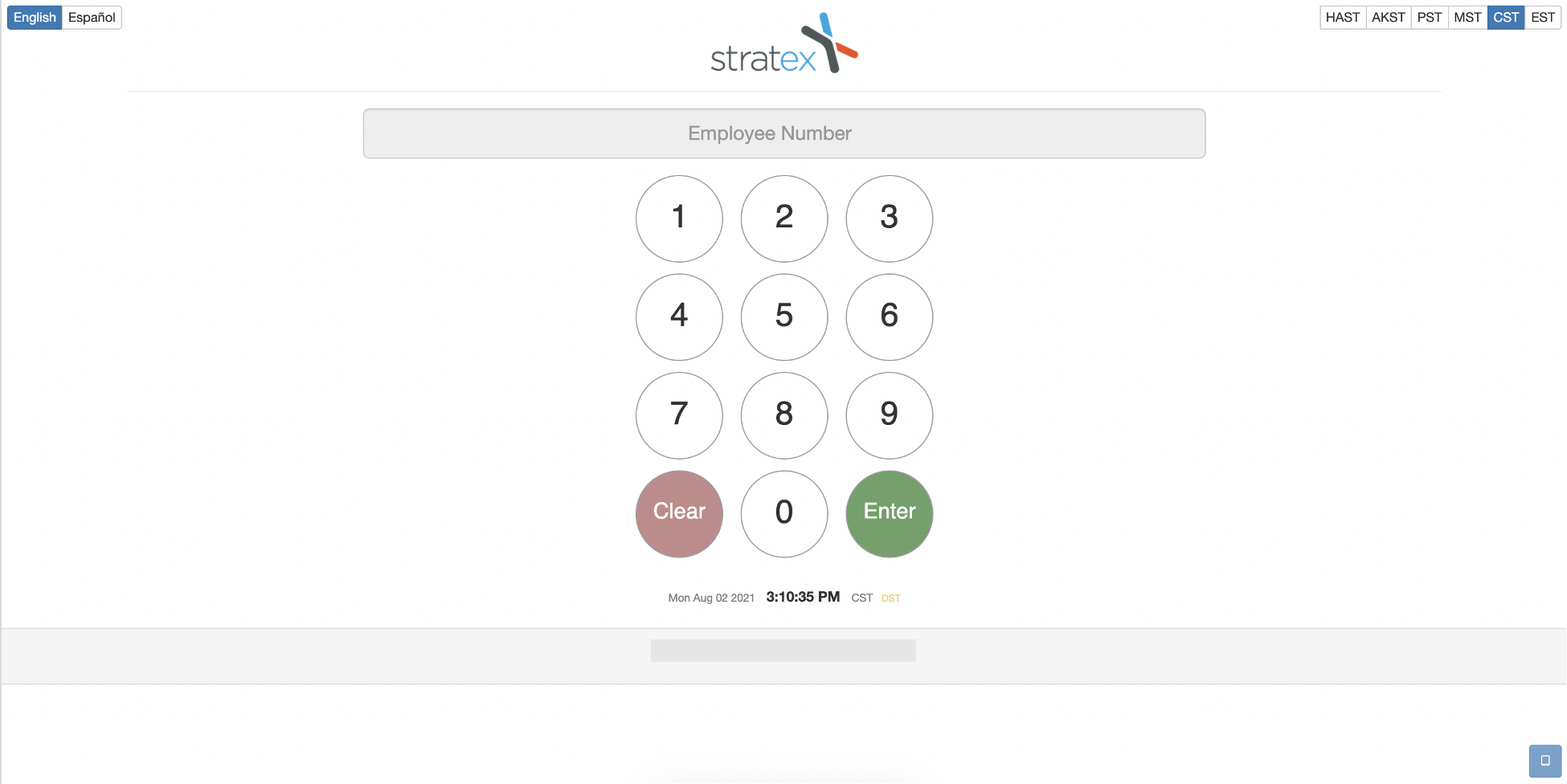
XPunch: Make a Time Entry
Clock In Using XPunch
Below are the steps to clock in using XPunch for timekeeping:
- Enter the Employee Number and select Enter. An employee's number can be found on the left side of the employee's Toast Payroll profile.
- Enter the last four digits of the employee's social security number.
- Select Punch In.
- Select the job being performed today.
- Select Finish to clock in successfully.
Take a Break or Clock Out Using XPunch
Below are the stepsto take a break or clock out using XPunch for timekeeping:
- Enter the Employee Number and select Enter. An employee's number can be found on the left side of the employee's Toast Payroll profile.
- Enter the last four digits of the employee's social security number.
- Select either Take a Break or Punch Out.
- If clocking out, employees may declare tips or add notes, if necessary.
- Select Finish to enter this punch successfully.
After punching in and out, a timesheet will populate in Toast Payroll. View this timesheet by navigating to Time.
Edit a Time Entry From XPunch
XPunch entries populate on the employee's Toast Payroll timesheet and can be edited there as well. Timesheets can be found under Time on the left side of your screen.
Below are the steps to edit time entries using XPunch for timekeeping:
- In Toast Payroll, navigate to Time.
- If you do not see Time on the left side of the screen, select Payroll from the Toast Web navigation rail on the left to make the Toast Payroll navigation rail appear.
- Select the timesheet containing the time entry you would like to adjust.
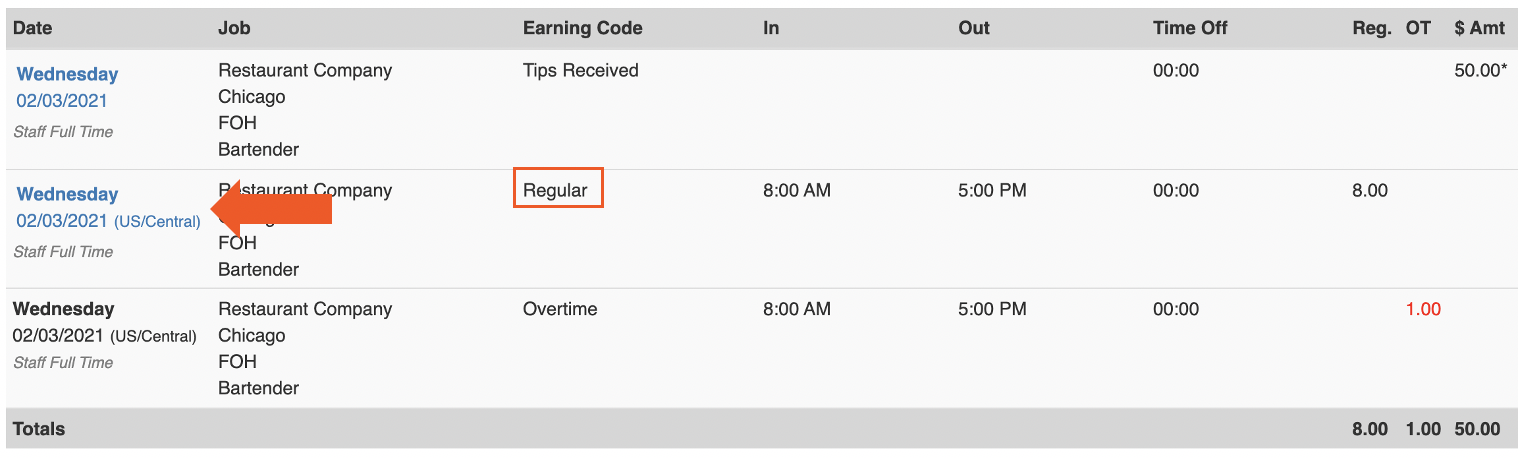
- Next, select the day with the time entry to be edited. As seen in the image below, there may be more than one entry for each day. Select the entry with the correct earning code (typically Regular).
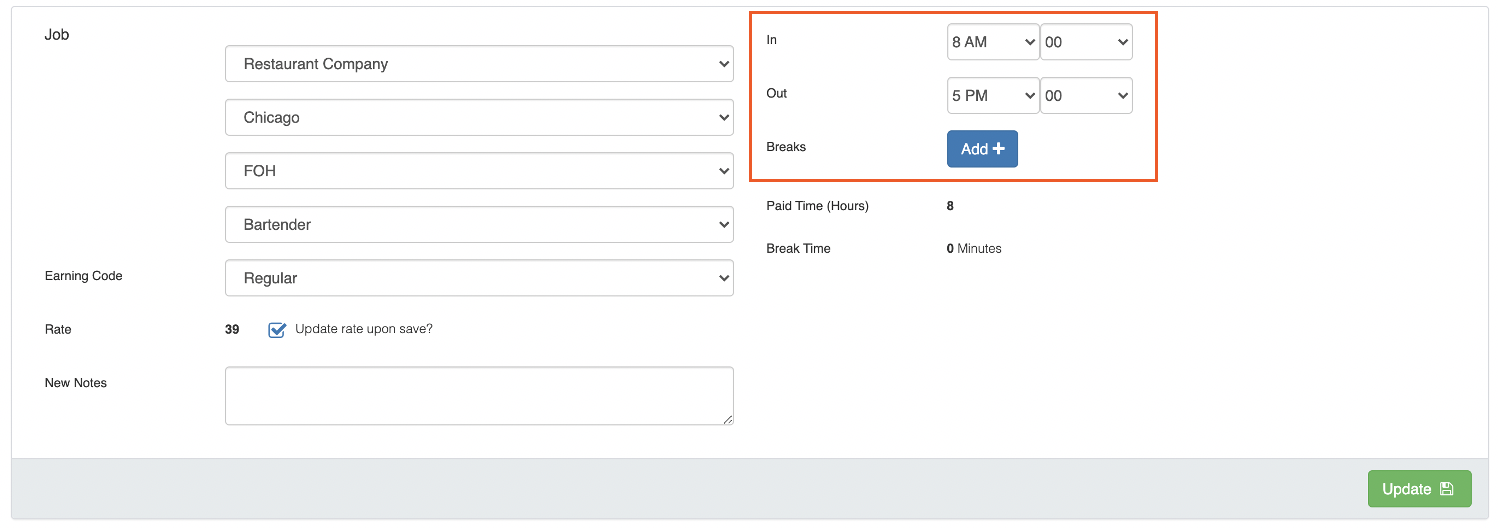
- Use the drop-down menus in the orange box below to change the In or Out time for this shift. You may also add a break by using the Add+ button. Break times are edited using drop-down menus here as well.
- Select Update when edits are complete.
Register a Device to Use XPunch
A new computer, mobile device, or browser will need to be registered in order to be used to punch in and out. You will also need to re-register whenever cache/cookies are cleared within a browser. This is a security layer to prevent employees from punching in on unauthorized devices.
Below are the steps on how to register devices on XPunch for timekeeping:
- Open the XPunch homepage by going to https://payroll.toasttab.com/xpunch/[INSERT COMPANY CODE]. Your company code is the same code used when you log in to the Toast Payroll site.
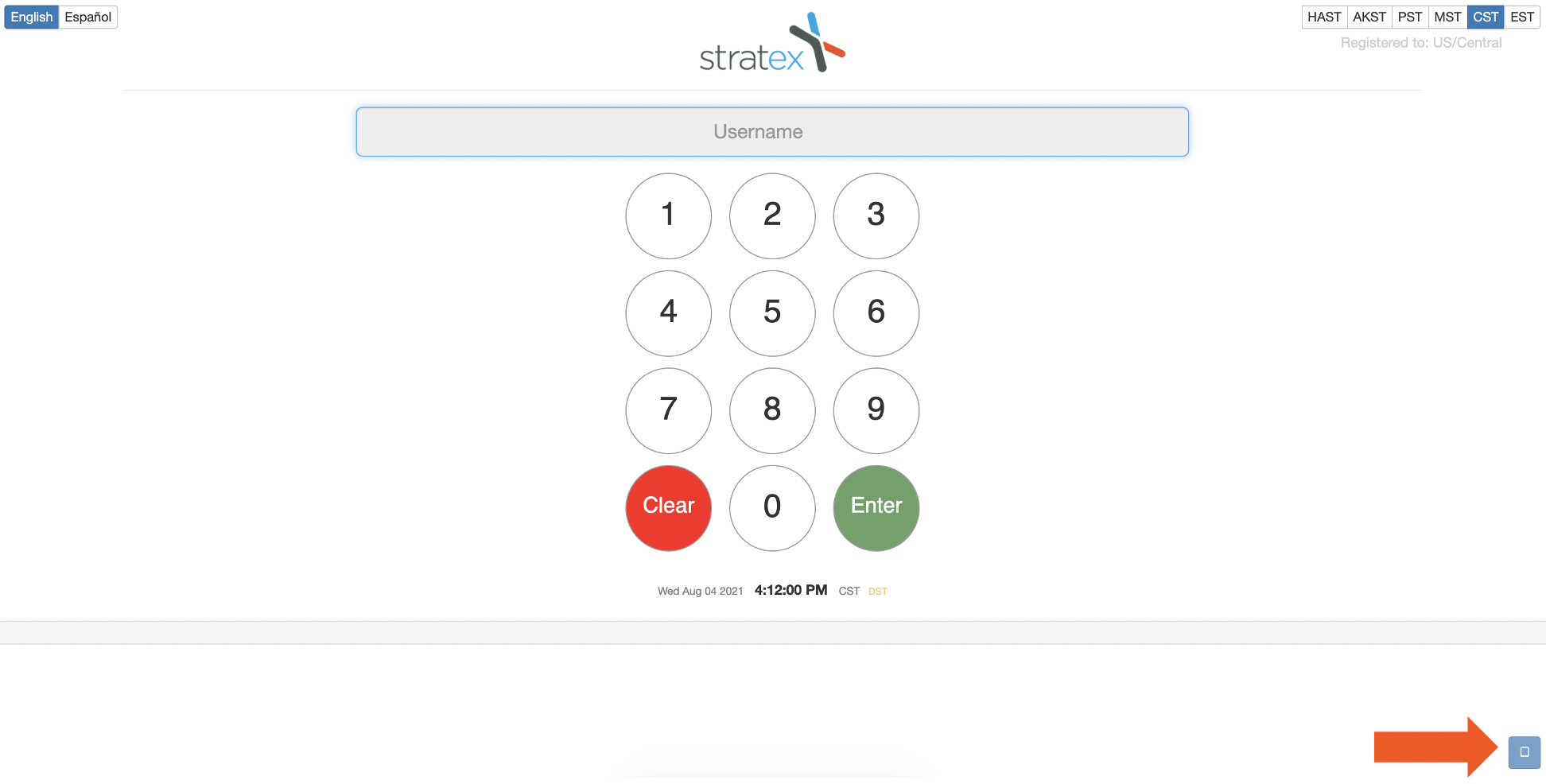
- Select the small blue device icon in the bottom-right corner of the page.
- Then select Device Registration and Setup.
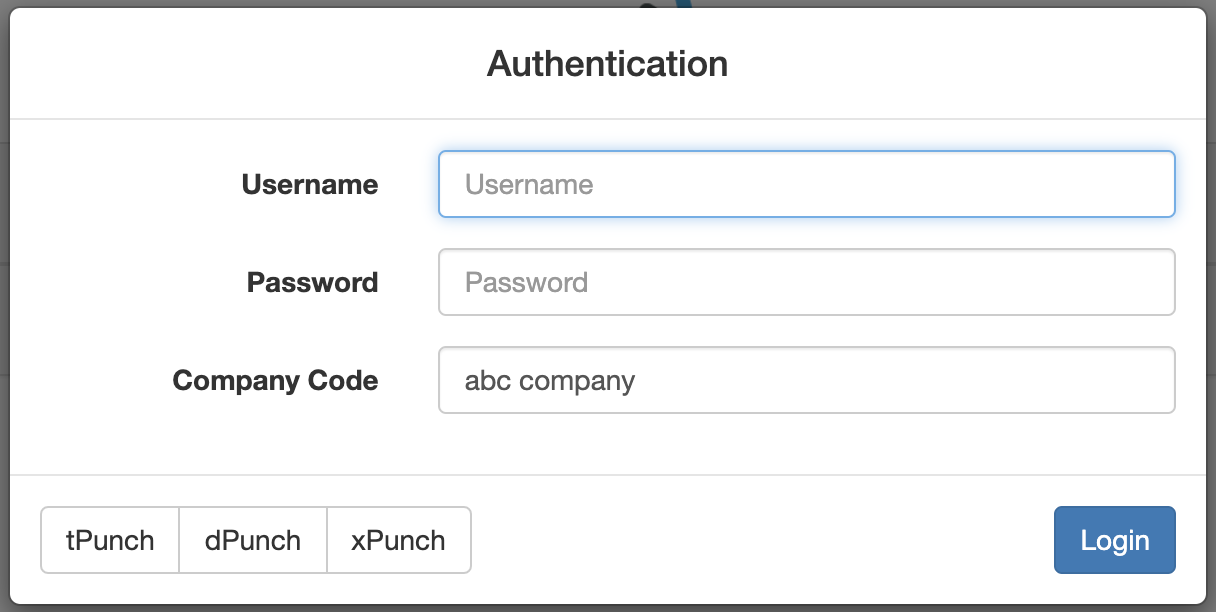
- Enter your Toast Payroll login credentials and select Login. If you do not have this information, contact your manager or payroll administrator.
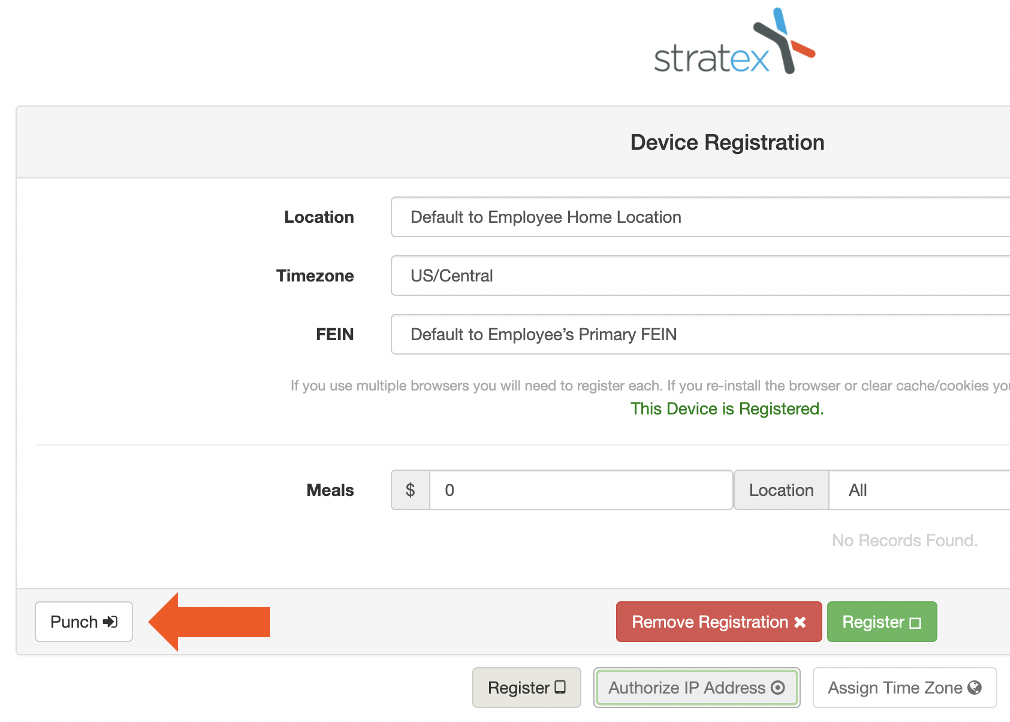
- In most cases, you may leave each setting at its default. Select the green Register button to submit your registration details. The system will ask you for your login credentials once more.
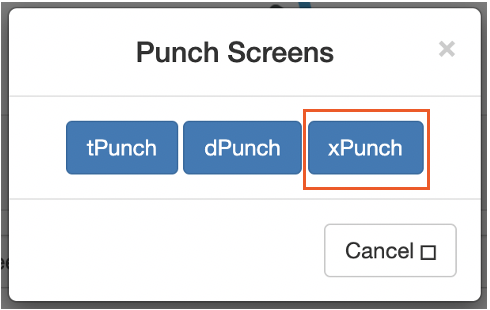
- Select the white Punch button first and then the blue XPunch button to navigate back to the homepage.
XPunch and Time Zones
Time zones can be set up to default by location.
- You can do this in Toast Payroll by navigating to Settings > Timekeeping > Assign Time Zone.
- If you do not see Settings on the left side of the screen, select Payroll from the Toast Web navigation rail on the left to make the Toast Payroll navigation rail appear.
- Update the settings under the Assign Timezone to Location section.
Once this is set up, the system will use the matching timezone for the employee's location level. If a location isn't assigned a specific timezone, the system will default to Central time for those time entries.
While we can establish a timezone based on location, the device may not display that timezone, as we don't know the location until the employee clocks in.
- When a device is registered, a manager can register it with a timezone to display on the device or they can toggle at the top right (if on a tablet or laptop) to change the display timezone.
- If nothing is assigned to the device, it will default to CST.
This content is for informational purposes and is not intended as legal, tax, HR, or any other professional advice. Please contact an attorney or other professional for advice.