Toast Tables™: Schedules
Last updated: Sep 16, 2026, 4:16 PM
Learn how to use the Schedules feature in Toast Tables™.
Toast Tables™ Schedules Overview
The Toast Tables™ Schedules feature provides a streamlined way to set single or recurring special dates with varying configurations and settings. With Schedules, you can make the following changes all in one place:
- Set your default reservation schedule.
- Adjust your reservation and waitlist availability at the shift level rather than for the entire day.
- Repeat a special date or range of special dates across multiple non-consecutive dates.
- Increase the specificity of reservable tables with additional table availability options.
- Minimize preparation time for reservations by utilizing Universal Combo Tables.
You can also offer special reservations for experiences within your restaurant alongside your regular reservations. To learn more, see Toast Tables™: Experiences
Set Your Default and Special Schedules Settings with Toast Tables™ Schedules
Set Your Default Reservation Schedule
Before creating schedules for your special dates, it’s important to set your default schedule or regular operating hours within the Schedules tab of Toast Tables™. Setting a schedule as the default means it will be used whenever no other schedule is active. Default schedules do not include date-specific settings.
- Navigate to Waitlist and Reservations in the left menu bar.
- Select Schedules.
- Scroll to the bottom of the Schedules tab and select the blue +Create a Schedule button.
- A prompt will appear to name your schedule. Toast recommends naming this schedule something like “Regular Operating Hours” or “Default Hours”.
- Once you’ve entered a name, select Create Schedule.
- On the next screen, select Set as Default in the top right corner, and then select Yes.
- Finally, you can select the +Add Shift button to create daily, regular schedules for your available shifts (brunch, breakfast, lunch, dinner, etc). Here you can toggle each day on or off and set specific hours for each shift offered on any day that is toggled on.
- When finished, select Add.
Create a Special Date Schedule with the Duplicate Feature
With Toast Tables™ Schedules, you can create schedules for a single special date, a range of special dates, or even for non-consecutive special dates operating on the same schedule.
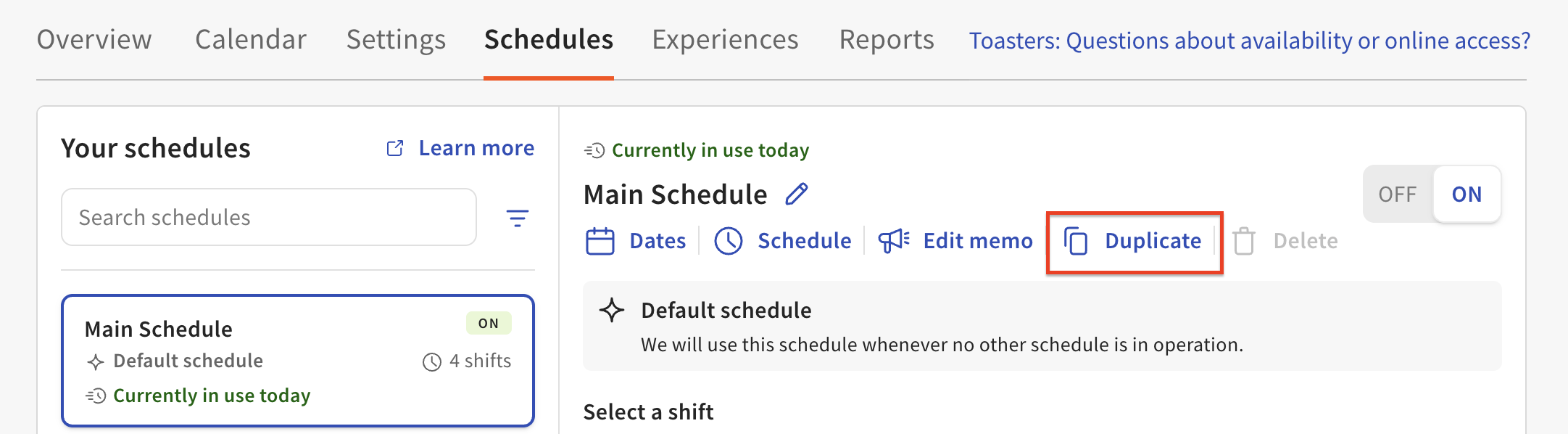
If your special dates have settings that are similar to your regular schedule, you can use the duplicate feature to create a template of the regular schedule, now with the inclusion of your special, scheduled dates. This duplicated template can now be edited independently from your regular hours as a brand new schedule. This is best used when adjusting seasonal hours with a range of dates, but similar operating settings.
Create a New Special Date Schedule
To create a special dates schedule:
- Navigate to Waitlist and Reservations in the left menu bar.
- Select Schedules.
- Scroll to the bottom of the Schedules tab and select the blue +Create a Schedule button.
- Enter a name for your schedule and select Create Schedule.
- Select Manage Dates in the top right corner to select your operating dates. When finished, select Save and the X in the top left corner to return to the main Schedules page.
To set specific types of special dates:
- Single Special Date: Select the date, choose +Add Date, and then select Save.
- Range of Special Dates: Select the first and last dates, choose +Add Date, and then select Save.
- Non-Consecutive Special Dates: Select each date individually, choosing +Add Date after each selection, and then select Save.
Note: Ensure you select +Add Date after each non-consecutive date; otherwise, a range will be created instead.
Memos
It is not required to add a customer-facing description to special schedules. If you would like to add a customer-facing description to your special schedule, you can do so by selecting Add Memo at the top of your selected schedule. This memo is also visible in the host app.
Configuration Warning Badges
Toast Tables now checks your Schedules and Experiences pages for common setup issues that could silently prevent bookings. If an issue is found, you'll see a warning badge on the affected shift and a banner on your Tables overview page.
Set Your Shift-Level Settings With Toast Tables™ Schedules
Once you have set your default and special dates schedules, you can now adjust all further settings for each shift such as Online Access, Table Availability, Turn Times, Flow Control, and Payments & Fees settings. These settings can all be accessed and edited in one convenient place in your Schedules tab after selecting the schedule you’d like to review.
Note: Similar to the duplicate feature at the schedule level, once you set your shift level settings, you also have the ability to copy settings from an existing shift. You can do so by selecting the blue Copy Settings From Existing Shift in the top right corner of your shift settings.
Online Access
Online access is set at the shift level. For example, if you’d like to allow for online reservations for Thanksgiving lunch, but not for Thanksgiving dinner, or let guests book this date farther in advance than your typical reservations, you can set this independently.
Table Options
Table Availability allows you to customize how your tables can be reserved making it easier to control and optimize your space for guests. You now have the following options to choose from for each table within your restaurant:
- Online & In-house: These tables are included in your inventory for online reservations, host/manager reservations, and walk-ins/waitlist.
- In-house only: These tables are included in your inventory for host/manager reservations and walk-ins/waitlist, but are not visible for online reservations.
- Walk-in only: These tables are only available for walk-ins or Toast Waitlist and are excluded from all reservation inventory. This setting is most often used for bar area seating, or historically loud tables that you only seat when necessary.
- Not available: These tables will not be available online or in-house for reservations or walk-ins/waitlist. This setting is best used for private rooms that you will not seat unless an event is booked.
Universal Combo Tables
Combo tables are universal and reusable within any special schedule you create. To learn more about creating combo tables, see Get Started with Toast Tables.
Payments & Fees
Prepayments and add-ons, cancellation fees, and deposits can be set for your schedules. To learn more, see Toast Tables Deposits, Prepayments, Add-Ons and Cancellation Fees.