Toast Tap™ (Direct Attach) Installation Guide
Last updated: Sep 1, 2026, 12:15 AM
- Toast Tap™ (Direct Attach) Overview
- Toast Tap™ Components
- Installation Steps for Toast Tap™ (Direct Attach) and Toast EMV Reader
- EMV Configuration Steps
- Additional Resources
Toast Tap™ (Direct Attach) Overview
With the Toast Tap™, cards can be:
- Tapped on the top of the reader
- Dipped into the front slot with the card chip facing up
- Swiped across in any direction with the card stripe facing upwards
TDA200
Here's a quick breakdown of your hardware. Check out the image below to see specific components of your reader.
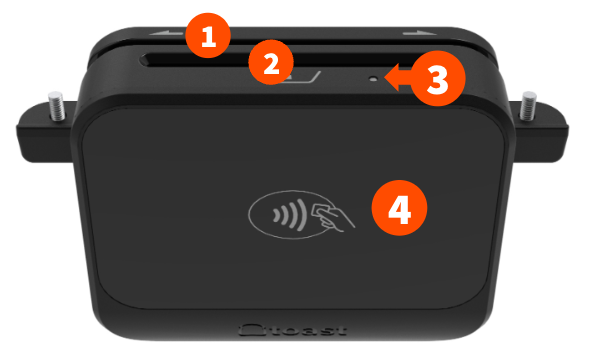
- Swipe with stripe facing up (only for cards without chip, or if chip fails).
- Insert chip cards with chip facing up for dip payments.
- Reader will emit a blue light here when ready for payments
- Plate for Apple Pay, Google Pay, Samsung Pay, and tap card payments.
TDA300
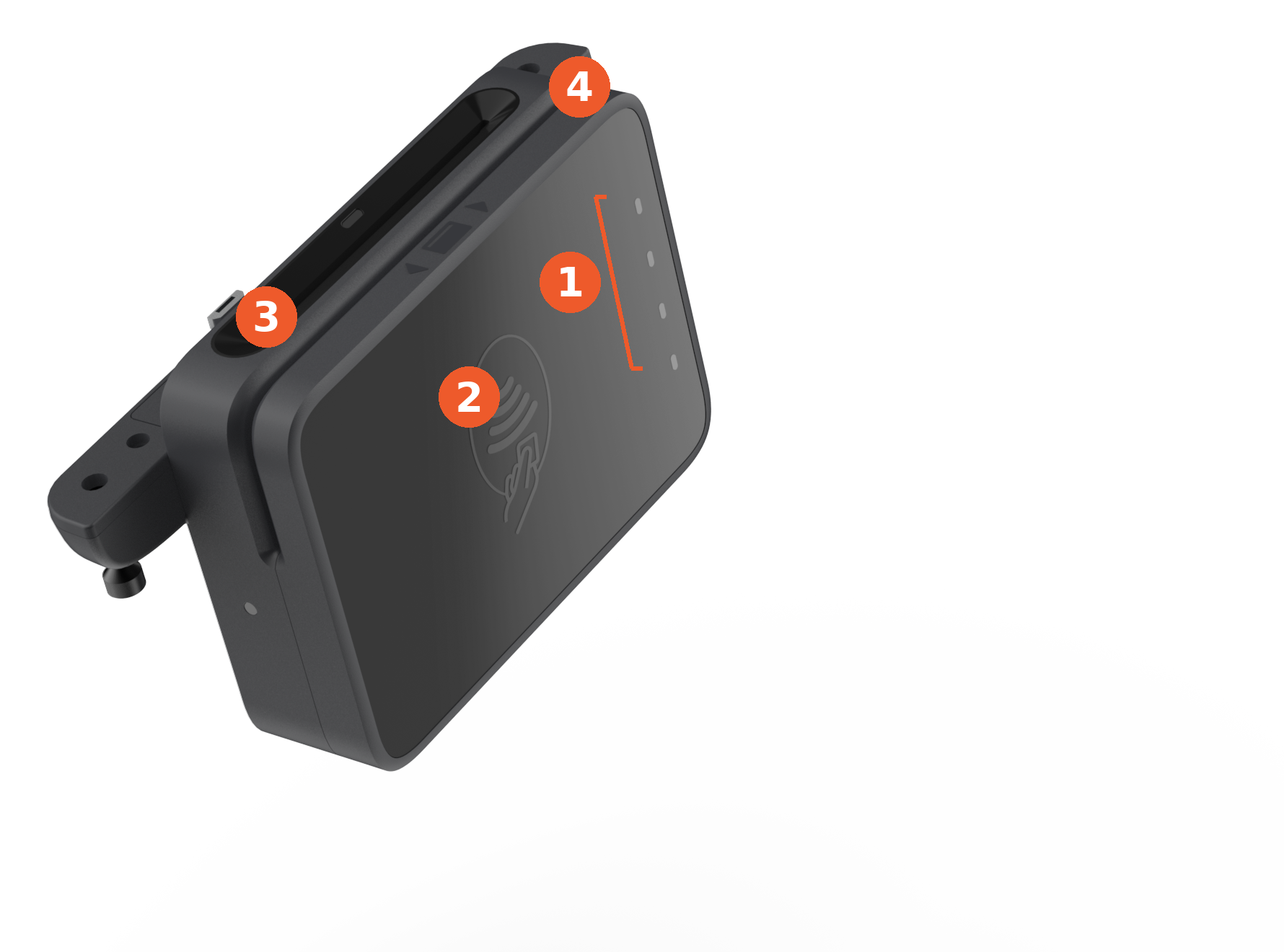
- 4-light payment strip
- tap surface
- dip
- swipe slot
The TDA300 has separate lights, and they work differently than TDA200:
- Power indicator: a small light on the reader (separate from the 4-light strip).
- Solid green: the reader is on and working normally
- Solid red: tamper alert—do not use, contact support
- No light: the reader isn't receiving power; confirm it's fully seated in the terminal port
- Payment LED strip (the 4 lights next to the tap surface):
- All lights off: the reader is idle
- Slow white pulse: ready to accept a tap or chip payment
- White lights progressing across the strip: payment in progress
- All four lights flash red (1 second): card read error—try again
- All four lights flash white (1 second): payment successful
Important: if the power light is solid red, the payment strip is flashing blue, yellow, green, and red, and the reader is beeping about every 5 seconds, this means tamper has been detected. All data on the device has been erased and it cannot be restored to service—contact Toast Support for a replacement.
Cards can be tapped on top, swiped along the edge with the stripe facing up, or dipped into the chip slot with the chip facing up (only if tap or swipe isn't available).
Toast Tap™ Components
TDA200
If you're receiving the Toast Tap™ (Direct Attach) with a new terminal, it may come already attached! However, you may be just getting the reader and replacing your current reader. If so, the TDA200 comes with:
- The Toast Tap™ (Direct Attach) reader
- 3 screws to adhere the hardware to your terminal
- Card reader cleaning cards
TDA300
Same setup applies—the TDA300 may already be attached if you're receiving it with a new terminal, or you may just be getting the reader to replace your current one. Either way, the TDA300 comes with:
- The TDA300 reader, with 3 captive screws already built into the housing—there are no loose screws to keep track of
- Quick start guide and product safety guide
Installation Steps for Toast Tap™ (Direct Attach) and Toast EMV Reader
TDA200 Installation
To learn how to install your TDA200, watch the following video or read the steps below.
Note: You should follow the same installation steps below for your Toast MSR Reader.
- Remove the current card reader on your terminal. You can only use one reader for your terminal. Unscrew the card reader you have attached and physically remove it. All you'll need is a Phillips screwdriver.
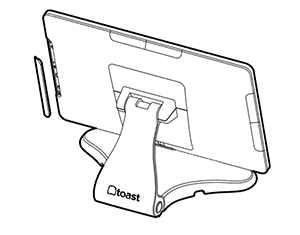
- Attach the Toast Tap™ to your terminal. Remove the plate covering any of the 3 ports on the sides (left, right, or on top) of your terminal.
- Attach your Toast Tap™ (Direct Attach) reader by plugging it into the now exposed open port.
- Note: Keep the plate somewhere safe in case you'd like to switch positions of the reader at a later date.
- Use the provided three screws to adhere the reader to the terminal. These will be inserted from the bottom up.
TDA300 Installation
To learn how to install your TDA300 watch the following video or read the steps below.
Note: This same video also covers TOC300 installation, Flex 3 and Flex 14 terminal-specific setup, and software/payment configuration—use the chapter markers in the player if you'd like to jump ahead.
- Remove the current card reader on your terminal, if applicable. You can only use one EMV reader per terminal. Unscrew the card reader you have attached and physically remove it. All you'll need is a Phillips screwdriver.
- Attach the TDA300 to your terminal. Remove the plate covering any of the 3 ports on the sides (left, right, or on top) of your terminal.
- Note: Keep the plate somewhere safe in case you'd like to switch positions of the reader at a later date.
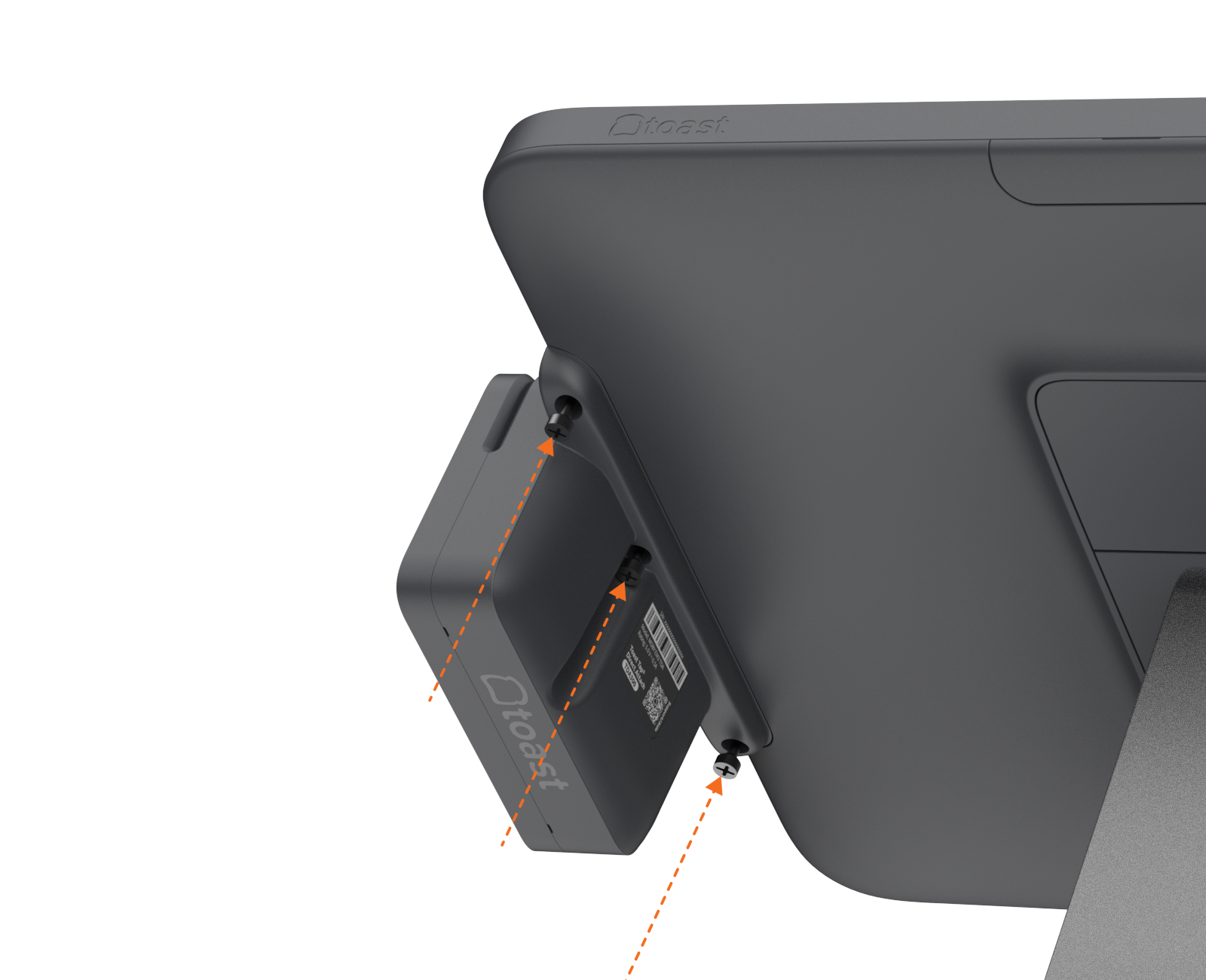
- Align the TDA300 with the now exposed open port and plug it in.
- Tighten the three captive screws to secure the reader to the terminal—do not overtighten. Since these screws are built into the reader housing, there's nothing to insert; you're only tightening them down.
- You'll see the power indicator turn solid green to signify the reader has power, and the tap/dip indicator will show a soft white pulse once it's ready for payment.
- Next, you'll need to configure the reader. Scroll down to the configuration section to learn more.
EMV Configuration Steps
Note: This configuration is only needed for your Toast Tap™ (Direct Attach).
Your Toast Tap™ will auto-detect once it's plugged into your Toast system. You'll need to enable EMV for the ability to take chip and contactless payments.
- Once the Toast Tap™ has been properly plugged into your Toast hardware, restart your terminal.
- From the main menu of the Toast app, navigate to Setup > Device Setup.
- Scroll down and select the option for EMV Enabled. Make sure this is set to Yes.
- In Device Setup, you'll see an option for Card Readers below the EMV settings. Your Toast Tap™ device is listed as:
- TDA200: BBPOS Chipper 2X(USB)
- TDA300: TDA300 Direct-Attach Card Reader(USB)
- Confirm this is listed. You may also be prompted to update the reader's software. If so, opt into the update.
Note: Switching out readers automatically turns the EMV setting off. Even if you've already enabled it, EMV will need to be turned on again. If EMV does not stay enabled, ensure your Toast POS app is updated to the latest version and try restarting your terminal. Confirm the setting in Device Setup after the restart.
Additional Resources
It's important to note that you'll need to reconfigure your manager swipe cards if you'd like to use them with Toast Tap™. If your restaurant has a mix of TDA200 and TDA300 readers, we recommend using Toast Access Cards instead of Manager Swipe Cards, since Access Cards work across both reader generations. Check out the article Manage Employee/Manager Swipe Cards to learn how to do this.
If you'd like to check out the installation instructional PDF, you can see it here.
Have troubleshooting questions? Check out Get Help with Card Readers.