Transfer a Check to Another Server
Last updated: Sep 16, 2026, 2:27 PM
Question
How do I move a check from one server to another?
Answer
Moving checks to another server must first be activated as a user permission in order to perform this feature. Staff who do not have permission to move checks to another server should contact the on-duty manager to obtain an override.
The required permissions are:
- 1.1 Table Service Mode or 1.2 Quick Order Mode
- 1.17 Change Server
- 1.9 Edit Other Employees' Orders
- 3.4 Bulk Transfer Checks
Once you have permission, you can quickly move checks to another server on the POS. To move checks to another server on the POS, follow these steps:
- Access the check from the Table Service or Quick Order mode from the main Toast POS dashboard.
- Select the name of the server currently assigned to the check.
- Select the server you want to assign the check to. Please note that they must be clocked in.
- To proceed, select Send, Hold, or whichever is applicable.
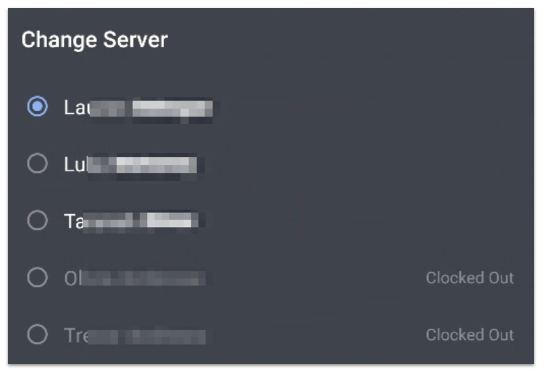
The check will be moved to the new server, and managers will be able to view or access the check.
To transfer a check to a new server after a shift review has been completed by the original check owner:
- Reopen the shift for the original check owner by removing their clock-out time. To learn more, see Reopen an Employee's Shift From Previous Days.
- Follow the steps above to transfer the check.
- Once the transfer is completed, clock-out and complete the shift review for the original check owner again.
The check will now be owned by the new server, and managers will be able to view or access the check.
Note: Currently, there is no available feature to accept, review, and reject transfers before they are completed. The transfer will be processed upon completion of the above steps.