Troubleshoot Your Autofire Device
Last updated: Sep 30, 2026, 4:17 PM
- Before you begin
- Quick fix
- If you see "Autofiring unavailable" on the POS
- If your autofire device is offline due to an internet outage
- Auto-fire device offline banner in Payment Terminal
- If online or third-party orders are not firing to the kitchen
- If an online order shows a negative or overdue fire time
- If auto approval for online ordering is paused
- Before you contact Customer Care
- Frequently asked questions
- Related articles
Before you begin
Applies to: Toast POS, Toast Web, Toast Online Ordering
Permissions needed:
- Access to Device Setup on the Toast POS device
- Access to Takeout & delivery settings in Toast Web
What you'll accomplish: Confirm that one autofire device is online and firing your online and third-party orders to the kitchen.
Quick fix
Start here to match what you are seeing to the most common cause and the first action to take. Each row links to a full section below.
| Symptom | Most Common Cause | Quick Fix |
|---|---|---|
| "Autofiring unavailable" message on the POS | No device is assigned to autofire, or the assigned device is powered off or disconnected | Assign one device to autofire and confirm it is powered on and connected by Ethernet |
| Autofire device shows offline | Internet, network, or ISP outage at the restaurant | Confirm the device is on, logged in, and connected; check the Orders Hub for network errors |
| Online or third-party orders are not firing to the kitchen | More than one autofire device, the wrong device, or a device in a device group | Confirm only one recommended, hardwired device is set to autofire and is not in a device group |
| Negative or overdue fire time on an online order | A connection or configuration issue on the autofire device | Disable Wi-Fi, confirm Ethernet, then toggle Auto Fire off and on in Device Setup |
| "Auto approval for Toast Online Ordering is currently paused" | The autofire device stopped approving orders for five minutes | Bring the autofire device back online, then send a test online order |
If you see "Autofiring unavailable" on the POS
This message means the POS cannot fire orders to the kitchen automatically. The most common causes, in order, are no device assigned to autofire, more than one device assigned, or the assigned device being powered off or disconnected.
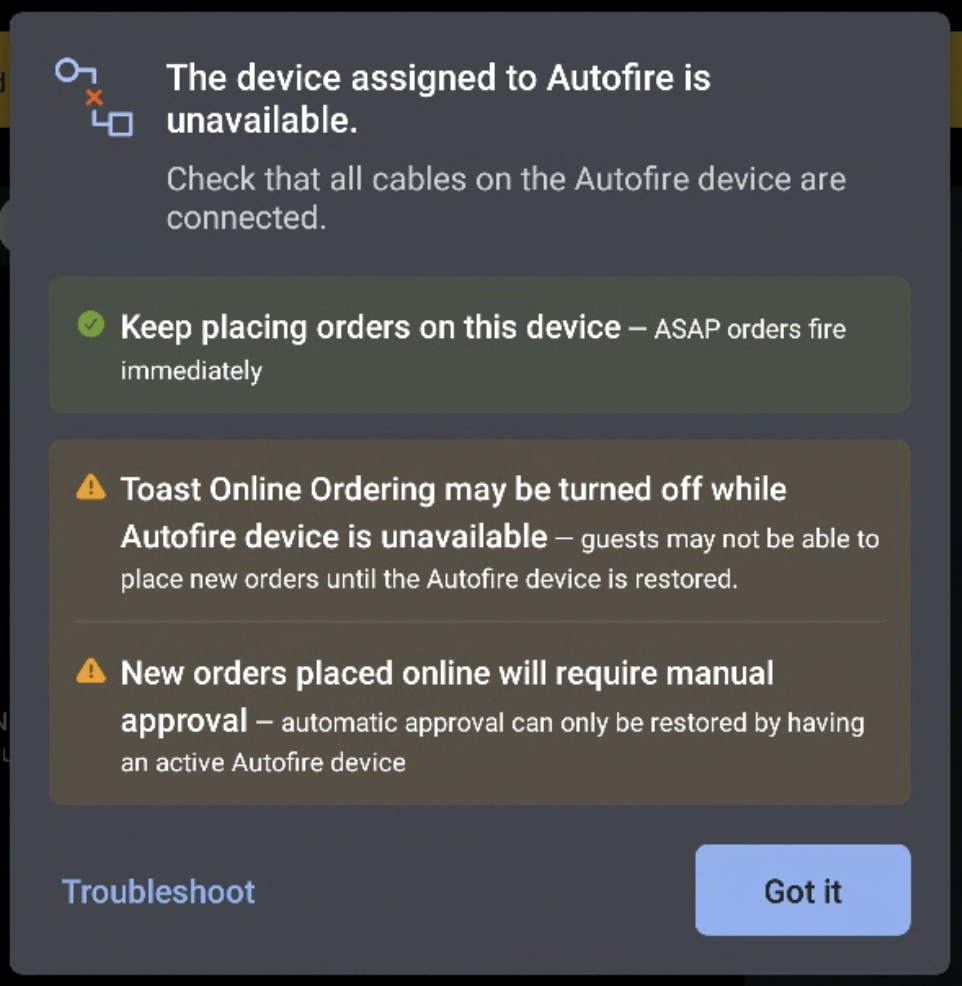
- Confirm that only one POS terminal is assigned to autofire. To check which device is assigned, on the POS navigate to Device Setup > Order Auto-Firing.
- If no device is set to autofire, assign one — and only one — device.
- Confirm the autofire device is powered on, with its cables connected and plugged into a working electrical outlet.
- Confirm the Ethernet cable is connected, and that you are logged in to Toast on the device.
- Check the Orders Hub on the autofire device for any network connectivity errors.
Expected outcome: The "Autofiring unavailable" message clears, and new orders fire to the kitchen.
Note: If you have a device other than the recommended device set to autofire, change it to the recommended device. The recommended device has the best wired connection for online orders to enter the system. See Check and Manage Auto-Fire Devices in Your Restaurant for steps.
If your autofire device is offline due to an internet outage
If your restaurant is experiencing an internet, network, or ISP outage, the autofire device may show as offline and you may see a banner on the POS. During an outage, firing behavior changes for some devices.

- Firing times for scheduled orders may appear inaccurate on non-autofire devices.
- Place and manage scheduled orders only on the autofire device. Scheduled orders can be fired only from the autofire device.
- You may see negative fire times indicating an order is overdue. This can be inaccurate — check the autofire device to confirm whether orders are firing.
- Scheduled and existing orders still fire from the autofire device. Once the connection is restored, scheduled orders on non-autofire devices move to the appropriate Orders Hub status.
- Toast Online Ordering may stop accepting orders from guests if the autofire device stops approving and firing online orders for five minutes.
Note: During an ISP outage, if a printer is set up for prep stations and the expediter and there is a local network connection, the autofire device still fires and prints kitchen tickets. To review printer setup, check your prep station settings in Toast Web under Kitchen > Kitchen stations > Prep stations, and your kitchen and expediter settings under Kitchen > Printers, tickets, & KDS devices > Kitchen. During a local network outage, the autofire device cannot print kitchen tickets, and fired orders will not update on other terminals or a Kitchen Display System (KDS) until the network is restored.
To learn the difference between a network, ISP, and Toast outage, see the Troubleshoot Toast Online Ordering Error Messages.
Auto-fire device offline banner in Payment Terminal

Payment Terminal users now receive an in-app banner notification when the auto-fire device goes offline, for any reason — not only during an internet outage. The banner appears on the Payment Terminal screen and alerts staff that online and scheduled orders may not be automatically firing to the kitchen.
If you see this notification, check the network connection on your auto-fire device and ensure the Toast POS app is running and logged in on that terminal.
If online or third-party orders are not firing to the kitchen
If online orders or third-party orders — such as DoorDash, Uber Eats, or Grubhub — fail to appear on your Kitchen Display System (KDS) or Toast POS, the cause is usually a device or configuration issue. Work through these steps in order.
- Confirm that only one device is set to autofire. Multiple autofire devices cause duplicate tickets and other firing issues.
- Confirm the autofire device is the recommended, hardwired device, and that it is not a handheld device.
- Confirm the autofire device is not in a device group. A device in a device group will not receive online orders.
- Check Pending Orders on the POS for orders awaiting approval, and approve them if needed.
- Confirm there are no non-printing prep stations on the autofire device that would stop online orders from sending. For details, see Troubleshoot Online Orders Not Firing.
Expected outcome: New online and third-party orders fire to the kitchen on the autofire device.
Note: If third-party orders still do not fire after these steps, contact Toast Customer Care.
If an online order shows a negative or overdue fire time
A "firing in" time is when an online order should be sent to the kitchen for preparation. If an order reaches zero and does not fire, there may be a problem with the autofire device or its connection.
- On the POS, navigate to Device Setup and check the auto-fire device settings.
- Disable Wi-Fi and confirm the device is connected by Ethernet.
- In Device Setup, toggle Auto Fire off and then on.
- In Toast Web, check the Online ordering approval settings.
Expected outcome: The order fires to the kitchen and fire times display correctly.
If auto approval for online ordering is paused
You may see this message on the POS or in Toast Web: "Auto approval for Toast Online Ordering is currently paused. An issue with the Auto Firing device was detected at [time]. Toast Online Ordering may be turned off for guests to place orders, and you may not receive new orders until the Autofire device is back online." This means the autofire device stopped approving and firing online orders, usually because it went offline.
- Bring the autofire device back online using the steps in If you see "Autofiring unavailable" on the POS above.
- On the autofire device, start a new quick order and set the dining option to Online ordering - Takeout.
- Send the order to the kitchen and confirm it sends.
- Confirm the order is listed as an active order in the Orders Hub.
- In Toast Web, refresh the Takeout & delivery tab to confirm the message has cleared. This may take a few minutes.
Expected outcome: The pause message clears, and online ordering resumes accepting and firing orders.
Before you contact Customer Care
If you have worked through the steps above and the autofire device still shows offline or unavailable, gather this information before you contact Toast Customer Care:
- Whether the device is powered on, logged in to Toast, and connected by Ethernet
- Whether other devices at the restaurant are online
- Any error message shown on the POS or in the Orders Hub
- Whether online, third-party, or scheduled orders are affected
If the autofire device remains offline after these checks, contact Toast Customer Care.
Frequently asked questions
What are the best practices for setting up an autofire device?
The best practices for an autofire device are to assign only one device, use a hardwired terminal, and keep it logged in throughout your online ordering hours. Set only one device to autofire, since multiple autofire devices cause duplicate tickets to print. Use a hardwired terminal that stays logged in to the Toast POS app, and do not assign a handheld device. Do not place the autofire device in a device group, or it will not receive online orders. Conduct test orders periodically to confirm orders flow between Toast, the POS, and any third-party integrations.
Note: A Toast Go® 2 or Toast Go® 3 cannot be used as an auto-fire device. Select a stationary terminal that stays powered on and connected during service.
Also asked as:
-
- How should I set up my autofire device?
- What device should be my autofire device?
- Can a handheld be the autofire device?
Can my autofire device be on Wi-Fi?
Your auto-fire device should not rely on Wi-Fi. Connect it by USB-C or Ethernet, disable Wi-Fi on that device, and confirm the cable is securely connected.
Also asked as:
-
- Should the autofire device use Ethernet or Wi-Fi?
- Will Wi-Fi break my autofire device?
How do I check which device is my autofire device?
To check which device is your autofire device, on the POS navigate to Device Setup > Order Auto-Firing, or in Toast Web review the Auto-fire Device selection in the Approval section of the Online ordering page. For more detail, see Check and Manage Auto-Fire Devices in Your Restaurant.
Also asked as:
-
- Where is my autofire device?
- How do I see the status of my autofire device?
Related articles
- Set Up Order Auto-Firing
- Check and Manage Auto-Fire Devices in Your Restaurant
- Troubleshoot Online Orders Not Firing
- Troubleshoot Toast Online Ordering Error Messages
- Manage Off-Premise Orders With Orders Hub
- Troubleshoot Orders Not Reaching the Printer, KDS, or POS