Use Stock Counts to Manage Retail Inventory
Last updated: Sep 28, 2026, 1:58 PM
Learn how to set up and conduct a stock count to audit your inventory in Toast Retail.
- Toast Retail Stock Counts Overview
- Set Up Your Items for a Stock Count
- Create a Count Sheet
- Conduct a Stock Count
- Review & Complete the Stock Count
- Frequently Asked Questions
Toast Retail Stock Counts Overview
Stock Counting is a method of inventory auditing where you count a portion of your inventory in regularly scheduled intervals, rather than conducting a single massive physical count at year-end. This process helps identify inventory discrepancies early, supports better stock control, and ensures accurate reporting throughout the year.
Toast Retail’s stock counts feature allows you to:
- Count items across multiple locations
- NEW! Conduct counts from a mobile browser or directly from the Toast Now app, including offline
- Enable hidden counts to eliminate bias and monitor counting progression in real time
- Track variance between expected and actual quantities
- Review counts and audit variance before affecting an item’s inventory
- Export count data for accounting and audits
To create and manage a count sheet, you’ll need the 4.5 Full Menu Edit permissions. For staff who will be counting inventory items, they will need a Toast Web account with the 5.2 Inventory & Quantity permission.
Best practices for stock counting:
- If you store the same item in more than one place —like on a shelf and in backstock— don’t create separate count sheets. Instead, keep everything on one sheet, and make sure those storage spots are set up as item locations. That way, you can count the same item in multiple places, separately, and still roll it all into one clean total on the same count sheet
- Focus on items with the greatest impact on your bottom line, or those most likely to be mishandled.
- Instead of one large year-end count, schedule recurring counts (e.g. weekly or monthly).
- Review variances in stock counts to flag significant differences between expected and actual counts, and investigate potential causes such as theft, spoilage, or mislabeling.
Set Up Your Retail Items for a Stock Count
Before you begin a stock count, you’ll want to make sure you’ve completed the following steps to set up your inventory:
- Ensure all products exist in your retail item catalog. New items cannot be added during an active stock count.
- Designate the receiving units for all items that you count in cases, boxes, or other quantities. You can do this from the item catalog by selecting one or items, and then selecting Set receiving units from the Set values drop-down.
- Create item locations (Retail > Item management > Item locations). Item locations should correspond to the places in your business where inventory is stored (e.g. back storage, front shelf, walk-in, etc.) and will help you count the same item separately in different locations. Do not create separate count sheets for each location where an item is stored. Note: Additional item locations can be created during the counting process if needed.
If inventory tracking is not yet enabled for a specific item before a stock count, it will automatically be turned on when the count of that item is completed.
Once your item catalog is ready, you’re ready to create a count sheet.
Create a Count Sheet in Toast Retail
A count sheet contains all of the items you wish to audit in a particular cycle. Follow these steps to create a new count sheet in Toast Retail. This process must be completed on a computer (not your mobile device).
Note: To create and manage a count sheet, you’ll need the 4.5 Full Menu Edit permissions.
- In Toast Web, navigate to Retail > Item management > Stock Counts.
- Select Create count sheet.
- Enter a name (e.g. “Red Wines”) for your count sheet and if desired, toggle the Hide expected quantities setting to the On position to keep counts unbiased.
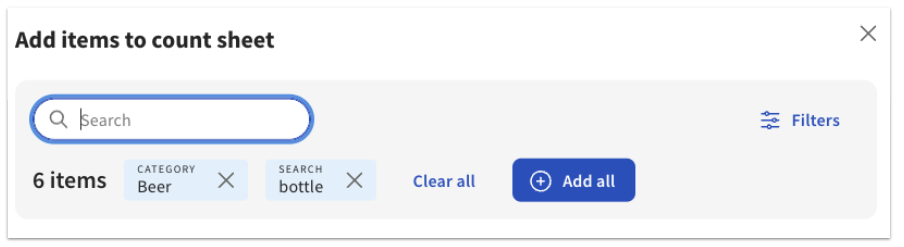
- Select + Add items to choose what you want to include on your count sheet. Use the search and filter features to quickly find the right items.
- Select Save as draft when you’re finished adding items.
- If you’re finished making edits, select Mark as ready to count. Note: You won’t be able to add items to your count sheet after you mark it “ready”. If you aren’t done building your count sheet, close out of the count sheet page without selecting that button so that you can return and continue making changes later.
When your count sheet is “ready”, the status will change to In progress on the Stock Counts page, and your staff can begin to conduct the stock count on a desktop computer or their mobile device.
If you want to run a new count using a previously created count sheet, select the three-dot overflow icon on the row for that count sheet, and then select Duplicate.
Conduct a Stock Count in Toast Retail
Any employee with the 5.2 Inventory & Quantity permission can conduct a stock count on mobile or desktop by following the steps below - the instructions will follow the process on mobile, which allows for scanning an item’s barcode with the camera on your device. Multiple employees can work on the same count sheet simultaneously to conduct a stock count together.
- You can conduct a stock count from a mobile browser (log in to Toast Web and navigate to Retail) or directly from the Toast Now app. In the Toast Now app, select the Inventory tab from your homepage to see all count sheets marked ready. The Toast Now app also supports offline mode, so you can continue counting even without an internet connection — counts sync automatically once you're back online.
Note: The Toast Now app isn't available on Android devices. Android users can conduct cycle counts from a mobile browser by logging in to Toast Web and going to Retail.
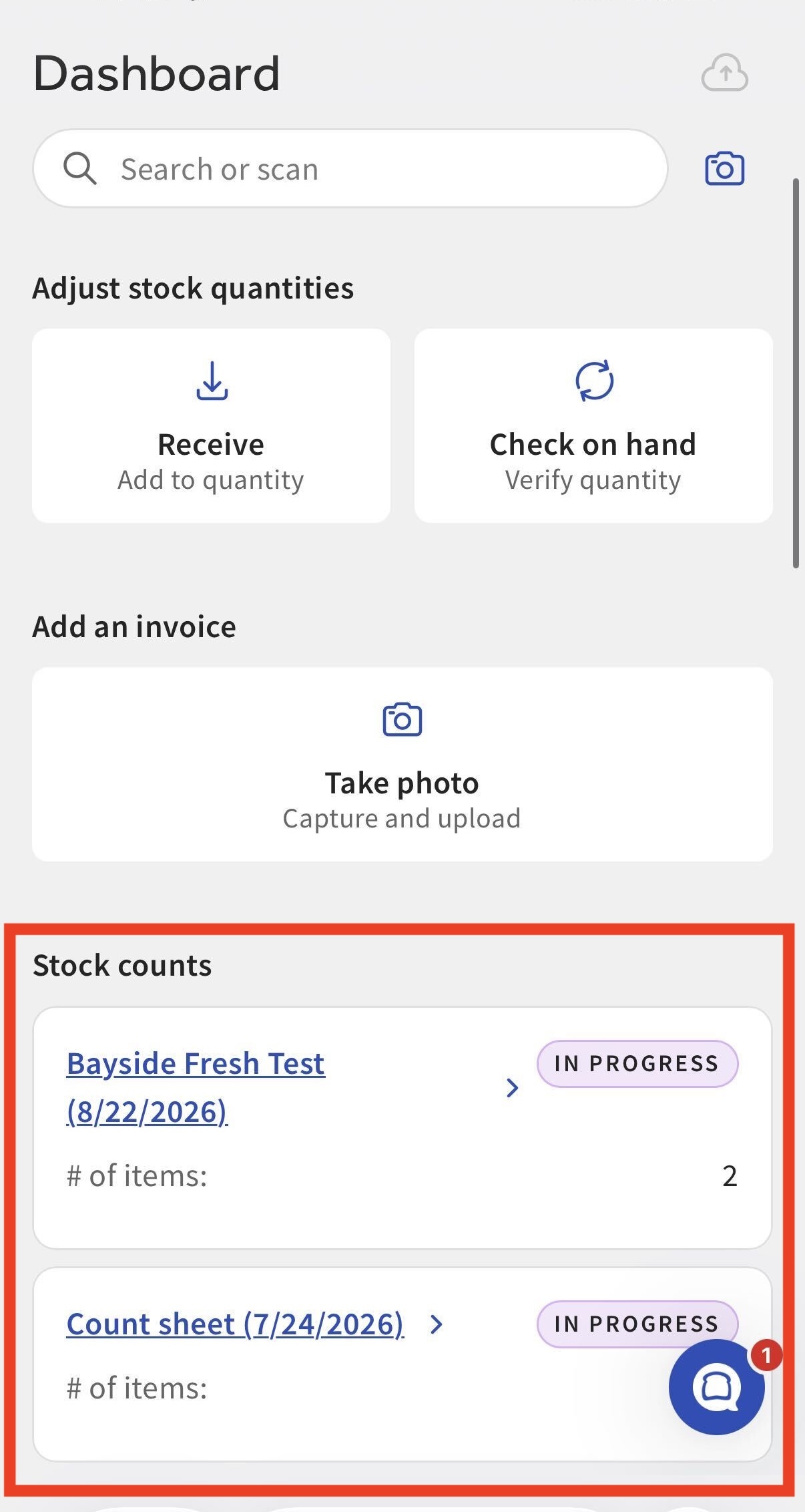
- All count sheets that are “ready” will be listed on the mobile Retail dashboard, in the Stock Counts section. Select the name of the count sheet you’d like to work on.
- Select the name of the Item location where you’d like to begin your count.
- All items on the count sheet will be displayed. Search for an item by name, or select the barcode icon next to the search bar to scan a barcode using the camera on your mobile device.
- Enter the quantity of that item in the Count field, and change the Count unit drop-down if you want to change the receiving units. You can also select Add note to enter other information that is relevant to the item you’re counting.
- Select Next. The items you finish counting will move to the Counted tab. Search for or scan the next item at this location to continue counting, or select the back arrow at the top to choose a different location.
- Continue your count for all items at all locations as needed. You can make edits to your counts or add new item locations if necessary. When you’re finished, select Mark sheet as counted.
Once a sheet is marked as counted, you can no longer make changes to item counts unless it is moved back to the In progress stage. An employee with the 4.5 Full Menu Edit permission will be able to review and finalize the stock count to save changes to inventory quantities.
Note: Item counts are not affected by a stock count until the count sheet has been marked as completed, as detailed in the next section of this article.
Review & Complete the Stock Count
Once a count sheet has been marked as counted, the status will change to Counted on the Stock Counts page so that a manager can review the count sheet, identify discrepancies and variances, edit item counts if needed, and finalize the count for that cycle. This process must be completed on a computer (not your mobile device).
- On the Stock Counts page in Toast Retail, find the count sheet in Counted status and select Review.
At the top of the count sheet, you’ll see the number of items counted, total cost of items, total cost variance, total variance, total actual count, and inventory accuracy rate. The Item information table will display specific data for all items on the count sheet, including the name of the user who counted the item, and the date & time when they completed the count of that item.
Note that regardless of any receiving units counted, the total actual count will always show the smallest unit (e.g. bottles of wine instead of cases of wine).
For items that were counted in multiple locations, you’ll be able to expand the row to see count information for each individual item location. - If needed, you can select Edit item counts at the top of the page. From here, you can edit individual item counts or select multiple items to use bulk actions (delete item location, set quantity to zero, clear count, or count later).
- If further counting and adjustments need to be made, you can select the return arrow at the top of the page to send the count sheet back to In progress.
- When you’re ready to finalize a count sheet, select Mark as completed. This action will commit all entered values to their respective items and save them in your item catalog.

Once a count sheet has been marked as completed, no further changes can be made. You can export your count data as a CSV or Excel file for use in accounting, audits, or variance reports.
Stock count adjustments will be displayed on the Recent inventory history table on an item details page. This will show the variance and actual count at the time the item was counted, not at the time that the count sheet was marked as “completed”. Stock counts will also have their own column in the Inventory Roll Forward report (learn more: Toast Retail Inventory Reports).
Frequently Asked Questions About Stock Counts
What does the 'Updated count data detected' warning mean, and how do I resolve it?
This warning appears when an item on your count sheet was counted more recently somewhere else than it was on this sheet. That could be on another stock count or through a separate inventory count. Toast Retail flags these items so older counts don't overwrite newer inventory data.
To resolve the warning:
- On the count sheet, select Edit item counts.
- Select the flagged items, one at a time or in bulk. Use the Updated count filter to find them quickly.
- Choose one of the following actions:
- Clear count: removes this sheet's older count for the selected items.
- Recount: moves the selected items to a new count sheet so they can be counted again.