Use Toast for Off-Site Operations
Last updated: Jul 7, 2026, 2:40 PM
| If you need menu items and receipts printed at your off-site location, we recommend you create a Toast network with its own Toast Web account. This requires separate Toast hardware, like a Toast router and printer, and specific setup and configurations. |
- Set Up Away Mode
- Use Toast Devices Off-site on a Cellular Hotspot
- Use Toast Devices Off-site and Process Payments at a Later Time
- Use Toast Off-Site With A Toast Go® 3 Handheld
- Video
- Payments Off-Site With Toast Go® 3
- Create an Off-site Menu for Toast Go® 3
- Create and Assign Prep Stations for Toast Go® 3 Off-site Menu
- Assign Prep Stations to Your Off-Site Menu
- Enter Away Mode
- Off-Site Menu Visibility for Toast Go® 3
- Configure Receipt Printer Settings on Your Toast Go® 3 for Off-Site Service
- Off-site Reporting Configuration for Toast Go® 3
Set Up Away Mode
Away Mode
You can configure your device to have certain settings when operating off-site by setting up Away Mode. Navigate to Device Setup > Away Mode, and toggle “on” to activate Away Mode. This will also allow you to customize which Menu Visibility and Additional Settings you prefer for Away Mode.
As shown in the video, we recommend turning off your default food and drink menus and toggling on special off-premise menus you’ve set up in your Menu settings. We also recommend turning printing off, unless you’ve set up a functional printer you can connect to at your off-site.
Use Toast Devices Off-Site Using Toast Cellular Products
To accept off-site payments in food trucks and large outdoor dining spaces such as pools, beaches, and farmers' markets, you'll need to utilize cellular technology to broadcast a Wi-Fi network. This solution is well-suited for scenarios where your operation functions as a vendor at an off-site event and requires the capability to process payments remotely, outside the primary restaurant location.
Toast offers two different product options for setting up this capability:
- Toast Go® 3 Cellular Handheld - Great for off-site businesses that want to have minimal hardware and won’t need printing capabilities, but still want the flexibility of taking orders and payments anywhere without Wi-Fi.
- Toast Router with Cellular Subscription - Great for off-site businesses that need more equipment than just handhelds, such as kitchen displays or printers, and want backup Internet across all hardware devices.
Away Mode and Cellular
Away Mode can be used with or without Cellular.
Use Toast Devices Off-Site and Process Payments at a Later Time
If you don't have Cellular, Offline Mode is helpful with Toast devices for continuing to accept card payments. When you process a card payment in Offline Mode, the Toast platform takes the card information, encrypts it, and stores it on the Toast POS device. When the device is back online, the system sends the stored card information to the card networks for authorization.
Toast does not recommend operating your device(s) offline for an extended period of time; there is risk associated with taking payments offline because they cannot be authorized until the internet connection is restored. This means that it's possible for an offline payment to be denied when your system goes back online.
You are responsible for any declined, expired, or disputed payments while operating in offline mode.
Toast does not recommend manually recording card numbers and later entering them in as a CNP (Card Not Present) transaction. If it is necessary, remember you must have the CVV number to retroactively process payment and you're required to protect the cardholder's data to remain PCI compliant.
Payment authorizations can't be guaranteed after 5 days. The authorization will possibly expire, causing the payment to be declined. If this happens, the restaurant will need to reach back out to the guest for another form of payment. Toast recommends contacting your cellular service provider for a cellular hotspot solution to avoid declined payments because of expired authorizations.
Troubleshoot Blocked by IT Admin Error Message
If you're experiencing an error message when attempting to connect your handheld device to a mobile hotspot, try these troubleshooting steps:
- Open the device settings on your handheld device and navigate to System > Network & Internet > Wi-Fi > Wi-Fi preferences > Wi-Fi band.
- Select Both.
- Try connecting to the network again.
Use Toast Off-Site With A Toast Go® 3 Handheld
Use Toast Go® 3 Off-Site Video
An overview of using your Toast Go® 3 device off-premise
If you are bringing a Toast device off-site, it’s recommended you take the steps outlined in the video to set up special menus for your event. The steps below reference the Toast Go® 3 as an example however, these steps can be used for preparing any Toast device for Off-site service.
Payments Off-Site With Toast Go® 3
If you have a Toast Go® 3 with cellular connectivity, you don’t have to worry about getting a hotspot for your handheld to process payments. Make sure cellular is enabled and payments go through seamlessly. Note: For cellular capability, make sure you have the Toast Go® 3 device with cellular. Toast also sells the standard Toast Go® 3 with Wi-Fi only, which will still require a hotspot for these off-site events.
Create an Off-site Menu for Toast Go® 3
- Navigate to Menus > Menu management > Menu manager.
- Select the + Add menu button at the bottom of the list of menus to enter the name of the new menu. Note: We suggest naming this to specifically indicate that it will be used when you are not at your restaurant.
- Next, let’s hide this new menu so it doesn’t appear on all your POS devices. Select the new menu link, and scroll down to Channel visibility. Toggle visibility for each channel to Off. Select Save
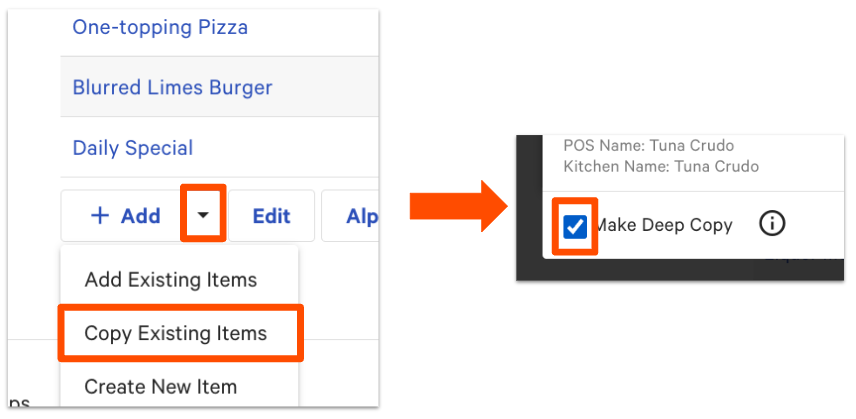
- Next, let's start filling out your new off-site menu. Click into your menu and scroll down to Groups. You have two options:
- Deep copy: If your new menu includes many items you already have today, then it can make sense to copy those items to your new menu. A deep copy will create an independent copy of your new menu's existing group/item/modifier. Note: See additional guidance here on deep copy and menu creation.
- Create a new menu with different groups, items, modifiers, etc.
- Deep copy: If your new menu includes many items you already have today, then it can make sense to copy those items to your new menu. A deep copy will create an independent copy of your new menu's existing group/item/modifier. Note: See additional guidance here on deep copy and menu creation.
Create and Assign Prep Stations for Toast Go® 3 Off-site Menu
Follow the steps below to create a prep station for your Toast Go® 3 off-site menu.
Option 1 (Recommended): Don’t want to print and/or use KDS off-site
It’s common to bring a Toast Go® 3 off-site and not want to print tickets or send orders to KDS. To achieve this, complete the following steps to create no printing prep stations:
- In Toast Web, navigate to Kitchen > Kitchen stations > Prep stations.
- At the bottom of the list, select +Add.
- Name this prep station “No Print”
- In the Ticket Printer column, select None from the drop-down menu.
- Uncheck Always Print Tickets.
- Deselect Send to Expo.
- Save and publish your changes.
Option 2: Print and/or use KDS off-site
While not common, some off-site use cases require printing or KDS. Follow the steps below to create your new prep stations connected to your off-site printers and/or KDS.
- In Toast Web, navigate to Kitchen > Kitchen stations > Prep stations.
- At the bottom of the list, select +Add.
- Name this prep station to reflect its use case (Example: Off-site).
- Complete setup of printers and/or KDS routing.
Assign Prep Stations to Your Off-Site Menu
Now, let’s assign a prep station for your off-site menu:
- In Toast Web, navigate to Menus > Bulk Management > Advanced properties.
- Scroll down to view your new menu groups under the new menu.
- Navigate to Preparation > Prep Stations to ensure that only the station you just created (Example: Off-site) is selected. Then, assign this station to every group.
- Save and publish your changes.
Enter Away Mode
Now toggle on Away Mode to complete setup and perform the following configurations.
Off-Site Menu Visibility for Toast Go® 3
Let’s adjust the visibility of menus on your devices. The following steps will help you hide your menus so they don’t appear on your TG3 when you go off-site.
- Navigate to Menus > Bulk Management > Advanced properties.
- In the Show/Hide drop-down menu, select Visible to.
- Under the Visible to column, uncheck all menus you don’t want visible on your Toast Go® 3 for the off-site service. Note: Deselecting menus here will impact ALL devices. If you need these menus to be visible on your other devices, navigate to Device setup and select Enable Hidden Menus. Here, you will decide which menus you want to show on each device. Save and publish your changes.
- With menu visibility changes in Toast Web complete, return to your Toast Go® 3 device, navigate to Device setup > Enable Hidden Menus, and select your new off-site menu. This will ensure your new menu and only that menu appears on your Toast Go® 3
Configure Receipt Printer Settings on Your Toast Go® 3 for Off-Site Service
It’s common not to need printed receipts when doing off-site service. The following steps will help you disable printing to your receipt printer when you go off-site.
- If you don’t plan to print, go to Device Setup > Receipt Printer and select No printer.
- Consider turning on digital receipts. Device Setup > Digital Receipts. Note: If you do plan to print, make sure to select the correct receipt printer in Device Setup > Receipt Printer.
Process complete! You should be ready to take your Toast Go® 3 off-site for temporary events!
Off-site Reporting Configuration for Toast Go® 3
Like any new dining area in your restaurant, consider revenue centers, sales categories, and inventory management when setting up this device to go off-site. Considerations like item naming conventions, rounded pricing, and varying tax rate options based on your new location, to assist with reporting and tip management.