xtraCHEF: Change an Invoice Item's GL Code or Category
Last updated: Sep 24, 2026, 11:29 AM
Category Mapping
As part of invoice reconciliation, you will be prompted to map new invoice items to categories in invoice item mapping. Once an invoice item is mapped, xtraCHEF will remember the corresponding code or category and repeat that step on your behalf moving forward. Should users need to change an invoice item's category, they can do so via the Item Library page.
Change Categories (and GL Codes)
Note: If you're looking to update a category itself, check out xtraCHEF: Create and Edit Purchase Categories.
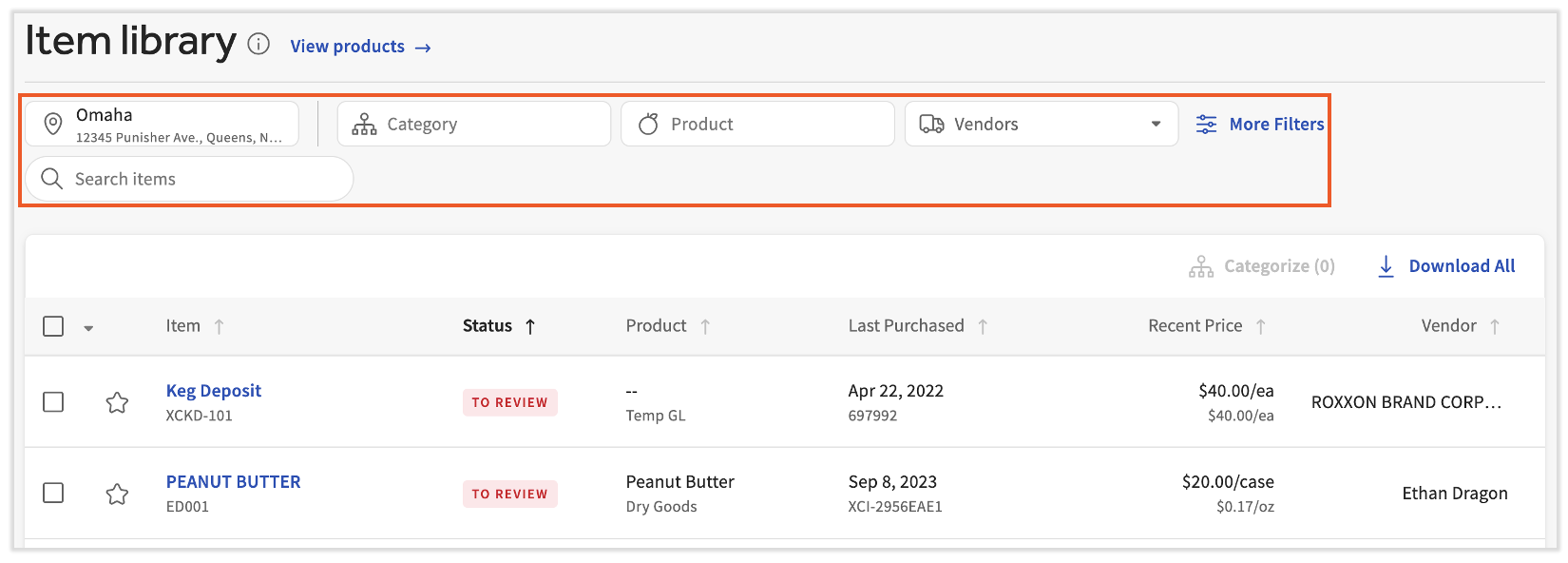
A change will be made via the Item library if an invoice item has already been mapped to a category in invoice item mapping. To do this, select Item library on the navigation bar. Visit xtraCHEF: Item Review and Item Library for more details about the new Item Library.
To find your invoice items, use the search bar and/or the filters to narrow down on specific invoice items or criteria. Select the invoice item to view its details.
Users can more easily find the invoice or group of invoices they're looking for. The search bar on the Invoices page now uses a large language model capability, so you can use natural language searches to locate invoices. For instance, try typing something like "I want all invoices mapped to XYZ category for the last 60 days" or "Get all the invoices for the XYZ location that are under $250." Be creative with your search queries and xtraCHEF will take care of the rest without the hassle of searching, filtering, and scrolling until you find what you need.
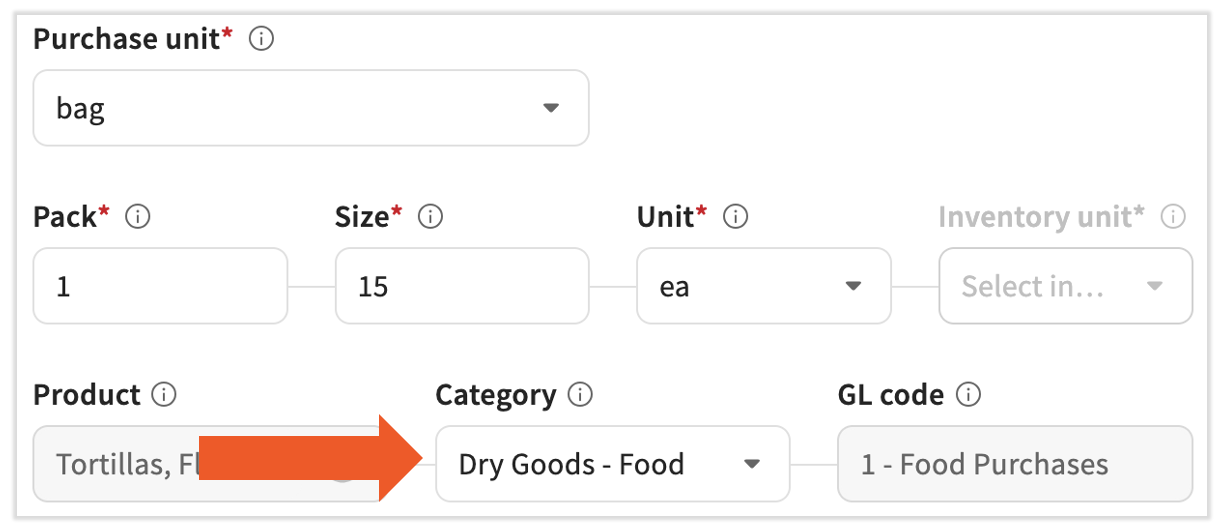
Scroll down to re-select the Category. This will also update the GL code the category is mapped to. The GL code field itself cannot be edited directly; it updates automatically based on the Category you select above.
Select Save Changes. xtraCHEF will then save and publish your updates.