xtraCHEF: Invoice Search
Last updated: Apr 28, 2026, 4:20 PM
Invoice Search Overview
Once your invoices have been uploaded and processed (usually about 24 hours after uploading), they will be stored in xtraCHEF for future reference. Let's review how to find past invoices using basic and advanced search techniques.
To start, navigate to the Search Invoices tab on your xtraCHEF sidebar. This will take you to the Invoice Search page.
Note: If a vendor uses invoices that do not have an invoice ID or an invoice number, you can tell xtraCHEF to use the invoice date as the invoice number so you can more easily find them at a future date.
Search for Invoices
By default, you'll be directed to the basic search. Basic search allows you to find invoices by vendor name, invoice number, invoice date, invoice status, or location.
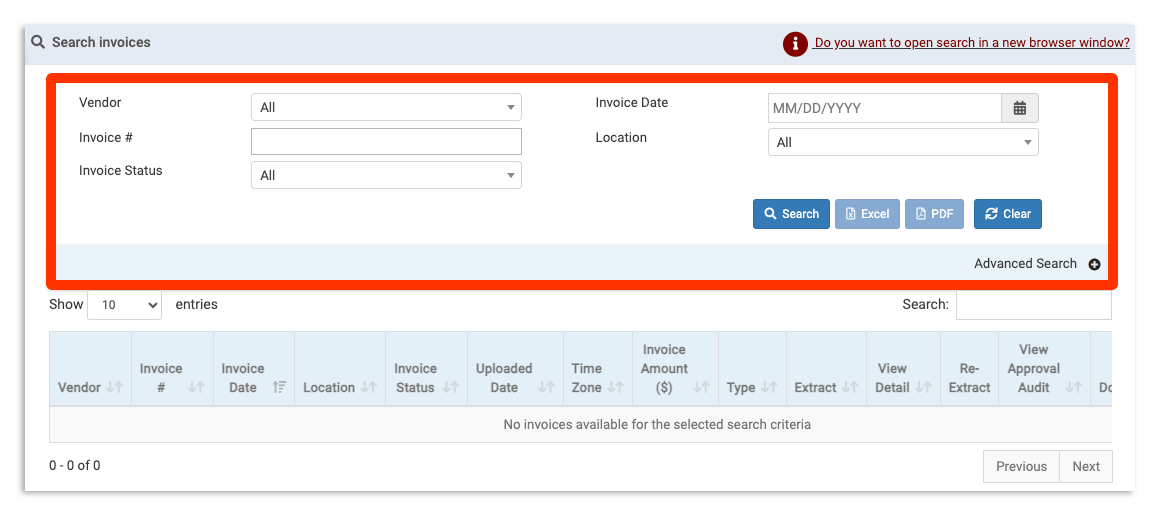
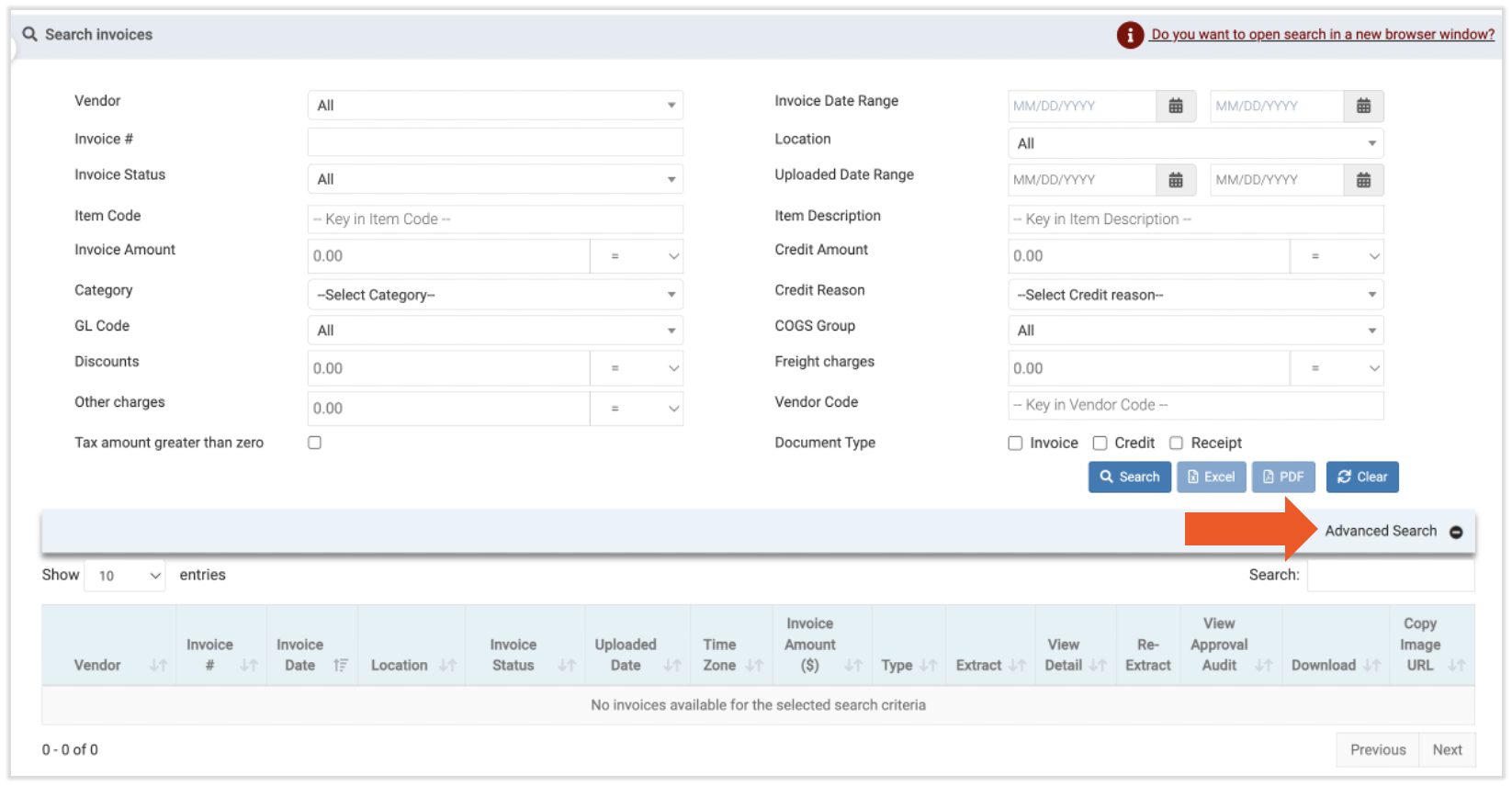
Need something more specific? Select Advanced Search to reveal granular search options, including GL codes, discounts, and even freight charges.
To search, select any identifying attributes from the above criteria and select Search. This will populate any uploaded Invoices or Receipts that match the specifications.
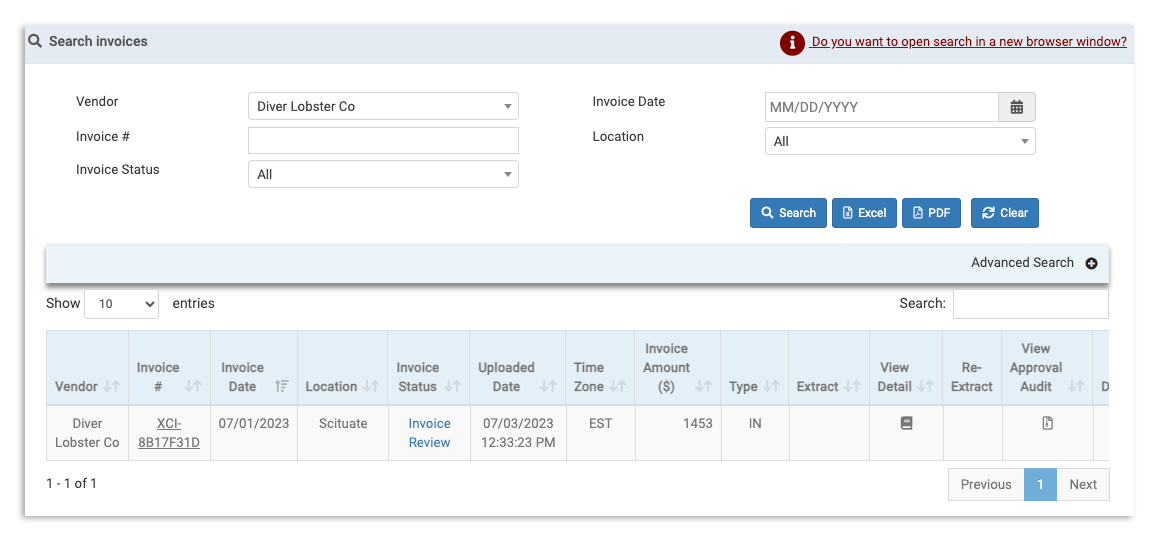
From here, you can review basic invoice details and information such as Invoice Date, Invoice Amount, and Location or review reconciliation information such as Invoice Status, Extract, and more. You can even review the originally uploaded scan.
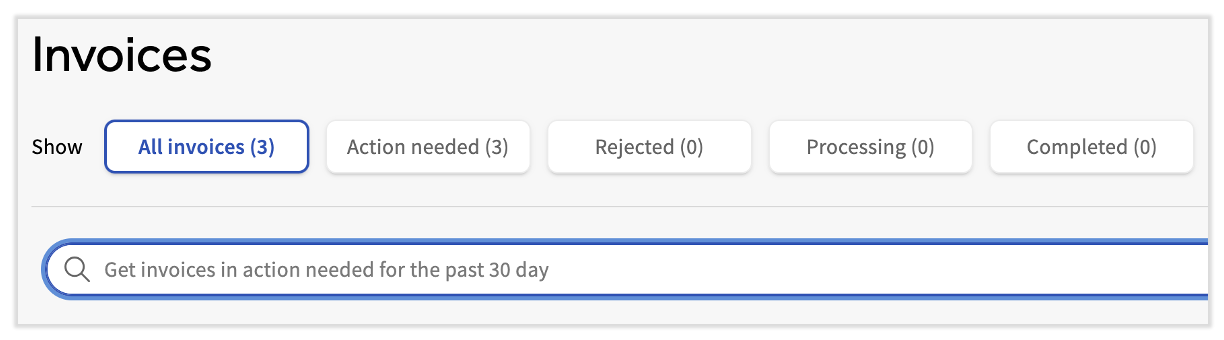
Use the Search Bar on the Invoices Page
Users can more easily find the invoice or group of invoices they're looking for. The search bar on the Invoices page now uses a large language model capability, so you can use natural language searches to locate invoices. For instance, try typing something like "I want invoices from XYZ vendor for the last 60 days" or "Get all the invoices for the XYZ location that are under $250." Be creative with your search queries and xtraCHEF will take care of the rest without the hassle of searching, filtering, and scrolling until you find what you need.
Navigate to Invoices to use this new search bar function.