xtraCHEF: Get Started With the Price Tracker
Last updated: Jul 7, 2026, 4:14 PM
Price Tracker Overview
Supply, demand, relationships with vendors, etc., all of these things affect how your vendor charges you for the items and ingredients you purchase regularly. Because of that, your prices are very rarely stagnant. In fact, they tend to rise and fall over the week, month, and year. Luckily, xtraCHEF can help you keep tabs on these shifts in pricing via the Price Tracker tool.
This report starts working for you quickly, capturing invoice item pricing changes within your first few document uploads. Use your Price Tracker to:
- Highlight any variance in previously recorded invoice items
- Identify negative (or positive) trends with your vendor's pricing
- Inform decisions for ingredient substitutes before the costs affect your margins
- Justify purchasing ingredients from other vendors with less volatile pricing
See more to learn more about this tool and how to access and use it.
Using Your Price Tracker
Your Price Tracker can be found on your xtraCHEF account's dashboard. It will showcase a summary of recent items experiencing a shift in pricing.
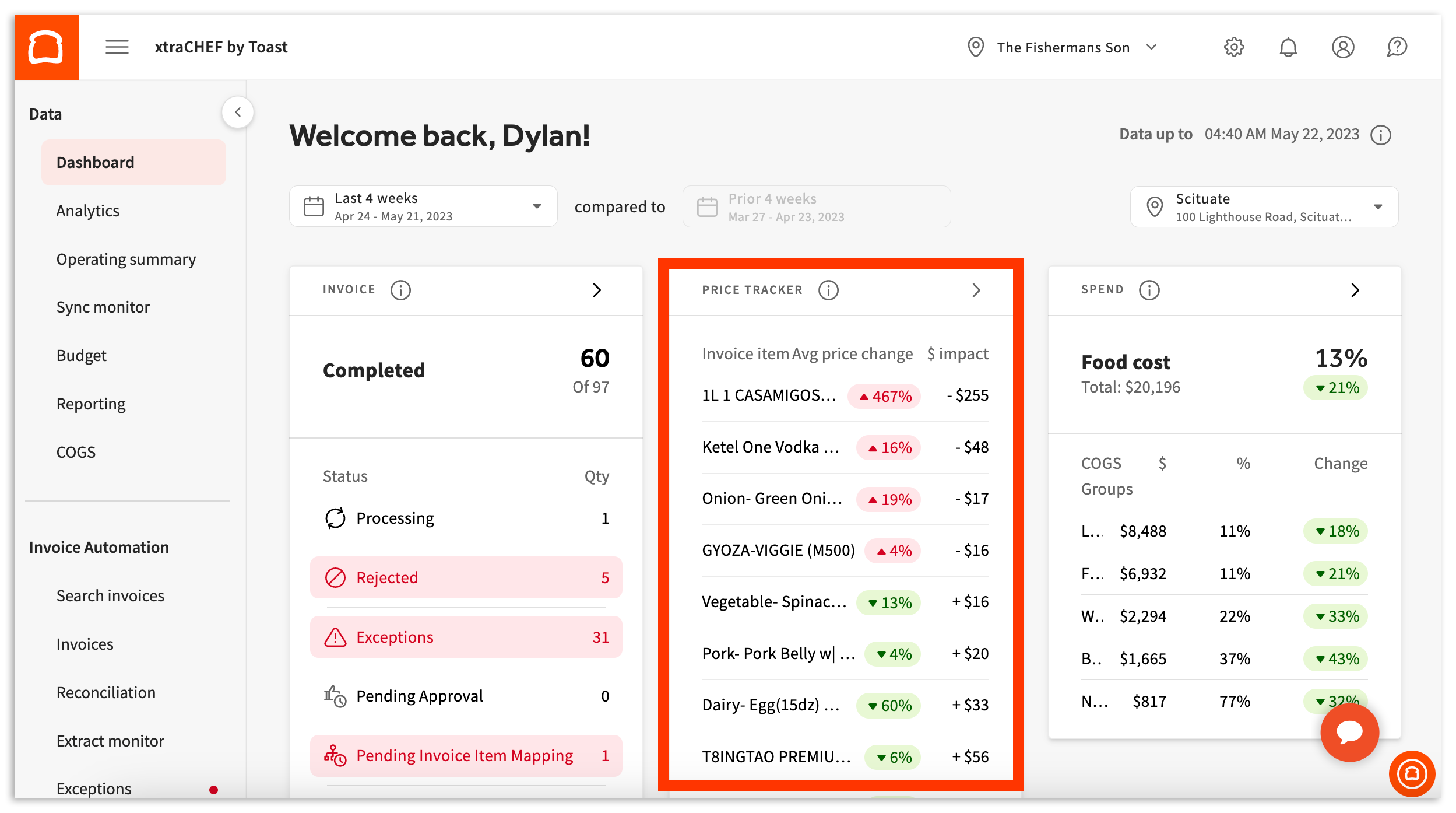
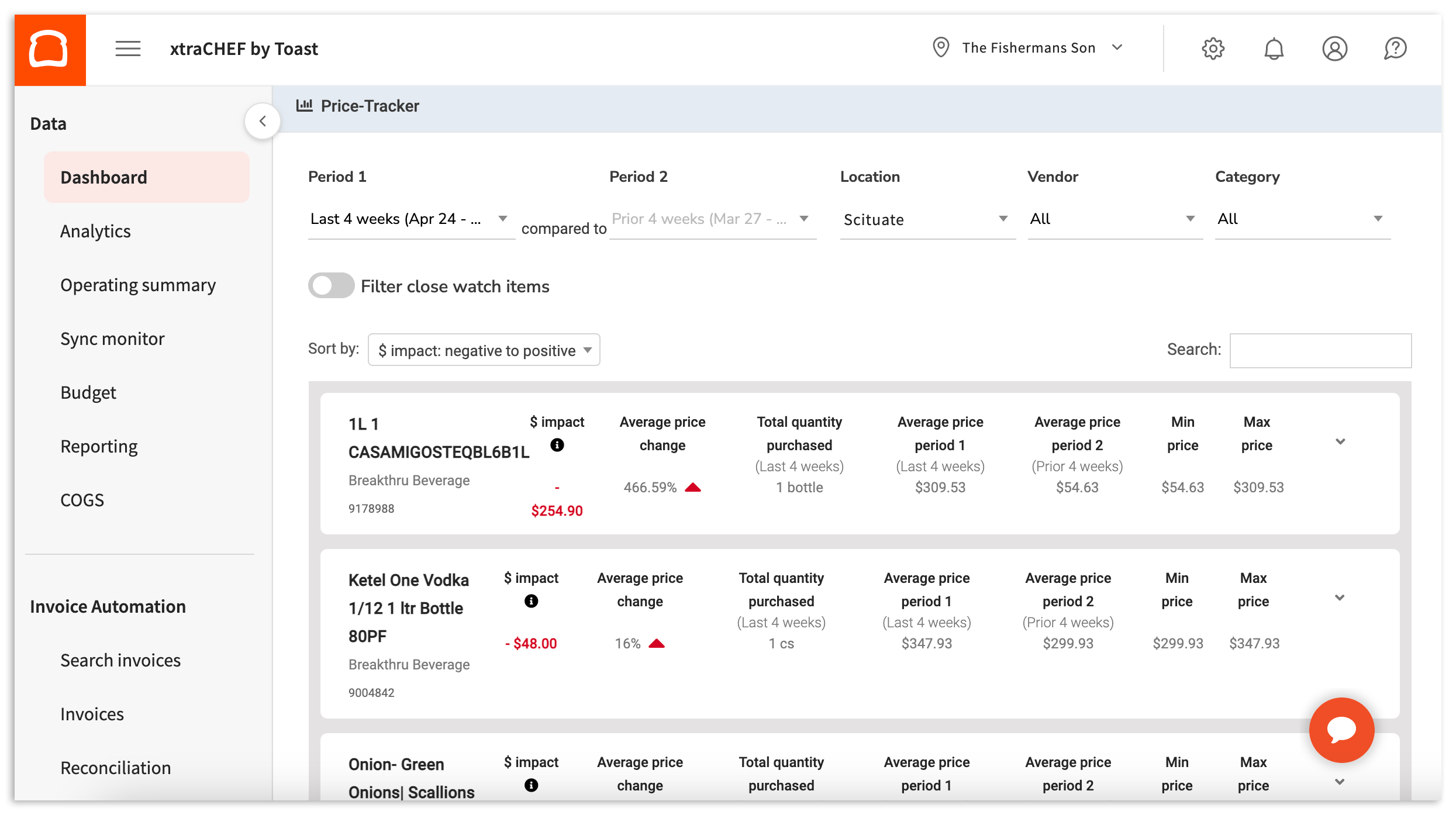
This is just a snapshot of trends in your vendor purchases and highlights an Average price change percentage and dollar amount impact ($ impact). To view a more detailed breakdown of your rising and falling costs, select Price Tracker at the top of the tile. This will take you to the tools-designated page.
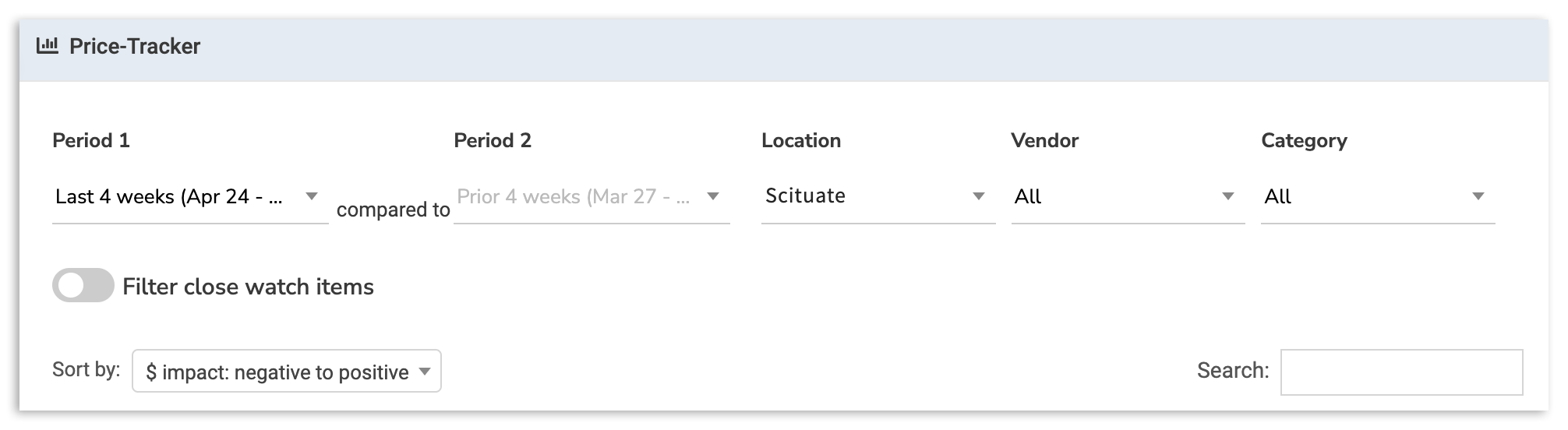
Here, you can further filter your results by the following parameters:
| Filter | Definition |
| Location | For multi-location operations, your Location dropdown enables you to view your price tracker by any location under your xtraCHEF tenant (account) |
| Vendor | Your Vendor dropdown enables you to review price changes by vendor/supplier. |
| Category | Your Category dropdown enables you to check price changes by the category you had previously assigned invoice items to during Map Invoice Items or Item Review. |
| Filter Close Watch Items | The Filter Close Watch Items toggle allows you to filter results to only Invoice Items designated as close watch items by you in your Item Library. |
| Sort by | The Sort by dropdown allows you to filter price tracker results from positive to negative or negative to positive. |
| Period 1 / Period 2 | Your Period dropdown allows you to filter results to compare this week and last week, last week and the prior week, or the last four weeks to the prior four weeks. |
You can set all or none of the parameters above to narrow down specific products, fluctuation ranges, location-specific data, etc. Then, select the corresponding dropdown, toggle, or slider to make those changes. After making your changes, the price tracker will update automatically.
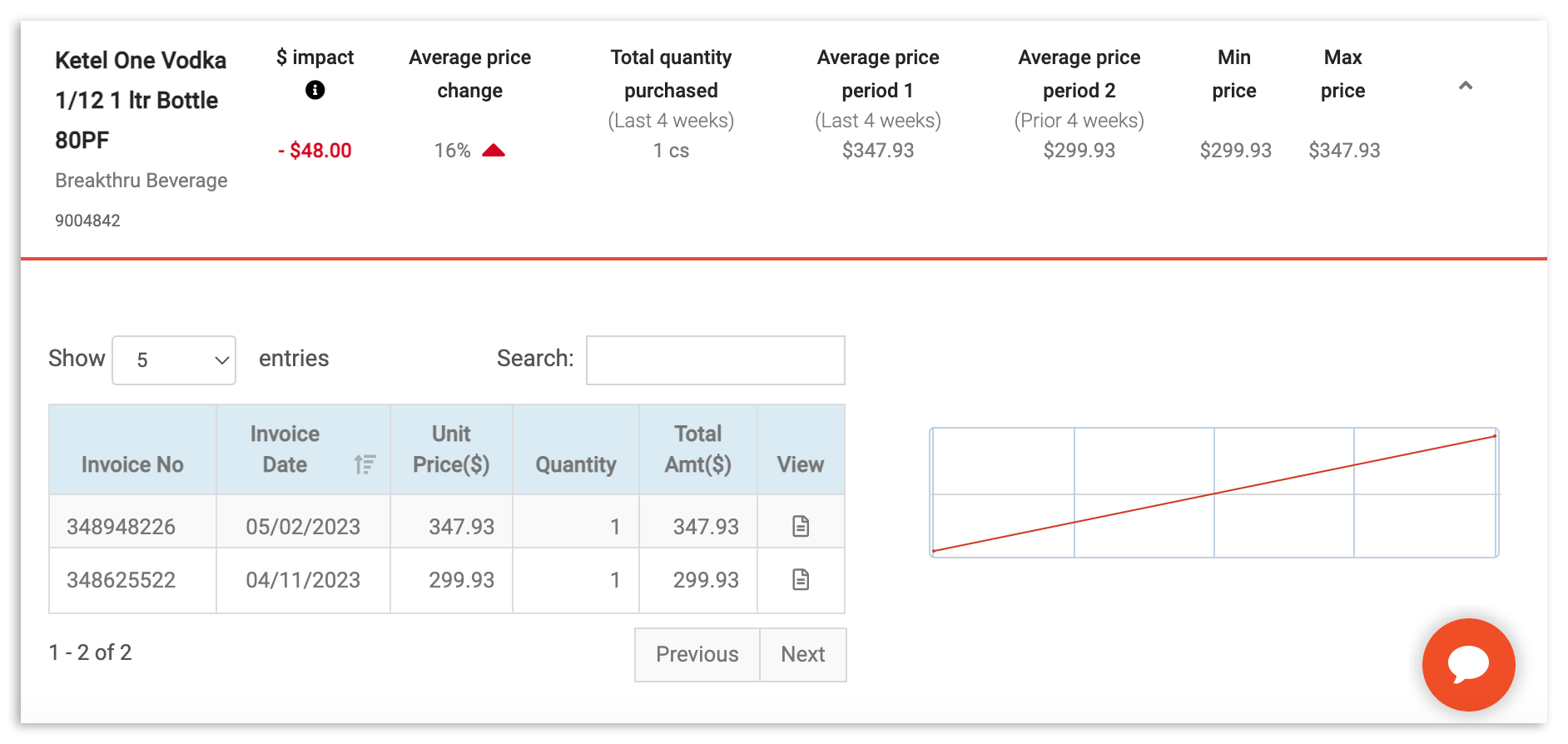
This will populate a table of data. These entries will be broken out by Invoice Item name and are accompanied by a line chart showing the item's historic fluctuation. Additional information such as Min price, Max price, Average price change, Total quantity purchased value, and $ impact will also be displayed.

You can dive even further into this product by selecting the v caret icon on the right side. This will reveal deeper insight and data visualization.