Crear un menú para el tablero de menús digitales Delphi
Última actualización: 30 sept 2026, 2:31 p.m.
- Decidir qué menú usar en el panel de menús digitales Delphi
- Crear un nuevo menú para un panel de menús digitales Delphi
- Usar un menú existente en un panel de menús digitales Delphi
- Gestionar modificadores en un panel de menús digitales Delphi
- Crear menús para ubicaciones múltiples
- Configurar configuración de stock de artículos en Toast Web
| Antes de seguir los procedimientos de esta sección, comunícate con tu representante de ventas de Delphi y pídele que habilite el canal de visibilidad del panel del menú digital para tu restaurante. Los siguientes procedimientos dependen de que esté disponible ese canal de visibilidad. |
Decide qué menú usar en el panel de menús digitales Delphi
Para los clientes que utilizan un panel de menús digitales Delphi, Toast suele recomendar crear un menú específico para mostrar en el panel de menús digitales. Para crear rápidamente el menú para un panel de menús digital Delphi, creas un nuevo menú en Toast Web y luego agregas los grupos de menús existentes. Para obtener más información, consulta Crear un nuevo menú para un panel de menús digital Delphi a continuación.
Si tienes un menú existente que deseas usar para mostrar en el panel de menús digitales Delphi, puedes hacerlo. Para obtener más información, consulta Usar un menú existente para un panel de menús digital Delphi a continuación.
Una vez que el menú del panel de menús digitales Delphi esté listo para compartir con los clientes, debes hacer lo siguiente:
- Publica tu menú. El panel de menús digitales Delphi solo puede mostrar los precios de un menú publicado.
- Ponte en contacto con tu director de proyectos de Delphi para activar las actualizaciones automáticas de precios de Toast Web al panel de menús digital Delphi. Una vez completado este paso, los cambios que realices en tus precios en Toast Web se actualizarán automáticamente en el panel de menús digital Delphi.
Crear un nuevo menú para un panel de menús digitales Delphi
Para crear un nuevo menú para un panel de menús digitales Delphi:
- Inicia sesión en Toast Web y ve a Menús > Gestión de menús > Gestor de menús.
- Selecciona el botón + Agregar menú, ingresa un nombre para el nuevo menú y selecciona la marca de verificación.
- Selecciona el menú que acabas de crear y Configuración avanzada en la barra lateral.
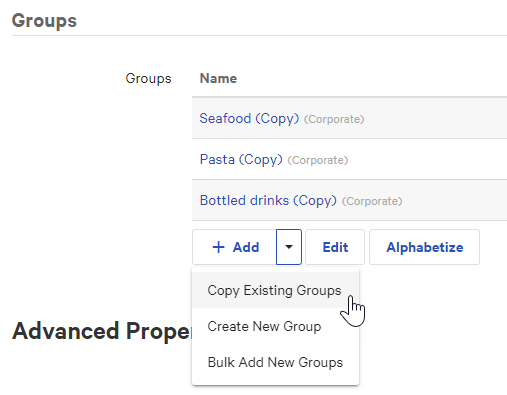
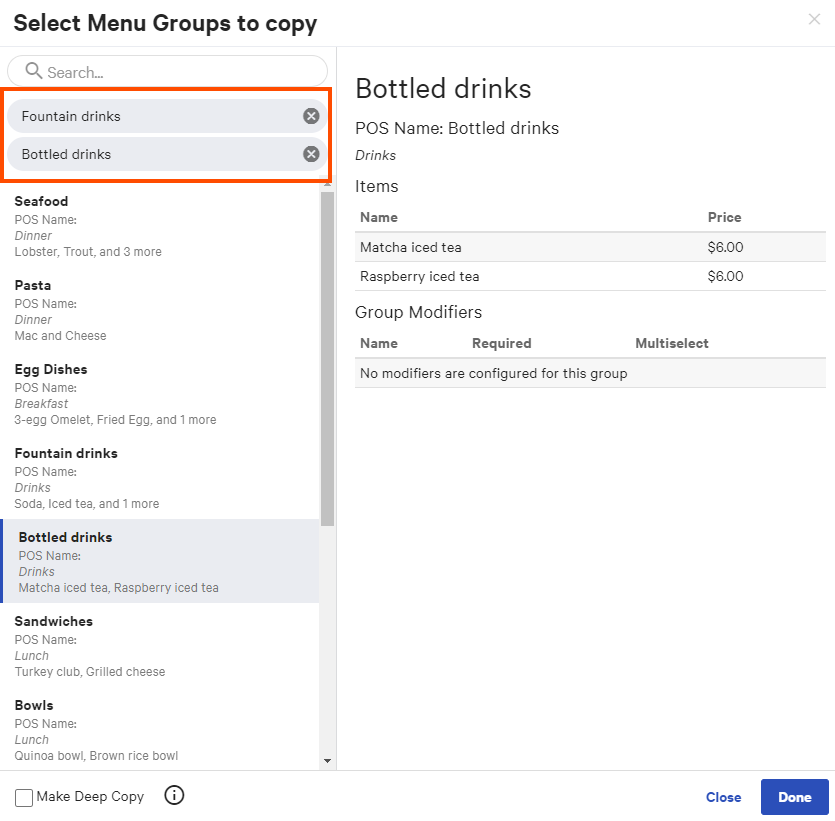
- En la secciónGrupos, selecciona la flecha junto al botón + Agregar y seleccionaCopiar grupos existentes. Se abre el cuadro de diálogo Seleccionar grupos de menús para copiar.
- Busca o desplázate hasta el primer grupo de menús que deseas agregar al menú para el panel de menús digital y, luego, selecciónalo. El grupo de menús se agrega en la parte superior izquierda del cuadro de diálogo, lo que indica que se agregará a tu menú. Repite este paso para cada grupo de menús que quieras agregar al menú para el panel de menús digital. Para eliminar un grupo de menús de la lista, selecciona su botón X.
- Cuando hayas terminado de seleccionar grupos de menús, selecciona Listo.
- Selecciona Guardar.
- En la parte superior de la página, en el banner azul, selecciona el enlace de la página del menú para ir a la herramienta del gestor de menús.
- En el panel izquierdo, selecciona Visibilidad del canal.
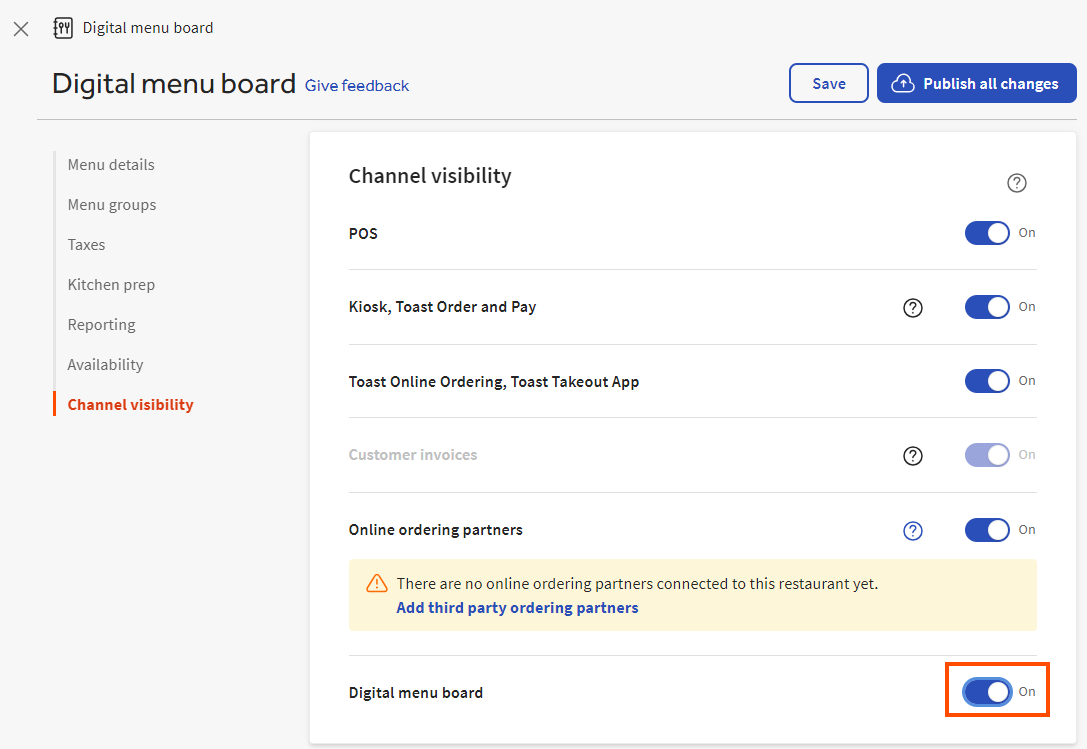
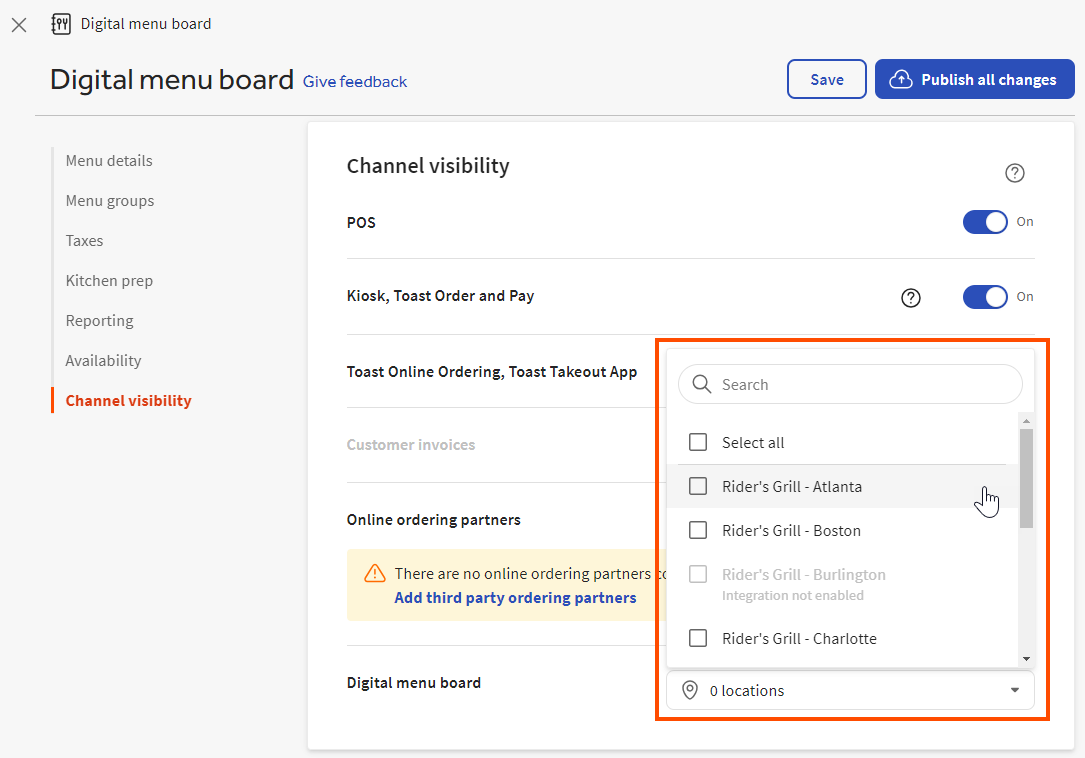
- Activa el canal de visibilidad del panel del menú digital:
- Si tienes un restaurante con una sola ubicación, configura la opción del panel de menús como Activada.
- Si tienes un restaurante con varias ubicaciones, selecciona las ubicaciones que tienen un panel de menús digital Delphi de la lista. Si la integración del panel del menú digital Delphi no está habilitada para una ubicación, está en gris y no puedes seleccionarla.
- Si tienes un restaurante con una sola ubicación, configura la opción del panel de menús como Activada.
- Selecciona Guardar.
- Publica tus cambios:
- Si tienes un restaurante de una sola ubicación, selecciona Publicar todos los cambios en la parte superior de la página para publicar los cambios y, luego, selecciona Publicar nuevamente para confirmar.
- Si tienes un restaurante con varias ubicaciones, debes usar la página Publicar configuración para publicar tus cambios en cada restaurante afectado. Selecciona el ícono X en la esquina superior izquierda para regresar a la página de detalles del menú y, luego, sigue las instrucciones en Publicación de cambios para varias ubicaciones en la Guía de Toast Platform.
Usar un menú existente en un panel de menús digitales Delphi
| Usar un menú existente significa que todos los artículos y modificadores dentro de ese menú se marcan para que se muestren cuando tu director de proyectos de Delphi configure el panel de tu menú digital. Para asegurarte de que los artículos correctos estén en el tablero y tengan activadas las actualizaciones automáticas de precios, trabaja con tu director de proyectos. |
Para usar un menú existente en un panel de menús digitales Delphi:
- Inicia sesión en Toast Web.
- En el panel izquierdo, selecciona Menús para ir a la sección Gestión del menú y, luego, selecciona Gestión del menú.
- Selecciona el menú que deseas usar en el panel de tu menú digital Delphi para resaltarlo, luego selecciona su menú de desbordamiento (el ícono ⋮) y elige Editar. Se abre la página de detalles del menú.
- En el panel izquierdo, selecciona Visibilidad del canal.
- Activa el canal de visibilidad del panel del menú digital:
- Si tienes un restaurante con una sola ubicación, configura la opción del panel de menús como Activada.
- Si tienes un restaurante con varias ubicaciones, selecciona las ubicaciones que tienen un panel de menús digital Delphi de la lista. Si la integración del panel del menú digital Delphi no está habilitada para una ubicación, está en gris y no puedes seleccionarla.
- Si tienes un restaurante con una sola ubicación, configura la opción del panel de menús como Activada.
- Selecciona Guardar.
- Publica tus cambios:
- Si tienes un restaurante de una sola ubicación, selecciona Publicar todos los cambios en la parte superior de la página para publicar los cambios y, luego, selecciona Publicar de nuevo para confirmar.
- Si tienes un restaurante con varias ubicaciones, debes usar la página Publicar configuración para publicar tus cambios en cada restaurante afectado. Selecciona el ícono X en la esquina superior izquierda para regresar a la página de detalles del menú y, luego, sigue las instrucciones en Publicación de cambios para varias ubicaciones en la Guía de Toast Platform.
Volver arriba
Gestionar modificadores en un panel de menús digitales Delphi
En la página de detalles de un grupo de modificadores, puedes elegir si seleccionar un modificador del grupo es obligatorio u opcional.
Si un grupo de modificadores se marca como obligatorio, sus modificadores se incluyen de manera predeterminada en los datos que están disponibles para mostrar en el panel del menú digital Delphi. Específicamente, los datos incluyen una entrada para cada combinación de artículo del menú y modificador del grupo requerido, además de la entrada para el artículo del menú en sí. Por ejemplo, un artículo del menú Ensalada de cena tiene un grupo de modificadores de proteínas con dos modificadores, Pollo y Salmón. Los datos que están disponibles para mostrar en el panel del menú digital Delphi incluyen tres entradas: una para el artículo del menú Ensalada de cena sin modificadores, una segunda para el artículo del menú Ensalada de cena con el modificador Pollo y una tercera para el artículo del menú Ensalada de cena con el modificador Salmón. Puedes trabajar con tu director de proyectos de Delphi para definir cómo se muestran las combinaciones de artículos y modificadores del menú en el panel de menús digital Delphi.
Los grupos de modificadores opcionales aún no se incluyen en los datos disponibles para mostrar en el panel del menú digital Delphi. Como solución alternativa a esta limitación, puedes agregar modificadores como artículos del menú independientes y asignarles un precio. Tu director de proyectos de Delphi puede ayudarte a presentar el modificador adecuadamente en el panel del menú digital de Delphi. Por ejemplo, tienes un artículo del menú Sándwich que tiene un modificador de queso cheddar que cuesta USD 1. Agrega un artículo del menú de queso cheddar para reemplazar al modificador y asígnale un precio de USD 1.
Volver arriba
Crear menús para ubicaciones múltiples
Si tu restaurante tiene varias ubicaciones, puedes copiar el menú que creaste para el panel de menús digital Delphi en esas otras ubicaciones, siguiendo las instrucciones de Copiar menús y cambiar el objetivo o propietario.
Es importante tener en cuenta que los menús copiados no conservan relación con el menú del que fueron copiados. Esto significa que, si agregas artículos al menú del que copiaste, esos artículos no se agregan automáticamente a los menús copiados ni se agregan automáticamente al panel del menú digital Delphi.
Configurar configuración de stock de artículos en Toast Web
Puedes configurar la configuración de stock de artículos para el tablero de menús digitales Delphi en Toast Web. En Toast Web, ve a Menús > Tablero de menú digital > Configuración del tablero de menú digital para abrir la página Tablero de menú digital. En la página del panel del menú digital, puedes elegir lo siguiente:
- Suscribirse a actualizaciones de stock
- Etiquetar como “Sin stock” los artículos sin stock
- Cargar una imagen sin stock
| Debes elegir activar las actualizaciones de stock para mostrar las otras configuraciones de stock. |
Puedes elegir aplicar la configuración de stock de artículos a una ubicación o a varias ubicaciones utilizando el menú desplegable de ubicaciones en la parte superior de la página. Selecciona tus ubicaciones en las pestañas Ubicaciones o Grupos o usa la opción de búsqueda para buscar y encontrar ubicaciones. Marca la casilla junto a la ubicación para seleccionar las ubicaciones a las que se aplicará la configuración.
Por ejemplo, si tu restaurante tiene 64 ubicaciones, puedes elegir aplicar la configuración solo a 60 ubicaciones. Desde allí, puedes personalizar cada configuración para ubicaciones específicas, como activar la opción de actualizaciones de stock para 50 de las 60 ubicaciones, y desactivarla para las 10 ubicaciones restantes.
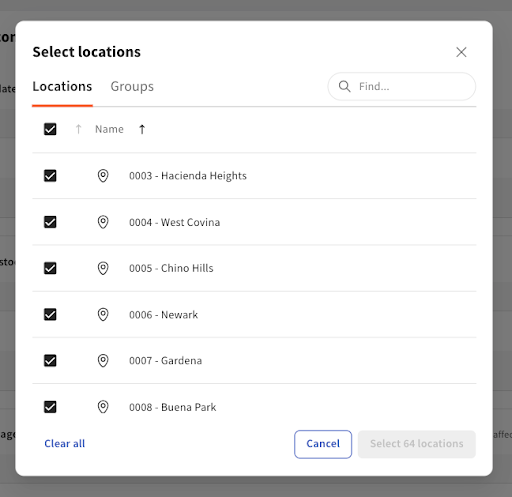
Selecciona el botón Seleccionar ubicación para guardar los cambios o el botón Cancelar para cancelar la salida del cuadro de diálogo.
Activar actualizaciones de suscripciones de stock
Para enviar una actualización desde la plataforma Toast a tu tablero de menús digitales Delphi cuando un artículo se marque como sin stock, selecciona la opción Suscripción a stock y activa la opción . Puedes elegir aplicar esta configuración a ciertas ubicaciones de tu grupo de restaurantes en el menú desplegable de ubicaciones. La fila Activ. muestra las ubicaciones que están activadas para recibir actualizaciones de stock. Para desactivar esta configuración en ciertas ubicaciones, ve a la fila Desactivada y, usando el menú desplegable, selecciona para qué ubicaciones desactivar esta configuración.
Selecciona el botón Guardar y luego ve al Centro de publicación para publicar los cambios.
Etiqueta “Agotado” para los de artículos sin stock
| El valor predeterminado para esta configuración es Desactivado. Debes activar esta configuración. |
Para permitir que la plataforma Toast reemplace automáticamente el precio de un artículo con una imagen de “Agotado” cuando el artículo quede sin stock en el panel del menú digital Delphi, selecciona la opción Etiqueta “Agotado” para artículos sin stock y activa la opción . Puedes elegir aplicar esta configuración a ciertas ubicaciones de tu grupo de restaurantes en el menú desplegable de ubicaciones. En Onrow, se muestran las ubicaciones que están activadas para etiquetar artículos sin stock. Para desactivar esta configuración en ciertas ubicaciones, ve a la fija y, usando el menú desplegable, selecciona para qué ubicaciones desactivar esta configuración.
Selecciona el botón Guardar y luego ve al Centro de publicación para publicar los cambios.
Cargar una de imagen sin stock
| La plataforma Toast proporciona automáticamente una imagen reemplazable sin stock que se puede usar para el panel de menús digital Delphi. No hay límite en la cantidad de imágenes que puedes cargar en la plataforma Toast. |
Para cargar una nueva imagen e indicar los artículos sin stock en el panel de menús digitales Delphi, selecciona la opción Cargar imagen en stock y selecciona el botón Nuevo + y, luego, el botón + Agregar imagen para cargar una imagen. También puedes arrastrar y soltar una imagen para usar. El tamaño máximo del archivo de carga es 1 MB. Usa el menú desplegable de ubicaciones para seleccionar qué ubicaciones usarán la imagen cargada. Selecciona elbotónSeleccionar ubicación(es) para guardar los cambios o elbotón Cancelar para cancelar fuera del cuadro de diálogo.
| La nueva imagen solo está disponible para las mismas ubicaciones que tienen la opción Suscribirse a actualizaciones de stock activada. |
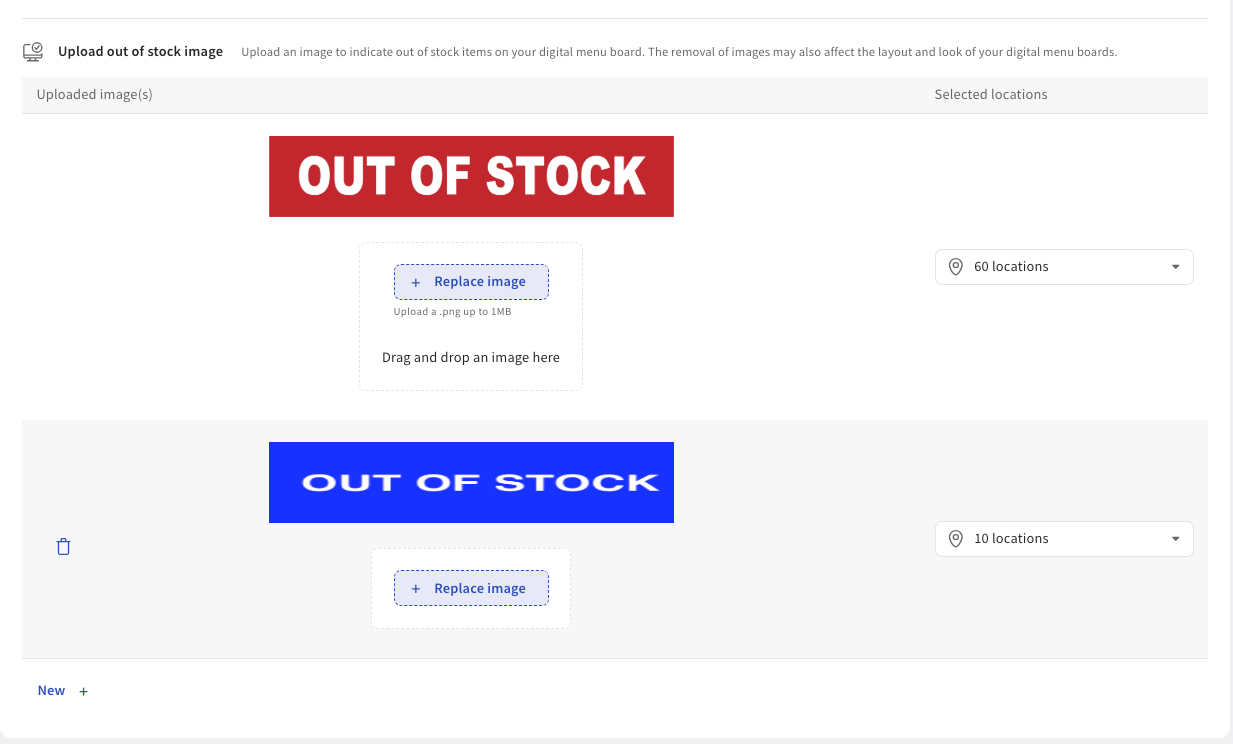
Selecciona el botón Guardar y luego ve al Centro de publicación para publicar los cambios. Cuando publicas los cambios, la imagen de sin stock se guarda en el archivo XML. La imagen estará disponible para usar en el diseñador de plantillas en la plataforma Insight Engage.
Para eliminar una imagen, selecciona el ícono de papelera junto a la imagen. Para reemplazar una imagen, selecciona el botón + Reemplazar imagen para abrir el directorio de tu computadora y, luego, elige otra imagen para cargar.