Acceder Envío 2.0 Mapa en vivo
Última actualización: 8 abr 2026, 10:04 a.m.
| Si quieres que esta función esté activada en tu restaurante, ponte en contacto con el equipo de atención al cliente. Inicia un chat en vivo aquí con nuestro equipo de atención al cliente. El chat está disponible en Toast Web y Payroll Web (botón de asistencia azul en la esquina inferior derecha de cada página) y en la pestaña de asistencia de la aplicación Toast Now. |
Acceder a la Pantalla Envío en POS de Toast
En el POS de Toast, la Pantalla Envío incluye la Función Mapa en vivo. Esto te permite ver los pedidos listados en el lado izquierdo y un mapa de esos pedidos dentro del área de Envío en el lado derecho. Para acceder a esta función, usa el siguiente flujo de trabajo:
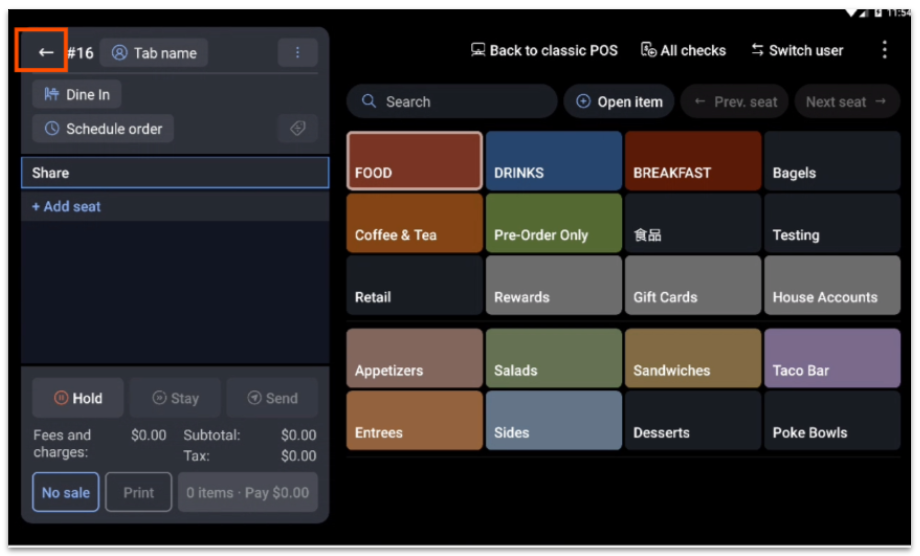
- Mientras estés en el POS de Toast, selecciona la flecha hacia atrás en la esquina superior izquierda de la pantalla.
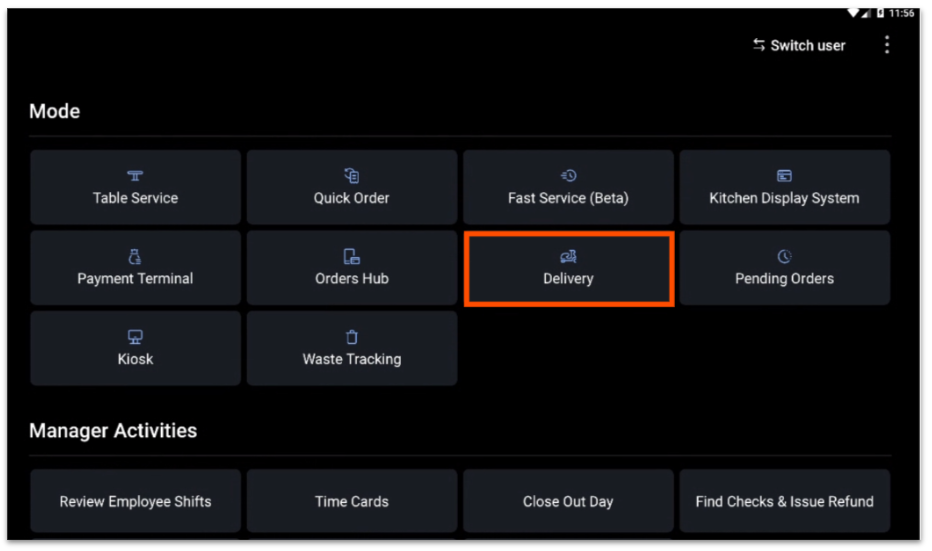
- Desde el Panel de menú principal, selecciona Envío.
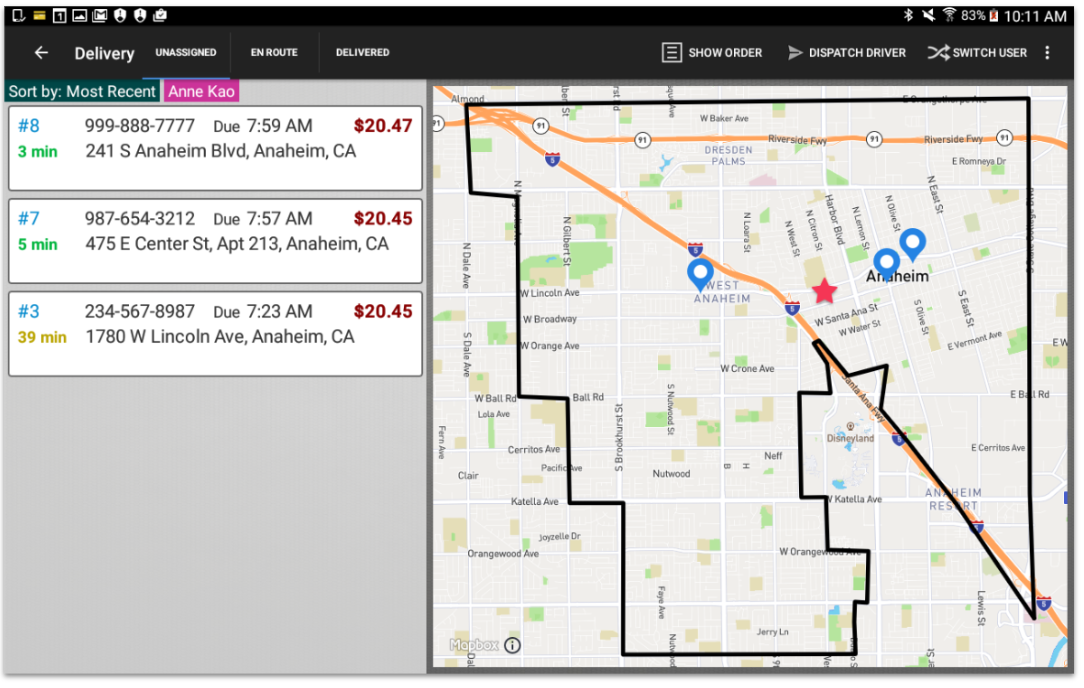
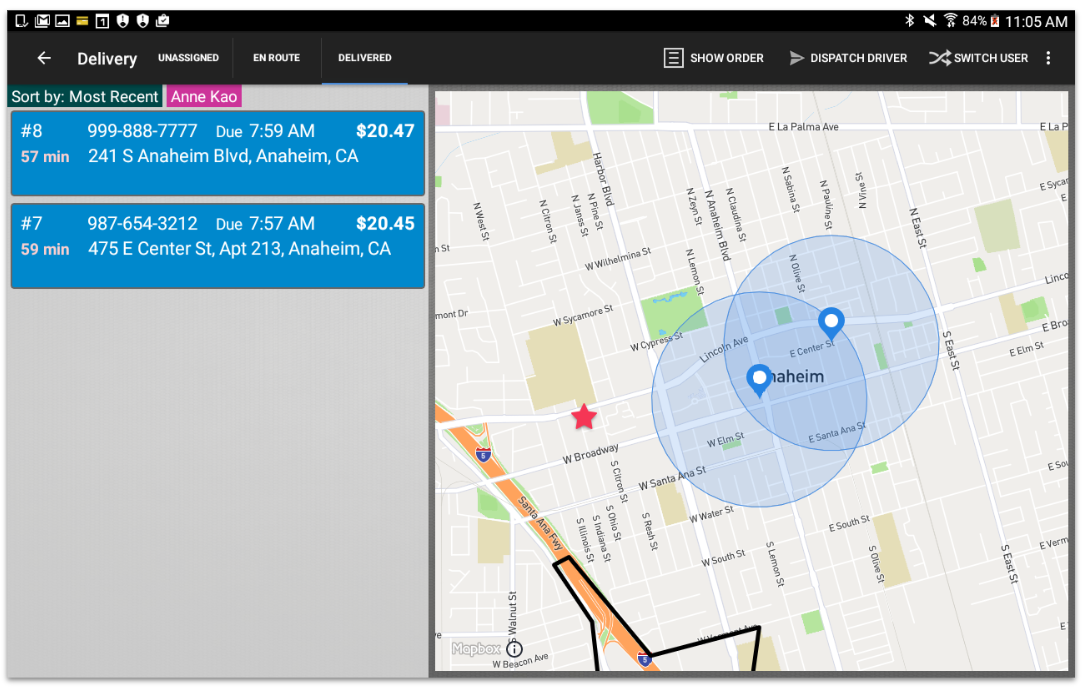
- Una vez en la Pantalla Envío, los pedidos se enumeran en el lado izquierdo de la pantalla y un mapa de esos pedidos dentro del área de Envío estará en el lado derecho. En este mapa, tu restaurante está representado por una estrella roja.
Interactuar con el mapa
Una vez en la Pantalla Envío, tu restaurante está representado por una estrella roja y las direcciones de los pedidos están marcadas con pines azules.
Para ver un pedido específico, selecciona el pedido en la lista del lado izquierdo o en el mapa. Desde aquí, también se pueden seleccionar varios pedidos seleccionando uno tras otro. Se puede anular la selección de un pedido si se vuelve a seleccionar.
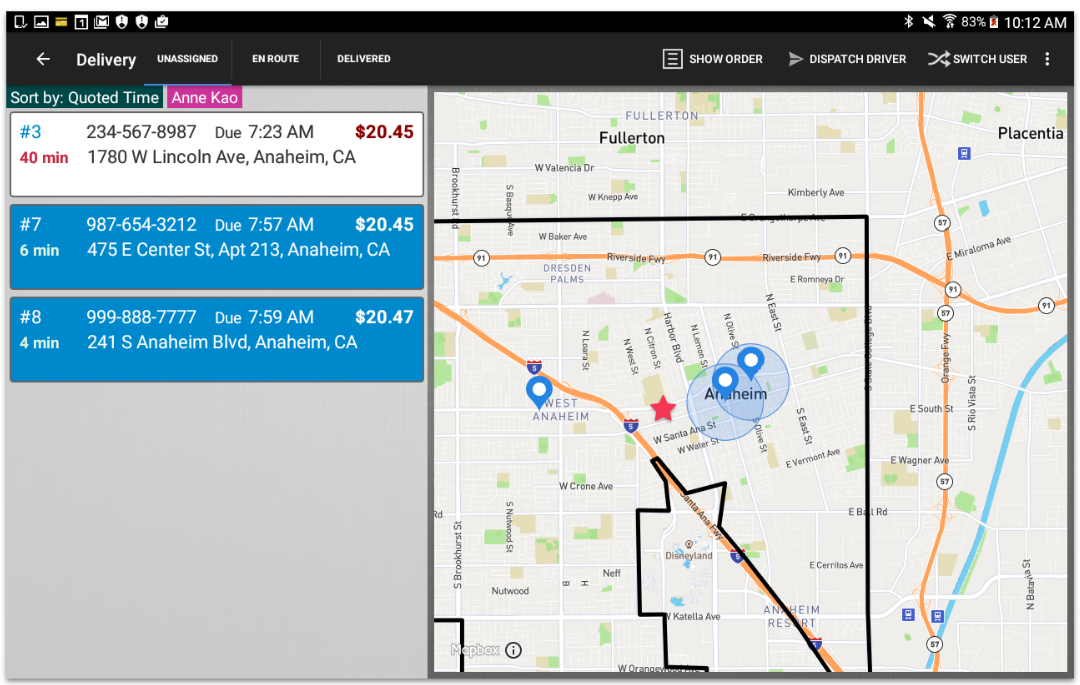
Para acercarte o alejarte al mapa, simplemente pellizca la pantalla y arrastra. En el siguiente ejemplo, se han ampliado dos pedidos.
Si necesitas cambiar el área de Envío, ve a la sección Comida para llevar y Envío debajo de Otra configuración de Toast Web. Una vez allí, ve al encabezado Área de Envío para restablecer el área de Envío o asignar la ubicación.
Para obtener más información sobre cómo configurar el Área de Envío, consulta nuestro Mapa de configuración de área de Envío.