Comience con la configuración de pedidos futuros: Modo de recogida y envío automático
Última actualización: 17 sept 2026, 5:38 p.m.
Las siguientes características en la configuración de comida para llevar / entrega están disponibles y fueron creadas específicamente para apoyar las necesidades operativas únicas de panaderías y restaurantes de estilo catering.
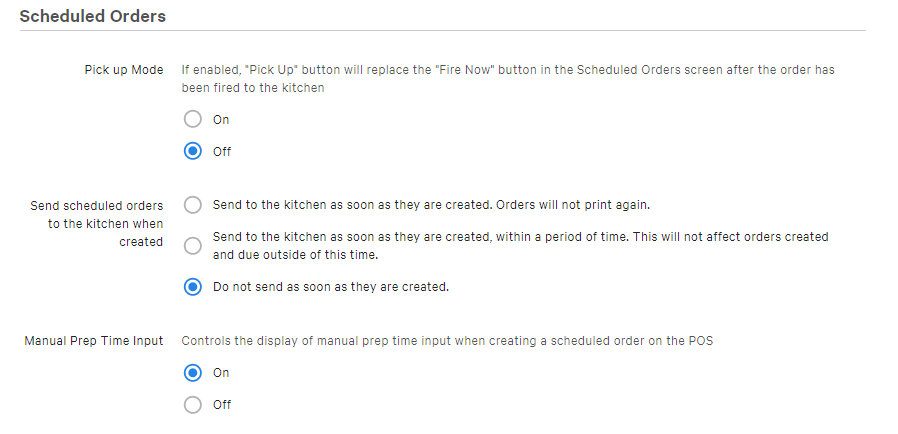
La sección de Pedidos Programados bajo Configuración de Comida para Llevar/Entrega en el backend de Toast le permitirá gestionar mejor los pedidos programados y hacer un seguimiento de los clientes que entran y salen para recoger pedidos.
- Sección de Pedidos Programados de la configuración de Comida para Llevar / Entrega
- Modo de Recogida para Pedidos Programados
- Enviar automáticamente pedidos futuros
- Entrada manual de tiempo de preparación
Sección de Pedidos Programados de la Configuración de Comida para Llevar/Entrega
Esta sección del backend de Toast ayudará a los restaurantes (como panaderías o restaurantes de estilo catering) con un uso intensivo de pedidos programados a gestionar mejor el proceso de pedido y recogida.
- Inicie sesión en Toast Web y navegue a Comida para llevar y entrega> Disponibilidad> Comida para llevar/entrega.
- Desplácese hacia abajo hasta la sección Pedidos Programados.
Volver al inicio
Modo de Recogida para Pedidos Programados
La configuración del modo Recogida le permitirá marcar los pedidos programados en la Pestaña de Cheques Futuros como "recogidos".
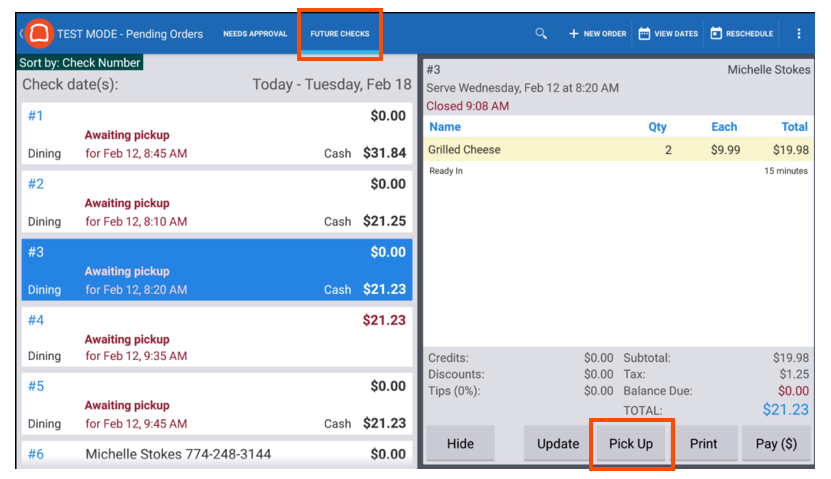
Al seleccionar Activado en Modo de Recogida, un botón de Recogida reemplazará el botón "Enviar Ahora" en la pantalla Cheques Futuros después de que el pedido haya sido enviado a la cocina.

El botón Recogida solo aparecerá en pedidos elegibles después de que el pedido cumpla con los siguientes criterios:
- El pedido está pagado en su totalidad
- El pedido está programado para el día actual
- El pedido ha sido enviado a la cocina de una de cuatro maneras:
- Enviado automáticamente a través de la funcionalidad "Enviar automáticamente pedidos futuros" (ver más abajo)
- Enviado manualmente a través de la funcionalidad "Imprimir en masa el ticket de cocina" (ver más abajo)
- Disparado automáticamente según la configuración de tiempo de preparación existente
- Disparado manualmente usando el botón "disparar ahora"
Nota: Solo el dispositivo de disparo automático puede usar el botón “Disparar ahora”, y este botón siempre está deshabilitado en dispositivos que no son de disparo automático, PERO todos los dispositivos deben tener la capacidad de marcar pedidos como “Recogidos”.
Para marcar un pedido como "recogido", selecciona el pedido y elige el botón Recoger, que eliminará el pedido de la pestaña de Cheques Futuros y cambiará el estado del pedido a "recogido". Solo los pedidos que tengan un estado de recogido saldrán de la pestaña de Pedidos Futuros.
Cerrar el día con modo de recogida
Un nuevo artículo de línea aparecerá en el modo de Cerrar el día con el modo de recogida habilitado. Se mostrará el número de pedidos programados para recogida en el día actual que no han sido marcados como recogidos.
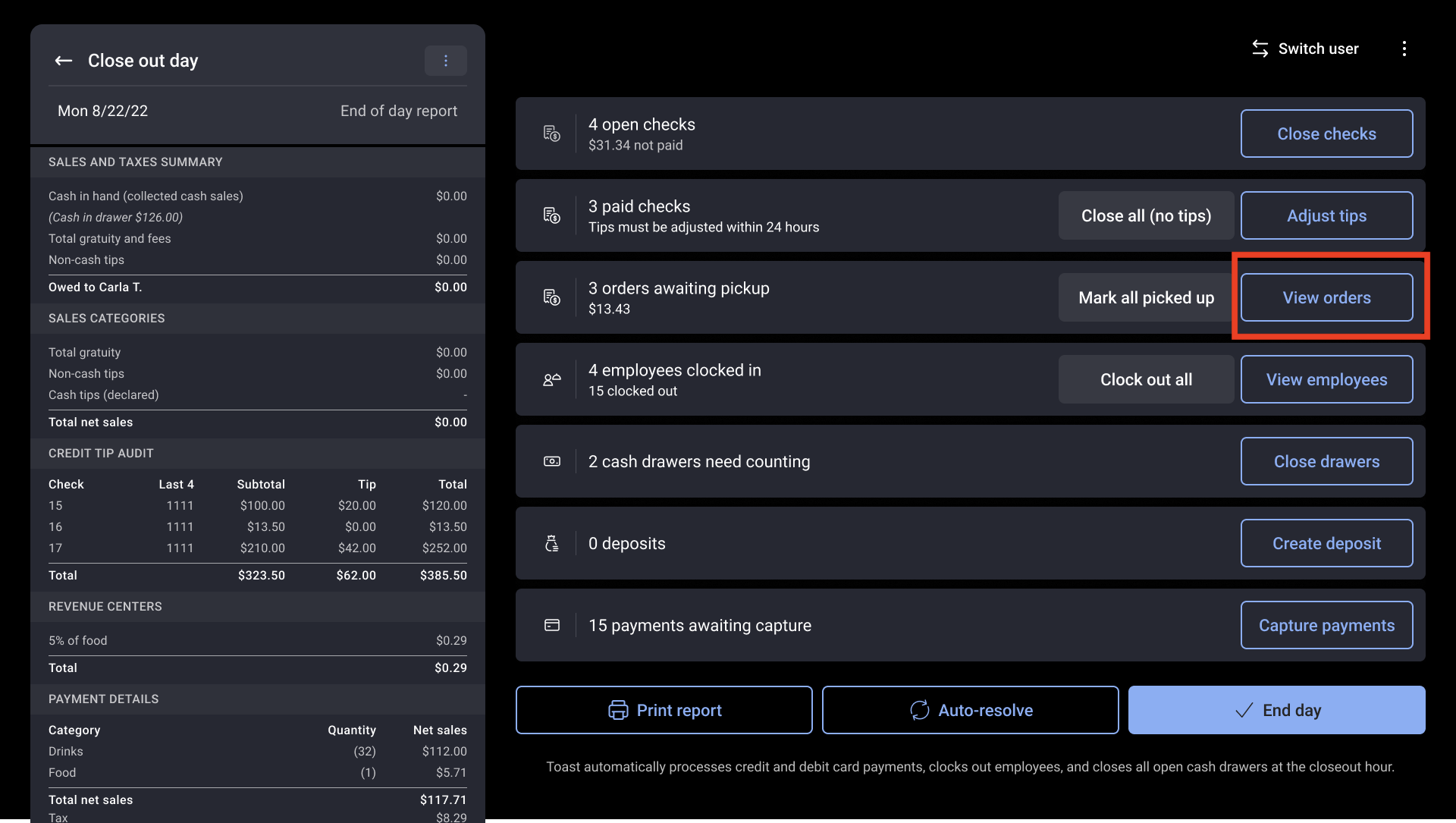
Selecciona Ver Pedidos para gestionar pedidos que aún esperan recogida. Aquí hay algunas opciones:
- Seleccionar manualmente la recogida para cada pedido pendiente
- Programar para otro día
- Selecciona Resolución automática, que marcará automáticamente los pedidos como recogidos
Volver al inicio
Enviar automáticamente pedidos futuros
La funcionalidad de envío automático permite que los pedidos programados se envíen a la cocina de inmediato. Esto es útil si su operación requiere tiempo de preparación avanzado para artículos como masa o productos horneados.
Para la configuración, vaya a Comida para llevar/Entrega y desplácese hacia abajo hasta Órdenes programadas.

Para las dos opciones de configuración a continuación:
- Boletos impresos - Los boletos de cocina se imprimirán en las estaciones de Expo/Preparación inmediatamente.
- Boletos KDS - Los boletos aparecerán en la pantalla del expedidor en un estado de Sostener hasta que se envíen automáticamente.
Si Enviar pedidos programados a la cocina al crearlos está configurado en:
- Enviar a la cocina inmediatamente después de crearlos. Los pedidos no se imprimirán nuevamente - Los pedidos programados se enviarán a la cocina inmediatamente al crear el pedido, independientemente del tiempo programado para el pedido.
- Enviar a la cocina inmediatamente después de crearlos, dentro de un plazo determinado. Esto no afectará a los pedidos creados y programados fuera de este tiempo - Los pedidos programados se enviarán a la cocina inmediatamente al crear el pedido solo si el tiempo de creación se encuentra dentro del umbral configurado.
- Una vez que se selecciona esta opción, podrá elegir cuántas horas de anticipación enviar pedidos programados a la cocina. Si el umbral se establece en 0, todos los pedidos programados se enviarán inmediatamente, de lo contrario, el pedido solo se enviará de acuerdo con el rango de umbral de la cocina.
- No enviar inmediatamente después de crearlos - Los pedidos programados no se enviarán a la cocina al crearlos y se enviarán según el tiempo de preparación configurado.
Volver al inicio
Entrada manual de tiempo de preparación
La Entrada manual de tiempo de preparación función le permite controlar si se requiere un tiempo de preparación al programar un pedido futuro en el POS. Los pedidos se enviarán según la entrada de tiempo de preparación. Habilite esta función seleccionando Activado. Si prefiere no habilitar esta función, seleccione Desactivado.

Volver al inicio