Primeros pasos con sincronización de contabilidad comercial
Última actualización: 18 ago 2026, 9:41 a.m.
Sincronización directa con QuickBooks Online desde Toast Web.
|
- Resumen
- Conéctate a QuickBooks Online a través de Toast Web
- Acceso
- Configuración de ventas
- Artículos relacionados
Sincronización de contabilidad comercial
Sincronización de contabilidad de datos de ventas es un conector incorporado en Toast Web que te permite sincronizar tus datos de contabilidad directamente en tu cuenta de QuickBooks Online. Sincronizar tus datos contables con tu software contable puede significar varias cosas, dependiendo de los productos y sistemas contables de Toast que tengas.
- Asigna una o más ubicaciones de POS de Toast a cada empresa de QuickBooks Online conectada.
- Configura configuraciones y crea asignaciones de LM entre tus empresas de QuickBooks Online y el POS de Toast.
- Crea y publica automáticamente asientos contables en tus cuentas conectadas de QuickBooks Online cada día por cada fecha hábil.
Permisos necesarios:
Antes de configurar la integración, confirma que se cumplen los siguientes requisitos:
- Debes usar una cuenta de QuickBooks Online. Esta integración no es compatible con QuickBooks Desktop.
- Debes ser cliente de Toast Retail para acceder a esta función. Tener el permiso 8.1 Cuentas financieras por sí solo no permite la sincronización de contabilidad de ventas, sino que también requiere una cuenta Toast Retail. En Toast Web, debes tener 8.1 Cuentas financieras activadas. Para obtener más información sobre permisos, consulta la Guía de referencia.
- En QuickBooks Online, los usuarios deben tener el rol Administrador principal (enlace externo). Para determinar qué versión de QuickBooks tienes, ve a accounts.intuit.com e ingresa tu información de inicio de sesión en QuickBooks. Consulta este enlace de QuickBooks (enlace externo) para ver un video sobre este proceso.
- Consulta este artículo (enlace externo) para obtener más información sobre los roles de usuario de QuickBooks.
Conectar contabilidad de Toast a QuickBooks Online a través de Toast Web
Estos videos ayudan a los clientes a conectar sus cuentas de QuickBooks con sus ubicaciones de POS en la contabilidad de Toast y asignar códigos de LM de QuickBooks Online a los ingresos y pasivos contables. Toast recomienda revisar y limpiar tu plan de cuentas en QuickBooks Online antes de comenzar esta integración.
Para preparar tu plan de cuentas:
- Desactiva los códigos de LM no utilizados o duplicados.
- Confirma las convenciones de nombres.
- Asegúrate de que tu contador haya revisado tu estructura, si corresponde.
Nota: Toast no puede brindar asesoramiento contable. Si no sabes con certeza cómo deben estructurarse tus cuentas, consulta a tu director de proyectos o a un profesional de contabilidad antes de continuar.
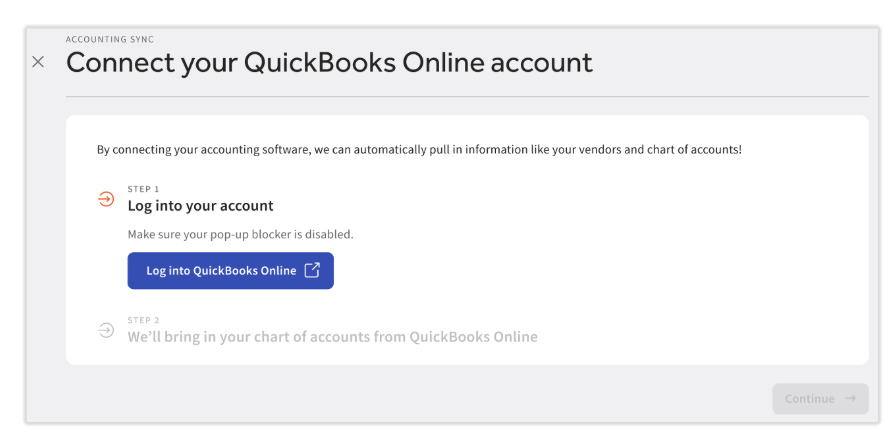
- Selecciona Iniciar sesión en QuickBooks Online.
- En la ventana emergente segura, ingresa tus credenciales de inicio de sesión de QuickBooks Online.
- Si existen varias ubicaciones en tu cuenta de QuickBooks Online, selecciona la ubicación correcta en el menú desplegable y, luego, selecciona Siguiente.
- Si la ventana emergente no aparece, desactiva el bloqueador de ventanas emergentes y vuelve a intentarlo.
- Selecciona la casilla de verificación para las ubicaciones del POS de Toast que deseas conectar a esta cuenta de QuickBooks Online.
- En Toast Web, selecciona Continuar. Los grupos de pago listados en este paso coinciden con los que Toast asignó.
- A continuación, selecciona tus grupos de pago y, luego, Continuar.
- Nota: Este paso solo aparecerá si eres cliente de Nómina Toast. Esto se puede cambiar más adelante en la configuración de sincronización.
Acceder a sincronización de contabilidad de ventas
Hay tres formas diferentes de acceder a la función de sincronización de contabilidad en Toast:
- Inicia sesión en Toast Web y ve a Finanzas > Contabilidad > Conexiones.
- Inicia sesión en Nómina Toast y selecciona Contabilidad en el menú de navegación de la izquierda.
- Selecciona Conectar a QuickBooks en el paso de confirmación después de enviar o publicar los datos contables.
Antes de continuar, verifica que hayas cerrado sesión en todas las cuentas de QuickBooks Online en cada pestaña o ventana del navegador.
Sincronización de contabilidad de ventas: Configuración de ventas
Nota: Las asignaciones de ventas deben completarse para cada ubicación de POS a fin de que se registren sus asientos contables. Los rubros de cada ubicación de POS (p. ej., rubros y categorías de ventas) deben estar asignados a un código de LM para que se registren sus asientos contables de ventas.
- Fecha de inicio: Se registrarán todas las entradas de ventas realizadas en esta fecha o anteriormente. Comprueba que no se hayan agregado entradas a QuickBooks para evitar duplicados
- Descuentos: Selecciona cómo deberían aparecer los descuentos en los asientos contables de estas ubicaciones de punto de venta
- Frecuencia de actualización del diario: Toast busca cambios en las ventas recientes y actualiza automáticamente los asientos contables. Estas actualizaciones también aparecerán en tu sistema contable.
- Método de publicación: Selecciona cómo se contabilizan los depósitos de ventas y tarjetas de crédito en tu sistema contable. Los cambios se aplicarán a las siguientes sincronizaciones y no se actualizarán las entradas que ya se hayan sincronizado.
- Actividad en efectivo: Elige si quieres incluir la actividad de la caja de efectivo al calcular las entradas de ventas. Los cambios se aplicarán a las siguientes sincronizaciones y no se actualizarán las entradas que ya se hayan sincronizado.
- Método de contabilización de pagos/cargos: Selecciona cómo deben aparecer los pagos con tarjeta de crédito y los cargos de procesamiento en los asientos contables.
Una vez configuradas todas las opciones de configuración de ventas, selecciona Continuar a asignaciones.
Reparto de ventas
El desglose de ventas es la forma en que se agruparán los datos de ventas de la ubicación del POS para las entradas contables. En esta sección, también puedes seleccionar cómo se utilizan las clases para las entradas de ventas en QuickBooks Online. Selecciona una clase predeterminada para la ubicación o déjala en blanco. Las selecciones de clases de rubros anularán este valor predeterminado.
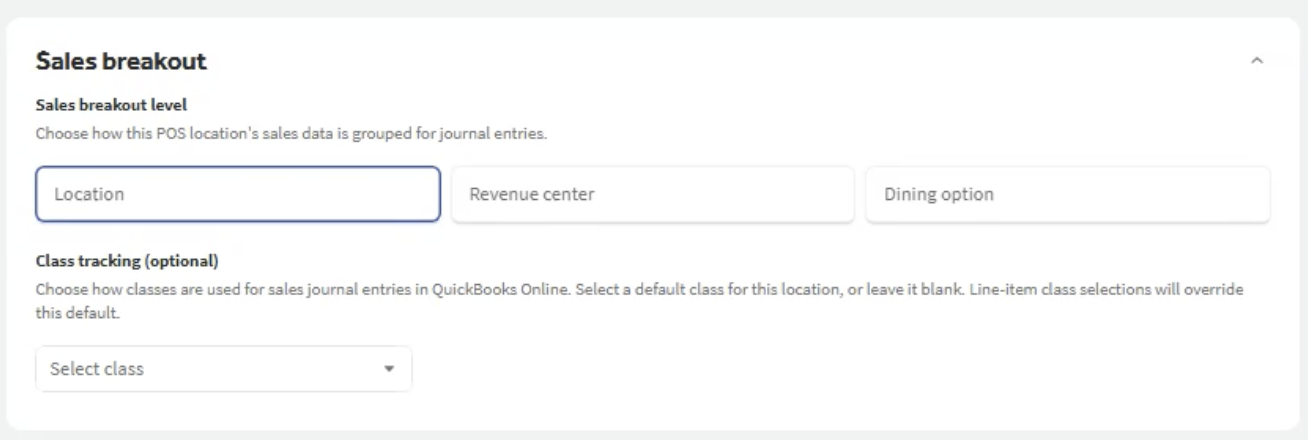
Una vez que hayas hecho las selecciones de desglose de ventas, navega por la configuración restante y selecciona el código de LM y la clase de los menús desplegables designados en las siguientes secciones:
- Categorías de ventas
- Cargos de servicio
- Propinas
- Descuentos
- Impuestos
- Pagos
- Retenciones
- Cargos de pago
- Aplazamientos
- Reembolsos
- Actividad en efectivo
- Ajustes
Una vez completada toda la configuración, selecciona Guardar.
Artículos relacionados
- Gestionar sincronización de contabilidad comercial
- Obtener ayuda con sincronización de contabilidad
- Haz coincidir las categorías de ventas de Toast con los códigos de libro mayor de tu sistema contable