Usar Toast GoTM 3 portátil en el bar o pub
Última actualización: 16 oct 2026, 3:16 p.m.
Descubre cómo configurar el dispositivo portátil Toast GoTM 3 para agilizar el servicio de pub y bar y eliminar cuellos de botella.
- Resumen
- El flujo de trabajo y la configuración del bar de servicio completo
- Haz un pedido en Toast Flex, paga en Toast GoTM 3 Flujo de trabajo y configuración
- El flujo de trabajo del bar de servicio rápido
- ¿Por qué elegir estos flujos de trabajo?
- Recursos adicionales
Resumen
Según la distribución de tu bar y las preferencias del equipo, hay dos formas muy eficaces de aprovechar el dispositivo portátil Toast GoTM 3 para eliminar cuellos de botella, agilizar el servicio y mantener al personal al lado del cliente.
El flujo de trabajo y la configuración del servicio completo (todo en uno)
La mejor solución para lograr la máxima rapidez y eficiencia es que cada mesero o bartender utilice el dispositivo portátil Toast GoTM 3 tanto para pedidos como para pagos directamente en el bar. Si bien cambiar de una terminal fija y estacionaria a un flujo de trabajo totalmente móvil puede llevar un momento para que el personal se adapte, el pago en la velocidad del servicio es inmediato.
Cómo funciona:
- Toma el pedido: Ya sea que atiendas a los clientes en el mostrador, administres el servicio de mesa o flotes por una concurrida cervecería, haz una llamada instantánea con el dispositivo portátil Toast GoTM 3 justo donde el cliente está de pie.
- Recibir pago: el cliente puede deslizar, insertar o tocar su tarjeta en el mismo dispositivo para cerrar la cuenta al instante. Si pagas en efectivo, tu personal puede cerrar la transacción de dos maneras:
- Acepta efectivo directamente desde Toast GoTM 3: Selecciona efectivo como opción de pago en el dispositivo portátil Toast GoTM 3, que puede emparejar tu caja de efectivo detrás de la barra.
- Aprovecha una terminal Toast Flex: Completa el pedido en el dispositivo portátil Toast GoTM 3 y usa la terminal Flex y la caja de efectivo detrás de la barra para transacciones de efectivo.
- Por qué es el patrón oro: Tus bartenders nunca tienen que dar la espalda a los clientes, alejarse para hacer cola en una terminal central o dividir su enfoque entre dos dispositivos separados. El servicio es totalmente autónomo, móvil y rápido.
Configuración del dispositivo para flujo de trabajo de servicio completo
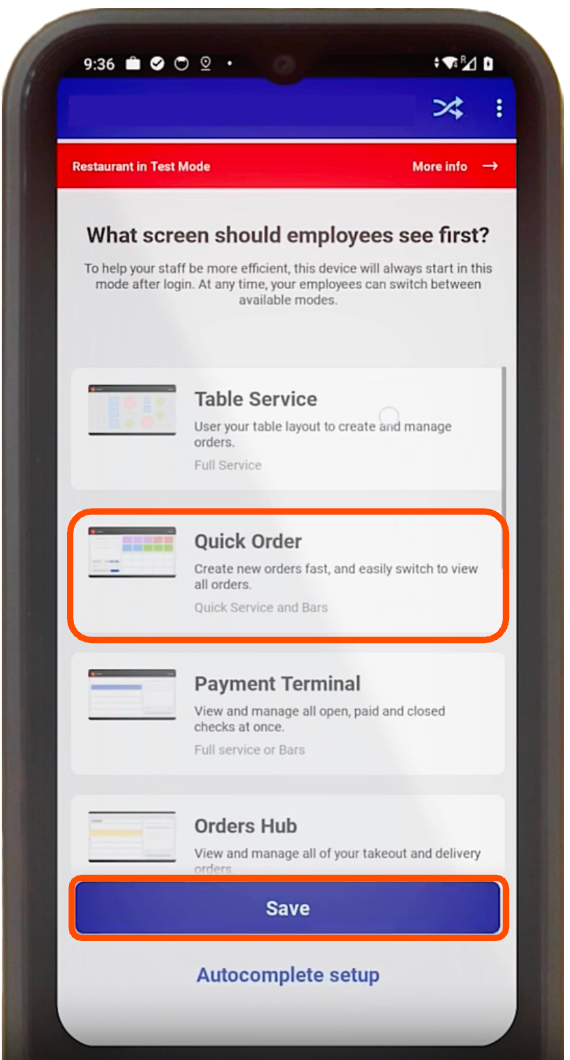
Las pantallas de pedido rápido se utilizan mejor para bares porque están diseñadas para transacciones rápidas y de gran volumen donde la velocidad lo es todo. Puedes acceder a la pantalla Pedido rápido desde el menú principal al modo Pedido rápido. Para configurar esta como vista predeterminada:
- En tu dispositivo Toast GoTM 3, ve al menú Configurar dispositivo.
- Selecciona Pedido rápido como la pantalla principal que los empleados ven primero.
- Selecciona Guardar.
Haz un pedido en Toast Flex y paga en Toast GoTM 3 (configuración híbrida)
Si tu personal prefiere usar una caja más tradicional detrás de la barra para ingresar pedidos, puedes configurar Toast GoTM 3 en modo Terminal de pago junto con tus terminales fijas para usar principalmente en pagos. Esta configuración híbrida le brinda a tu personal lo mejor de ambos mundos: pedidos de terminales de alta velocidad combinados con un POS móvil todo en uno integrado directamente en su bolsillo. De esta manera, tu equipo puede dividir cuentas sin problemas y recibir pagos directamente del lado del cliente sin interrumpir la Estación principal.
Configuración del dispositivo para el flujo de trabajo en modo terminal de pago híbrida
- En tu dispositivo portátil Toast GoTM 3, ve al menú Configurar dispositivo.
- Selecciona Terminal de pago como la pantalla principal que los empleados ven primero.
- Selecciona Guardar.
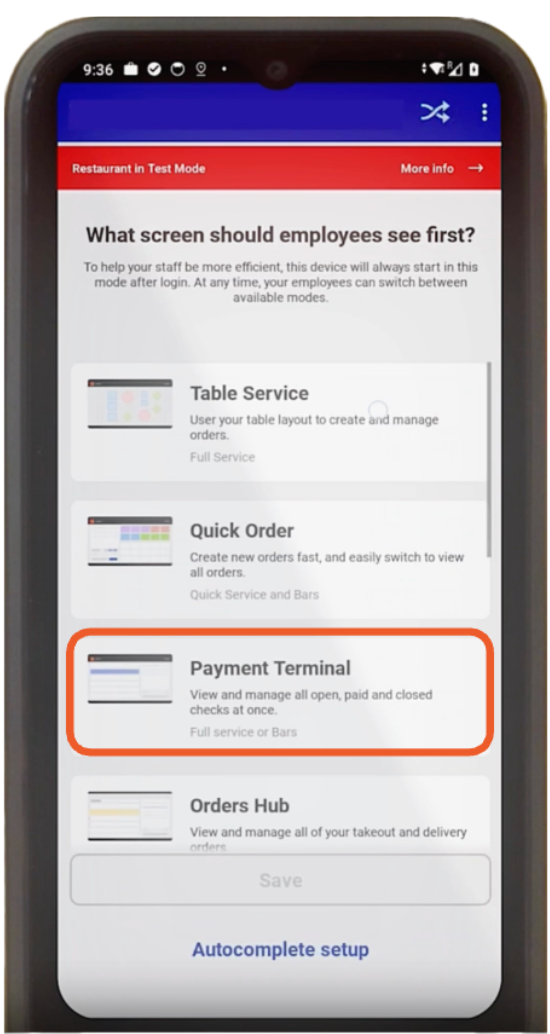
Por qué esto ayuda a: De esta manera, te aseguras de que, tan pronto como un mesero inicie sesión en el dispositivo portátil Toast GoTM 3, abra automáticamente una vista de todas las cuentas abiertas, omitiendo pantallas de navegación innecesarias.
Aplicar la configuración de ordenar y filtrar en modo terminal de pago
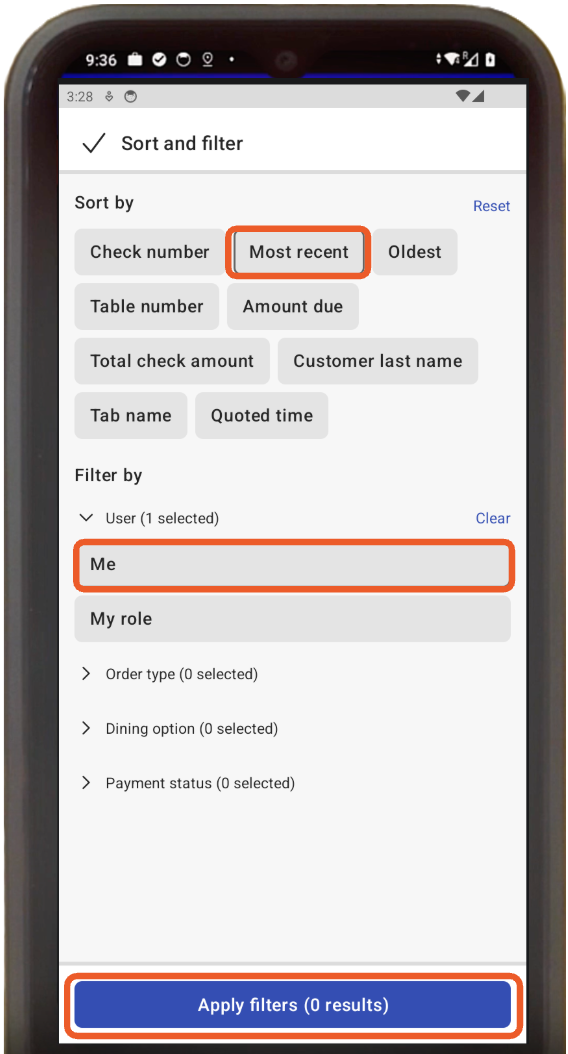
- Abre la pantalla de la terminal de pago en el dispositivo portátil Toast GoTM 3.
- Toca el ícono de ordenar y filtrar.
- En Ordenar por, selecciona Más reciente.
- En Filtrar por (usuario), selecciona Yo para mostrar solo tus propias cuentas.
- Selecciona Aplicar filtros.
El de flujo de trabajo para bares de servicio rápido
Una vez configurado tu equipo, tu personal puede usar este proceso rápido de dos pasos para registrar y cerrar pedidos:
Paso 1: Realizar el pedido en Toast Flex
- Iniciar sesión: El mesero ingresa su PIN en la terminal Toast Flex.
- Tocar hacia arriba: Procesa el pedido del cliente como de costumbre.
- Enviar: Presione Enviar para enviar el pedido al bar o la cocina. (Recomendación: Activa el cambio automático de usuario en la configuración de backend si es posible para mantener la terminal segura y lista para el próximo usuario).
Paso 2: Recibir pago en el dispositivo portátil Toast GoTM 3
- Iniciar sesión: El mesero ingresa su PIN en el dispositivo portátil Toast GoTM 3.
- Selecciona Cuenta: Debido a tus ajustes de configuración, Toast GoTM 3 se abrirá directamente en la Terminal de pago, y el pedido de bar más reciente del mesero aparecerá automáticamente como la primera cuenta en la parte superior de la lista.
- Cierre: Selecciona la cuenta y procesa el pago con tarjeta de inmediato.
Gestionar pedidos dentro del modo Terminal de pago
El modo Terminal de pago no es solo para cerrar cuentas existentes.
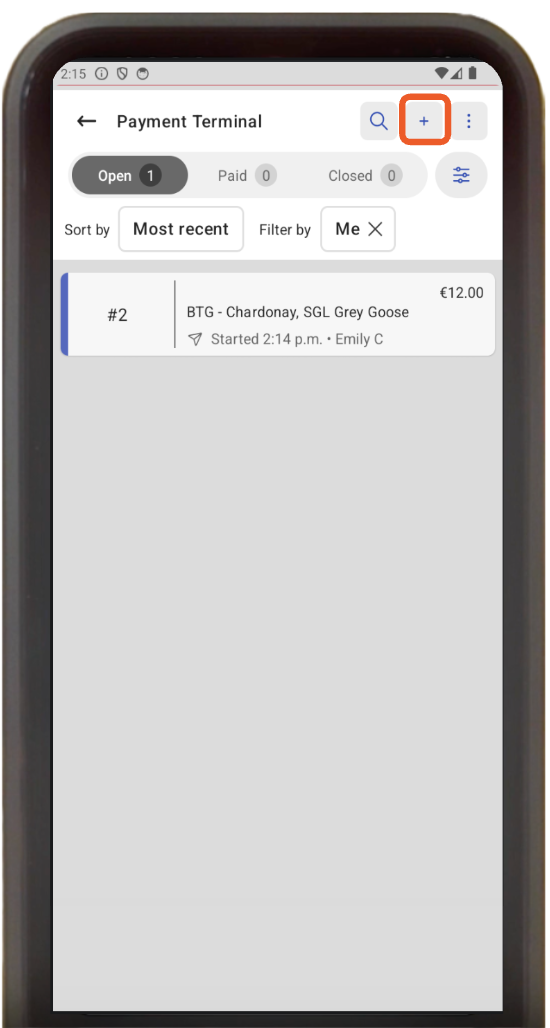
- Para abrir una nueva cuenta: Si un mesero necesita abrir rápidamente una cuenta completamente nueva, simplemente puede seleccionar el botón + ubicado en la parte superior derecha de la pantalla. Esto les permite volver fácilmente al modo de pedido para agregar artículos (por ejemplo, llamar a otra ronda de cervezas directamente desde el piso).
¿Por qué elegir estos flujos de trabajo?
Integrar Toast Flex con un flujo de trabajo de pago portátil Toast GoTM 3 mejora significativamente tu velocidad de servicio y elimina los cuellos de botella comunes en los bares.
- Mantiene las terminales principales abiertas: Procesar un pago a través del dispositivo portátil Toast GoTM 3 deja tu terminal Toast Flex principal completamente libre, lo que garantiza que otros bartenders puedan seguir llamando a bebidas sin esperar a que finalice una transacción con tarjeta.
- Durabilidad de grado de hospitalidad: El dispositivo portátil Toast GoTM 3 está diseñado específicamente para entornos de bares intensos, con una clasificación IP65 contra derrames y polvo, junto con protección contra caídas de hasta 1,5 m.
- Rendimiento en todo momento y conectividad confiable: Con una batería de más de 24 horas de duración y una funcionalidad celular opcional, tu personal puede procesar transacciones en cualquier lugar del lugar, lo que te resultará confiable a prueba de fallos si el Wi-Fi local alguna vez fluctúa.
Recursos adicionales
- ¿Quieres ajustar los permisos de usuario en Toast Web? Consulta nuestra Guía de referencia de permisos
- ¿Quieres agregar más dispositivos Toast GoTM 3 a tu salón? Consulta las preguntas frecuentes sobre el programa de actualización portátil Toast Go® 3.