Primeros pasos con centro de pedidos
Última actualización: 20 ago 2026, 9:14 a.m.
Descubre lo que el centro de pedidos puede hacer por ti. Explora sus funciones clave.
Centro de pedidos es un modo en tu POS de Toast que reúne todos tus pedidos de Comida para llevar y Envío en una pantalla. Desde una sola vista, puedes aprobar, Cocinar, preparar y completar pedidos, enviar a los clientes un texto de pedido listo, gestionar el volumen de pedidos digitales y buscar cuentas anteriores. Este artículo explica qué hace cada parte del centro de pedidos para que puedas empezar a usarlo con confianza. Para obtener instrucciones paso a paso sobre cómo ejecutar pedidos, consulta Gestionar pedidos fuera del local con centro de pedidos.
- Qué es el centro de pedidos y qué pedidos aparecen
- Antes de comenzar
- Las cinco etapas del centro de pedidos
- Detalles del pedido
- Características y funcionalidades adicionales
- Enviar mensajes de texto de pedido listo a los clientes
- Preguntas frecuentes
- Artículos relacionados
Qué es el centro de pedidos y qué pedidos aparecen
Centro de pedidos consolida cada Comida para llevar y Envío en una pantalla en la aplicación Punto de venta de Toast para que puedas gestionarlos sin cambiar de modo. Los pedidos con comportamiento gastronómico Comida para llevar o Envío aparecen en centro de pedidos, incluidos Pedidos digitales Toast, Pedidos de Servicios de entrega de Toast®, Pedidos integrados de terceros Envío (DoorDash, Uber Eats, Grubhub) y Pedidos telefónicos Comida para llevar o Envío ingresados manualmente. Los pedidos de consumo en el local no aparecen de manera predeterminada.
El centro de pedidos es una capacidad del POS de Toast y está disponible sin costo adicional. Está disponible para todos los clientes y no necesitas activarla. Tus modos actuales aún funcionan, por lo que tus flujos de trabajo actuales no se ven interrumpidos mientras tu equipo aprende centro de pedidos.
Para abrir centro de pedidos, selecciona el logo de Toast en la esquina superior izquierda del POS para abrir el menú Modo y, luego, selecciona centro de pedidos.
Antes de comenzar
Se aplica a: POS de Toast
Permisos necesarios:
- 1.5 Pedidos pendientes o centro de pedidos: obligatorio para acceder al centro de pedidos
- 3.29 Acelerar pedidos digitales (obligatorio para usar Gestionar pedidos digitales)
- 2.2 Actualizar Todos los Pedidos Envío (o asignarlo como repartidor) necesarios para completar los pedidos Envío directos
Los permisos se gestionan en la página “Tareas” de Toast Web. Para más detalles, consulta Guía de referencia.
Nota: Al menos un dispositivo POS de Toast en tu restaurante debe estar configurado para Cocinar automáticamente de modo que los pedidos programados pasen a la pestaña Activo. El centro de pedidos puede ejecutarse en un dispositivo que no sea el dispositivo para Cocinar automáticamente, pero sin un dispositivo para Cocinar automáticamente asignado, los pedidos programados nunca pasan a estar activos. Para configurar esto, consulta Configurar envío automático de pedidos.
Nota: Centro de pedidos es compatible con la mayoría de las tabletas Toast. No está disponible en dispositivos Elo V1. Está disponible en Elo V2 o versiones posteriores.
Las cinco etapas del centro de pedidos
Centro de pedidos organiza los pedidos en cinco pestañas que siguen un pedido desde la llegada hasta la finalización. El número de pedidos en cada pestaña aparece junto al nombre de la pestaña. Cuando llega un nuevo pedido, aparece un punto azul en la pestaña y junto a la entrada del pedido para mostrar que todavía no se ha realizado ninguna acción. El punto azul desaparece una vez que seleccionas el pedido.
Las cinco etapas son Se requiere aprobación, Programada, Activa, Pedido listo y Completada. Para un desglose más profundo por cuenta de campos y acciones, consulta centro de pedidos: Desglose de estado.
Necesita aprobación
La pestaña Se requiere aprobación muestra los pedidos que deben aprobarse manualmente antes de enviarse a la cocina. Esta pestaña aparece cuando tu restaurante utiliza el modo de aprobación manual para pedidos digitales. Los pedidos realizados a través de Pedidos digitales Toast o la aplicación Local by Toast aterrizan aquí. Los pedidos de terceros se aprueban automáticamente y omite esta pestaña.
Para aprobar un pedido, selecciónalo en la pestaña Se necesita aprobación y, luego, selecciona Aprobar. Los pedidos aprobados lo antes posible pasan a la pestaña Activo para prepararse de inmediato. Los pedidos futuros aprobados pasan a la pestaña Programada y se activan cuando es el momento de comenzar la preparación. Para configurar o cambiar el modo de aprobación manual, consulta Aprobar pedidos digitales manualmente.
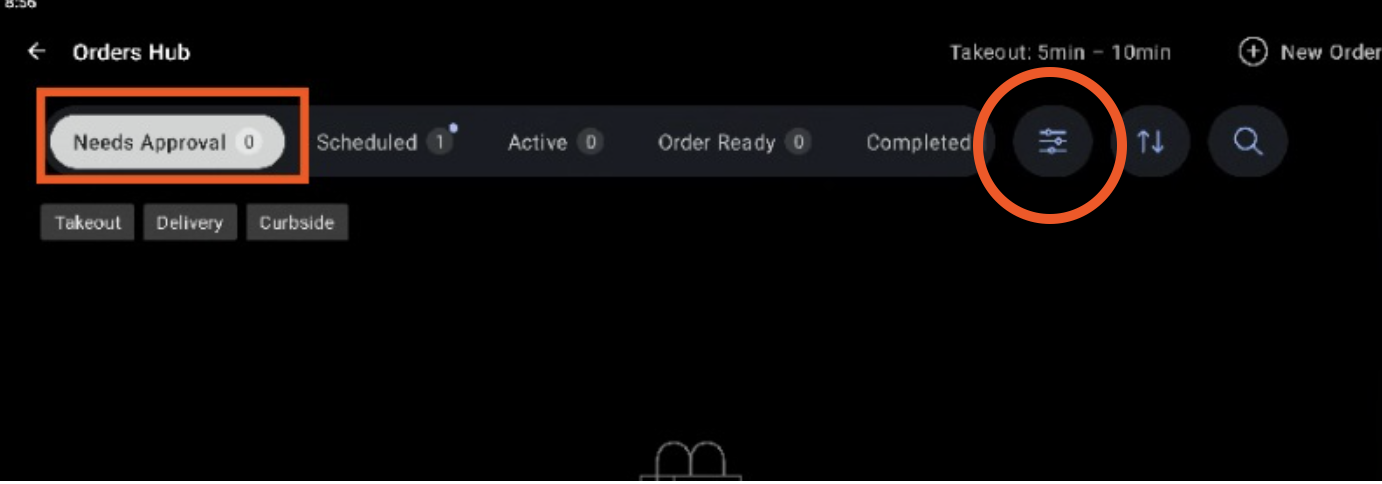
Puedes usar el botón de filtro para filtrar pedidos por fecha de pedido, estado de pago, opciones de almuerzo/cena y comportamientos de almuerzo/cena.
Planificado
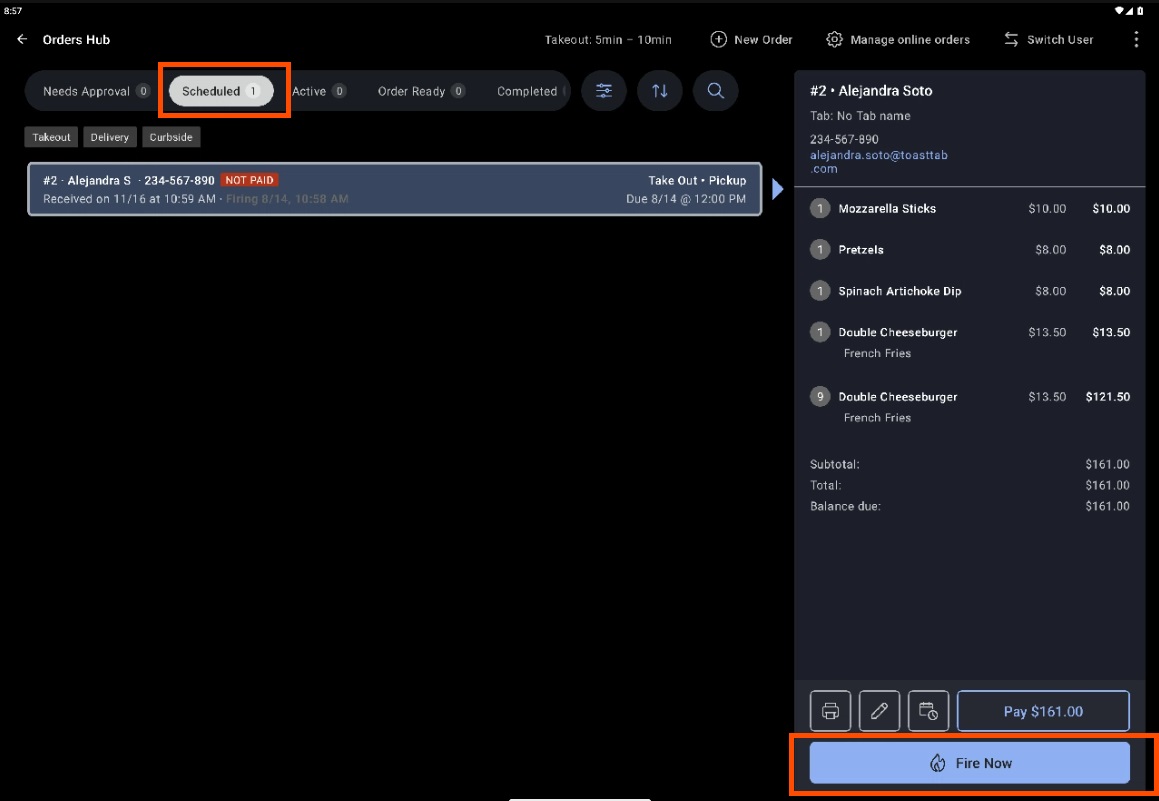
La pestaña Programada lista los pedidos futuros que se han aceptado, pero que aún no están listos para la cocina, para que puedas ver lo que viene. Un pedido programado se mueve automáticamente a la pestaña Activo cuando un dispositivo está configurado para Cocinar automáticamente y comienza el reloj de tiempo de preparación del pedido, en función de la configuración de preparación de la cocina y el tiempo de compleción solicitado.
También puedes iniciar cualquier pedido programado de inmediato con el botón Cocinar ahora en la pantalla de detalles del pedido. Cocinar ahora solo está disponible en un dispositivo configurado para Cocinar automáticamente, y solo aparece en los pedidos programados que aún no se hayan disparado. Una vez que se envía un pedido, el botón ya no aparece.
Activo
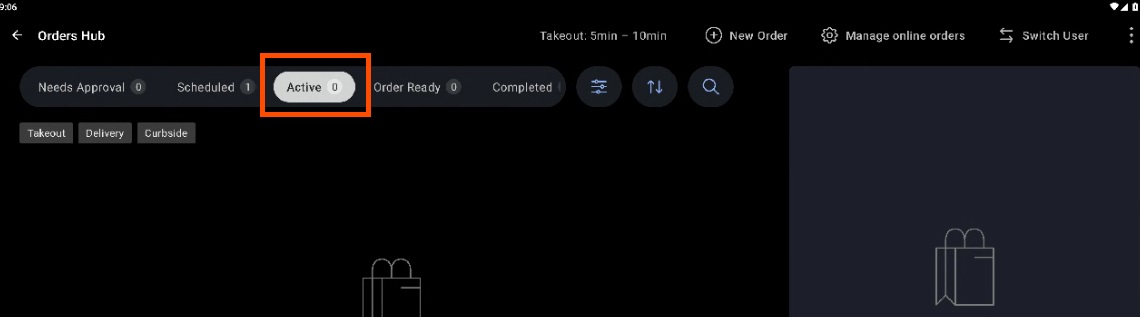
Cuando un pedido pasa a la pestaña Activo (ya sea Cocinar automáticamente o Cocinar ahora manualmente), se envía a tu cocina de la misma manera que un pedido de consumo en el local, siguiendo la misma Estación de preparación y el mismo enrutamiento de la Pantalla de cocina (KDS) ya configurados para los artículos de tu menú. Si un pedido todavía no llegó a estar activo (todavía necesita aprobación o está programado), no se envió a cocinar y no aparecerá en tu KDS.
La pestaña Activo es la vista predeterminada cuando abres el centro de pedidos. Muestra los pedidos actuales que se enviaron a tu cocina y se están preparando. Cuando se prepare un pedido, selecciona el botón Pedido listo para moverlo a la pestaña Pedido listo. Esto indica que el pedido está listo para ser recogido por tu cliente o entregado a un repartidor.
Pedido listo
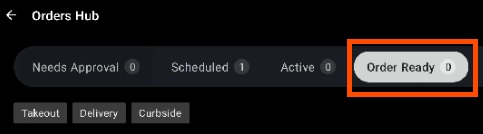
La pestaña Pedido listo muestra los pedidos que están completamente preparados y esperando retiro o Envío, para que puedas ver rápidamente qué necesita salir. Una vez que el cliente tenga su pedido, selecciona el botón Completar para finalizarlo.
Solo puedes marcar un pedido como completo si se liquidó algún pago adeudado. Si un pedido no está pagado, selecciona Pagar primero para recibir el pago.
Cuando un pedido pasa de estar activo a estar listo, el centro de pedidos puede enviar un texto de pedido listo al cliente. Esto funciona solo para ciertos tipos de pedidos y requiere que el pedido se complete en una Estación o Expedidor. Consulta Enviar mensajes de texto de pedido listo a clientes a continuación para conocer los requisitos.
Completado
La pestaña Completados mantiene un registro de los pedidos que se pagaron en su totalidad y se retiraron o entregaron. Para hacer cambios en un pedido completado, selecciona Reabrir para enviarlo nuevamente a la pestaña Activo a fin de que se pueda volver a trabajar en él, o selecciona Actualizar para ajustar los detalles del pedido. Si una actualización crea un nuevo saldo adeudado, el pedido vuelve automáticamente a la pestaña Activo para el pago.
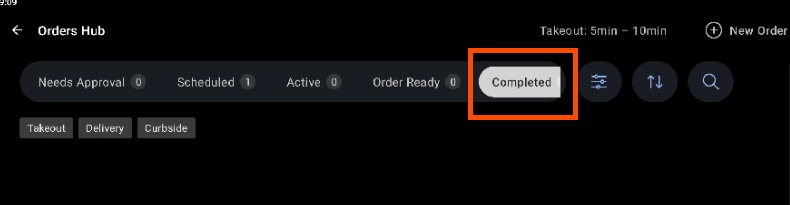
Nota: Un pedido completado es diferente de un pedido cerrado. Los pedidos cerrados ya no se muestran en centro de pedidos. Los pedidos completados más antiguos también pueden dejar de aparecer una vez que se alcanza el umbral de pedidos de un dispositivo. Consulta “¿Por qué mis pedidos completados desaparecieron del centro de pedidos?” en las preguntas frecuentes que aparecen a continuación.
Detalles del pedido
En cualquier pestaña, selecciona un pedido para mostrar los detalles en el lado derecho de la pantalla. Los campos que se muestran son consistentes en las cinco pestañas.
La vista de detalle del pedido muestra la información del cliente, incluidos el nombre del cliente, el nombre de la cuenta, el número de teléfono y la dirección, si están disponibles. También muestra la información del pedido, incluidos el mesero, los artículos, los precios, los descuentos y cargos de servicio, los impuestos, el total y cualquier saldo restante.
La ventana de detalles del pedido también ofertas varias acciones:
- Imprimir imprime el recibo de Comida para llevar o Envío del pedido.
- Actualizar abre la pantalla Pedido rápido, donde puedes agregar o eliminar artículos o agregar descuentos o cargos de servicio. El centro de pedidos admite actualizaciones de pedidos de terceros, pero esos cambios se reflejan solo en Toast y no se envían al proveedor de terceros.
- El pago aparece cuando el pedido tiene saldo a pagar y te lleva a la pantalla de pago.
- La reapertura aparece en los pedidos completados y devuelve el pedido al estado Activo.
Características y funcionalidades adicionales
Centro de pedidos incluye varias herramientas para ayudarte a encontrar y gestionar pedidos rápidamente.
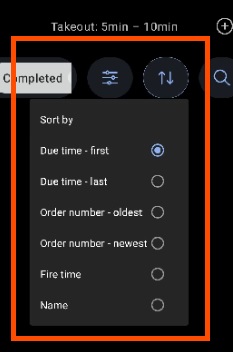
El botón Ordenar por establece el orden de clasificación para cualquier pestaña centro de pedidos. Puedes ordenar por hora de vencimiento (primera o última) o por número de pedido (más antiguo o más nuevo).
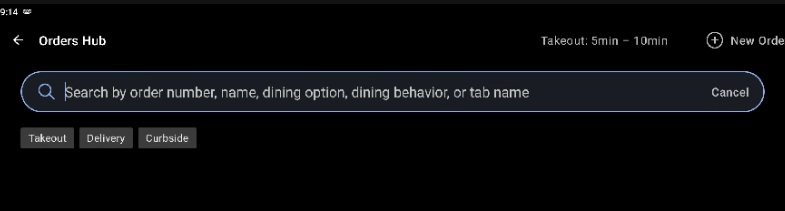
El botón Buscar abre un campo de búsqueda donde puedes encontrar pedidos específicos. Puedes buscar por número de pedido, nombre del cliente, dirección de correo electrónico del cliente, número de teléfono del cliente y opción de almuerzo/cena. Los pedidos de consumo en el local no aparecen en los resultados de búsqueda.
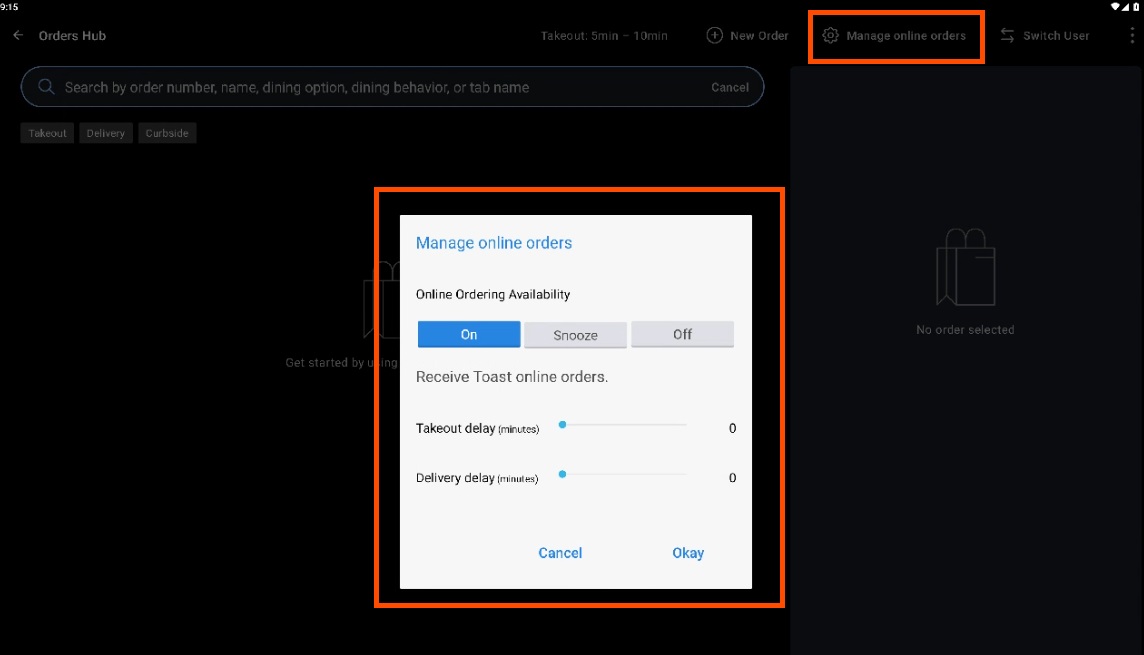
El botón Gestionar pedidos digitales te permite activar, posponer o desactivar los pedidos digitales, y gestionar los tiempos de limitación de Comida para llevar y Envío. El tiempo de limitación se agrega a los tiempos de preparación o Envío configurados y aparece en la parte superior del centro de pedidos después de recargar el modo. Este botón requiere el permiso 3.29 Acelerar pedidos digitales. Para obtener más información sobre la limitación, consulta Gestionar volumen de pedidos digitales (retrasar o posponer pedidos).
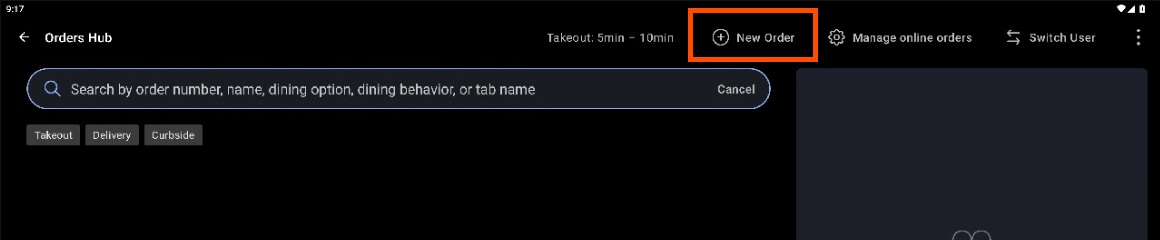
El botón + Nuevo pedido te permite crear un nuevo pedido rápido directamente del centro de pedidos. Esto es útil para una terminal dedicada a pedidos fuera del local, por lo que puedes crear y gestionar pedidos sin perder el control de un solo modo.
La opción Buscar cuentas y emitir reembolsos en el menú de desbordamiento abre la página de búsqueda avanzada de cuentas. Úsala para ver una cuenta de un día anterior o para emitir un reembolso en una cuenta anterior.

Enviar mensajes de texto de pedido listo a los clientes
El centro de pedidos puede enviar mensajes de texto automáticamente a los clientes cuando su pedido pasa de estar activo a estar listo, pero el mensaje solo se envía en condiciones específicas. Conocer estas condiciones evita la sorpresa más común: un cliente que nunca recibe un mensaje de texto.
Los mensajes de texto de pedido listo se envían solo para pedidos realizados a través de Pedidos digitales Toast, la aplicación Local by Toast o el comportamiento gastronómico en la acera. No se envían para pedidos de POS En el local, Puesto de pedidos, Envío propio ni pedidos de terceros (DoorDash, Uber Eats, Grubhub).
El pedido también debe completarse en una Estación o Expedidor de preparación para que el texto lo envíe. Un artículo que se configura como Solo Etiqueta o “Sin Imprimir”, o que se dirige solo a una Impresora sin pantalla de visualización de cocina, nunca se marca como cumplido, por lo que no se envía texto incluso si marcas el pedido como listo.
La opción Mensajes a los clientes con pedido listo debe estar activada en Toast Web > Comida para llevar y Envío > centro de pedidos. Los mensajes de texto de pedido listo no están disponibles para los siguientes códigos de área: 684, 268, 246, 441, 345, 767, 809, 473, 671, 876, 664, 670, 787, 869, 758, 784, 868 y 649.
Para la configuración completa y la solución de problemas, consulta Gestionar textos de pedidos listos desde el centro de pedidos.
Preguntas frecuentes
¿Por qué no se envía mi texto de pedido listo al cliente?
Es posible que el texto Pedido listo no se envíe porque el tipo de pedido o la configuración de compleción no cumplen con los requisitos. Los mensajes de texto de pedido listo se envían solo para pedidos realizados a través de Pedidos digitales Toast, la aplicación Local by Toast o En la acera, no para POS En el local, Puesto de pedidos, Envío propio o pedidos de terceros. El pedido también debe completarse en una Estación o Expedidor de preparación, y el artículo no puede ser solo Etiqueta, "Sin Imprimir" ni Solo Impresora sin pantalla de visualización de cocina. Confirma que Mensajes al cliente con pedido listo esté activado en Toast Web > Comida para llevar y Envío > centro de pedidos, y que el código de área del cliente no esté en la lista de no admitidos anterior. Para solucionar problemas completos, consulta Gestionar textos de pedidos listos desde el centro de pedidos.
¿Por qué mi cliente recibe dos mensajes de texto de Pedido listo?
Tu cliente recibe dos mensajes de texto cuando se activan al mismo tiempo el texto de compleción de pedidos de la cocina y el texto de mensajería para clientes del centro de pedidos listos. Para enviar solo uno, desactiva el mensaje de Pedido listo que no quieras en Toast Web > Comida para llevar y Envío > Centro de pedidos. Para obtener detalles de configuración, consulta Gestionar textos de pedidos listos desde el centro de pedidos.
¿Por qué no veo un botón Cocinar ahora en mi pedido?
No se ve un botón Cocinar ahora porque el botón solo aparece en pedidos programados que aún no se hayan disparado, y solo en un dispositivo configurado para Cocinar automáticamente. Una vez que un pedido se envía a cocinar, el botón ya no aparece, lo que se espera. Si no aparece ningún botón Cocinar ahora en ningún pedido programado, confirma que un dispositivo de tu restaurante esté listo para Cocinar automáticamente. Consulta Configurar envío automático de pedidos.
¿Por qué mis pedidos completados desaparecieron del centro de pedidos?
Los pedidos completados desaparecen del centro de pedidos por dos razones comunes. Primero, un pedido completado es diferente de un pedido cerrado, y los pedidos cerrados ya no se muestran en centro de pedidos. Segundo, cada dispositivo tiene un umbral de pedidos y, una vez que el número de pedidos alcanza ese umbral, los pedidos más antiguos se eliminan de la vista. Para encontrar un pedido que ya no aparece, usa Buscar cuentas y emitir reembolsos en el menú de desbordamiento para buscar cuentas anteriores.
¿Los pedidos programados pueden pasar a Activo por su cuenta?
Los pedidos programados pasan a Activo solo cuando un dispositivo del restaurante está configurado para Cocinar automáticamente y comienza el tiempo de preparación del pedido. Si ningún dispositivo está configurado para Cocinar automáticamente, los pedidos programados permanecen en la pestaña Programados y no Cocinan. También puedes Cocinar un pedido programado tú mismo usando Cocinar ahora en un dispositivo para Cocinar automáticamente. Consulta Configurar envío automático de pedidos.
¿Necesito un dispositivo para Cocinar automáticamente para usar centro de pedidos?
No es necesario que uses el propio dispositivo de Cocinar automático para trabajar en el centro de pedidos, pero al menos un dispositivo de POS de Toast en tu restaurante debe estar configurado para Cocinar automáticamente. El dispositivo para Cocinar automáticamente es el que mueve los pedidos programados a la pestaña Activo e imprime tickets en la cocina. Para configurar una, consulta Configurar envío automático de pedidos.
Artículos relacionados
- Gestionar pedidos fuera del local con centro de pedidos
- Centro de pedidos: Desglose de estado
- Obtener ayuda del centro de pedidos
- Gestionar textos de pedidos listos desde el centro de pedidos
- Configurar envío automático de pedidos
- Aprobar pedidos digitales manualmente
- Optimiza el flujo de trabajo de seguimiento de pedidos del POS de Servicios de entrega de Toast®