Reinicia tu dispositivo para mejorar el rendimiento
Última actualización: 2 jul 2026, 5:36 p.m.
En este artículo, se explica cómo reiniciar el dispositivo para mejorar el rendimiento.
Reinicia un dispositivo Toast que esté lento, congelado, con retraso o lento. Reiniciar refresca la memoria y, a menudo, restablece el rendimiento normal.
- Antes de comenzar
- Corrección rápida
- Reiniciar el dispositivo
- Si tu dispositivo está lento o retrasado
- Si tu dispositivo está congelado o no se apaga
- Si reiniciar no solucionó el problema
- Antes de contactar al servicio de atención al cliente
- Preguntas frecuentes
- Artículos relacionados
Antes de comenzar
Se aplica a: Terminal Toast Flex, Terminal Elo, Dispositivo portátil Toast Go®, Dispositivo del Sistema de pantallas de cocina (KDS), Puesto de pedidos | Permisos necesarios: Nada. Cualquier persona con acceso físico al dispositivo puede reiniciarlo.
Lo que lograrás: Apaga y vuelve a encender el dispositivo para refrescar su memoria y restablecer la velocidad y la capacidad de respuesta normales.
Nota: No reinicies un dispositivo mientras tu restaurante está en modo sin conexión. Espera hasta que el dispositivo vuelva a estar en línea para que no se pierdan datos locales de pedidos o pagos.
Solución rápida
Usa esta tabla para encontrar la solución más rápida que desees. Cada fila se explica con más detalle en las secciones a continuación.
| Síntoma | Causa más común | Corrección rápida |
| El dispositivo está lento, con retraso o lento | La memoria no se actualizó recientemente | Reinicia el dispositivo y, luego, verifica tu conexión a internet |
| La pantalla está pausada, pero aún responde al botón de encendido | Aplicación o memoria colgada | Reinicia el dispositivo con los pasos que se indican a continuación |
| La pantalla está parada y el apagado normal no aparecerá | El dispositivo no responde completamente | Forzar un reinicio o consulta el artículo Obtener ayuda específica del dispositivo |
| El dispositivo está bien después de un reinicio, pero el problema sigue volviendo | Posible problema de hardware, red o sincronización | Reinicia, vuelve a sincronizar, revisa tu red y, luego, ponte en contacto con el servicio de atención al cliente de Toast |
Reiniciar el dispositivo
Reiniciar enciende y apaga el dispositivo, lo que refresca el uso de la memoria y puede restaurar el rendimiento. Usa estos pasos para una terminal Toast Flex, una terminal Elo o un dispositivo portátil Toast Go®.
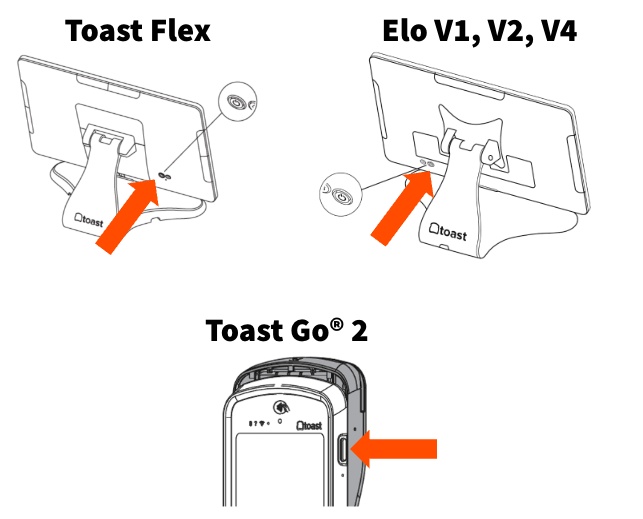
- Busca el botón de encendido en tu dispositivo.
- En una terminal Toast Flex o Elo, el botón de encendido está en la parte posterior del dispositivo.
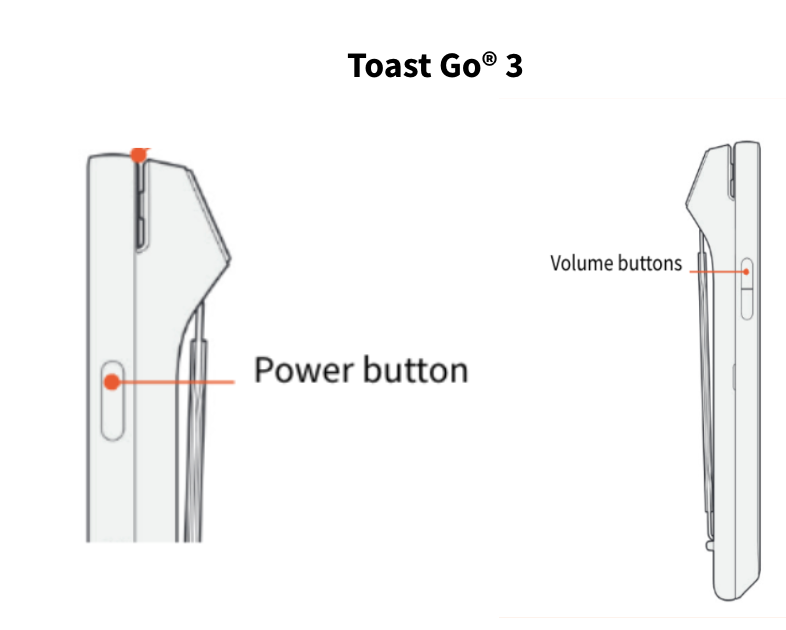
- En un Toast Go® 2 y Toast Go® 3, el botón de encendido está en el lado derecho del dispositivo.
- Presiona el botón de encendido y, luego, selecciona Apagar.
- Después de uno o dos minutos, Omite el botón de encendido hasta que la pantalla vuelva a encenderse.
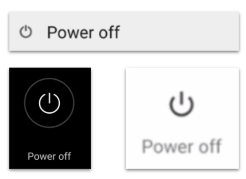
Resultado previsto: El dispositivo se apaga, reinicia y regresa a la pantalla de inicio de sesión o código de acceso funcionando a velocidad normal.
Nota: Para un Toast Go® 2 y Toast Go® 3, también existe la opción de un restablecimiento forzado. Omitir presionados el botón de encendido y el botón de volumen juntos durante 8 a 15 segundos, hasta que el dispositivo se apague y vuelva a encenderse, para reiniciarlo. Se puede intentar si el proceso de apagado y encendido no se resuelve.
Nota: Con dispositivos que tienen tarea de bloqueo, como un Puesto de pedidos, tendrás que desbloquear el dispositivo antes de usar el botón de encendido con los métodos anteriores. Consulta Usar modo Puesto de pedidos en la terminal.
Si tu dispositivo está lento o retrasado
Si tu dispositivo es lento, está rezagado o es lento, comienza reiniciándolo siguiendo los pasos que se indican en Reiniciar dispositivo más arriba. Un reinicio actualiza el uso de la memoria y resuelve la mayor parte de la lentitud a corto plazo.
Si el dispositivo sigue siendo lento después de un reinicio, la causa suele ser la conexión a internet, no el dispositivo en sí:
- Confirma que el dispositivo esté conectado a la red de tu restaurante.
- Verifica tu conexión a internet. Para ver los pasos, consulta Verificar tu conexión a Internet.
Nota: Toast recomienda reiniciar tus dispositivos semanalmente para que no se vuelvan lentos o lentos con el tiempo.
Resultado previsto: El dispositivo responde normalmente cuando seleccionas botones y te mueves entre pantallas.
Si tu dispositivo está congelado o no se apaga
Si la pantalla está parada, primero intenta el reinicio normal en Reiniciar el dispositivo.
Si la pantalla no responde por completo y la opción Apagar no aparece:
- Para un Toast Go® 2 y Toast Go® 3, también existe la opción de un restablecimiento forzado. Omitir presionados el botón de encendido y el botón de volumen juntos durante 8 a 15 segundos, hasta que el dispositivo se apague y vuelva a encenderse, para reiniciarlo.
- En cualquier otra terminal Omite el botón de encendido hasta que el dispositivo se apague (10-15 segundos). Luego, usa el botón de encendido para volver a encenderlo.
Si el dispositivo aún no responde después de un reinicio forzado, ponte en contacto con el servicio de atención al cliente de Toast.
Resultado previsto: El dispositivo se apaga y reinicia.
Nota: Con dispositivos que tienen tarea de bloqueo, como un Puesto de pedidos, tendrás que desbloquear el dispositivo antes de usar el botón de encendido con los métodos anteriores. Consulta Usar modo Puesto de pedidos en la terminal.
Si reiniciar no solucionó el problema
Si un reinicio ayuda solo brevemente, o el dispositivo se sigue congelando, bloqueando o ralentizando, sigue estos pasos:
- Reinicia el dispositivo nuevamente siguiendo los pasos indicados en Reiniciar dispositivo arriba.
- Verifica tu conexión a internet. Una conexión débil o caída puede parecer un dispositivo lento. Consulta Verificar tu conexión a Internet.
- Si la aplicación Toast sigue bloqueándose o comportándose incorrectamente, vuelve a sincronizar el dispositivo. Consulta Volver a sincronizar todos los datos en tus dispositivos.
- Si el problema continúa después de reiniciar y resincronizar, ponte en contacto con el servicio de atención al cliente de Toast.
Resultado previsto: El dispositivo funciona normalmente, o tienes la información que el servicio de atención al cliente necesita para ayudarte.
Antes de contactar al servicio de atención al cliente
Comunícate con el servicio de atención al cliente de Toast cuando un dispositivo se congele, se bloquee o funcione lentamente incluso después de reiniciarlo y resincronizarlo. Esto puede apuntar a un problema de hardware que debe abordarse directamente.
Para ayudar al servicio de atención al cliente a resolver el problema más rápido, tenlo listo:
- El tipo de dispositivo y, si puedes encontrarlo, el número de serie.
- Lo que ves cuando ocurre el problema (por ejemplo, una pantalla congelada, una pantalla negra o el dispositivo reiniciándose por su cuenta).
- Si el problema afecta a uno o varios dispositivos.
- Los pasos que ya intentaste, como reiniciar, resincronizar y verificar tu conexión a internet.
Preguntas frecuentes
¿Cómo reinicio un dispositivo Toast congelado?
Para reiniciar un dispositivo Toast congelado, presiona el botón de encendido y selecciona Apagar. Luego, Omitir presionado el botón de encendido después de uno o dos minutos para volver a encenderlo. En un Toast Go® 3, Omite el botón de encendido y el botón de volumen juntos durante ocho segundos. Si la pantalla no responde, consulta el artículo Obtener ayuda para tu dispositivo o ponte en contacto con el servicio de atención al cliente de Toast.
También se le preguntó como:
-
- Mi pantalla está congelada. ¿Cómo restablezco el dispositivo?
- ¿Cómo reinicio una terminal congelada?
- Mi dispositivo portátil está congelado y no se apaga. ¿Qué debo hacer?
¿Por qué mi dispositivo Toast es tan lento?
Tu dispositivo Toast suele ser lento porque no se actualizó su memoria recientemente o debido a un problema de conexión a internet. Primero reinicia el dispositivo y, si aún es lento, verifica tu conexión a internet. Reiniciar semanalmente ayuda a prevenir la lentitud con el tiempo.
También se le preguntó como:
-
- ¿Por qué el sistema funciona tan lento hoy en día?
- ¿Por qué mi POS se retrasa cuando presiono los botones?
- ¿Por qué mis dispositivos portátiles funcionan lento?
¿Con qué frecuencia debo reiniciar mis dispositivos Toast?
Deberías reiniciar los dispositivos Toast aproximadamente una vez a la semana. Los reinicios semanales Regular actualizan el uso de la memoria y ayudan a evitar que los dispositivos se vuelvan lentos o lentos con el tiempo.
También se le preguntó como:
-
- ¿Con qué frecuencia debo reiniciar mi POS?
- ¿Debo reiniciar mis dispositivos regularmente?
¿Puedo reiniciar mi dispositivo durante un servicio concurrido?
Puedes reiniciar un dispositivo durante el servicio, pero evítalo mientras tu restaurante está en modo sin conexión, porque los datos de pedidos o pagos locales podrían perderse antes de sincronizarse. Si un dispositivo está parado durante el servicio y estás en modo sin conexión, ponte en contacto con el servicio de atención al cliente de Toast en lugar de forzar un reinicio.
También se le preguntó como:
-
- ¿Es seguro reiniciar el POS durante el servicio?
- ¿Puedo apagar un dispositivo portátil en tiempos de poca actividad?
¿El reinicio de mi dispositivo eliminará algún dato?
No. Reiniciar los dispositivos es seguro.
También se le preguntó como:
-
- ¿Reiniciar el POS borra algo?
- ¿Perderé cuentas si reinicio?
Artículos relacionados
- Verifica tu conexión a Internet
- Vuelve a sincronizar todos los datos en tus dispositivos
- Obtener ayuda con la aplicación Toast en el POS
- Obtener ayuda con la Toast Flex 3 Terminal
- Obtener ayuda con Elo V2/V3