Resync All Data on Your Devices
Last updated: Jul 29, 2026, 10:14 AM
- Before you begin
- Step 1: Check for pending payments and red checks
- Step 2: Resync all data on the device
- If the resync doesn't fix the issue
- FAQ
- Related articles
Before you begin
A "Resync All Data" forces a Toast POS device to discard its local data and reload everything from Toast Web. Use this when changes you've published in Toast Web aren't appearing on a device, or when the Toast app on a device is misbehaving.
| If the device has pending credit card payments, red checks, or unsynced models, do not resync all data. Resyncing in this state will cause those payments to be lost forever, and they cannot be recovered. Step 1 below shows you how to check. |
When to use this procedure:
- Persistent Toast app crashing on a device
- Old or already-closed checks reappearing
- Missing or unusual app behavior, such as missing table service areas, employee profiles with empty names, or missing menu items
- A device stuck in "synchronizing" mode
- Employee clock-in or clock-out delays caused by sync issues
- Missing menu options or incorrect menu configurations on a device after a Toast Web change
- A device’s Settings tab in Device Hub doesn’t match what’s actually configured on the device
When not to use this procedure:
- The device is offline. Verify the device is connected to the internet before resyncing. (See related: Toast Web Updates Not Appearing on POS.)
- The device has pending credit card payments, red checks, or unsynced models — clear those first (see FAQ below).
- You're trying to resync sales data, integration data (XtraChef, QuickBooks), or orders cloud-side — those use different procedures, not this one. (See FAQ below.)
Required products and devices:
- The Toast POS app on a Toast device — terminal (Toast Flex or Elo), Toast Go handheld, KDS device, or kiosk.
Step 1: Check for pending payments and red checks
Before you resync, confirm there are no pending payments or red checks on the device. Resyncing with these present will cause permanent data loss.
- Log in to the Toast app on the device.
- Select the three-dot overflow menu (three vertical dots) in the upper-right corner, then select Device status.
- Select the Queues tab.
- Review the Credit Card Queue and Red Checks (Failed Model Queue) sections.
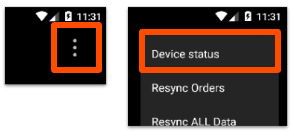
Expected outcome: Both queues are empty.
If either queue contains items, do not proceed with any of the following actions, as they will cause those payments to be lost:
- Uninstalling the Toast app
- Factory resetting the device
- Clear Data
- Resync All Data or Resync Orders
If items are present in either queue, see Why is Resync All Data blocked by red checks or pending payments? below for next steps before retrying the resync.
Step 2: Resync all data on the device
- From the passcode screen on your POS device, select the three-dot overflow menu in the upper-right corner.
- If you are not on the passcode screen, select Switch user first to return to it.
- Select Resync All Data.
- Confirm when prompted on the next screen.
Expected outcome: The device reloads. After it finishes, the missing or stale data — menu items, employee profiles, job titles, table service areas — should now appear correctly. If a device’s Settings tab in Device Hub looked out of date before the resync, it should also catch up to reflect the device’s current configuration.
Note: If the Resync All Data option is not visible in the three-dot menu, see Why don't I see the Resync All Data option in the three-dot menu? below.
If the resync doesn't fix the issue
- Power cycle the device by turning it off and back on.
- Repeat Step 2 to resync all data again.
- If the issue still persists, see Get Help With the Toast App on the POS for additional troubleshooting steps (force stop, clear cache, restart).
- If none of the above resolves the issue, contact Toast Customer Care.
FAQ
Why don't I see the Resync All Data option in the three-dot menu?
The Resync All Data option is only visible when you are on the passcode (number entry) screen.
If you're not on the passcode screen, select Switch user at the top of the current screen to return to it, then select the three-dot menu again.
If the option still doesn't appear, log out and log back in with your credentials, then try again.
Why is Resync All Data blocked by red checks, unsynced models, or pending payments?
Toast prevents a resync when the device has pending data that has not yet reached Toast servers — credit card payments, red checks, or unsynced models. Resyncing in this state would erase that data permanently.
To unblock the resync:
- Confirm the device is online (Step 1 above).
- Clear the items in the Credit Card Queue and Red Checks (Failed Model Queue) sections of Device status. See Check Unsettled Credit Card Payments on Device in Support Center for more information.
- Once both queues are empty, retry the resync (Step 2).
If you cannot clear the queues yourself, contact Toast Customer Care for help—do not attempt to bypass the warning.
What's the difference between Resync All Data, Resync Orders, and Resync Sales?
- Resync All Data is what this article covers. It runs on a single Toast POS device and forces it to reload all menu, employee, device, and configuration data from Toast Web.
- Resync Orders also runs on the device but only refreshes orders/checks.
- Resync Sales is a separate cloud-side feature for syncing sales data to integrations such as XtraChef, QuickBooks, or your sync monitor. It does not run on the POS device.
If you're trying to fix a sales or integration data issue, this article is not the right one — see the relevant integration article.
Related articles
- Update Server Name and Job Titles on POS
- Toast Web Updates Not Appearing on POS
- Get Help With Employee Clock-in Issues on the POS
- Why is my menu showing at the wrong time?
- Get Help With Error Message: Unpublished Changes Preventing Saving
- Get Help With the Toast App on the POS
- Get Help: Troubleshoot Toast Go Error Messages
- Publish Changes in Toast Web