Utilizar códigos de promoción de un solo uso
Última actualización: 17 sept 2026, 4:23 p.m.
- Descripción general de los códigos de promoción de un solo uso
- Añadir un código de promoción de un solo uso a un descuento
- Aplicar código de promoción de un solo uso
Descripción general de los códigos de promoción de un solo uso
Los códigos de promoción de un solo uso te permiten crear descuentos de uso único para tus invitados en pedidos en línea y transacciones de POS (punto de venta). Estos códigos son excelentes para:
- Atraer nuevos invitados a visitar tu ubicación y probar el menú
- Retener a los invitados existentes para negocios repetidos
- Recuperar a los invitados y alentarlos a visitar nuevamente
Una vez creados, estos códigos de promoción pueden ser enviados por correo electrónico, publicados en redes sociales o en marketing impreso para que tus invitados los utilicen.
En Toast Web, navega a Finanzas > Relacionados > Configuración >Descuentos& códigos de promoción para ver todos tus descuentos configurados. Selecciona el lápiz de edición junto a un descuento al que deseas añadir un código de promoción, o selecciona + Añadir un descuento para crear un nuevo descuento con un código de promoción.
Para aprender más sobre cómo crear y gestionar descuentos, consulta este artículo del Centro de Soporte: Comenzar con descuentos.
Para aprender más sobre cómo añadir códigos de promoción a tus campañas de correo electrónico de un solo uso con Marketing por correo electrónico de Toast, consulta este artículo: Añadir un código de promoción a tu campaña de marketing por correo electrónico.
Agrega un código promocional de un solo uso a un descuento
- En la página de detalles del descuento, desplázate hacia abajo hasta la sección Códigos Promocionales y selecciona + Agregar código promocional.
- Ingresa un código y una descripción, y marca la casilla en la columna De un solo uso. También puedes ingresar una fecha de inicio/fin para el código promocional si lo deseas.
- Guardar y publicar tus cambios.
Aplica el código promocional de un solo uso
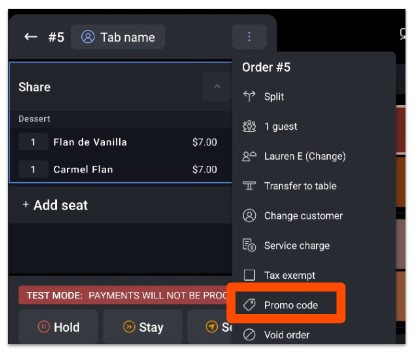
- Puedes agregar un código promocional de un solo uso a un artículo o a un cheque abierto seleccionando el menú de tres puntos en la parte superior.
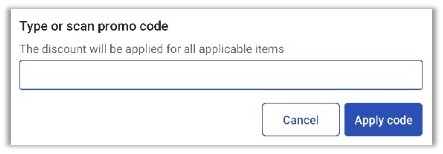
- Ingresa o escanea el código promocional, luego selecciona Aplicar código.
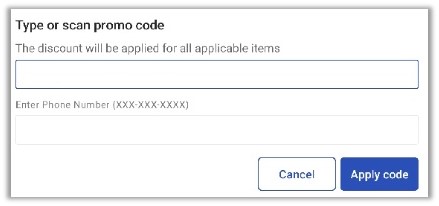
- Luego, se te pedirá que ingreses el número de teléfono del huésped. Ingresa el número de teléfono de tu huésped, luego selecciona Aplicar código..
- Si el código ya ha sido utilizado, aparecerá un mensaje indicando que el código ya no es válido.
- Si el código ya ha sido utilizado, aparecerá un mensaje indicando que el código ya no es válido.