xtraCHEF: Aprobaciones
Última actualización: 20 ago 2026, 8:17 a.m.
Resumen de reglas de aprobación
Lo genial de los restaurantes es que no hay dos que se parezcan; incluso las ubicaciones del mismo concepto o cadena tendrán necesidades, clientes y prioridades diferentes. Lo complicado de los restaurantes es que no hay manera de adoptar un enfoque único para casi nada.
Lo más probable es que ya hayas configurado todo lo necesario para escanear y procesar facturas automáticamente a través de xtraCHEF. ¿Qué sucede con los proveedores, suministros y estuches de borde que requieren un par de ojos adicionales? En este artículo, cubriremos cómo establecer reglas de aprobación para tus facturas y cómo gestionar tu cola de aprobaciones.
Crear reglas de aprobación
Si tienes privilegios de administración de inquilino en tu cuenta de xtraCHEF, puedes crear reglas de aprobación yendo al ícono de engranaje en la esquina superior derecha y seleccionando Reglas de aprobación. En esta página, puedes elegir entre una serie de situaciones de aprobación.
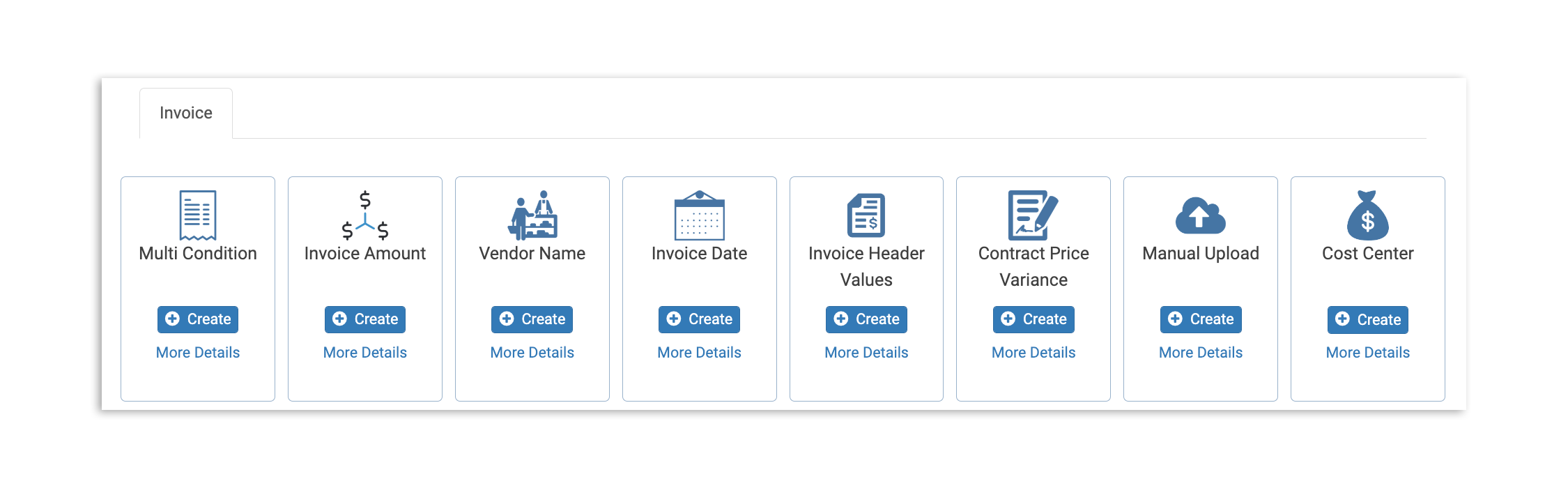
- Condición múltiple: Configura el enrutamiento de facturas para su aprobación en función de la combinación de proveedor, ubicación, artículos de factura y campos de factura como monto, flete, etc.
- Monto de la factura: Esta regla te permite configurar el enrutamiento de facturas para su aprobación en función del monto de la factura
- Nombre del proveedor: Esta regla te permite configurar el enrutamiento de facturas para su aprobación en función del nombre del proveedor
- Fecha de la factura: ¿Esperas un pedido especial para las fiestas o estás organizando un gran evento? Esta regla te permite configurar el enrutamiento de facturas para su aprobación en función de la fecha de la factura
- Valores del encabezado de la factura: Esta regla te permite configurar el enrutamiento de facturas para su aprobación en función de los valores del encabezado de la factura (cargos de envío, códigos de descuento, etc.).
- Variación de precio del contrato: Especifica si quieres marcar facturas cuando el costo de los productos supere el precio pactado en el contrato, o elige recibir una notificación sobre todas las fluctuaciones de precio.
- Carga manual: Requerir revisión o aprobación manual cuando un empleado ingrese los detalles de la factura en lugar de escanear un documento.
- Centro de costos: Marca los gastos generados por los diversos centros de costos de tu organización. Al seleccionar Centro de costos como regla de aprobación, se enumerarán por separado en la pestaña Regla de centro de costos.
Para crear una regla, selecciona el botón Crear en el tipo de regla de aprobación que prefieras.
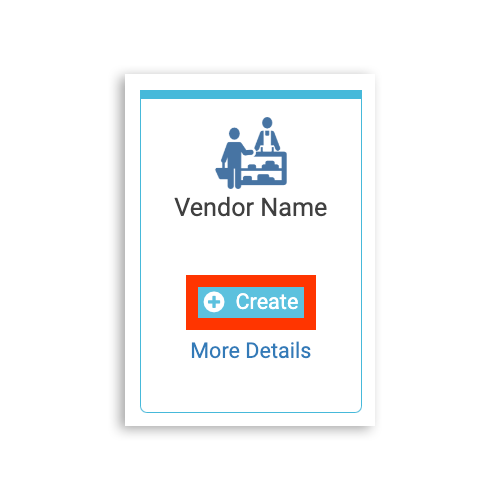
Se iniciará un flujo de trabajo de regla de aprobación. Si bien los detalles de cada flujo de trabajo variarán un poco según el escenario que elijas, todas las aprobaciones seguirán los mismos pasos básicos:
- Establece criterios específicos.
- Selecciona y confirma la ubicación.
- Asigna usuarios como aprobadores para facturas que cumplan con tus criterios.
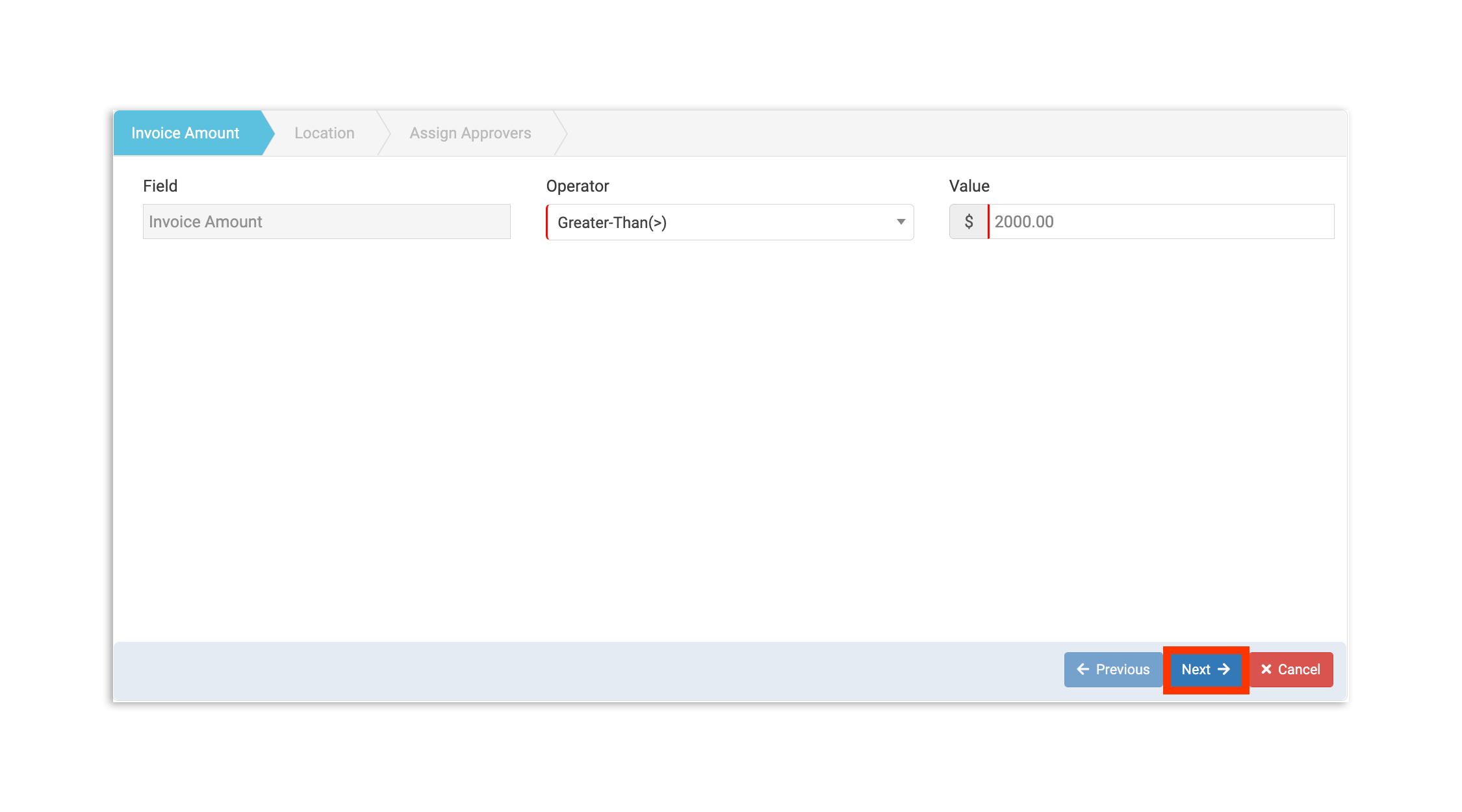
En este ejemplo, estamos creando una regla de monto de factura que marcará automáticamente las facturas para revisión manual si el total supera los USD 2000. Primero, especifica las condiciones de la regla de aprobación y selecciona Siguiente.
En este caso, configuraríamos la condición del operador como Mayor que(>) y el valor como USD 2000,00
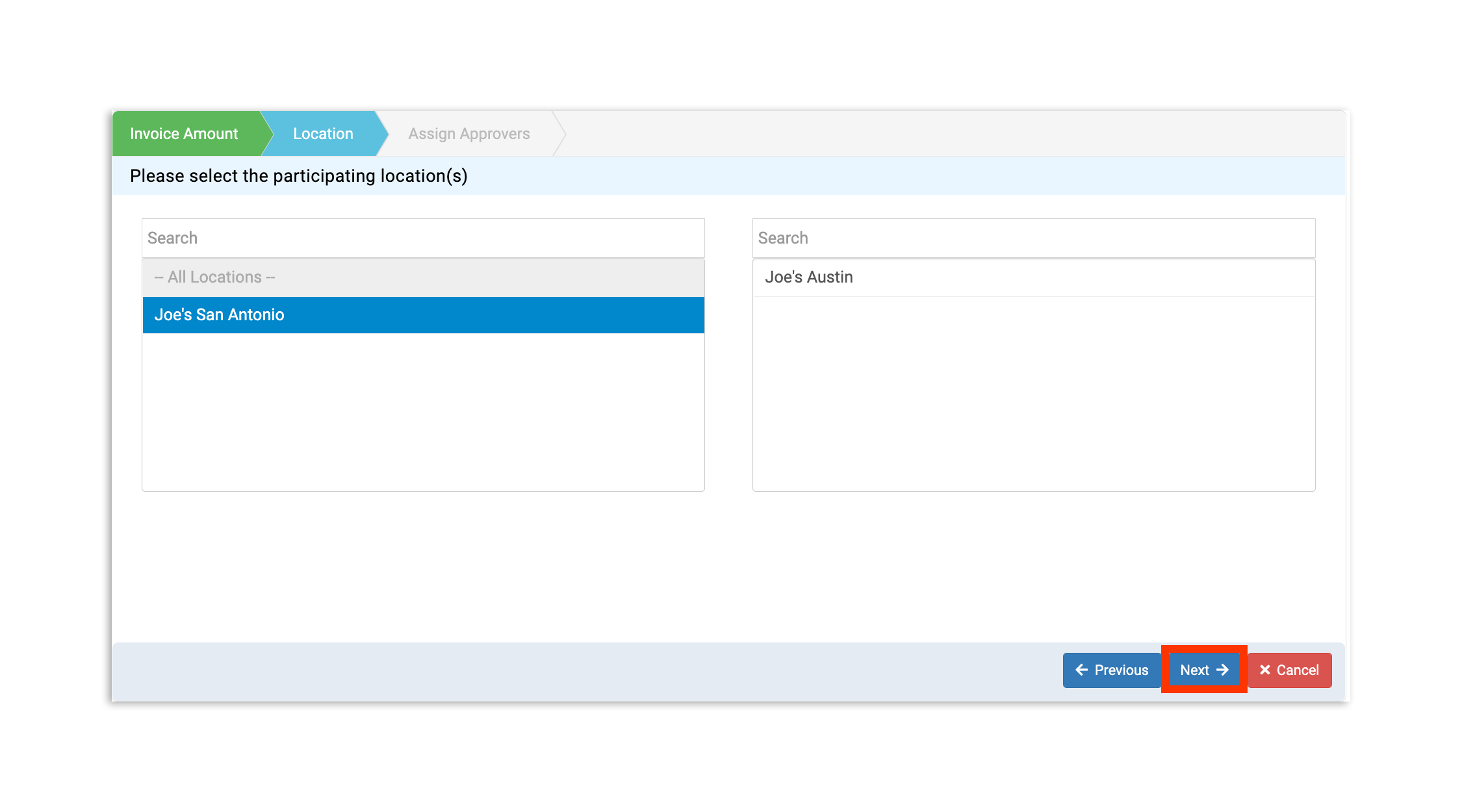
A continuación, agrega las ubicaciones que estarán sujetas a esta regla. Selecciona una ubicación de la sección de la izquierda para moverla a la sección de la derecha de la ubicación participante. Debes elegir al menos una ubicación. Una vez elegidas las ubicaciones, selecciona Siguiente.
El último paso para poder usar tu nueva regla de aprobación es determinar quién necesita la aprobación.
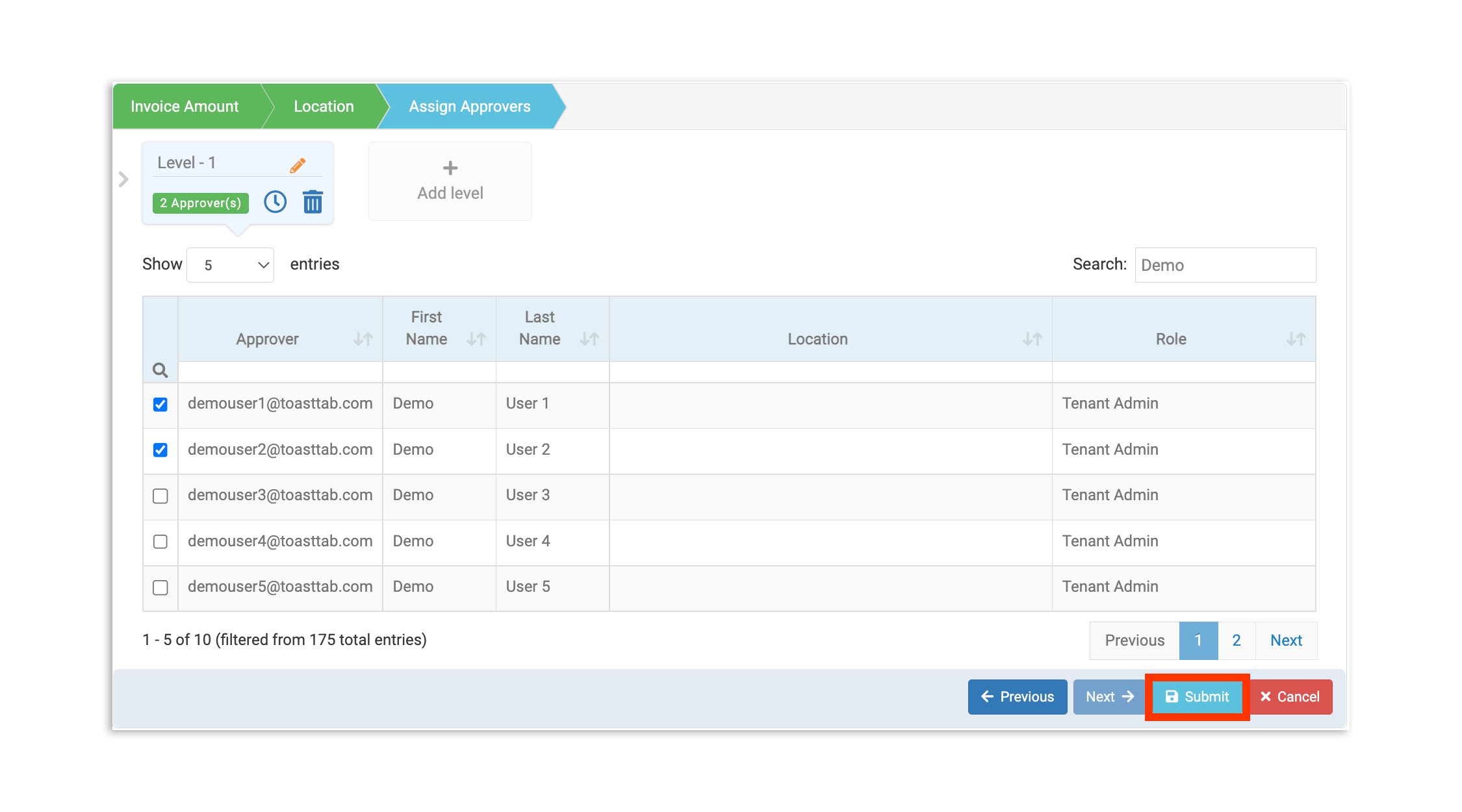
Nota:Cada regla necesita al menos un nivel de aprobación y al menos un aprobador, así que primero agrega el aprobador inicial.
Si quieres una capa adicional de aprobación dentro de la misma regla de aprobación, puedes seleccionar + Agregar nivel. Esta acción hará que las facturas que cumplan con tus criterios asciendan a "una cadena de mando". Los aprobadores de nivel 1 recibirán el documento antes que los aprobadores de nivel 2, etc.
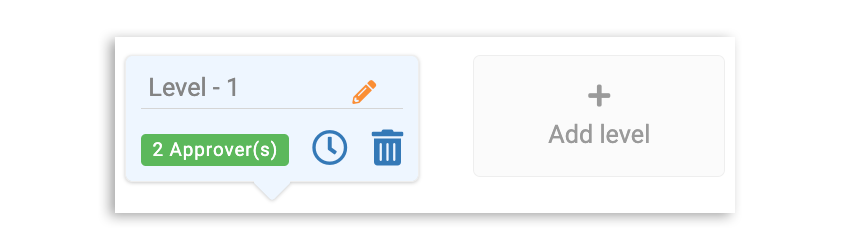
Seleccionar el ícono de reloj de un nivel te permite activar la aprobación automática, si es necesario. Además, los íconos de lápiz y papelera te permiten editar y eliminar un nivel, respectivamente.
Por último, cuando hayas designado al menos un aprobador, selecciona Enviar. Luego, se te pedirá que nombres tu regla. Una vez nombrada y enviada tu regla, aparecerá inmediatamente en tu lista de reglas de aprobación.
Aprobar facturas
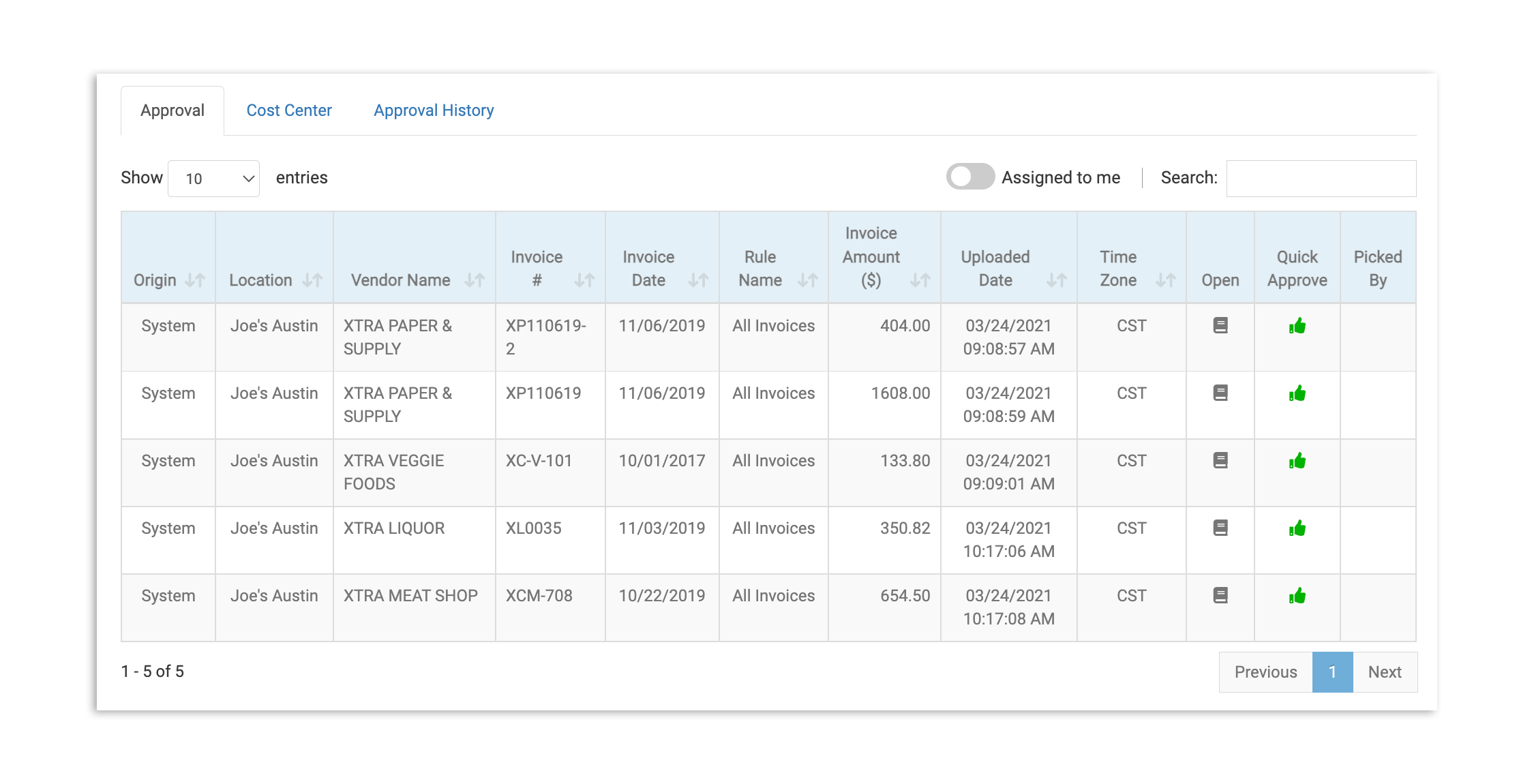
- Si apareces como aprobador, verás un ícono rojo de notificación en la pestaña Aprobaciones en la barra lateral izquierda de xtraCHEF cuando tengas que revisar nuevas facturas. Selecciona Aprobaciónpara llevar a la cola de todas las aprobaciones de facturas en espera.
de aprobaciones
- Si ves una factura en la lista que se espera, puedes seleccionar el ícono de pulgar arriba en Aprobación rápidapara enviarla inmediatamente a tu lista de facturas aprobadas. De lo contrario, selecciona el ícono del libro en Abiertopara profundizar en la factura.
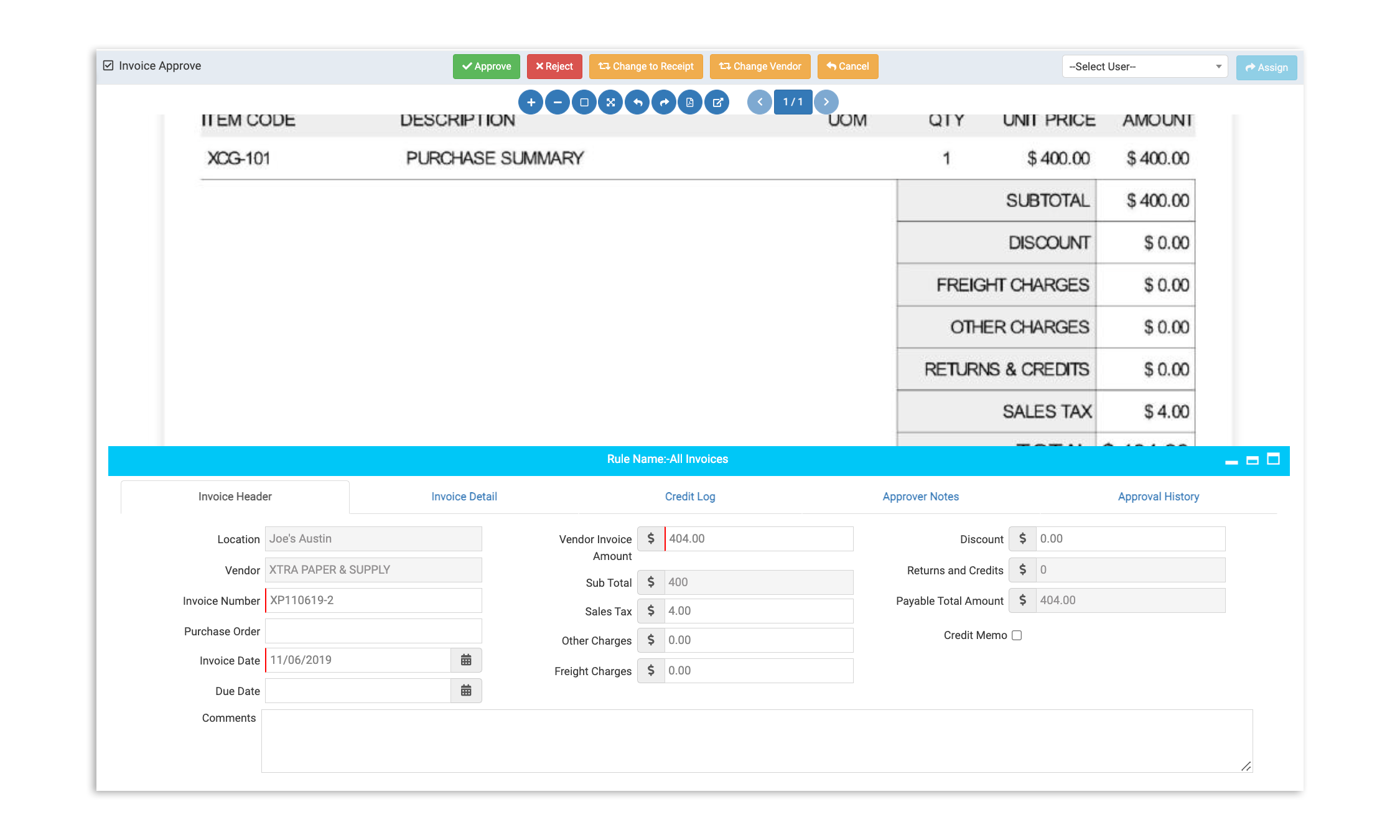
- Si seleccionas Abrir, se abrirá una nueva página con la factura escaneada, así como los datos que xtraCHEF ya ha analizado de la factura.
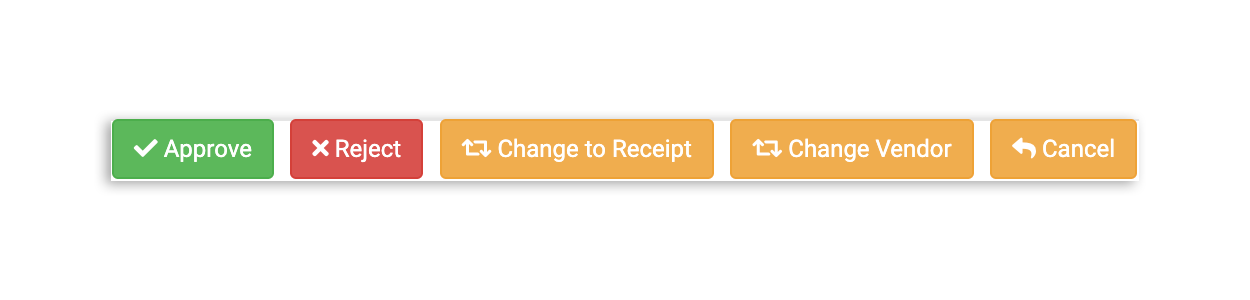
- Si todo se ve bien tras una inspección adicional, selecciona el botón verde Aprobar en la parte superior.
- Si es necesario realizar cambios (un recibo escaneado como factura o detalles del proveedor incorrectos), selecciona el botón amarillo correspondiente para ajustar la factura al estándar.
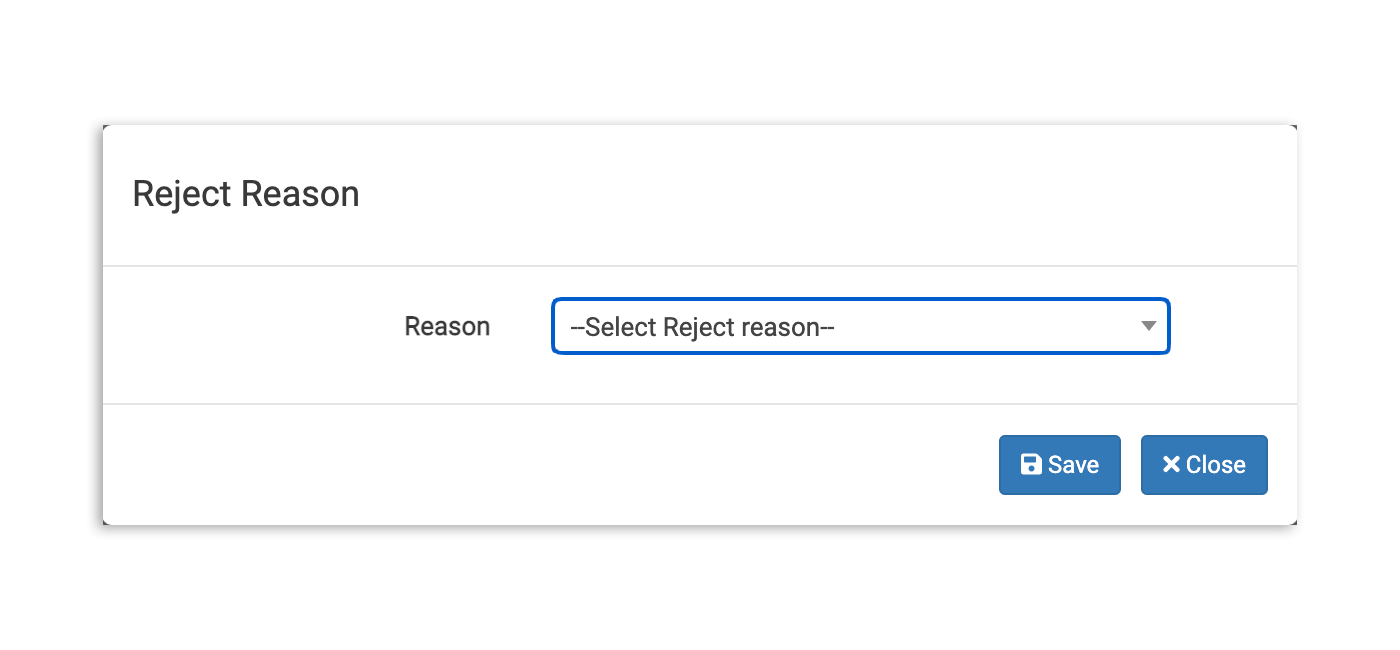
- Del mismo modo, si la factura no se puede aceptar, selecciona el botón rojo Rechazar y elige un motivo para el rechazo. Esto transferirá la factura a la columna Rechazada en la página de tu factura y los datos de la factura rechazada no se utilizarán en xtraCHEF.
Volver arriba
Preguntas frecuentes
¿Cómo hago un seguimiento de los productos sin costo?
Por el momento, xtraCHEF no admite el seguimiento de artículos sin costo (como muestras gratuitas, estuches promocionales o reemplazos compensados por Envío corto o dañado). Si un rubro de una factura se ingresa a USD 0, se eliminará. Si una factura totaliza USD 0, se rechazará. Debido a esto, los artículos sin costo no se reflejarán en el costo de los alimentos, las reglas de aprobación ni los informes de inventario en xtraCHEF.
¿Qué pasa si recibo un solo artículo cuando compro una cierta cantidad (p. ej., una promoción de bebidas alcohólicas “compra 6 y obtén 1 gratis”)?
Dado que xtraCHEF no puede procesar un rubro separado de USD 0 para la unidad calculada, edita el campo Cantidad en el rubro existente para reflejar el número total de unidades que realmente recibiste, en lugar de solo el número por el que pagaste. Por ejemplo, si pagaste 6 botellas pero recibiste 7 (6 pagadas, más 1 compedida), actualiza la cantidad a 7 y deja sin cambios el monto total de la factura. Esto distribuye el costo total en las 7 botellas, lo que te da un costo preciso y combinado por unidad, y mantiene tu recuento de inventario en línea con lo que realmente recibiste.