xtraCHEF: Crear y editar categorías de compra
Última actualización: 24 sept 2026, 11:30 a.m.
Las categorías ayudan a hacer un seguimiento de dónde gastas tu dinero en un nivel más granular que los códigos de LM. Aprende a crear y editar categorías de compra.
Resumen de categorías de compra
En xtraCHEF, las categorías de compra te permiten desglosar aún más los códigos del libro mayor (GL) en grupos más específicos. Las categorías de compra no afectan tus extractos contables, pero permiten capas adicionales de información en muchas de nuestras funciones de estadísticas e informes.
En este video de 4 minutos, puedes crear y editar categorías de compra en xtraCHEF. También destaca la información que tienes disponible como resultado de crear un sistema de categorías de compra dentro de tus códigos de LM.
Nota: Categorías de compra es la pantalla de categorías en xtraCHEF. No hay ninguna entrada de categorías separada debajo del ícono de engranaje. Si la única opción que ves es Categorías de compra, estás en el lugar correcto. A lo largo de este artículo y en el producto, botones como + Agregar categoría, Editar categoría, Desactivar categoría y Activar categoría actúan sobre tus categorías de compra.
Crear categorías de compra
Selecciona el botón a continuación para obtener una guía en el producto sobre cómo crear categorías de compra en xtraCHEF. Debes iniciar sesión en xtraCHEF para ver este recorrido.
Obtén información sobre cómo crear categorías de compra
Nota: Si el ícono de engranaje está grisado, no se puede hacer clic en él o no muestra categorías de compra en absoluto, esto es un problema de acceso más que de navegación. El acceso a xtraCHEF se otorga por separado de tus derechos de administrador de Toast Web, por lo que ser administrador o propietario de Toast Web no otorga por sí mismo acceso de administrador a xtraCHEF. Un administrador de inquilinos de xtraCHEF existente puede otorgar acceso bajo ícono > Usuarios. Si todavía no tienes a nadie con ese acceso, prueba estos pasos en el orden siguiente:
- Inicia sesión directamente en app.xtrachef.com en una nueva ventana del navegador o en una ventana privada o de incógnito.
- Borra la memoria caché y las cookies del navegador y, luego, vuelve a iniciar sesión.
- Pídele a otro administrador inquilino de xtraCHEF de tu negocio que confirme tu rol de usuario de xtraCHEF.
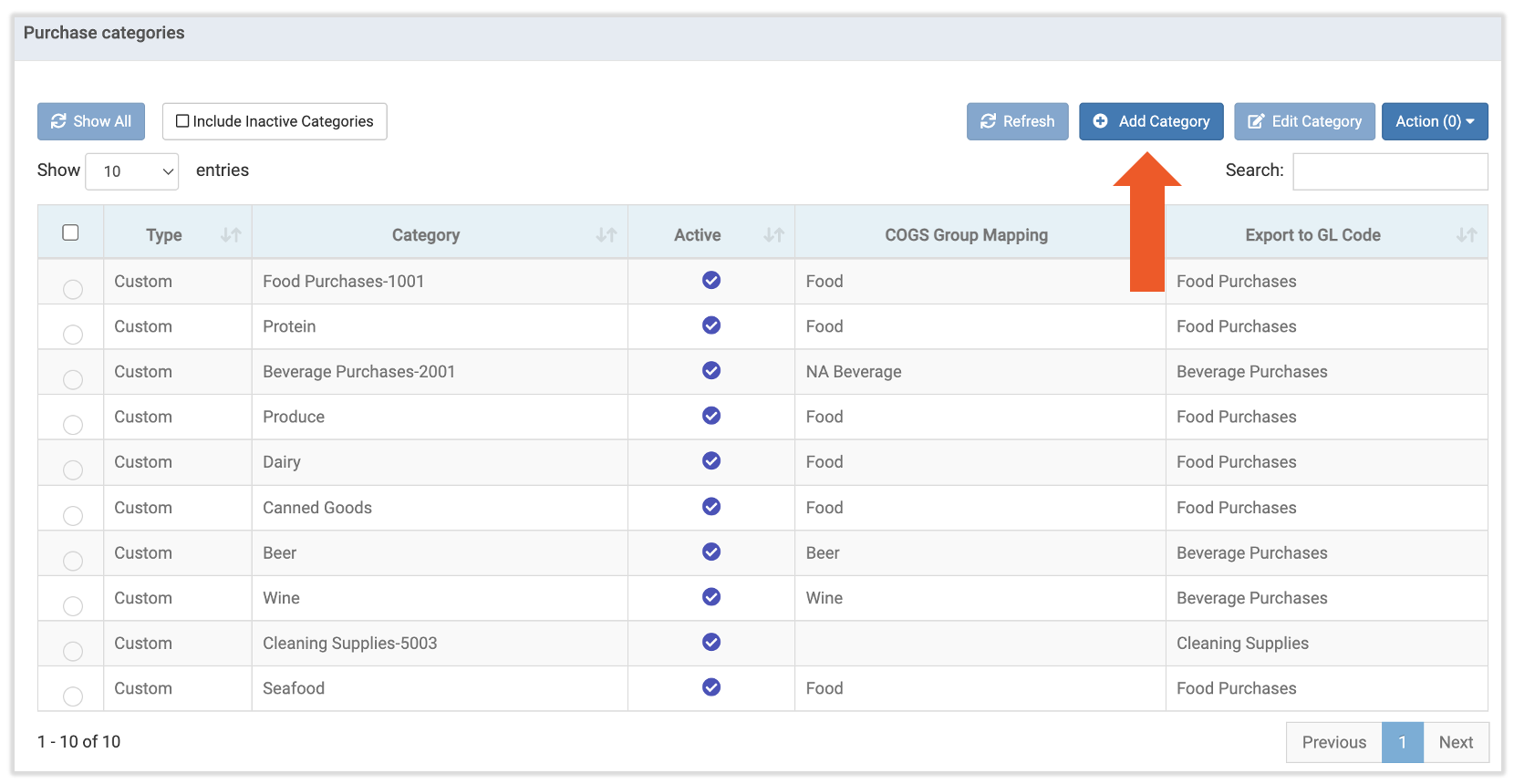
Para crear una nueva categoría de compra, selecciona el ícono de engranaje en la esquina superior derecha y elige Categorías de compra. Ya puedes ver varias categorías de compra aquí porque xtraCHEF proporciona a los nuevos usuarios un conjunto de categorías predeterminadas. En esta página, selecciona el botón + Agregar categoría en la parte superior.
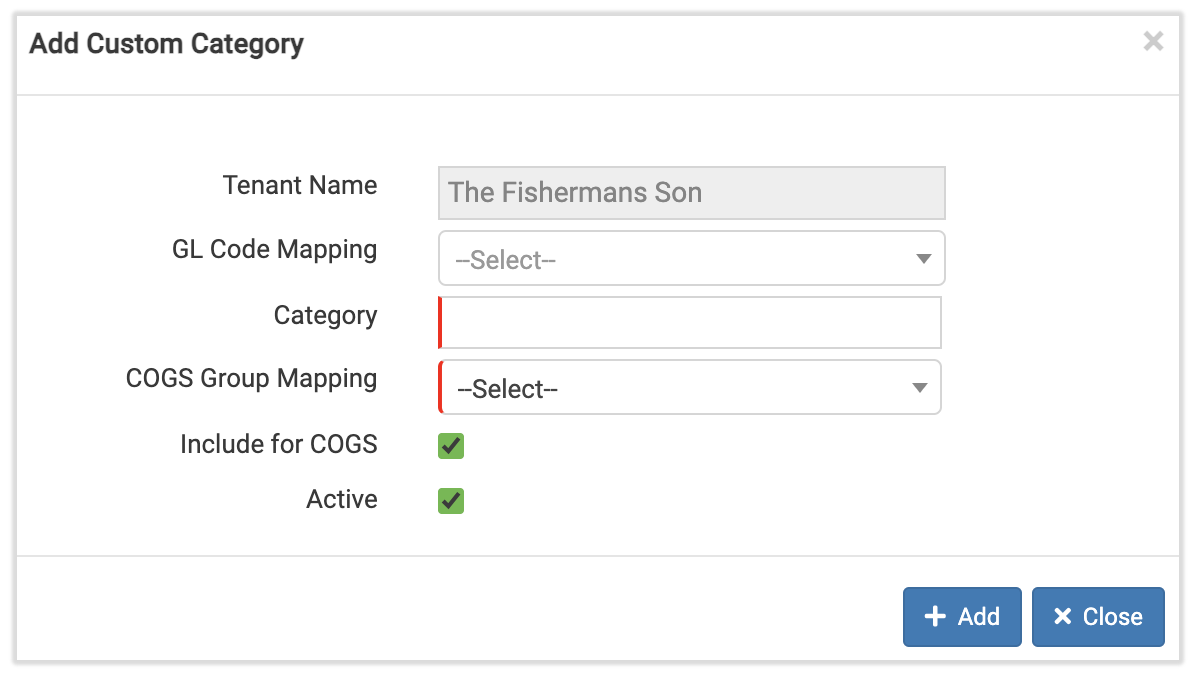
Asigna un nombre a esta nueva categoría de compra y selecciona la asignación de código de LM y la asignación de grupo de COGS de las que deseas separar la categoría de compra. Selecciona Incluir para COGS si deseas asignar grupos de COGSa compras. Visita xtraCHEF: Mapeo de COGS para obtener más información sobre el mapeo de COGS. Por último, selecciona + Agregar para bloquear tu nueva categoría de compra.
Editar categorías de compra
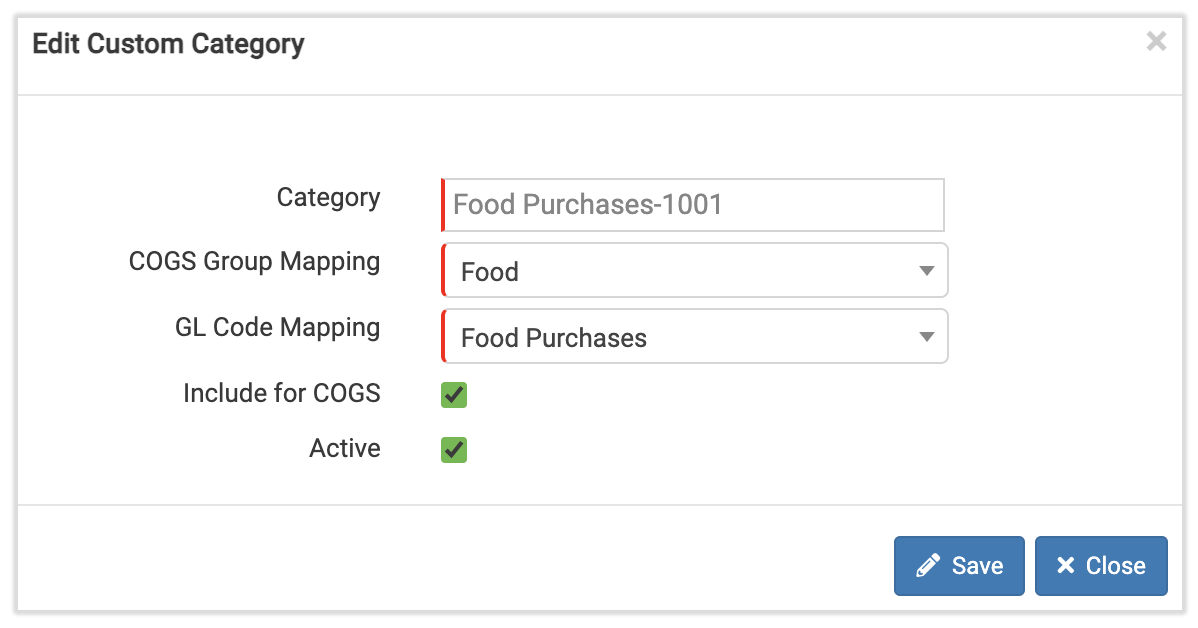
Selecciona el ícono de engranaje en la esquina superior derecha de xtraCHEF y elige Categorías de compra. Para editar una categoría de compra, selecciona su casilla de verificación y selecciona el botón Editar categoría.
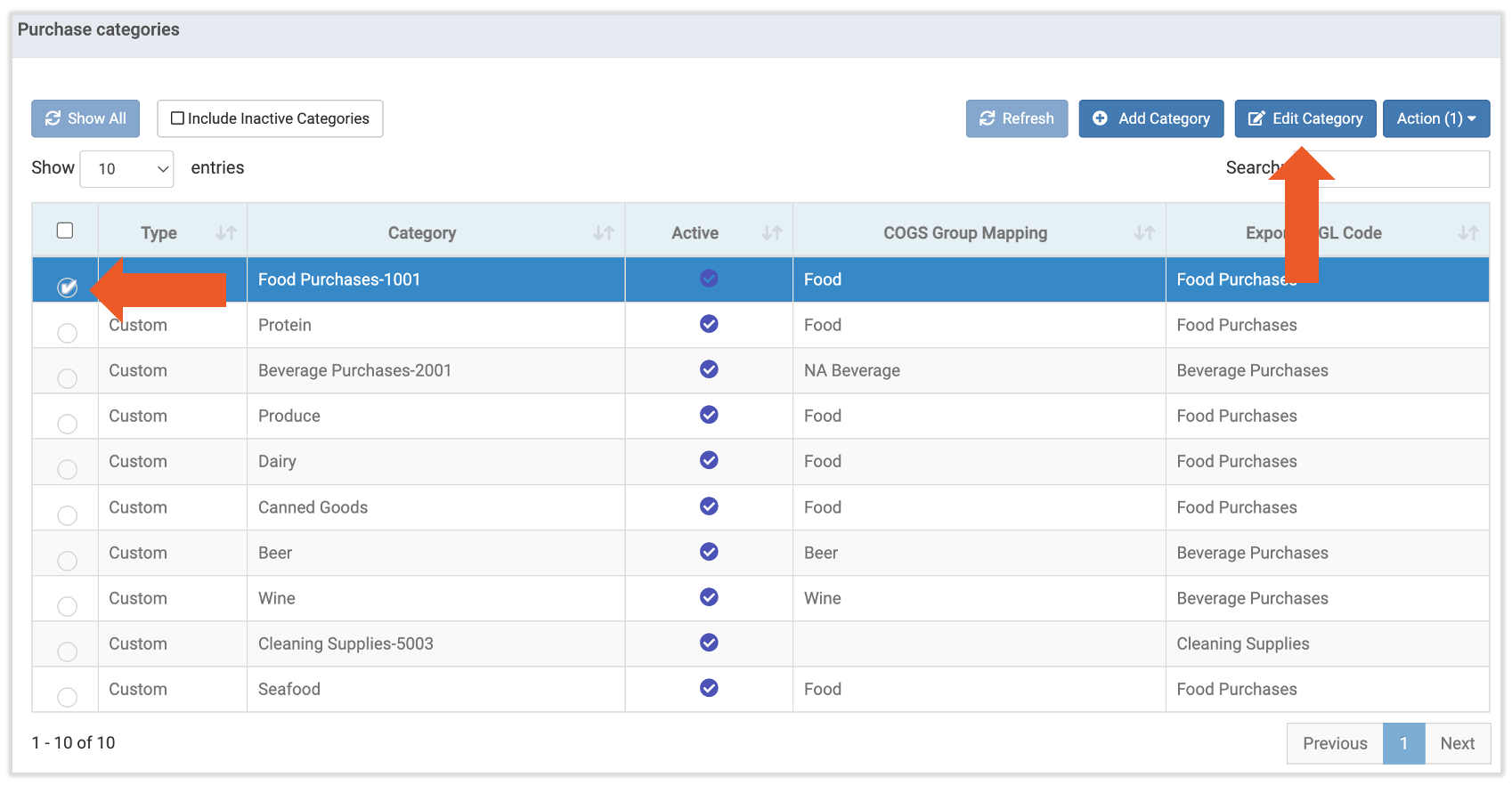
Aquí, puedes hacer cambios en la asignación de grupo de COGS o la asignación de código de LM asociadas a la categoría de compra. Elimina la asignación de grupos de COGS seleccionando el menú desplegable, eligiendo Seleccionar y desmarcando la casilla de Incluir para COGS. También puedes hacer que una categoría de compra activa quede inactiva si deseleccionas la casilla Activa. Selecciona Guardar cuando hayas terminado y los cambios se aplicarán de inmediato.
Desactivar/activar categorías de compra
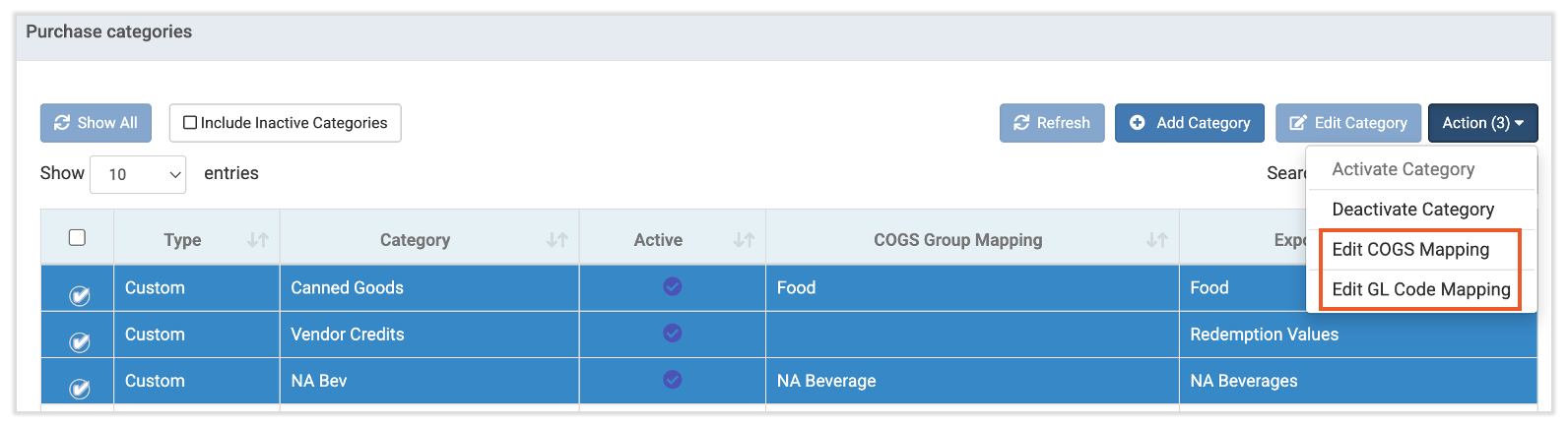
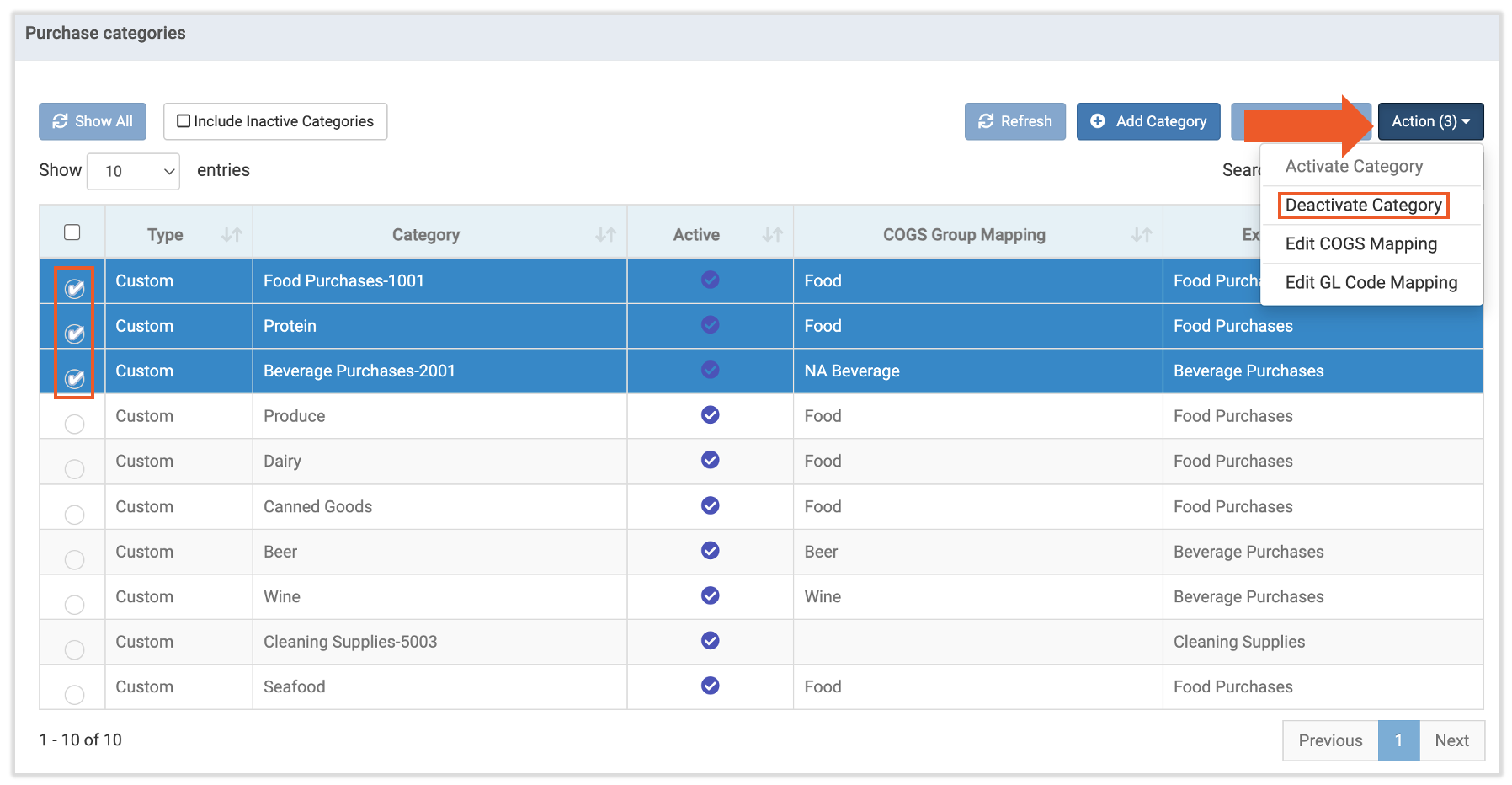
Si deseas desactivar o activar categorías de compra, puedes hacerlo de forma individual o en bloque. Ve al ícono de engranaje> Categorías de compra. Ahora selecciona la casilla de verificación para cada categoría de compra que quieras gestionar. A continuación, selecciona Acción > Desactivar categoría.
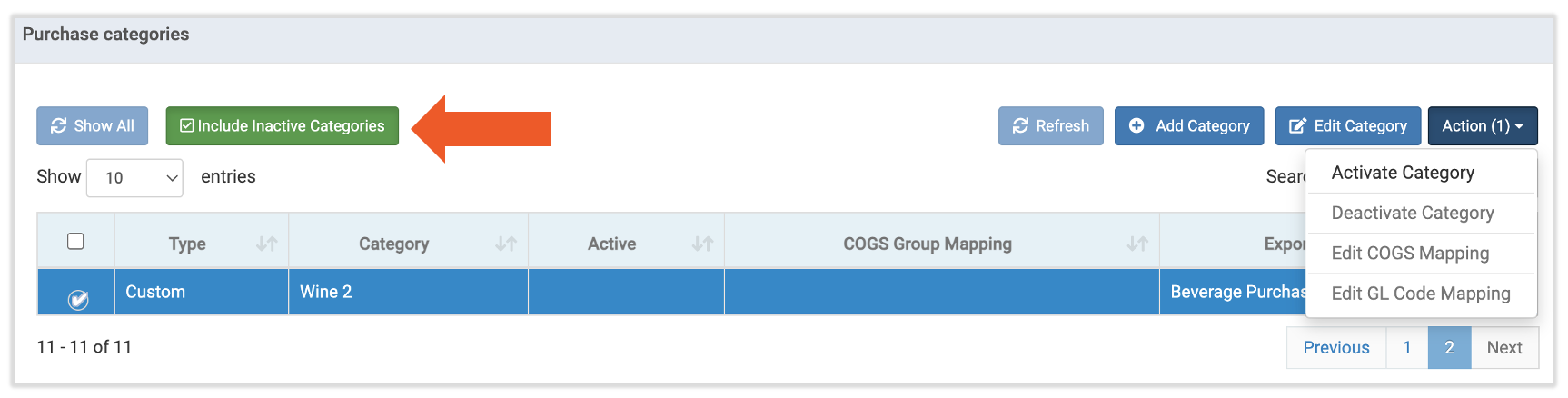
De manera predeterminada, las categorías de compra inactivas no aparecen en esta página a menos que se seleccione Incluir categorías inactivas. Una vez habilitado este filtro, sigue los pasos anteriores para seleccionar la casilla de verificación de la categoría de compra y ve a Acción > Activar categoría. Nota: Las categorías de compra inactivas aún se pueden ver, pero ya no se pueden asignar artículos.
Editar categorías de compra
Puedes actualizar fácilmente varias categorías de compra a la vez. Primero, selecciona la casilla de verificación para cada categoría de compra que quieras incluir. Luego, selecciona Acción y Editar mapeo de COGS o Editar mapeo de código de LM. Una vez que hayas seleccionado tu código de grupo de COGS o de LM, selecciona Guardar.