xtraCHEF: Ventas diarias en móvil
Última actualización: 28 abr 2026, 4:20 p.m.
Descargar la aplicación xtraCHEF
¿Listo para tener información sobre las finanzas de tu restaurante, inventario y más, literalmente al alcance de tu mano? Comienza descargando la aplicación xtraCHEF. Esta aplicación se puede descargar a través de Apple App Store (para usuarios de productos Apple) o a través de Google Play Store (para usuarios de Android).
Una vez descargada, estás listo para iniciar sesión. Si tienes más de un inquilino en xtraCHEF, selecciona el inquilino para el cual deseas ver las ventas.
Resumen de ventas diarias de xtraCHEF
La aplicación xtraCHEF te permite ver información de ventas actualizada (sincronizada directamente desde Toast Web), hacer ajustes manuales e incluso agregar valores de inventario final mientras estás en movimiento.
Guía de ventas diarias de xtraCHEF
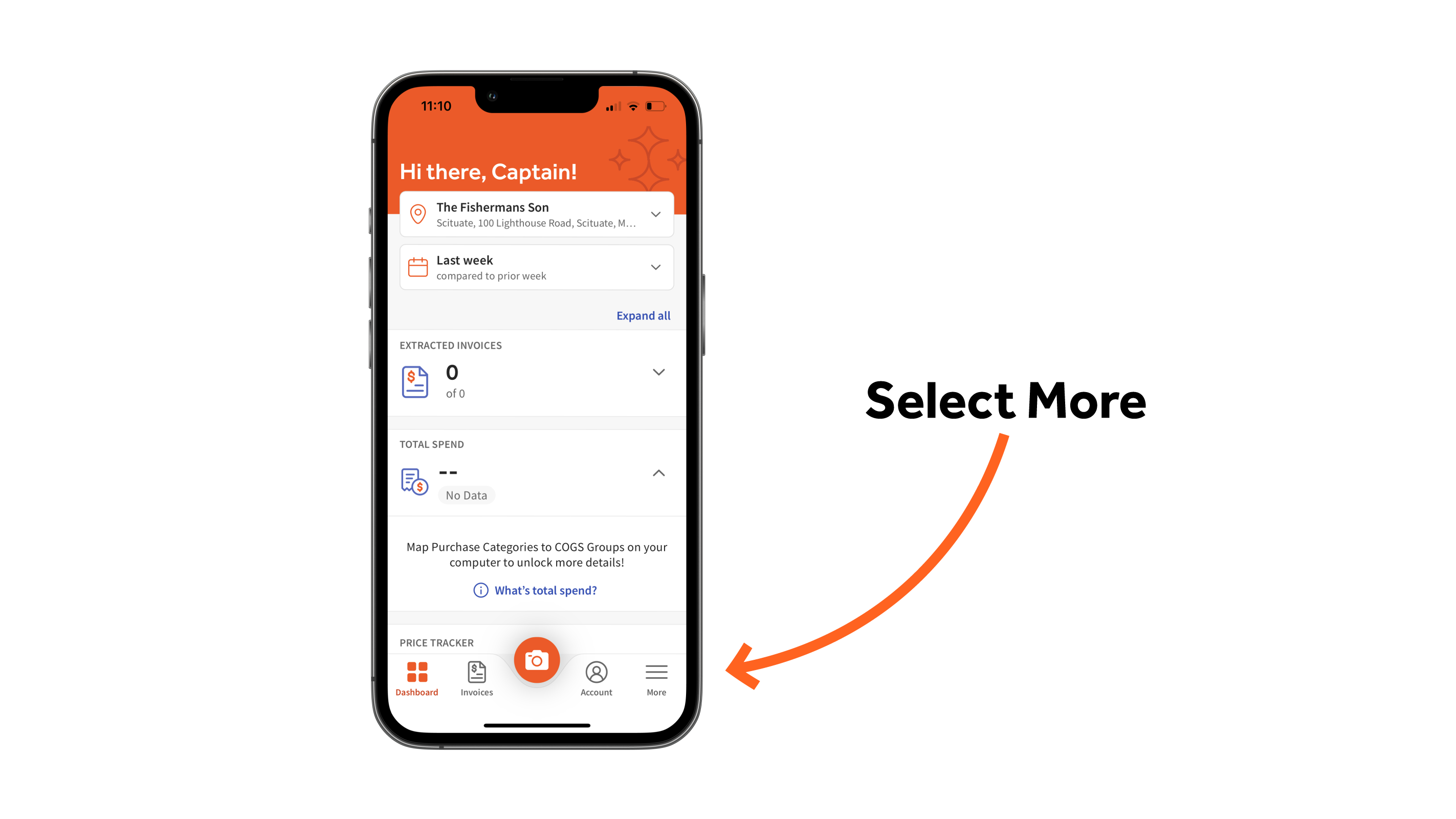
Para comenzar, selecciona el botón Más de la barra de navegación.
Luego selecciona la pestaña Ventas Diarias.
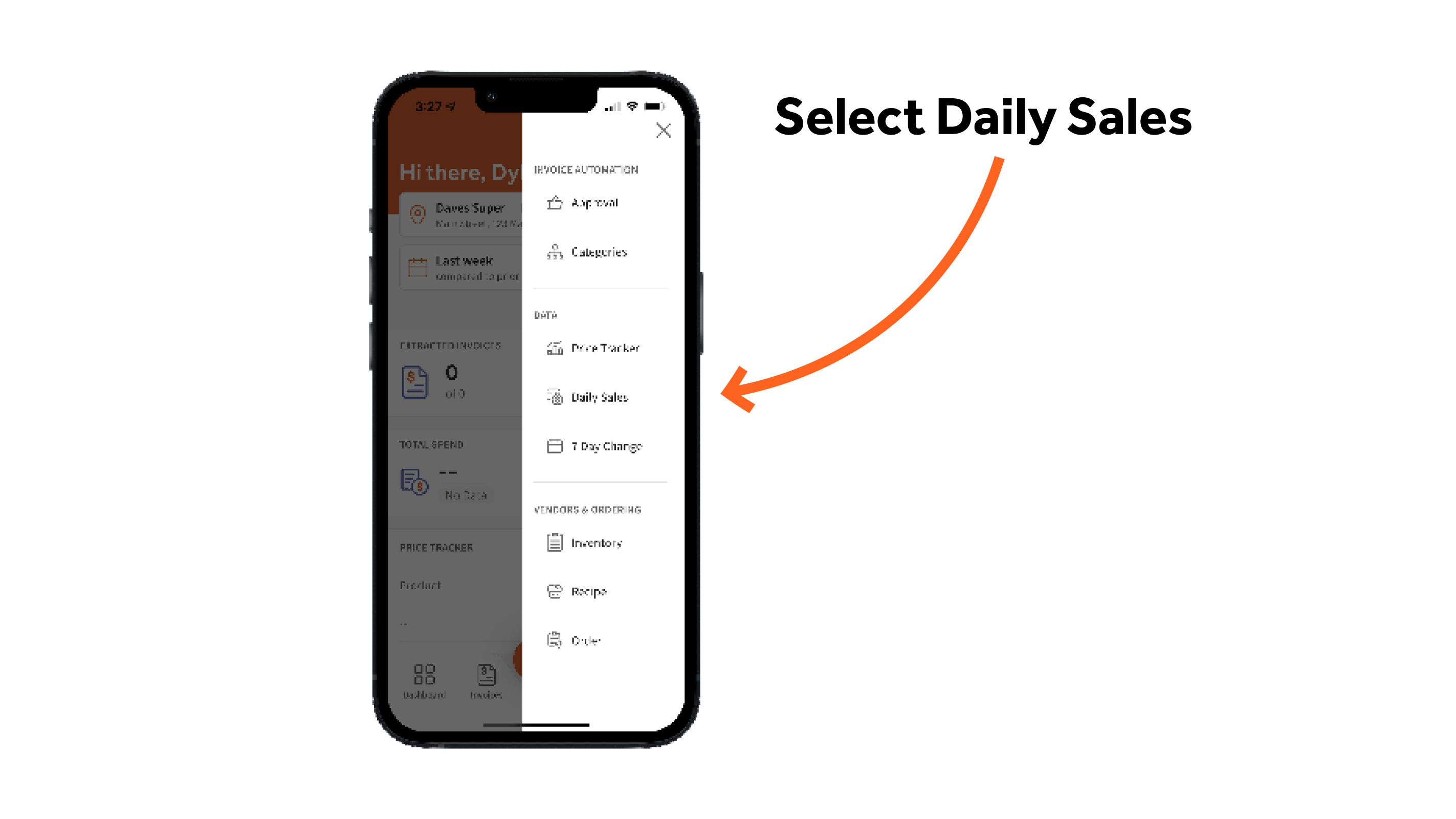
Esto llenará tupágina de Ventas Diarias.
Ver Ventas Diarias
La Página de Ventas Diarias se configurará por defecto en tu primera ubicación de xtraCHEF y la fecha actual del calendario. Aquí, puedes previsualizar información básica de ventas.
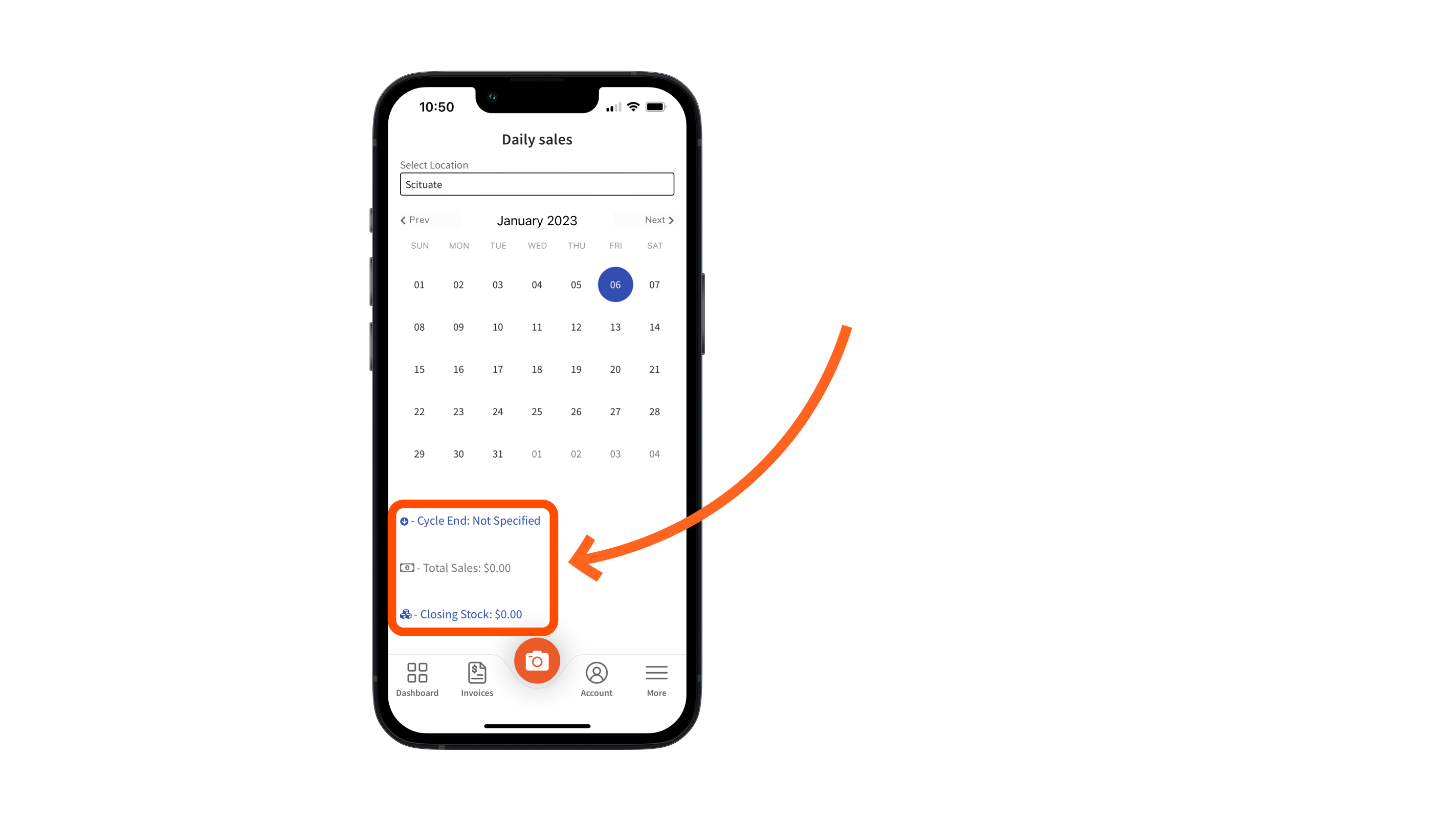
Para ver las ventas de una fecha particular, selecciona unaUbicaciónyFechaen el calendario.
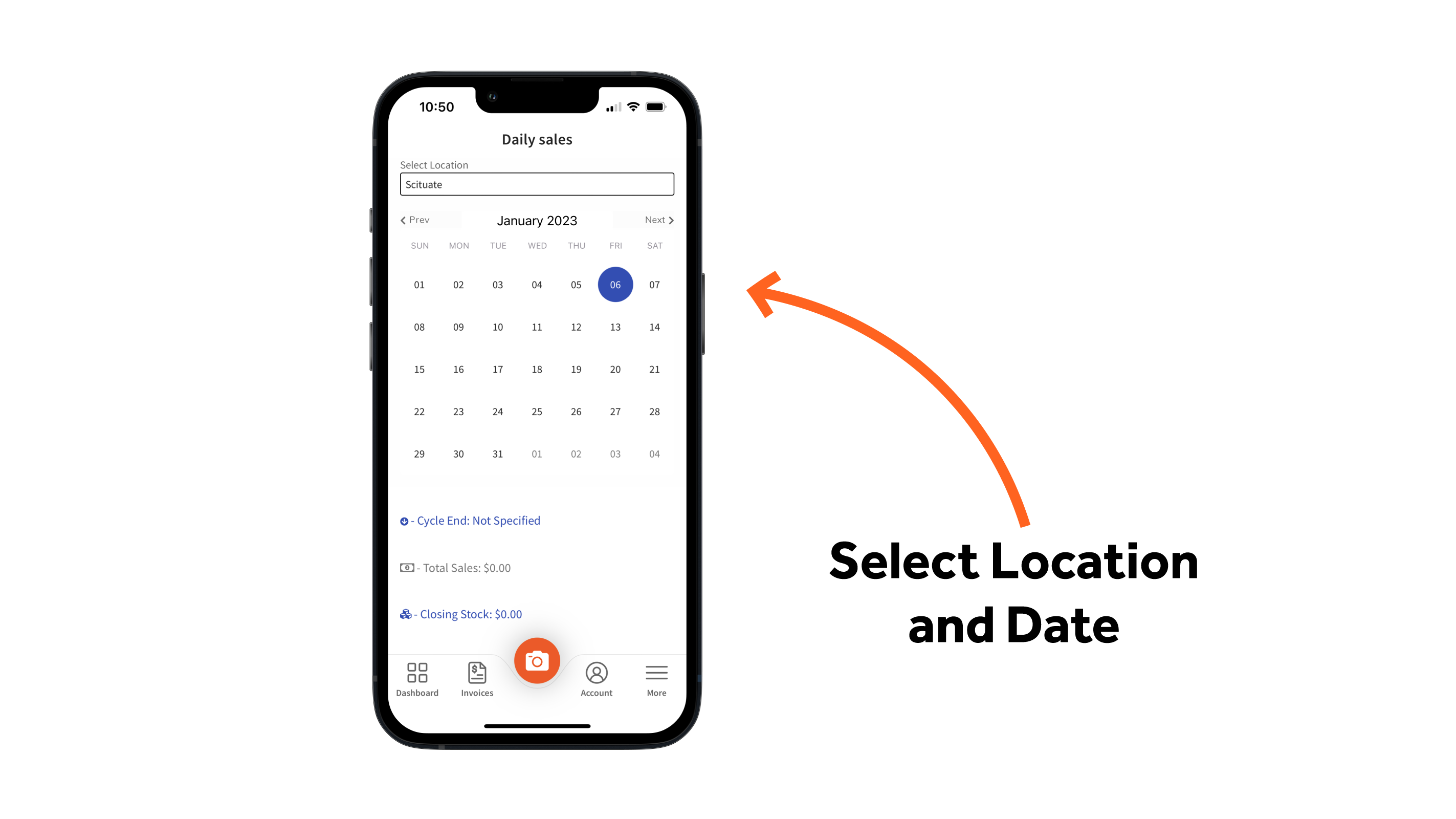
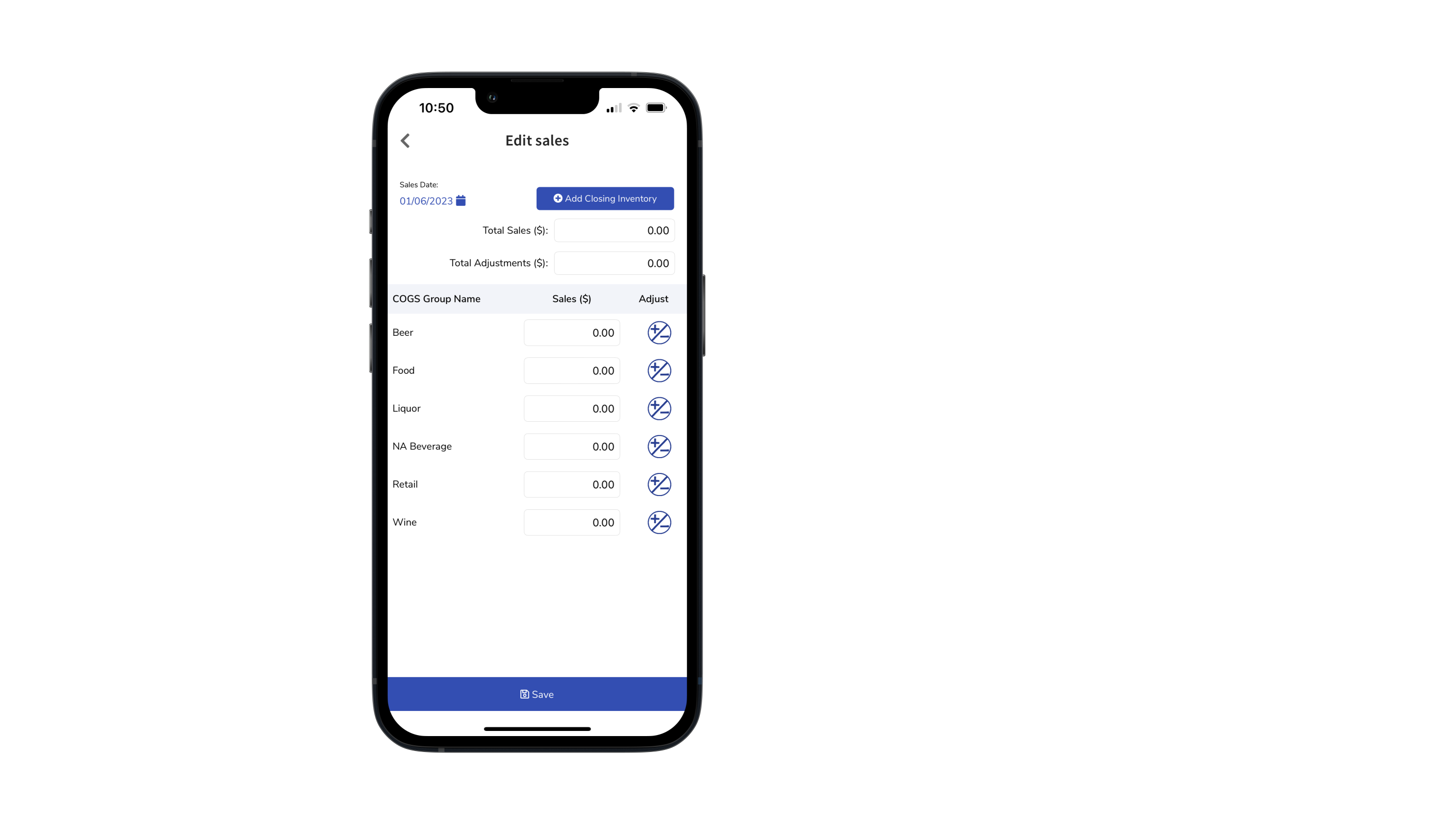
Esto abrirá una nueva página con un resumen de tus ventas totales del día. Ventas Totales ($) es el monto en dólares de cuánto vendiste, sincronizado desde tu POS. Ajuste Total es el monto en dólares que se agregó o restó manualmente a tu total después de que los datos fueron sincronizados desde tu POS.
Hacer Ajustes
Bajo los totales de Ventas y Ajustes, verás el desglose de ventas de cada uno de tus grupos de COGS. Para editar tus totales después de que han sido subidos, toca el +/- Ícono de Ajuste.
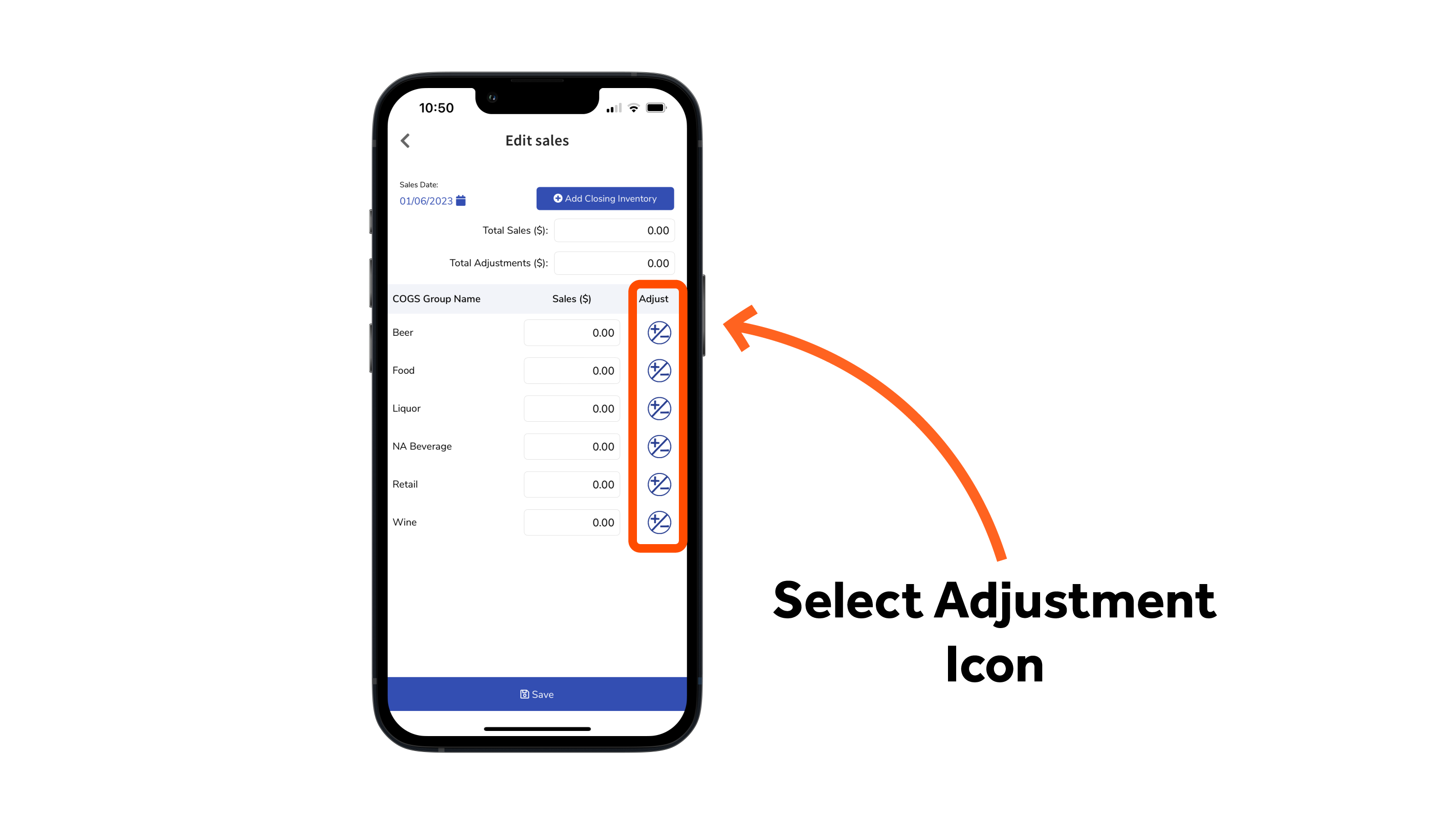
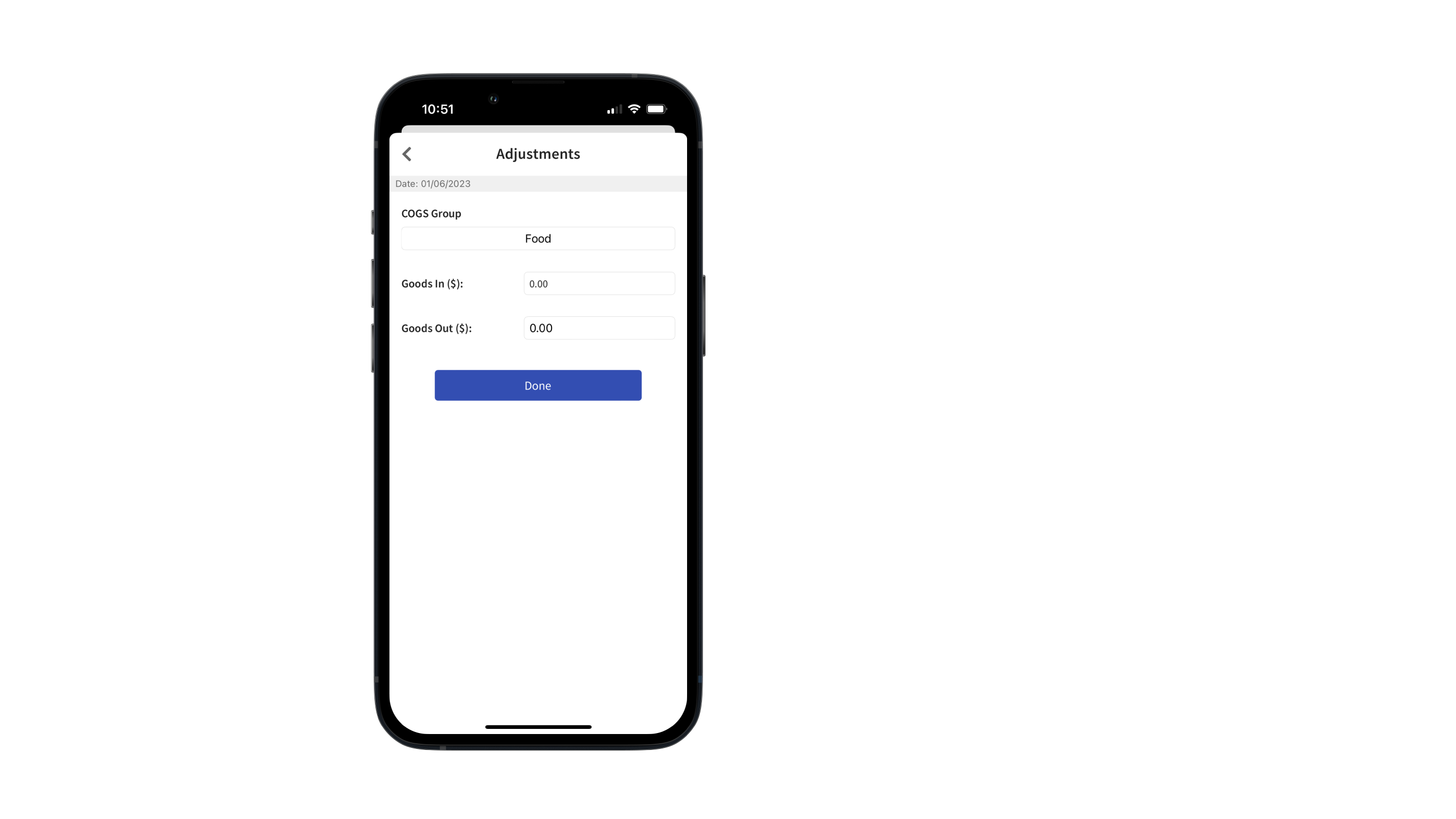
Realiza los cambios deseados, luego toca Listo. Tus datos se actualizarán inmediatamente.
Agregar Inventario Final
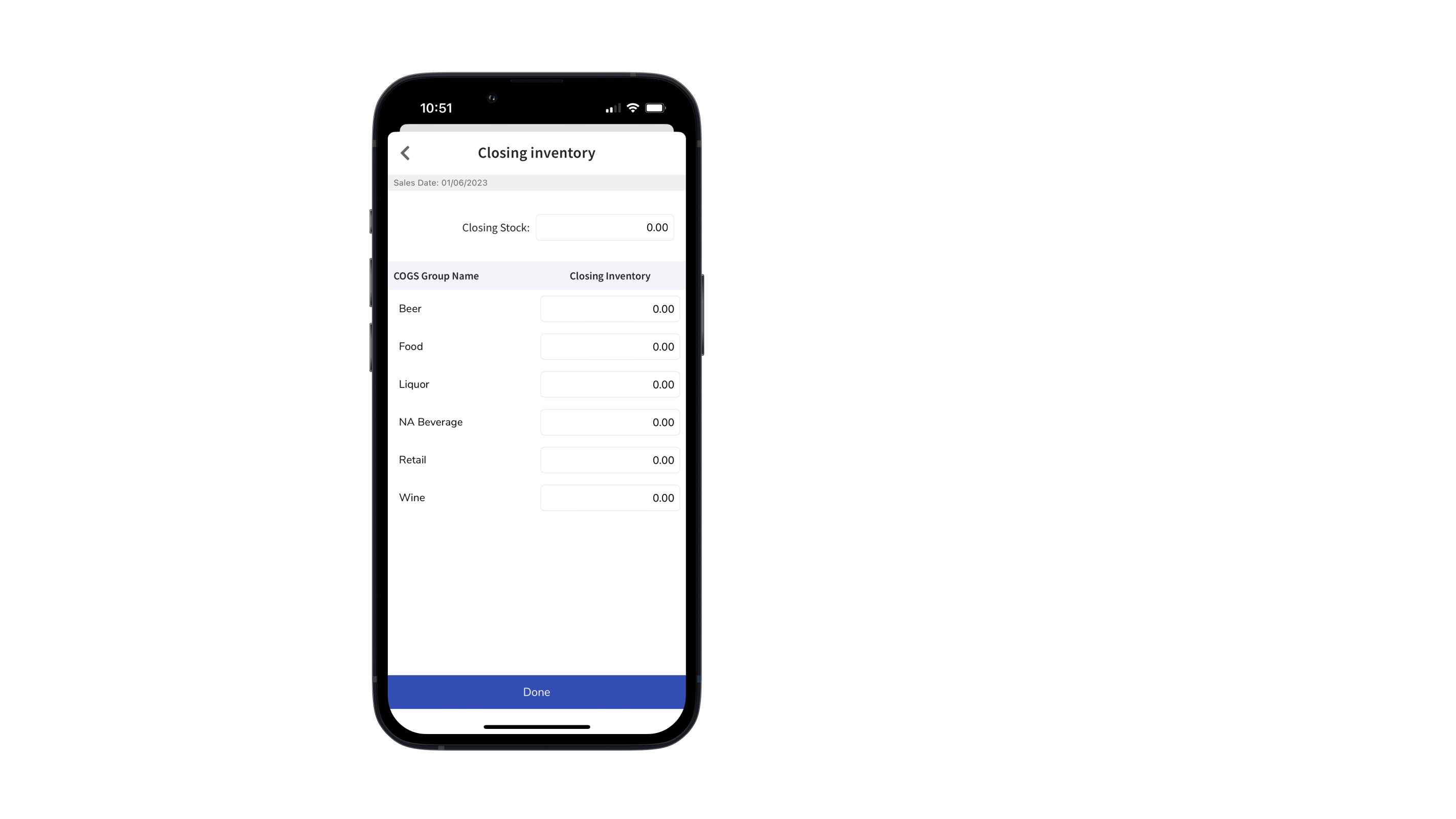
Las Ventas Diarias, similar a Monitor de Sincronización en la versión de escritorio de xtraCHEF, te permite agregar valores de inventario de cierre por grupo de COGS. Para hacer esto, selecciona Agregar Inventario de Cierre desde tu Editar Ventas página.
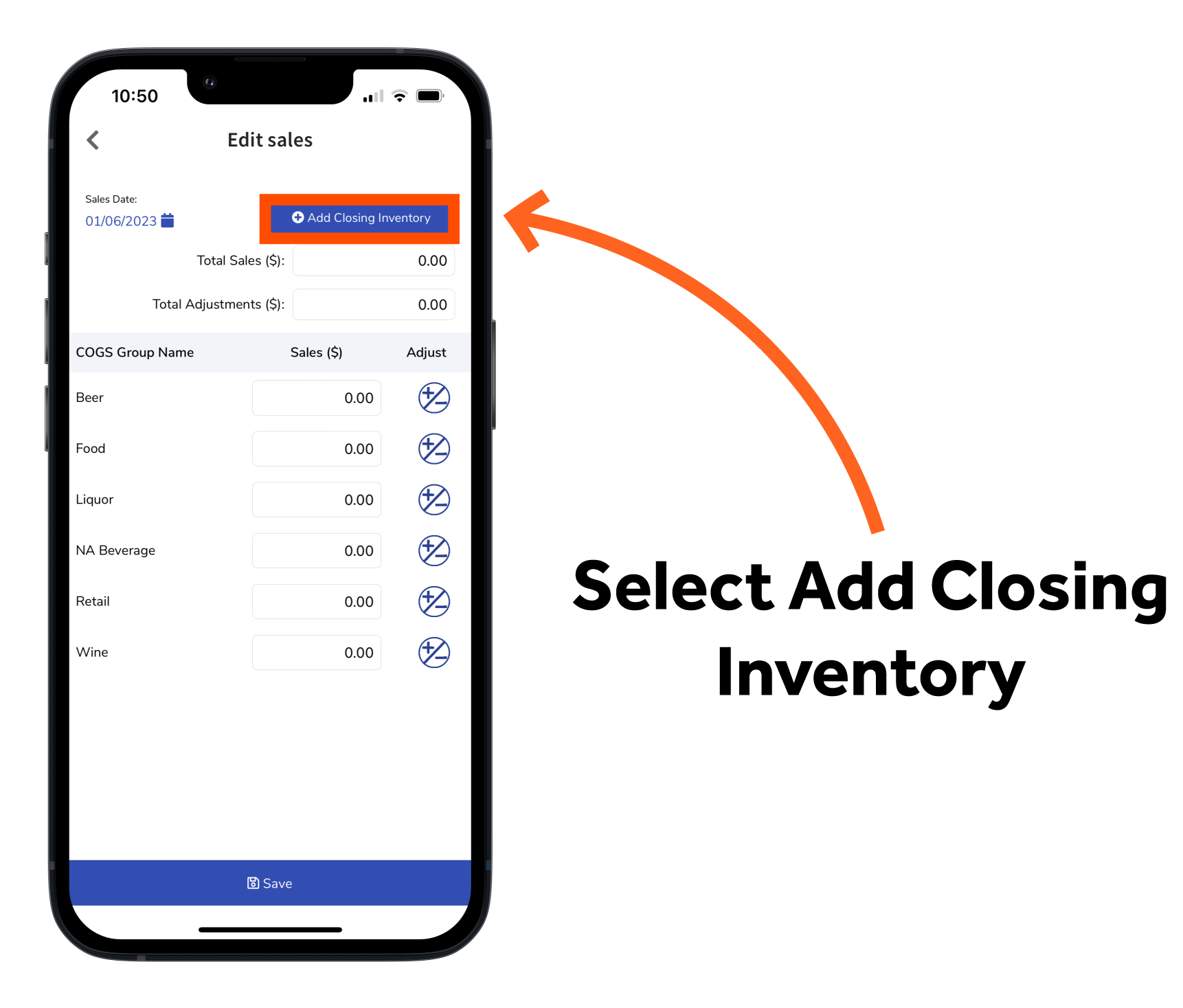
A continuación, ingresa tus valores de inventario de cierre por Grupo de Costo de Bienes Vendidos (COGS).
Consejo:TuInforme de Inventario por COGS (disponible en la Suite Pro de xtraCHEF) desglosará automáticamente tu Inventario por COGS después de completar los conteos. SeleccionaPublicar en Monitor de Sincronización para sincronizar los valores de COGS con el Monitor de Sincronización. Una vez guardados, tus datos estarán disponibles en el calendario del Monitor de Sincronización (primero, necesitarás filtrar por Inventario). Puedes usar esta opción para comparar tus ventas con tu stock.
Cuando termines, selecciona Listo. Esto guardará tus valores de inventario de cierre por Grupo de COGS.