Manage Guest Allergens in Toast Tables
Dernière mise à jour : 9 nov. 2026, 11 h 57
| Toast Allergens is currently in open beta. Features and settings are subject to change as we continue to improve the experience. |
- Before You Begin
- Overview
- Guest Allergen Declarations at Booking
- Review Guest Allergens Before Arrival
- View Guest Allergens on the POS
- Manage Allergens on Active Orders
- Related Articles
Before You Begin
Applies to: Toast Tables, Toast POS, Toast Go®
Permissions needed:
- 4.7 Configure Toast Tables (Waitlist & Reservations) - required to view or change waitlist and reservation settings. See the Permissions Reference Guide for help granting this permission.
- 6.6 Restaurant Operations Setup
What you'll accomplish: Review guest dietary restrictions submitted during reservation booking, review allergen badges on table service screens, and route declared allergens to kitchen tickets upon seating.
When guests reserve a table through your online Toast Tables booking page, they can declare dietary restrictions directly on the reservation form. This information syncs to your front-of-house management view so staff can review accommodations before the party arrives, then routes to the POS order and kitchen when seated.
| Operational Stage | System Feature | Staff Workflow |
| Online Reservation | Guest booking form | Guests select applicable allergens when submitting party details online. |
| Front-of-House Preparation | Toast Tables reservation view | Hosts and managers review dietary needs on party cards before arrival. |
| Seated Service | POS check and kitchen routing | Declared allergens sync to the check and print on kitchen tickets upon seating. |
The online booking selector and reservation list require no setup. To display synced allergens on POS orders and kitchen tickets, enable Allergens in UI options. Refer to Manage Allergens on POS and KDS.
Guest Allergen Declarations at Booking
The allergen selector appears automatically on the online booking form alongside standard guest contact fields.
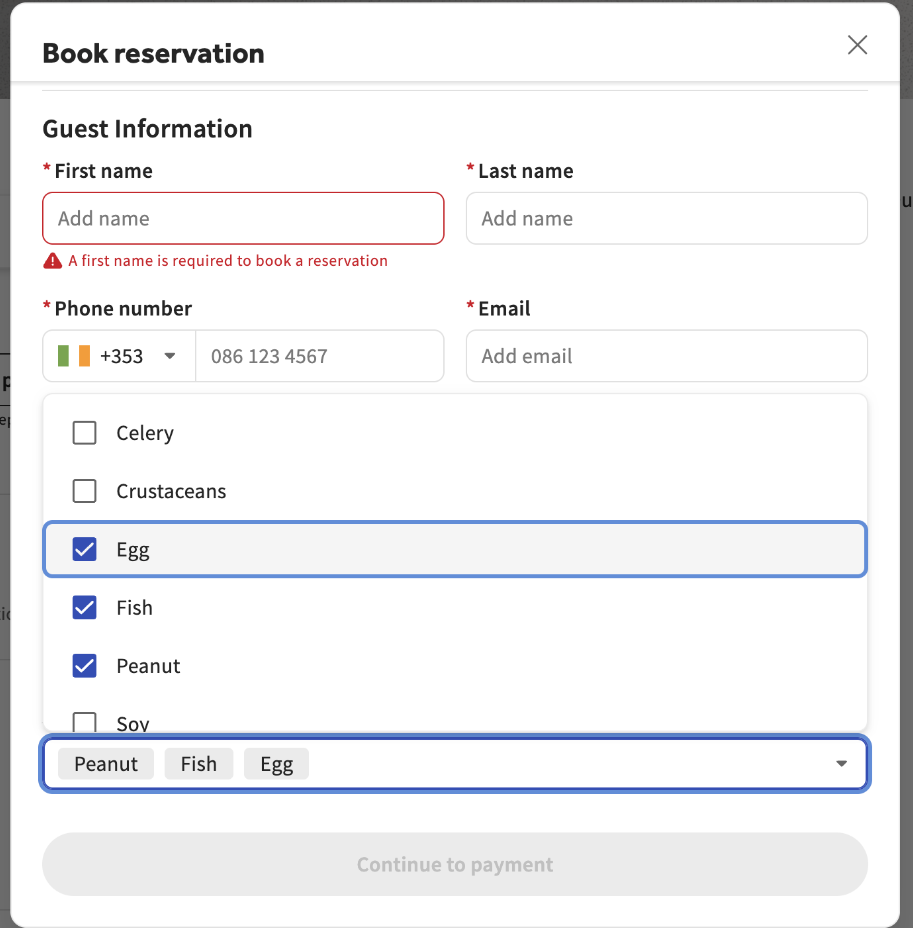
- Allergen selection is optional. If the guest selects no options, no allergen details attach to the reservation.
- The booking form displays the same region-specific and custom allergens configured in your Toast Web Menu Manager.
- Guests can update reservation details prior to arrival, and changes sync immediately to the party record.
Review Guest Allergens Before Arrival
Staff can audit dietary requirements ahead of shift service directly from the Toast Tables management screen.
- In Toast Tables, open the reservation management view.
- Select an upcoming reservation to open the party summary card.
- Review the Allergens field to identify dietary restrictions.
Expected outcome: Front-of-house staff can brief the kitchen or prepare table accommodations before the party is seated.
View Guest Allergens on the POS
Once a party arrives, servers can review declared reservation allergens directly on Toast POS terminals or Toast Go® handheld devices:
- On the Table Service floor plan screen, select the occupied table to open the Party details dialog.
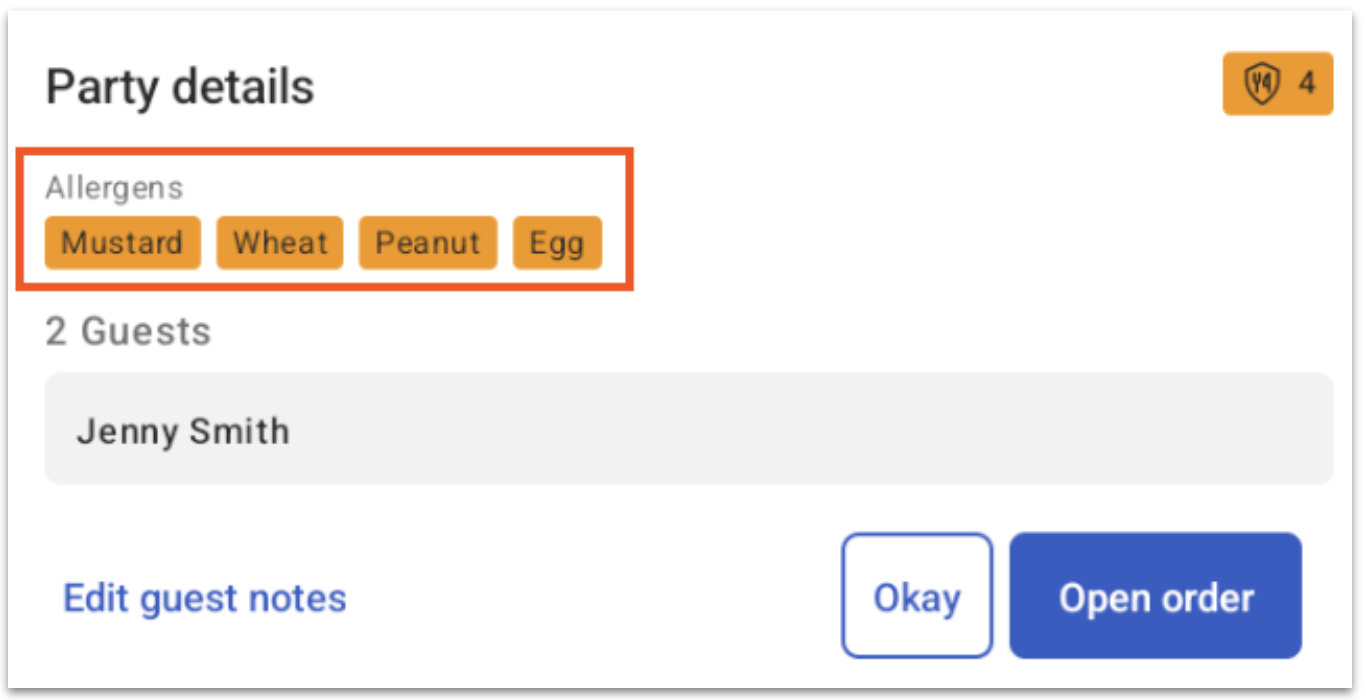
- Review the displayed allergen summary, guest count, reservation name, and guest notes.
- Select Open order to transition to the Quick Order check screen.
- Select the allergens icon on the check screen at any point during service to reopen the Party details dialog.
Expected outcome: Servers review guest restrictions without having to access the host stand or Toast Tables management app.
Manage Allergens on Active Orders
When host staff update a table status to Seated in Toast Tables, declared booking allergens transfer automatically to the active POS check.
- Servers do not need to re-enter declared allergens manually.
- Synced allergens route to New KDS Grid View screens and printed kitchen tickets when items are sent.
If a guest with allergies arrives as a walk-in without a reservation:
- Servers record allergens manually on the order screen using the Allergens modifier tab before sending items to the kitchen.
If a reservation guest declares additional allergies during service:
- Servers can select the Allergens tab on the active POS check to add or remove tags at any time.
- Configure Allergens on Menu Items
- Manage Allergens on POS and KDS
- Add Allergen Information to Guest Facing Menu Items