Toast Payroll: Complete the W-2 Prep Wizard
Dernière mise à jour : 18 nov. 2026, 16 h 15
HR+ users: use the Toast Payroll W-2 Prep Wizard to fix missing employee info, review W-2 delivery, and finish year-end tasks before your last payroll.
- Before You Begin
- About the Year-End W-2 Prep Wizard
- Open the W-2 Prep Wizard
- Understand the W-2 Prep Summary
- Review Missing Employee Information
- Review How Employees Will Receive Their Form W-2s
- Help Employees Access Their Electronic Form W-2s
- Choose Your Form W-2 Delivery Method
- Review Treasury Tipped Occupation Codes (TTOC)
- Update a TTOC Code for One Employee
- How TTOC Codes Appear on Employee Form W-2s
- Review Your Tax Contacts
- Enter an SSA Employer Signature PIN
- Complete Your Final Payroll of the Year
- Related Articles
Before You Begin
Applies to: Toast Payroll
Permissions needed:
- HR+ security role
What you'll accomplish: You'll complete your year-end tasks so Toast can generate and file accurate W-2s for every employee you paid this year.
About the Year-End W-2 Prep Wizard
The W-2 prep wizard in Tax Center brings your year-end W-2 tasks into one place. It's available starting December 1st, 2026 for every Toast Payroll customer who ran payroll this year.
When the wizard becomes available, Toast sends an email to users with the HR+ security role and to employees. The employer email links directly to the wizard.
The wizard includes every employee in your company code who earned wages this year and will receive a W-2, across all locations. This includes active, terminated, and leave of absence employees who were paid this year. It doesn't include 1099 contractors.
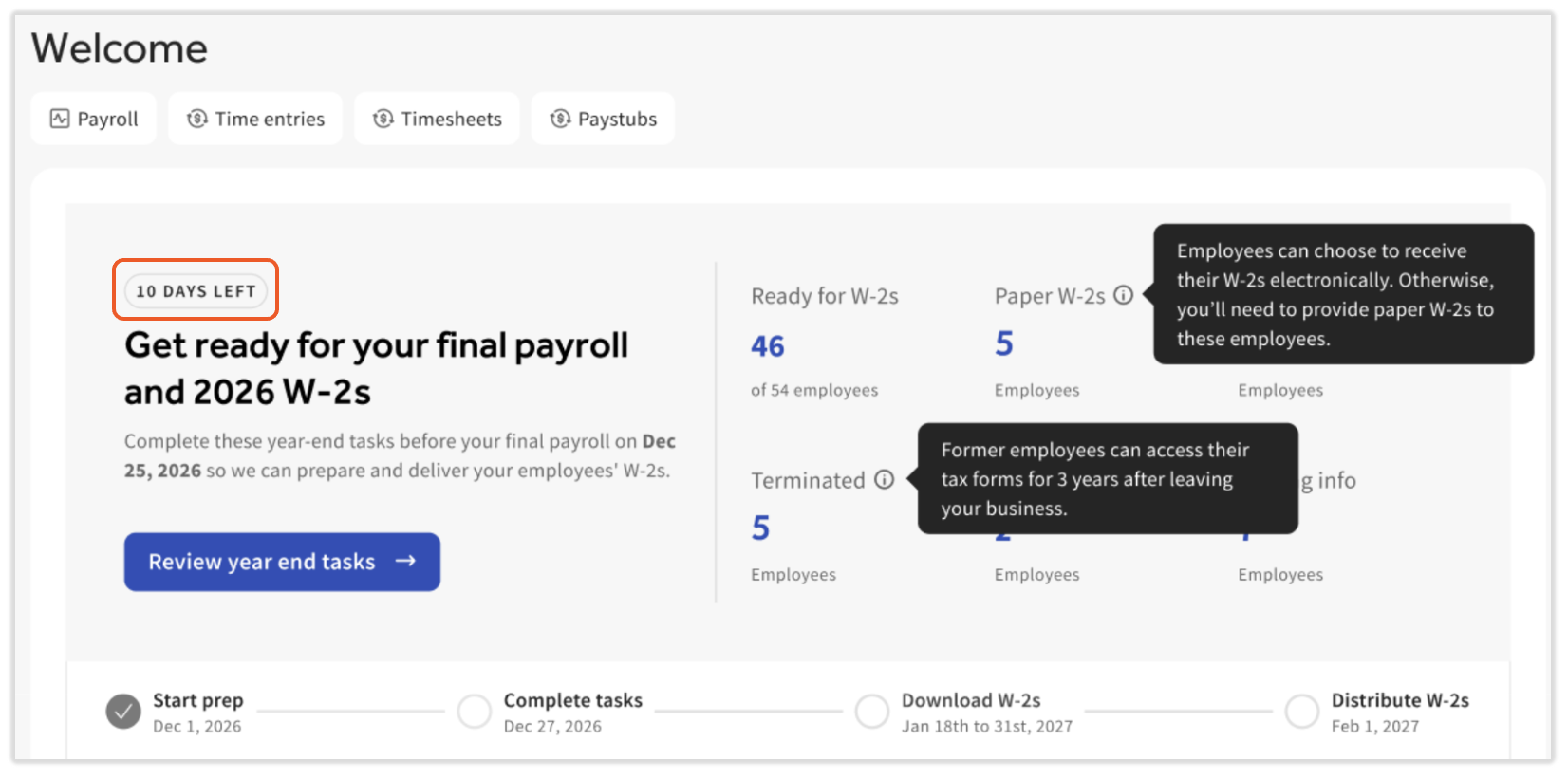
The X days left badge at the top of the page shows how much time you have to complete your tasks. Your deadline is your final check date of the year, so it's different for every business.
Open the W-2 Prep Wizard
- In Toast Payroll, navigate to Taxes.
- If you do not see Taxes on the left side of the screen, select Payroll from the Toast Web navigation rail on the left to make the Toast Payroll navigation rail appear.
- Select the Current tab.
- Choose how to start:
- To work through every task in order, select Review year end tasks.
- To complete one task, select its row in the task list.
Expected outcome: The W-2 prep wizard opens. The status bar at the top of Tax Center shows Start prep as the first year-end milestone.
Note: If you don't see the wizard, make sure you're on the Current tab.
Understand the W-2 Prep Summary
The top of the wizard shows a count for each employee group:
- Ready for W-2s: Employees with a Social Security number (SSN), an account, and a home address on their profile.
- Paper W-2s: Employees who will receive a paper Form W-2.
- Electronic W-2s: Employees who opted in to receive their Form W-2 electronically.
- Terminated: Terminated employees who were paid this year. This group often needs extra help at year end.
- No Account: Employees who haven't created a Toast account, so they can't log in to Toast Payroll or the MyToast app to view an electronic Form W-2.
- Missing Info: Employees missing an SSN, email address, home address, or a combination of these in Toast Payroll.
To learn how employees change their Form W-2 delivery preference, see Toast Payroll: The Complete W-2 Experience.
Review Missing Employee Information
This task lists employees who are missing an SSN, email address, or home address.
Use the filters at the top of the list:
- All: Every employee who will receive a Form W-2 and is missing information.
- Demo employees aren't included since they're not set up to be paid or receive Form W-2s.
- No Account: Employees who haven't been invited to create an account.
- Notified Automatically: Employees who have created an account and receive Toast emails.
Each row shows two status columns:
- Account Status: Created Account, Never Logged In, or No Account
- Needs Attention: The missing item, such as Missing Address, or the number of issues, such as 2 Issues
Add a Missing Email Address
- Select the edit pencil icon on the employee's row.
- Add or update the employee's email address:
- If the employee doesn't have a linked Toast account, invite them to create an account.
- If the employee has a linked Toast account, update their email address by following these steps or resend their invite.
Expected outcome: The employee's email address is saved, and they receive an invite to create or access their account.
Add a Missing Home Address
- Select Add address on the employee's row. The employee's profile opens on the Profile tab in a new window.
- In the address section, select Edit.
- Enter the employee's home address, then Save your changes.
Expected outcome: The employee's home address is saved, and the issue clears from their row.
Review How Employees Will Receive Their Form W-2s
This task shows every employee you paid this year and how they'll receive their Form W-2.
Use the filters at the top of the list:
- All: Every employee paid in this company code this year who will receive a Form W-2.
- Paper W-2s: Employees who chose paper or haven't made a choice. Electronic delivery requires the employee to opt in, so employees who haven't made a choice will receive a paper Form W-2.
- Electronic W-2s: Employees who opted in to electronic delivery.
- Terminated: Employees who were terminated and paid this year. These employees also appear in the other filters.
Each row shows the employee's Employment Status (Active or Terminated) and Delivery Method (Paper W-2s or Electronic W-2s).
You can take these actions on each row:
- Send Reminder (blue upward arrow): Sends the employee the "get ready for your W-2" email again. This option is grayed out if the employee doesn't have an email address or account.
- Copy Instructions: Copies instructions you can share with the employee. If the employee has an account, the instructions explain how to log in and view their Form W-2. If not, the instructions explain how to create an account.
- Right Caret Icon (>): Opens the employee's Taxes & Documents page, where you can review their Form W-2 delivery preference. The arrow only appears for employees who chose electronic Form W-2s.
You can also open this page in Toast Payroll from Team > [Employee name] > Taxes & Documents.
Help Employees Access Their Electronic Form W-2s
Employees need a Toast account with Toast Payroll access to view an electronic W-2. Use the employee's situation to find the next step.
- If the employee can log in to the MyToast app:
- Let them know they already have Toast Payroll access. They can log in to Toast Payroll with the same credentials.
- If the employee logged in to Toast Payroll this year:
- Let them know they also have a Toast account. They can use the same credentials in the MyToast app.
- If the employee has no email address in Toast Payroll or Toast Web:
- Add their email address to their Toast Payroll profile, then send an invite. Toast creates their Toast account and updates their email address in Toast Web to match.
- If the employee hasn't logged in to Toast Payroll this year or never received their invite:
- Send the employee an invite from their Toast Payroll profile so they can create or reconnect their account.
Choose Your Form W-2 Delivery Method
Choose how your business receives the Form W-2s for employees who get paper copies:
- Print: You print the Form W-2s yourself.
- Mail: Toast mails the Form W-2s to the address you enter. This option includes a fee of $5 per form and any shipping costs.
If you choose Mail:
- Enter the address where you want the Form W-2s mailed.
- Review the address carefully, then save it.
Expected outcome: Your Form W-2 delivery method is saved.
This mailing address doesn't change your paycheck delivery address. Your paycheck delivery address stays in Settings > Payroll > Paycheck Delivery > Payroll Check Printing and Distribution.
Review Treasury Tipped Occupation Codes (TTOC)
Starting with 2026 Form W-2s, Box 14b shows a three-digit Treasury Tipped Occupation Code (TTOC) for each qualifying tipped job an employee held during the year. If no job qualifies, Box 14b shows 000. This change comes from the One Big Beautiful Bill Act, which lets employees deduct qualified tips on their personal tax return for 2025 through 2028.
Toast prefills a TTOC code for each job based on the best match. You as the employer are responsible for making sure each code is correct. If a code is wrong, your employee may get an IRS verification error when they file their taxes.
Find the full list of codes on the US Department of the Treasury website. Select the code that matches the job the employee worked. Jobs with general names, such as Training, Hourly, Support, or Floater, are the most likely to need a different code.
Review and Update TTOC Codes by Job
- In the W-2 prep wizard, open the TTOC review task.
- Select a filter: All jobs or Non-qualifying jobs. If you have more than one location, the list also shows a Location column.
- To change a job's code, select the drop-down in the Federal tipped occupation column, then choose the correct code. The change applies to every employee assigned to that job.
- Review the Approved tip occupation badge for each job. Yes means tips earned in that job qualify for the tip deduction. No means they don't.
- In the banner at the top of the page, select the checkbox to confirm you've reviewed your TTOC codes. If any jobs don't have a code, the banner shows how many.
Expected outcome: Your TTOC codes are saved, and your review is recorded.
Reviewing TTOC codes doesn't block your Form W-2s. If you don't review them, the codes Toast prefilled appear in Box 14b on your employees' Form W-2s.
Make your updates before your final check date of the year. Updates made after December 31st, 2026 may result in incorrect W-2s. After your final check date, this page becomes read-only and you can view your selections, but not change them.
This bulk review is only available during year-end prep. Your next chance to update codes in bulk is during year-end prep in 2027.
Update a TTOC Code for One Employee
You can change one employee's TTOC code only for a secondary job. A code for an employee's primary job can only be changed at the job level in the W-2 prep wizard, which changes it for every employee with that job.
Change the Code on an Existing Secondary Job
- Navigate to Team, then select the employee's name or search for it.
- Select Jobs.
- Select the edit pencil icon next to the secondary job. The primary job doesn't have an edit pencil.
- Select the drop-down next to TTOC, then choose the correct code.
- Select Save.
Expected outcome: The new code is saved and shows Override next to it. This change only affects this employee.
Add a Secondary Job
- On the employee's Jobs page, select Add.
- Choose the job from the drop-down.
- Choose how to set the code:
- To use the job's default code, select Save.
- To set a different code, select the drop-down next to TTOC, choose the code, then select Save.
Expected outcome: The secondary job is added with a TTOC code.
Note: Any code you set for one employee shows Override, even if it matches the job's default code.
How TTOC Codes Appear on Employee Form W-2s
Box 14b shows no more than two TTOC codes, no matter how many jobs the employee worked:
- If one of the employee's jobs is non-tipped, 000 will always be one of the two codes.
- The other code comes from the job where the employee earned the most wages.
- If no job is non-tipped, both codes come from the jobs with the most wages.
Box 12 code TP still shows the full amount of qualified tips, even when Box 14b shows only two codes.
If an employee finds an incorrect TTOC code on their W-2, they should contact you. To request a corrected W-2 (Form W-2c), contact Toast Customer Care via the blue support button in the lower-right corner of any Toast Payroll page.
Review Your Tax Contacts
The Social Security Administration (SSA) requires a tax contact name, email address, and phone number for each business federal employer identification number (FEIN) when Form W-2s are filed. This task lists each FEIN on its own row, with one tax contact per business.
- In the W-2 prep wizard in Taxes, open the Tax Contact task.
- Review the tax contact for each business.
- Add or correct the name, email address, and phone number as needed.
- Save your changes.
Expected outcome: Each business has a confirmed tax contact for Form W-2 filing.
What you enter here also updates the tax contact on the business's FEIN tile in Settings > Tax Accounts. You can still update tax contacts there at any time by selecting View details on the FEIN tile.
You can edit tax contacts in the wizard until your deadline. After that, the task becomes read-only. If a business doesn't have a tax contact, Toast uses a default contact so your Form W-2 filing isn't rejected.
Enter an SSA Employer Signature PIN
The SSA Employer Signature PIN is optional. Only complete this section if your business signed up for a PIN directly with the SSA. If you didn't sign up, select No and continue.
If you opted in, the SSA requires your PIN on every wage report starting January 1st, 2027, including the Form W-2s Toast files for you. Toast can't look up your PIN, so you need to enter it yourself.
- At the bottom of the tax contact task, find Do you have an SSA Employer Signature PIN for this business? and select Yes.
- Enter your PIN in the Opted in SSA Employer Signature PIN field for the tax year.
- Select Save.
Expected outcome: Your PIN is saved for that business.
You can also enter your PIN in Settings > Tax Accounts. Select View details on the FEIN tile, select Edit, add your PIN, then Save.
Note: Never share your PIN by phone, email, chat, or any other channel. Toast Customer Care can't enter your PIN for you and will never ask for it.
If your PIN is missing or incorrect, the SSA rejects the Form W-2s for that business. To fix this, enter a valid PIN in Settings > Tax Accounts so your Form W-2s can be resubmitted.
Your PIN changes every year. After this year, the SSA sends your new PIN in December. Update it in Toast Payroll each year using this method before your Form W-2s are filed.
Complete Your Final Payroll of the Year
The last task lists what to finish before your final check date.
Required:
- Run your regular payrolls. Select Run payroll.
- Complete your tax setup. Select View tasks.
Optional:
- Add employee benefits. Select Add item.
- Run off-cycle payrolls. Select One time payment.
- Make corrections and voids. Select Request a void.
Expected outcome: Your final payroll of the year is complete and your year-end Form W-2 tasks are done.
Related Articles
- Toast Payroll: Get Started With the Year-End Checklist
- Toast Payroll: The Complete W-2 Experience
- Toast Payroll: Manage Payroll Taxes
- Toast Payroll: No Tax on Tips and/or Overtime
This content is for informational purposes and is not intended as legal, tax, HR, or any other professional advice. Please contact an attorney or other professional for advice.