折扣商品和检查
上次更新时间:2026年9月17日 12:53
开始之前
适用范围:Toast POS,Toast Web
所需权限:
- 3.1 折扣(在POS上应用或补偿折扣,或在需要时输入经理密码)
您将完成的任务:在POS上对商品或整个账单应用预配置的折扣,移除折扣,并解决无法应用的折扣。
注意:员工必须拥有3.1折扣权限才能应用以下描述的折扣。如果没有该权限的员工尝试申请折扣,他们将被提示输入经理密码。折扣本身是在Toast Web中创建的。要设置它们,请参见开始使用折扣。
在账单上折扣一项商品
您可以直接在点餐屏幕上对单个商品进行折扣。有两种方法可以做到这一点,两者都可以达到相同的折扣选项。
使用折扣的POS视频概述。
要使用折扣商品按钮对商品进行折扣:
- 选择您想要折扣的商品,然后选择折扣商品。
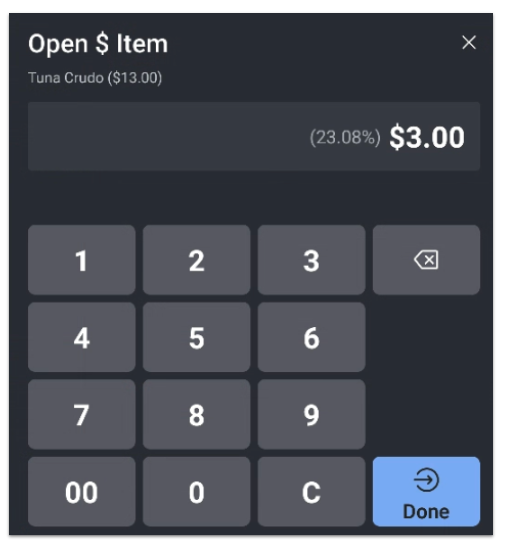
- 选择您想要应用的折扣。如果折扣是开放金额或开放百分比,请在下一个屏幕上输入您想要折扣的金额。
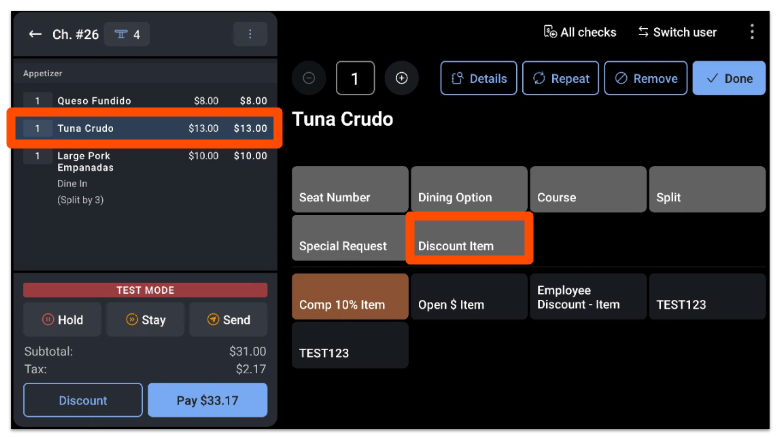
例如,要对一件价值$13.00的商品减去$3.00,应用$3.00的开放金额折扣在账单上显示为23.08%的折扣。
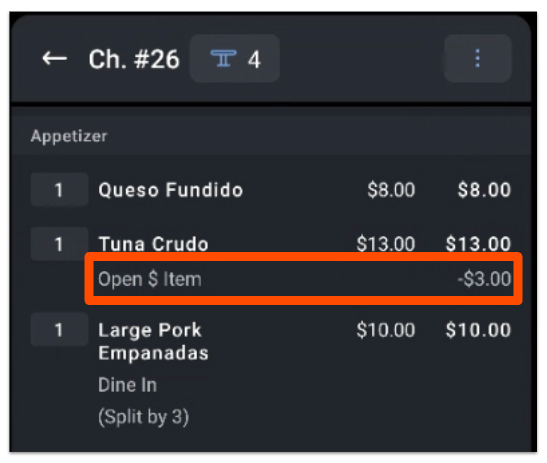
如果折扣需要经理密码,系统会提示您输入。否则,折扣将应用,并在点餐屏幕上折扣商品下方显示为一项。
要使用账单上的折扣按钮对商品进行折扣:
- 在账单上,选择您想要折扣的商品,然后在账单详情底部选择折扣,在支付按钮旁边。
- 选择您想要应用的折扣,按照上述相同的步骤进行操作。
预期结果:折扣在订单屏幕上直接显示在折扣项目下方。
对整个账单进行折扣
您可以在订单屏幕上对整个账单应用折扣。
- 将所有项目添加到账单中,然后在账单右上角选择溢出菜单(三个垂直点)。
- 选择 折扣。
- 在折扣选项屏幕上,选择是将折扣应用于 整个账单 还是 选择项目。
- 选择您想要应用的折扣。如果折扣是开放金额或开放百分比,请在下一个屏幕上输入您想要折扣的金额。
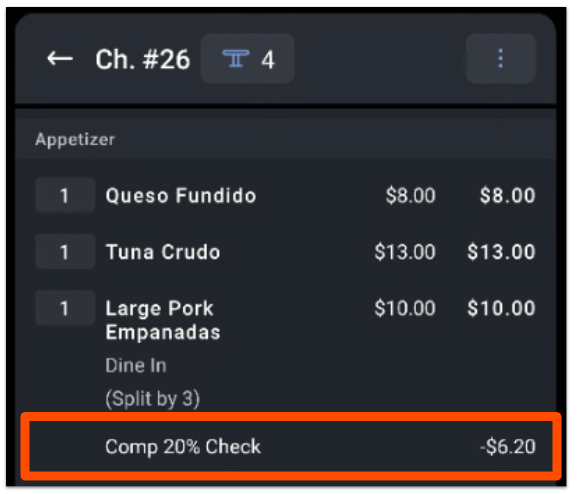
如果折扣需要经理密码,系统会提示您输入。否则,折扣将适用,并在订单屏幕上显示为一项。
预期结果:折扣在账单上显示,账单总额会更新以反映折扣。
注意:折扣适用于税前总额。例如,如果账单折扣至50美元——无论是通过项目折扣还是账单折扣——税款将基于50美元的总额计算。
对多个项目应用一个折扣
要对同一账单上的多个项目应用折扣,请使用选择项目选项,而不是单独对每个项目进行折扣。
- 将所有项目添加到账单中,然后在账单右上角选择溢出菜单(三个垂直点)。
- 选择 折扣,然后选择 选择项目。
- 选择您想要折扣的项目,然后选择您想要应用的折扣。
预期结果:折扣适用于您选择的每个项目,每个项目在账单上显示为一项折扣。
注意:是否可以在同一账单上组合两个或更多折扣是一个配置设置。要允许此操作,请参阅 开始使用折扣 的应用多个折扣部分。
移除折扣
要从商品中移除折扣,请选择已应用折扣的商品,然后在屏幕右侧选择相同的折扣按钮。折扣从账单中消失。
预期结果:折扣项目被移除,商品恢复到原价。
支付后折扣
要在已收款后应用折扣,请参阅无法在POS上关闭的账单的帮助中的负余额到期部分。
常见问题
为什么我的折扣显示为$0或显示"包含的项目无法折扣"?
当账单上的一个或多个项目被设置为不可折扣时,折扣显示为$0或显示"包含的项目无法折扣"错误。每个菜单项都有一个"可以折扣吗?"设置,如果设置为"否",则折扣不会减少该项目的价格。在Toast Web中,导航到菜单 > 批量管理 > 高级属性,将受影响项目的"可以折扣吗?"设置为"是",然后保存并发布。重新同步POS并再次应用折扣。
也被问到:
-
- 为什么我的折扣显示为$0?
- 为什么会显示项目无法折扣?
- 我的经理补偿无法应用于某个项目。
为什么应用折扣会改变账单上的税费?
应用折扣会改变税费,因为折扣适用于税前总额,税费会根据新的较低价格重新计算。例如,如果$30的折扣降低了账单,则税费将根据减少后的总额而不是原始金额进行计算。这是预期的行为。如果您需要对原始全价征收税款,则必须在 Toast Web 中配置税后折扣——请参阅 创建税后折扣 部分。
也被问到:
-
- 为什么我的折扣会去掉税款?
- 为什么我添加折扣后税款会减少?
我可以对单个商品或账单应用多个折扣吗?
是否可以应用多个折扣取决于折扣的配置方式。默认情况下,商品级别的折扣不能组合。要允许在账单上使用多个折扣,必须在 Toast Web 中设置该折扣以允许此操作。请参阅 应用多个折扣 部分。
也被问到:
-
- 我可以叠加折扣吗?
- 我如何在一个账单上添加两个折扣?
为什么我的折扣在 POS 上没有显示?
折扣可能在 POS 上不显示,因为它处于非活动状态、超出了预定可用时间,或受到权限级别的限制。要查找并修复原因,请参阅 排查折扣可用性。如果折扣未应用,请确认账单上的商品与折扣设置中配置的确切商品编号匹配。如果在折扣设置中添加的是商品的重复或复制版本,而不是在 POS 上结账的商品,则折扣将不会生效。
也被问到:
-
- 我的折扣按钮在 POS 上没有显示。
- 我为什么看不到我的折扣?
- 某些员工看不到折扣。
相关文章