Get Started With Returns on the POS

上次更新时间:2026年6月18日 11:00

Returns on POS for Retail is currently available in a limited release to select customers. Please check back for future updates.


In this Article:


Before You Begin

Applies to: Toast Web, Retail, Toast POS, Returns


Permissions needed:

  • 3.23 Find Checks
  • 3.8 Void/Refund Payments


What you'll accomplish:

  • Search for captured payment sales directly within the POS
  • Complete refunds natively on the POS
  • Determine whether returned items should be restocked or discarded:
    • If restocked, inventory will automatically update in the backend
    • If discarded, inventory counts will remain accurate without requiring manual adjustments


Back to top


Configure Retail Returns in Toast Web

To enable Retail returns, follow the steps below:

  1. In Toast Web, navigate to Finance.
  2. Next, scroll down to Related > Settings > Returns & Exchanges.
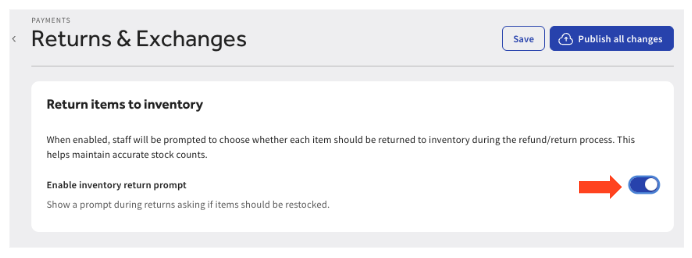
  3. Toggle Return Items to Inventory to On.
  4. Save and publish your changes.

    Toggle to enable Toast Retail Returns on the POS 


Expected outcome: Once enabled, your team will see a prompt after each refund to confirm which returned items should be restocked. The inventory update happens instantly and is reflected in your Toast Web back-end.


Back to top


Retail Return on the POS Workflow

Navigate to Returns and Return to Inventory

Option 1: Manager Activities

  1. Navigate to Setup > Device Setup on your POS main menu. To get to your POS main menu from the ordering screen, select the back arrow in the top-left corner.
  2. Scroll down to Manager Activities and select Find Sales & Issue Refund.


Option 2: Retail Mode

  1. Navigate to Setup > Device Setup on your POS main menu. To get to your POS main menu from the ordering screen, select the back arrow in the top-left corner.
  2. Select Retail Mode.
  3. Select Look up past sales.


Issue a Refund on the POS for Retail

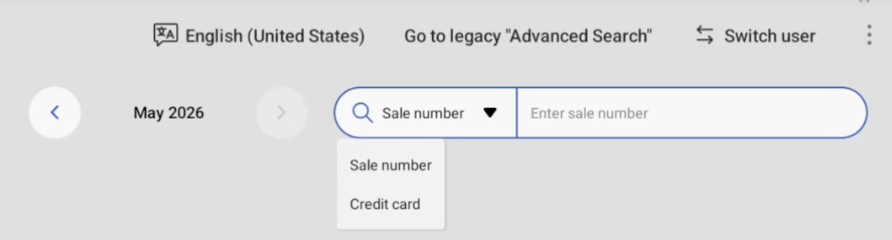
  1. Using one of the navigation paths above will navigate you to search for the return by sale number or credit card. If enabled at your location, you can also scan the barcode.

    Search for a Retail transaction by sales number or credit card number 

  2. Once the information has been entered, select the purchase from the list.
  3. On the payment screen, select Pay then Refund.
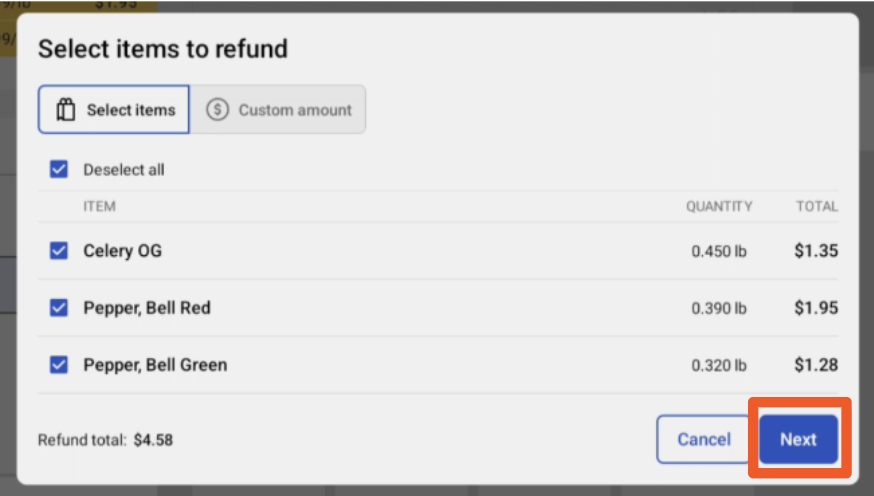
  4. Select the box for the item(s) you want to return. Here you can select all items, select items, adjust quantities, or enter a custom amount. Once all selections have been made, select Next.

    Items to be refunded for a Toast Retail return. 
  5. Review the refund details, which includes Items being returned, the Refund method, and the Refund total.
  6. Once confirmed, select Confirm Refund.
  7. Select your receipt option: No receipt, print, email, or text.
  8. Select Continue.
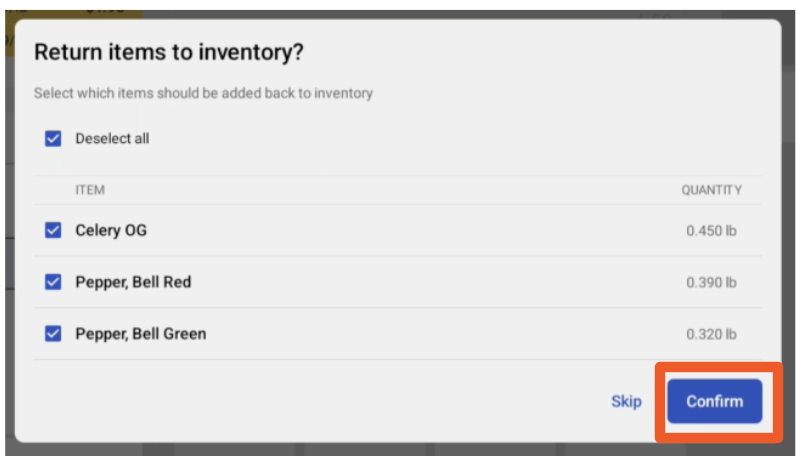
  9. You will then be prompted with Return items to inventory. Select the applicable items and select Confirm. Note: The Return items to inventory feature is not available for customers outside of the US at this time.

    Return to Inventory confirmation after a Toast Retail return. 

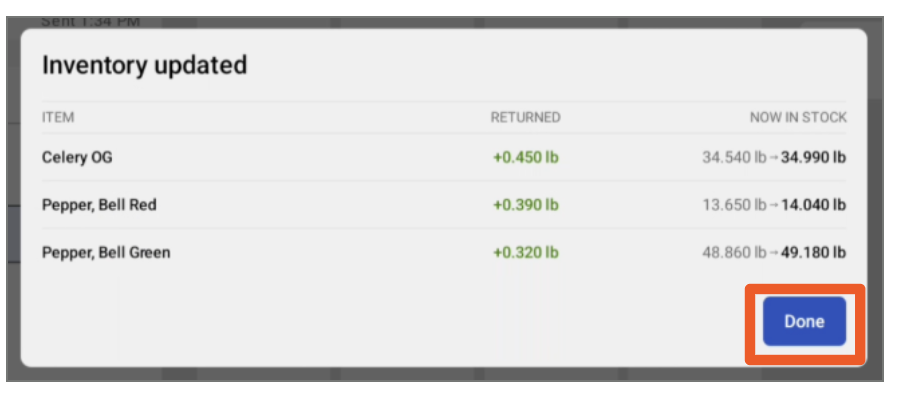
  10. Review the inventory update and select Done.

    Return to inventory confirmation 


Back to top


Related Articles


Back to top