View Refunds in Toast Reporting

上次更新时间:2026年4月8日 10:00

Learn how to review data on refunds in Toast Web or on the POS in your Sales Summary, Sales, and Accounting reports.

In this Article:


Refunds Report

The Refunds report can be found in Toast Web by navigating to Reports > Cash and loss management > Refunds. All refunds within the selected date range appear here. You may review card details, original and refunded payments, the user who performed the refund, and comments related to the refund if applicable. Select each refund to open the Order Details page for more insight.
 

Back to top
 

Refunds in the Sales Summary Report

Refunds processed using the new refunds workflow will appear in the following areas of the Sales Summary report. 
 

Net Sales, Tax, Mandatory Gratuity, and Tips

Refunds will decrease all relevant financial reporting figures on the day of the refund in Toast reports and nightly emails. This includes net sales, tax, mandatory gratuity, and tips depending on the refund type selected (i.e. by item, entire check, tax only, or tip only). 

If a refund is performed on a tip, it will appear in the Tips refunded field on the Tips Summary card of the Sales Summary report.


Adjustments to the above figures may also shift the value of other aspects of the report including Sales Categories, Revenue Centers, Dining Options, Tax Rates, Discounts, Service Charges, Service periods, and Service Areas. 

Gross sales will not be reduced by refunded amounts because gross sales are calculated by adding net sales, refund amounts, and discount amounts together. 

The following example shows how each type of refunded amount will appear within Toast Reporting. 


Scenario: A dine-in check closed during the Breakfast service in the Main Dining Room on December 14, contains the following refunds amounts on December 15th:

 
Reporting ComponentRefund ImpactNotes
Total Net Sales-$10.00$5.00 Cheeseburger item + $5.00 Employer-Kept Service Charge
Mandatory Gratuity-$2.00---
Sales Category-$5.00Falls under "Food" sales category in the breakdown. 
Tax-$1.50---
Tips-$3.00---
Tips Refunded$3.00Note, this figure displays the amount of tips refunded on this day as a positive value. 
Dining Option-$10.00Falls under "Dine-In" dining option in the breakdown. This includes $5.00 for the Cheeseburger item and $5.00 for the Employer-Kept Service Charge. 
Revenue Center-$10.00---
Service-$10.00Falls under "Breakfast" service period in the breakdown. This included $5.00 for the Cheeseburger item and $5.00 for the Employer-Kept Service Charge. 
Service Area-$10.00Falls under "Main Dining Room" service area in the breakdown. This included $5.00 for the Cheeseburger item and $5.00 for the Employer-Kept Service Charge.


Back to top
 

Payments Summary Table

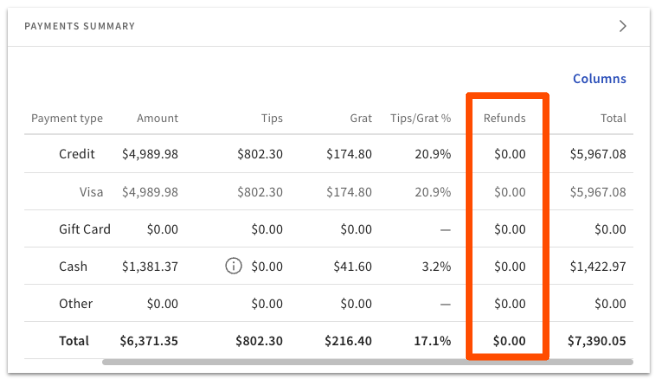
In the Payments Summary table on the Sales Summary report, a refunds column shows any refund amounts issued on each payment type. Please note that refunds are only currently supported on credit, Toast Gift Card, and cash payments. 


Payments Summary table showing a Refunds column


Additionally, the Refunds column does not contain any refunded tip amounts. These amounts are automatically subtracted from the Tips column in the table. Please note, this does not however apply to the Gratuity column (Tip/Grat %) - refunded mandatory gratuity service charges are not automatically subtracted from the Gratuity column but are instead represented in the Refunds column. 
 

Back to top
 

Custom Amount Refunds

The Custom Amount refund type can be used to issue partial refunds, allowing you to enter a specific amount to be refunded on a payment. Because this refund type is not associated with specific items or any other check information, custom amount refunds are only able to affect top-level net sales figures and tips figures in reporting. 

As a result, custom amount refunds do not have any effect on revenue centers, dining options, tax rates, discounts, service periods, and service areas. These refunds will still appear however in the Payments Summary card and in a separate line in the Sales Category Summary card on the day of the refund, which enables reconciliation between the Sales Category and Revenue Summary figures. 


Back to top
 

Refunds in Labor and Menu Reports

Menu reports, including Product Mix, Top Items, and Top Modifiers reports, and Labor reports are not affected by refunds. The net sales, item count, and jobs/employee reports will not be reduced on either the day of the original transaction or the day of the refund. 


Back to top

Refunds in Accounting Reports

In your accounting reports, general ledger (GL) codes that are mapped to the sales, tips, mandatory gratuities, employer-kept service charges, and tax entities (depending on what was refunded) will be reduced by the refunded amount on the day of the refund. 

There are now five general ledger (GL) entities related to refunds that can be mapped to a configured general ledger (GL) code:
 

  • Credit Card Refunds - Represent the total refund amount issued on credit card payments on the day of the refund. 
  • Cash Refunds - Represent the total refund amount issued on cash payments on the day of the refund. 
  • Gift Card Refunds - Represent the total refund amount issued on gift card payments on the day of the refund. 
  • Custom Amount Refunds - Counterbalances refunds issued with the custom amount refund type as these refunds are not associated with specific net sales, tax, mandatory gratuity, or employer-kept service charges. This refund type prevents an "over" or "short" balance in the general ledger (GL) column within accounting reports when it is issued.
  • Fundraising Refunds - Represent the total fundraising contributions refund amount on the day of the refund.
 

Note: If all of these entities are mapped to configured general ledger (GL) codes, refunds will no longer create an "over" or "short" amount in the general ledger (GL) columns of these reports. 


Back to top
 

Cash Refunds in Reporting

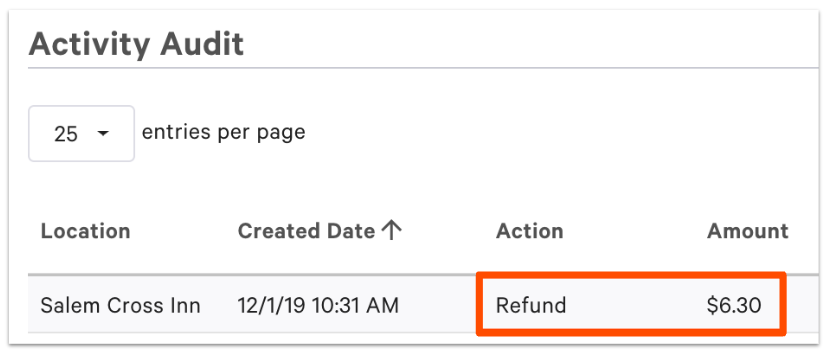
Cash refunds will appear summed in their own row in the Cash Drawer History report and as separate entries in the Cash Activity Audit report.


Sample Cash Activity Audit report showing a refund


Cash refunds are subtracted from the Expected Closeout Cash figure on the day the refund took place. This will be synonymous with all reports that display Expected Closeout Cash

When completing a cash refund, we recommend issuing it on a device that is not associated with a cash drawer, it will not be reflected in cash reports. 


Back to top