翻译仅供参考。您与 Toast 签署的任何法律协议(包括但不限于《商户协议》和《终端用户许可协议》),其订立语言可能不同于以上页面所使用的语言,无论是否提供本页面其他语言的译文,均应以您所签署的协议条款为准
管理重复条形码
上次更新时间:2026年9月17日 16:20
了解重复条形码如何影响您的 POS 扫描工作流程,以及如何将一个菜单组设置为条形码项目的首选组。
本文内容:
重复条形码概述
如果一个条形码的商品出现在多个菜单组中,或者多个商品共享一个条形码,您的Toast设备将显示一个对话框,提示您选择该条形码所对应的商品。
在某些情况下,您可能希望这样做!例如,一家酿酒厂可能会在食品菜单和外带菜单上销售同一罐啤酒。如果当地税法要求零售啤酒与在店内消费的啤酒征收不同的税,那么准备菜单的一种方法是将啤酒放在两个不同的菜单组中,每个菜单的税率不同。当您扫描条形码时,您将在Toast设备上看到此对话框,您必须选择适当的选项。
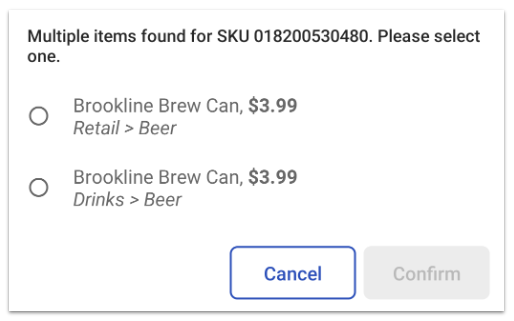
如果您希望其中一个菜单组成为条形码扫描的首选组,您可以按照本文下一部分中的说明在Toast Web中进行配置。
另一个重复条形码对话框对您的餐厅有用的例子是,如果两个商品共享一个条形码(例如一罐和同种啤酒的六罐装)。在这种情况下,弹出的对话框将允许您根据扫描的商品控制添加到订单中的商品。
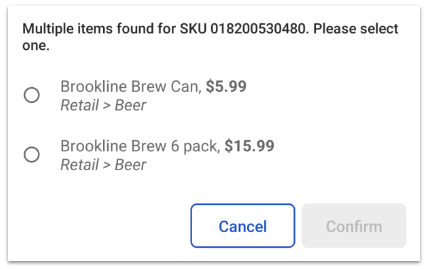
如果您最终为两个完全无关的商品(通常只有在您自己创建条形码时才会发生这种情况)拥有重复条形码,考虑为第二个商品创建一个新条形码,以避免在扫描后在POS上出现重复商品对话框。
为条形码商品配置首选菜单组
如果一个商品属于多个菜单组,并且您希望扫描的产品始终与特定菜单组关联,您可以按照以下步骤将该菜单组设置为扫描的父组。
- 在Toast Web中,导航到菜单> 批量管理> 高级属性,并选择您想要的菜单组。
- 在条形码扫描器配置部分,对于作为扫描商品的父项?设置,选择是的,当扫描包含的商品时,该组将被选为父项。
- 保存并发布您的更改。
您不应为包含相同商品的多个菜单组启用此设置。如果您这样做,Toast将再次提示您在扫描商品时选择哪个菜单组。如果您意外地将一个项目设置为多个菜单组的扫描父项,您将在配置页面上看到警告。
返回顶部
条形码相关的其他资源
返回顶部