上次更新时间:2026年3月25日 13:41
In this article, learn about the POS settings on the UI options page and how to manage multilocation POS settings using the Restaurant Management Pro suite.
The settings on the UI options page in Toast Web impact how employees interact with Toast POS devices. This is the main place where you can customize your tip settings for your restaurant.
You can access UI options by navigating to Front of house and selecting UI options from the bottom of the Order screen setup section, or you can type "UI options" into the search bar at the top of any page in Toast Web.
POS settings on the UI options page include:
To review and change settings on the UI options page, you must have the 6.6 Restaurant Operations Setup access permission. Be sure to save and publish any changes to finalize your selections.
With the Restaurant Management Pro suite, you’ll have the ability to address settings for multiple locations at once on the UI options page. This helps you save time by not switching back and forth between locations in Toast Web, and ensures you have complete visibility and control in how your POS settings are configured for each location in your multilocation group. To learn more about the features in the Restaurant Management Pro suite, see the .
You must have the 6.6 Restaurant Operations Setup access permission for every location you wish to update on the UI options page.
At the top of the page, you can use the Select locations to manage drop-down to simplify your settings management to just a few locations if you prefer. Otherwise, you’ll see all locations in your management group displayed on this page.
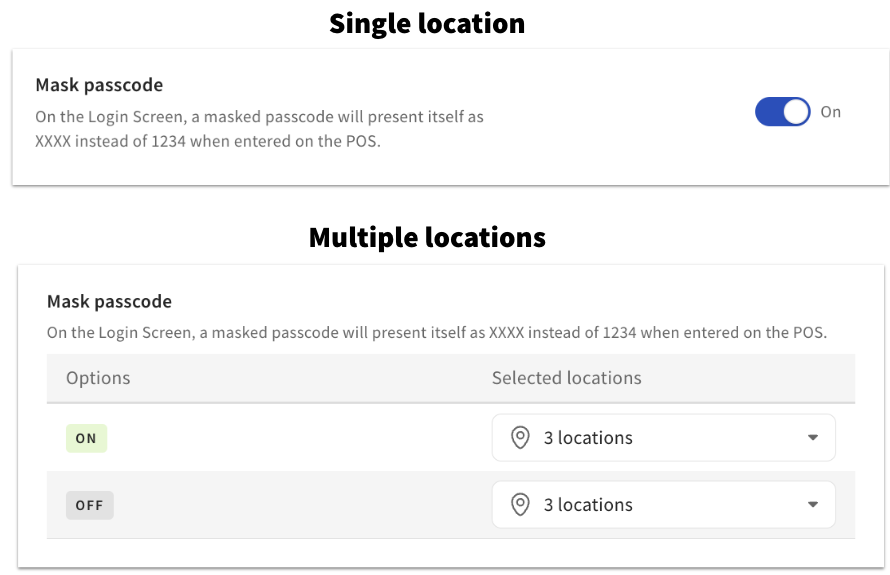
When managing multiple locations, settings with an On/Off toggle (like the Mask passcode setting shown below) will be displayed in a table with two separate rows so you can choose which location(s) will have it On and which will have it Off.
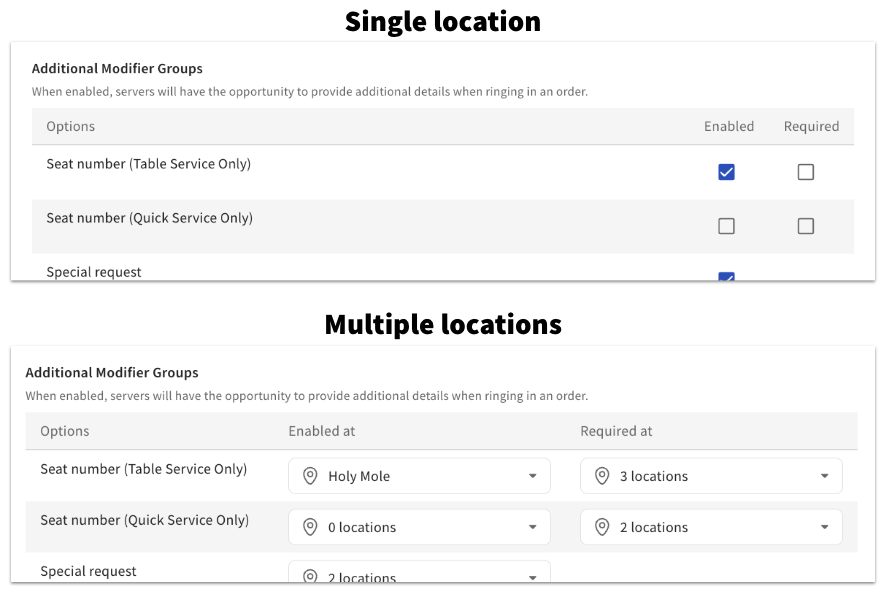
Some checkbox settings (like Enabled and Required options for Additional Modifier Groups in the picture below) will similarly be set up in a table format.
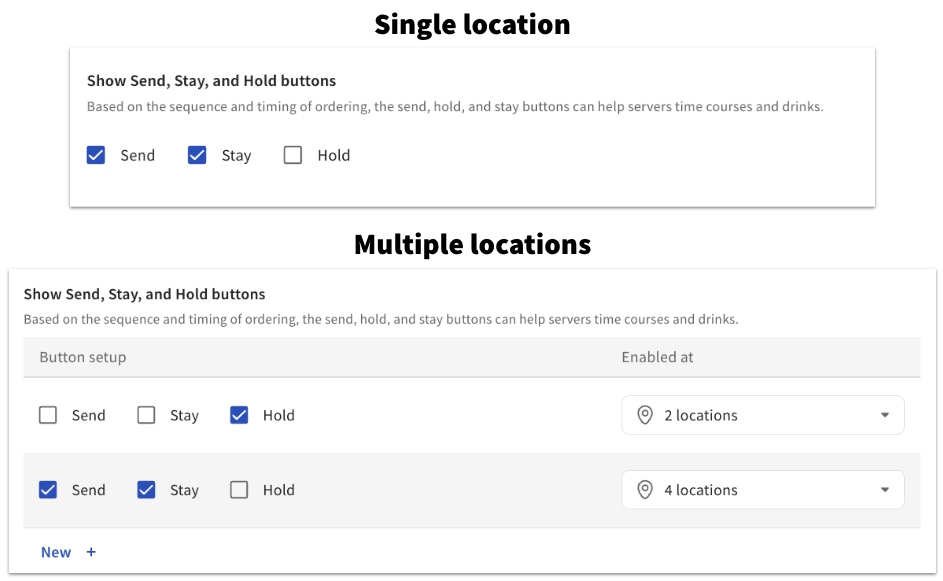
For other settings with checkbox options, you’ll be able to create unique configurations that apply to one more more locations using the New + button, as shown in the example below:
Be sure to save and publish changes you make for any location.