Restart Your Device to Improve Performance

上次更新时间:2026年6月8日 09:28

This article explains how to restart your device to improve performance.

Restart a Toast device that is slow, frozen, lagging, or sluggish. Restarting refreshes memory and often restores normal performance.


In this Article:


Before You Begin

Applies to: Toast Flex terminal, Elo terminal, Toast Go® handheld, Kitchen Display System (KDS) device, kiosk | Permissions needed: None. Anyone with physical access to the device can restart it.


What you'll accomplish: Power the device off and back on to refresh its memory and restore normal speed and responsiveness.


Note: Do not restart a device while your restaurant is in Offline Mode. Wait until the device is back online so that no local order or payment data is lost.


Back to top


Quick Fix

Use this table to match what you are seeing to the fastest fix. Each row is explained in more detail in the sections below.


SymptomMost Common CauseQuick Fix
Device is slow, lagging, or sluggishMemory has not been refreshed recentlyRestart the device, then check your internet connection
Screen is frozen but still responds to the power buttonApp or memory hangRestart the device using the steps below
Screen is frozen and the normal power-off will not appearDevice is fully unresponsiveForce a restart, or see the device-specific Get Help article
Device is fine after a restart but the problem keeps coming backPossible hardware, network, or sync issueRestart, resync, check your network, then contact Toast Customer Care


Back to top


Restart Your Device

Restarting powers the device down and back on, which refreshes memory usage and can restore performance. Use these steps for a Toast Flex terminal, Elo terminal, or Toast Go® handheld.

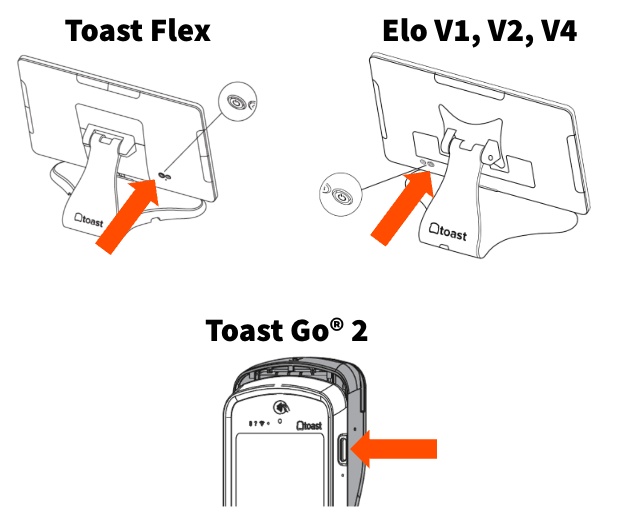
  1. Find the power button on your device.
    • On a Toast Flex or Elo terminal, the power button is on the back of the device.
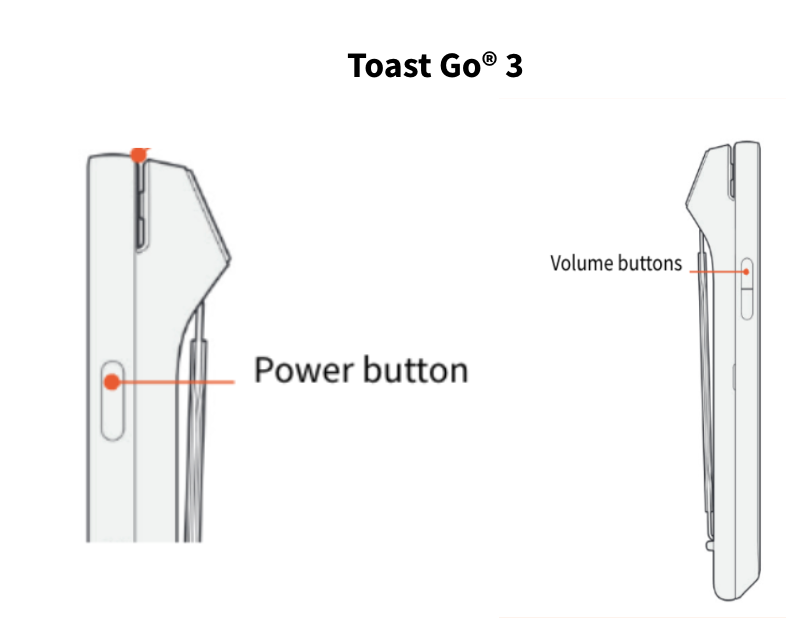
    • On a Toast Go® 2 and Toast Go® 3, the power button is on the right side of the device.


    Picture of Power Button Location on each Device


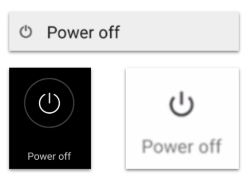
  2. Press the power button, then select Power off.


    Picture of Different Version of Power Button


  3. After one to two minutes, press and hold the power button until the screen turns back on.


Expected outcome: The device powers off, restarts, and returns to the login or passcode screen running at normal speed.


Note: For a Toast Go® 2 and Toast Go® 3, there is also the option for a hard reset. Press and hold the power button and the volume button together for 8-15 seconds, until the device powers off and powers back on, to hard reset the device. This can be attempted, if power off and power on process does not resolve.


Note: With devices that have locktask, like a Kiosk, you will have to unlock the device before using the power button with the above methods. See Use Kiosk Mode on Your Terminal.


Toast Go® 3 Power button


Back to top


If Your Device Is Slow or Lagging

If your device is slow, lagging, or sluggish, start by restarting it using the steps in Restart Your Device above. A restart refreshes memory usage and resolves most short-term slowness.


If the device is still slow after a restart, the cause is often the internet connection rather than the device itself:


Note: Toast recommends restarting your devices weekly so they don't become slow or sluggish over time.


Expected outcome: The device responds normally when you select buttons and move between screens.


Back to top


If Your Device Is Frozen or Won't Power Off

If the screen is frozen, first try the normal restart in Restart Your Device above.


If the screen is fully unresponsive and the Power off option does not appear:

  • For a Toast Go® 2 and Toast Go® 3, there is also the option for a hard reset. Press and hold the power button and the volume button together for 8-15 seconds, until the device powers off and powers back on, to hard reset the device.
  • On any other terminal hold the power button until the device powers off (10-15 sec), then use the power button to power it back on.


If the device still will not respond after a force restart, contact Toast Customer Care.


Expected outcome: The device powers off and restarts.


Note: With devices that have locktask, like a Kiosk, you will have to unlock the device before using the power button with the above methods. See Use Kiosk Mode on Your Terminal.


Back to top


If Restarting Didn't Fix the Problem

If a restart helps only briefly, or the device keeps freezing, crashing, or slowing down, work through these steps in order:

  1. Restart the device again using the steps in Restart Your Device above.
  2. Check your internet connection. A weak or dropped connection can look like a slow device. See Verify Your Internet Connection.
  3. If the Toast app keeps crashing or behaving incorrectly, resync the device. See Resync All Data on Your Devices.
  4. If the problem continues after restarting and resyncing, contact Toast Customer Care.


Expected outcome: The device runs normally, or you have the information Customer Care needs to help further.


Back to top


Before You Contact Customer Care

Reach out to Toast Customer Care when a device keeps freezing, crashing, or running slowly even after you restart and resync it. This can point to a hardware issue that needs to be addressed directly.


To help Customer Care resolve the issue faster, have this ready:

  • The device type and, if you can find it, the serial number.
  • What you see when the problem happens (for example, a frozen screen, a black screen, or the device restarting on its own).
  • Whether the problem affects one device or several.
  • The steps you have already tried, such as restarting, resyncing, and checking your internet connection.


Back to top


Frequently Asked Questions

How do I restart a frozen Toast device?

To restart a frozen Toast device, press the power button and select Power off, then press and hold the power button after one to two minutes to power it back on. On a Toast Go® 3, press and hold the power button and the volume button together for eight seconds. If the screen will not respond at all, see the Get Help article for your device or contact Toast Customer Care.


Also asked as:

    • My screen is frozen, how do I reset the device?
    • How do I reboot a frozen terminal?
    • My handheld is frozen and won't power off, what do I do?


Why is my Toast device so slow?

Your Toast device is usually slow because its memory has not been refreshed recently or because of an internet connection issue. Restart the device first, and if it is still slow, check your internet connection. Restarting weekly helps prevent slowness over time.


Also asked as:

    • Why is the system running so slow today?
    • Why is my POS lagging when I press buttons?
    • Why are my handhelds running slow?


How often should I restart my Toast devices?

You should restart your Toast devices about once a week. Regular weekly restarts refresh memory usage and help keep devices from becoming slow or sluggish over time.


Also asked as:

    • How often should I reboot my POS?
    • Do I need to restart my devices regularly?


Can I restart my device during a busy service?

You can restart a device during service, but avoid it while your restaurant is in Offline Mode, because local order or payment data could be lost before it syncs. If a device is frozen during service and you are in Offline Mode, contact Toast Customer Care rather than forcing a restart.


Also asked as:

    • Is it safe to reboot the POS during service?
    • Can I power off a handheld during slow times?


Will restarting my device delete any data?

No. Restarting your devices is safe.


Also asked as:

    • Does rebooting the POS erase anything?
    • Will I lose checks if I restart?


Back to top


Related Articles


Back to top