Toast Payroll: Manage Washington L&I Class Codes and Rates
上次更新时间:2026年11月5日 17:09
Set up and manage Washington L&I in Toast Payroll by assigning class codes to jobs, updating rates, and adding your account number and PAC.
- Before You Begin
- Open the Washington L&I/PAC Number Task
- Set Up Washington L&I for the First Time
- Assign Class Codes to Your Jobs
- Update Your Employer and Employee Rates
- Add Your Account Number and Participation Activation Code (PAC)
- View Your Washington L&I Change History
- When Washington L&I Changes Take Effect
- Related Articles
Before You Begin
Applies to: Toast Payroll
Permissions needed:
- HR+ access in Toast Payroll for the Washington L&I (Labor & Industries) task and/or the Tax Center
What you'll accomplish: Every job in your business has a Washington L&I class code or is marked exempt, and your current rates and PAC are saved in Toast Payroll.
Open the Washington L&I/PAC Number Task
Washington L&I is Washington's state-run workers' compensation insurance. Toast Payroll calculates your L&I premiums from the hours employees work in each job, so your class codes and rates need to stay current.
- Log into Toast Payroll and navigate to Taxes from the left-hand navigation.
- Note: If you do not see Taxes on the left side of the screen, select Payroll from the Toast Web navigation rail on the left to make the Toast Payroll navigation rail appear.
- Either select Review on the Review your Washington L&I class codes and rates task or select Provide for the Enter your Participant Activation Code (PAC) Number task.
- If you don't have an open task in the Tax Center, you can navigate to Settings > Payroll > Tax Accounts. Select the three-dot menu on the Washington Industrial Insurance - Employer tile. Scroll to the Washington Labor & Industries (Washington L&I) section.
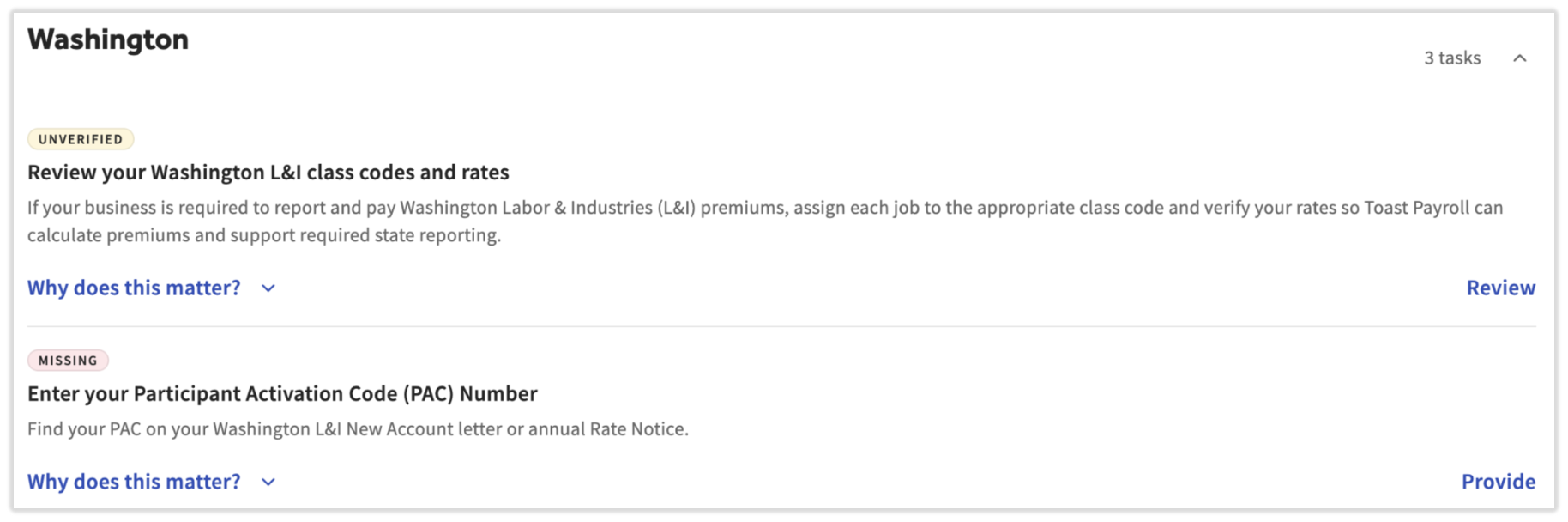
Expected outcome: The Washington L&I page opens and shows your class codes, jobs, and rates for all eligible customers. Note: Your business's Federal Employer Identification Number (FEIN) must be entered in Toast Payroll before the Washington L&I task appears.
Set Up Washington L&I for the First Time
If you haven't set up Washington L&I yet, the Washington L&I page shows a banner that no class codes are set up. Before you start, collect the following from your New Account Letter, your Annual Rate Notice, or your My L&I account:
- Workers' Compensation Account ID, in the format ###,###-00
- Your class codes, in the format XXXX-XX
- The employer rate and employee rate for each class code
- Your Participation Activation Code (PAC)
Open the Washington L&I task and then complete these sections in order:
- Assign Class Codes to Your Jobs
- Update Your Employer and Employee Rates
- Add Your Account Number and Participation Activation Code (PAC)
Assign Class Codes to Your Jobs
Each job needs a Washington L&I class code or must be marked exempt. Class codes use the XXXX-XX format (for example, 3905-00) and are listed on your Annual Rate Notice.
- Open the Washington L&I task in the Tax Center and select Manage class codes.
- Select the Effective year from the drop-down in the upper-left corner.
- Select + Add class code.
- Under Job, select the drop-down menu and choose one or more jobs.
- Jobs appear as they do in Toast Web for the locations connected to your Toast Payroll company. You may be able to ignore some jobs if they do not have L&I implications, i.e. Online Ordering.
- If you have more than one location, use the v caret icon to expand a job to choose it for specific locations only.
- Enter the class code in XXXX-XX format.
- If the job doesn't need workers' compensation coverage, such as an online ordering job, select the Exempt checkbox instead. An Exempt badge appears in the Total rate column.
- If the job doesn't need workers' compensation coverage, such as an online ordering job, select the Exempt checkbox instead. An Exempt badge appears in the Total rate column.
- Enter the Employer rate and Employee rate for the class code. The Total rate fills in automatically.
- Repeat steps 3–6 for each class code, then select Save.
- Continue with the next section, Update Your Employer and Employee Rates.
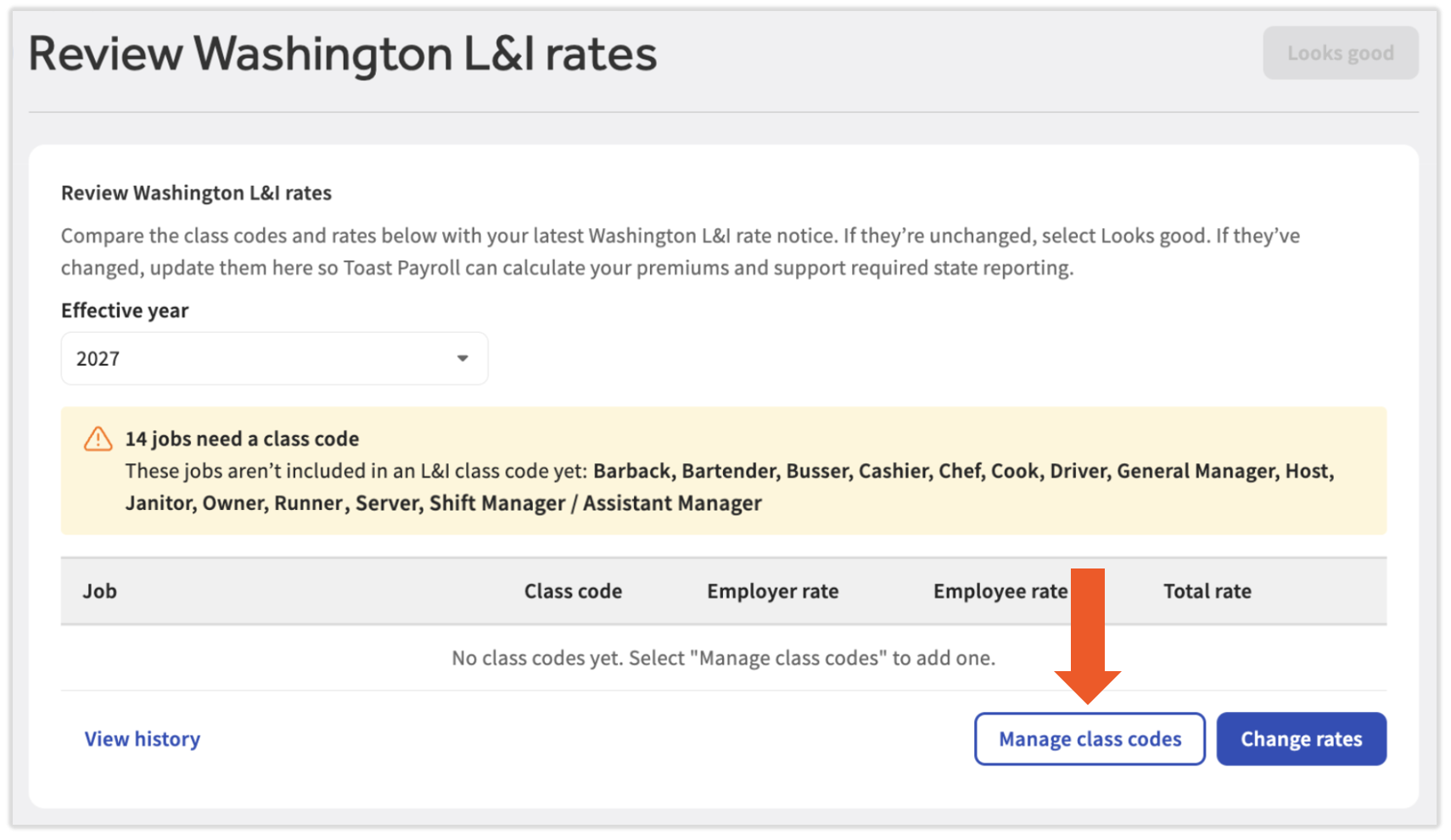
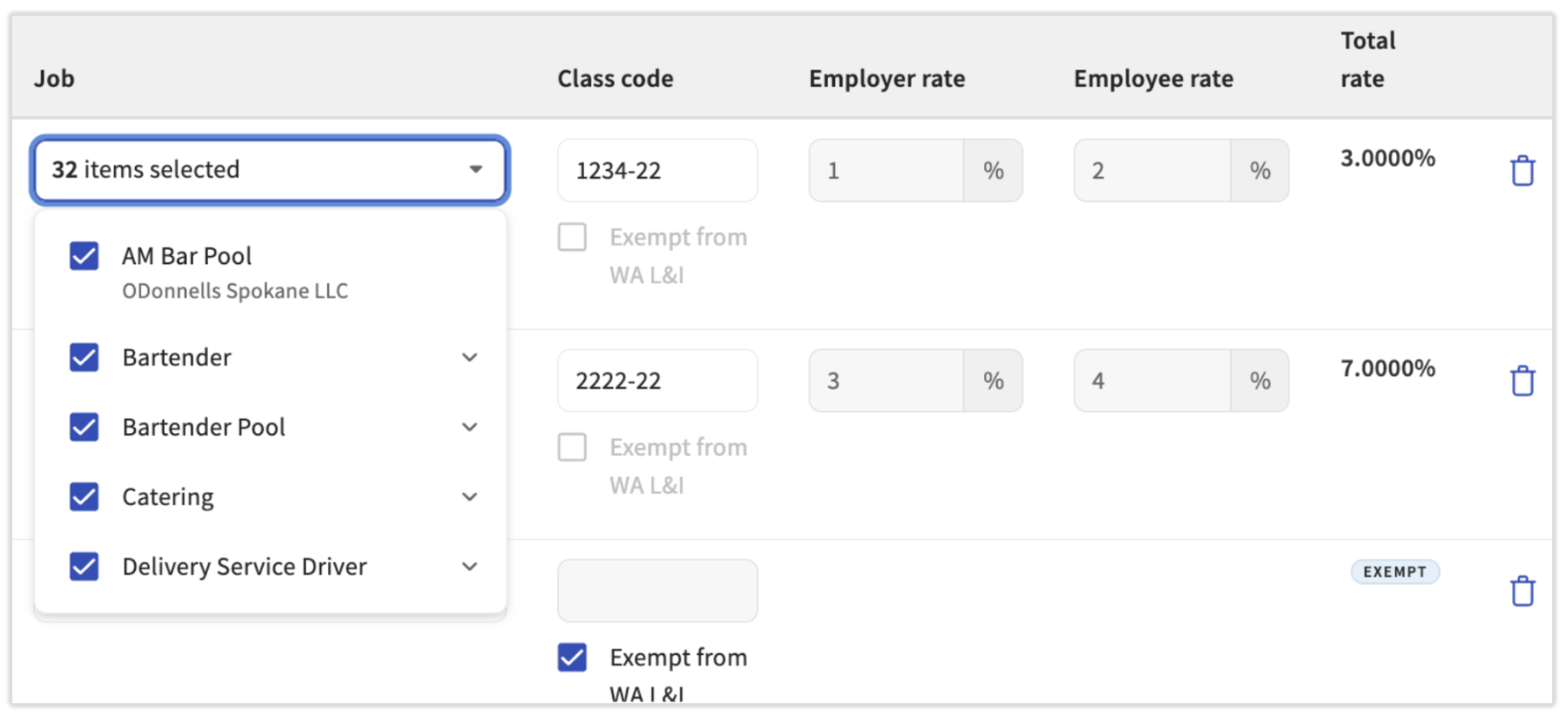
To remove a row, select the trash can icon.
Expected outcome: Every job has a class code or an Exempt badge, and the banner at the top of the page no longer shows jobs without a class code.
Update Your Employer and Employee Rates
Washington adjusts L&I rates every year and sends an Annual Rate Notice, typically in December. Rates in Toast Payroll do not reset each year, so you'll need to enter your new rates over last year's rates when applicable. You'll see a Review rates task reappear each year in the Tax Center to help remind you of this.
You can find your rates by reviewing notices sent by the Department of Labor & Industries, including the New Account Letting and the Annual Rate notice, or by calling the WA Department of Labor & Industries at (360) 902-4817.
- Open the Washington L&I task in the Tax Center and select Change rates.
- Enter the new Employer rate and Employee rate for each class code, exactly as they appear on your rate notice.
- Select Save. If your rates didn't change, select Cancel.
- Repeat steps 1-3 for each job. If there are any jobs without class codes, the banner at the top of the page will inform you of them. In order to make the banner disappear completely, you have to assign every job with a class code or mark it as exempt.
- Once all applicable jobs have a class code and rates (or are marked as exempt), select Looks good in the upper-right corner. The task is removed from your Tax Center.
- If you leave the page before you finish, the task stays in the Tax Center until your information is complete and Looks good is selected. A task to review your rates appears again each year in the fourth quarter.
- Continue with the next section, Add Your Account Number and Participation Activation Code (PAC).
Expected outcome: Your new rates are saved, and the Total rate updates for each class code.
Add Your Account Number and Participation Activation Code (PAC)
Washington requires a Participation Activation Code (PAC) so Toast Payroll can file your L&I reports electronically. Find your PAC on any of these documents:
- Your New Account Letter, under the UBI (Unified Business Identifier) number in the Account Info section
- Your Annual Rate Notice, above the risk class and rate information
- Your Employer's Quarterly Worksheet
- If you can't find your PAC number, call the Washington Department of Labor & Industries at (360) 902-4817.
To complete the PAC Number task in the Tax Center:
- Open the PAC Number task in the Tax Center by selecting Provide.
- Fill out the Account information section of this page, specifically the Payment method and Participant Activation Code (PAC) Number fields.
- Select Save.
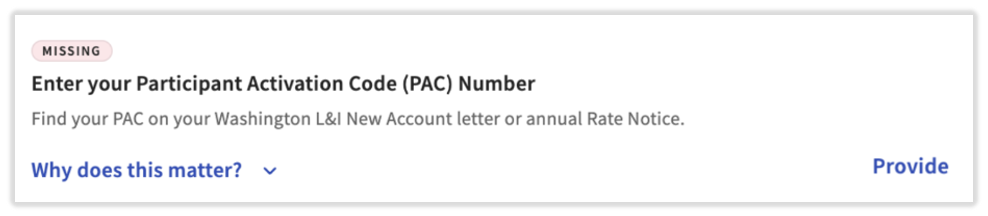
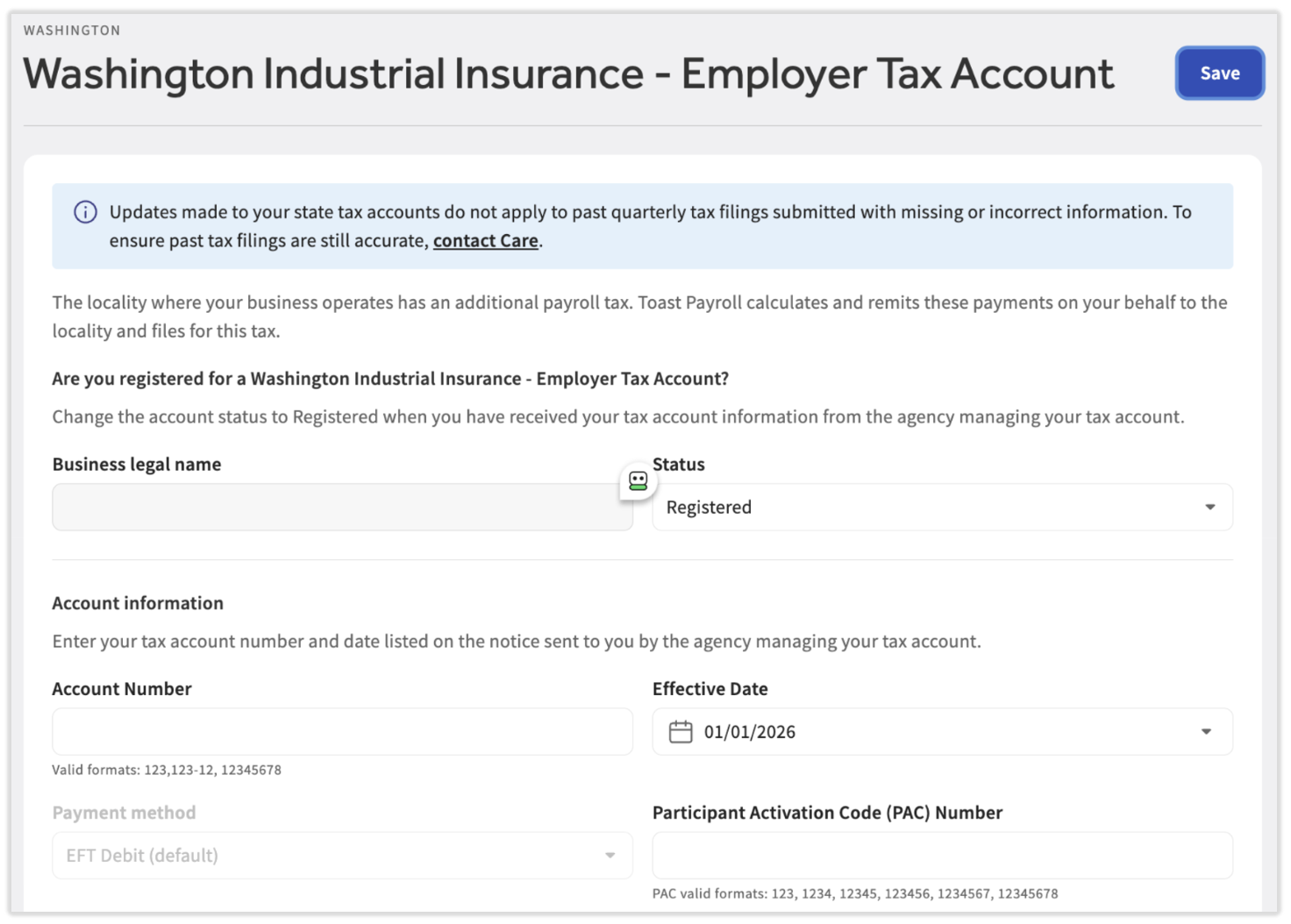
Expected outcome: Your account number and PAC are saved, and the PAC task no longer appears in the Tax Center.
View Your Washington L&I Change History
Select View history on the Washington L&I task in the Tax Center to see past changes to your class codes and rates, including who made each change and when. This feature is available for auditing purposes. If you don't have an open task in the Tax Center, you can navigate to Settings > Payroll > Tax Accounts. Select the three-dot menu on the Washington Industrial Insurance - Employer tile. Scroll to the Washington Labor & Industries (Washington L&I) section.
When Washington L&I Changes Take Effect
Changes to class codes and rates apply only to future payrolls. If you started a payroll before you made your changes, reset the payroll and start it again so your changes apply. If you need to correct a payroll that was already processed, contact Toast Customer Care.
Related Articles
- Toast Payroll: Get Help With Washington L&I
- Toast Payroll: Tax Management in Washington
- Toast Payroll: Manage Payroll Taxes
- Toast Payroll: State Third-Party Administrator Linking
- Toast Payroll: Add Workers' Compensation Codes
This content is for informational purposes and is not intended as legal, tax, HR, or any other professional advice. Please contact an attorney or other professional for advice.