Does Toast Payroll offer a report stating each of my employee's year-to-date gross wages?
回答
In order to view gross wages over two or more pay periods, a custom report can be created:
In Toast Payroll, navigate to Reports > Custom.
Select the Add+ button.
Title your report however you wish and then select the Employee Earnings template. The Description field is optional. Select Save to begin customizing this report.
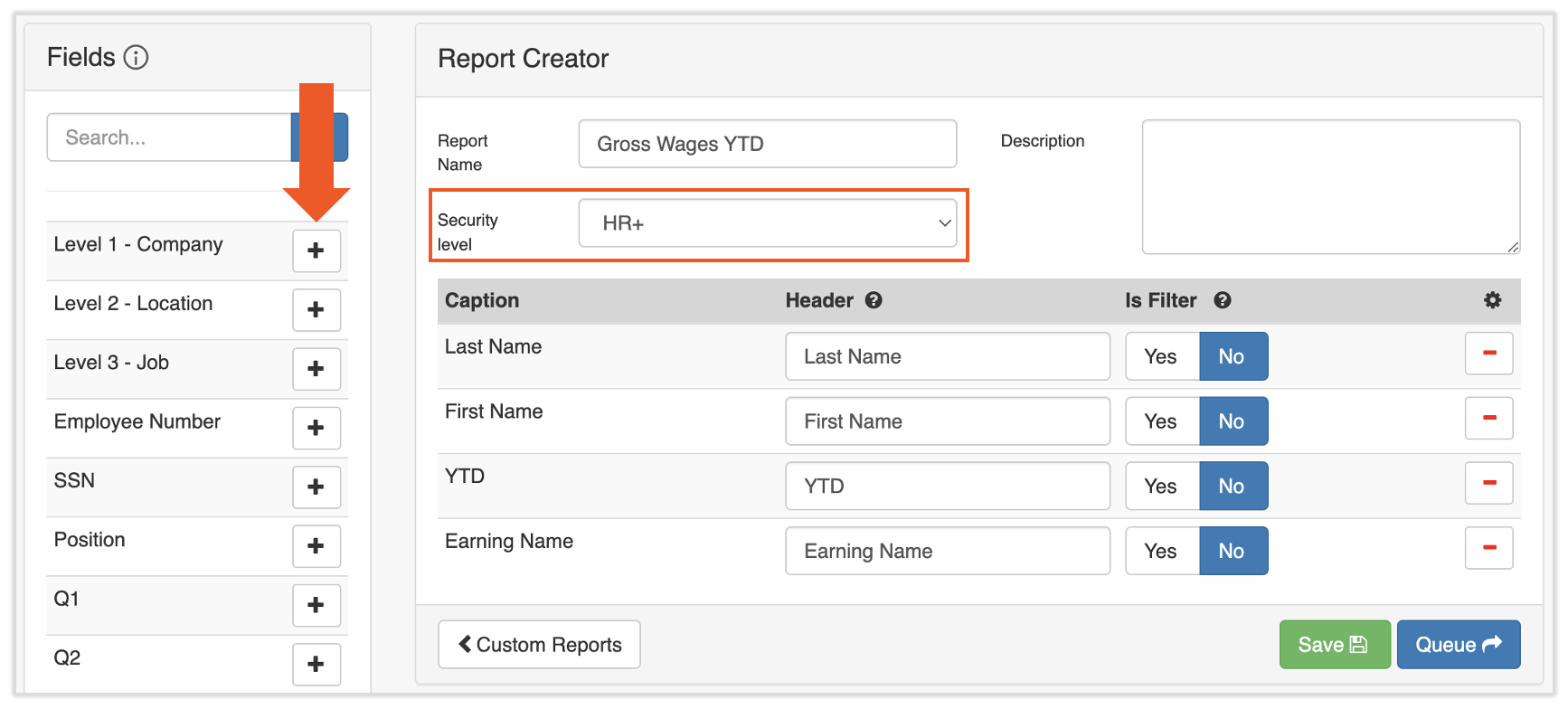
Before you add the custom fields, check the Security Level field to ensure it's set the way you would like it.
Now you can add the info you'd like to view on this report by selecting the + icon in the Fields tile on the left. The order of the fields you select will match the order of the fields on the report.
The example in the image below includes the employee's First and Last Name, the YTD column that displays the gross wages from January 1st of the current year, and the Earning Name detailing what the gross wages were attributed to. You can add any other fields you'd like as well, but these will give you the relevant gross wage information.
Once you're ready, select Save (selecting Queue will not save your progress for the future). This will return you to the Custom Reports page.
You can immediately run this report by selecting the blue arrow icon. This will bring you to the page.
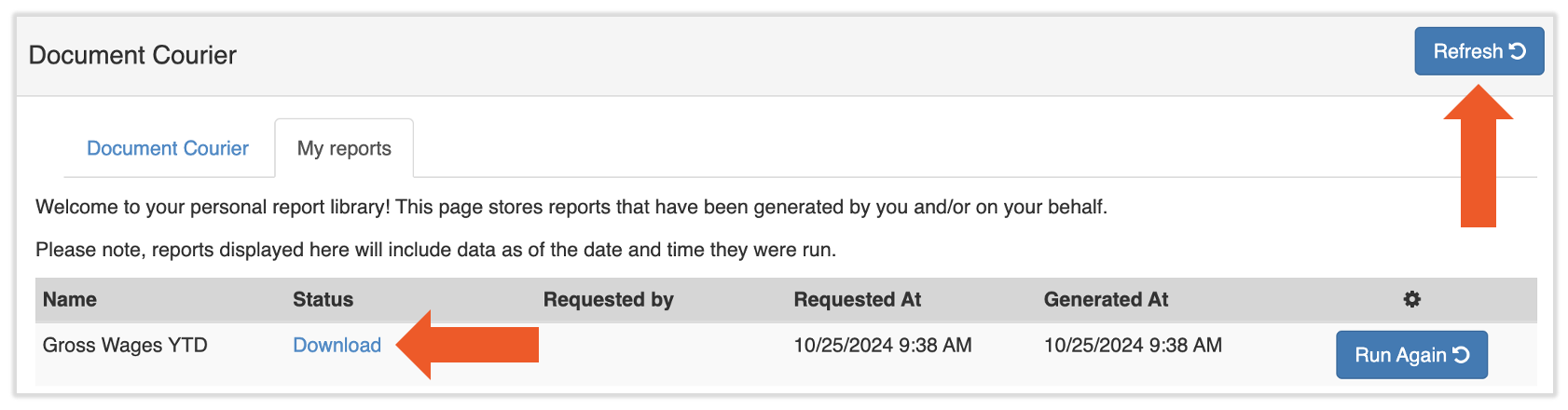
The Document Courier page will queue this report up to load. Initially, you may not see the Download hyperlink in the Status column. You can manually select Refresh to see the most updated Status, or you can let the page run in the background (it automatically refreshes every 30 seconds).
Select the Download link once it appears to view your report.
You can re-run this report at any time by navigating back to Reports > Custom and selecting the blue arrow icon.