翻译仅供参考。您与 Toast 签署的任何法律协议(包括但不限于《商户协议》和《终端用户许可协议》),其订立语言可能不同于以上页面所使用的语言,无论是否提供本页面其他语言的译文,均应以您所签署的协议条款为准
xtraCHEF:通知
上次更新时间:2026年8月18日 07:48
通知有助于确保您的异常情况不会被忽略,并使您的发票能够及时进行应付账款核对。
本文内容:
通知摘要
当上传的发票被标记为 需要操作 并暂停对账时,您的 xtraCHEF 通知将会显示。收到通知后,采取行动将有助于确保异常情况不会被忽略,并使您能够及时核对所有发票。
回到顶部
使用 xtraCHEF 通知
您可以通过选择 xtraCHEF 账户右上角的 铃铛图标 来查找并查看您的通知。选择通知图标后,将会出现一个下拉菜单,其中详细显示了最近被标记为 发票异常 的发票。
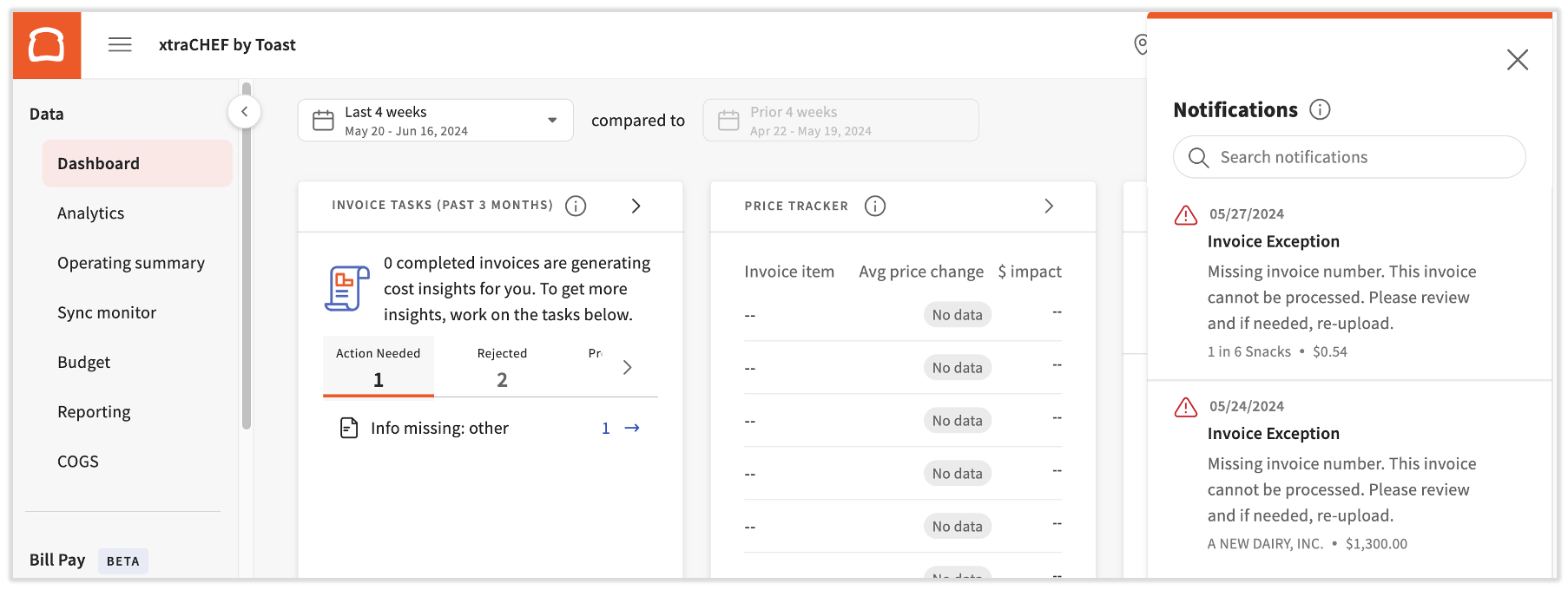
选择一条通知,您将直接跳转至该发票。您可以在那里查看发票并解决潜在错误。完成后,xtraCHEF 会将您的发票重新推送到处理流程中。如需深入了解 xtraCHEF 暂停发票的原因,请查看 xtraCHEF:需要操作的发票。
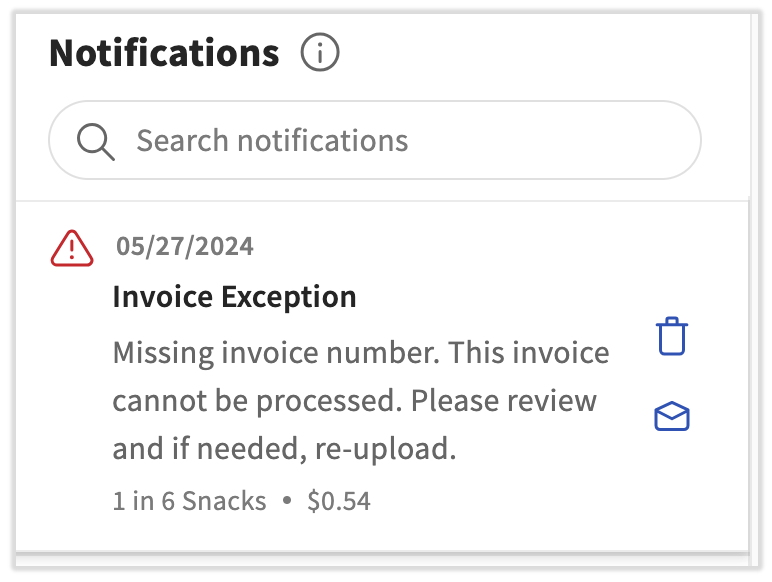
为了保持条理,您还可以将通知标记为已读或删除。您可以通过将鼠标悬停在通知上并选择垃圾桶图标(删除)或信封图标(将通知标记为已读)来完成此操作。
相关资源
正在寻找有关您的 xtraCHEF 移动应用程序的移动通知信息吗?请查看 xtraCHEF:移动通知.
回到顶部