上次更新时间:2025年9月22日 11:47
In xtraCHEF's Recipe function, the Configurations page allows you to further customize certain aspects of your recipe creation. Configurations are broken out into three tabs, Unit Conversion, Dining Options, and Delivery Fees. To access your recipe configurations page, select Recipe > Configurations.
Creating a set of unit conversions for your restaurant keeps everyone on the same page and defines non-standard units of measurement. Standardizing these measurements also helps control your costs and prevent over-serving, uneaten/wasted leftovers, and other common casualties of the hospitality industry.
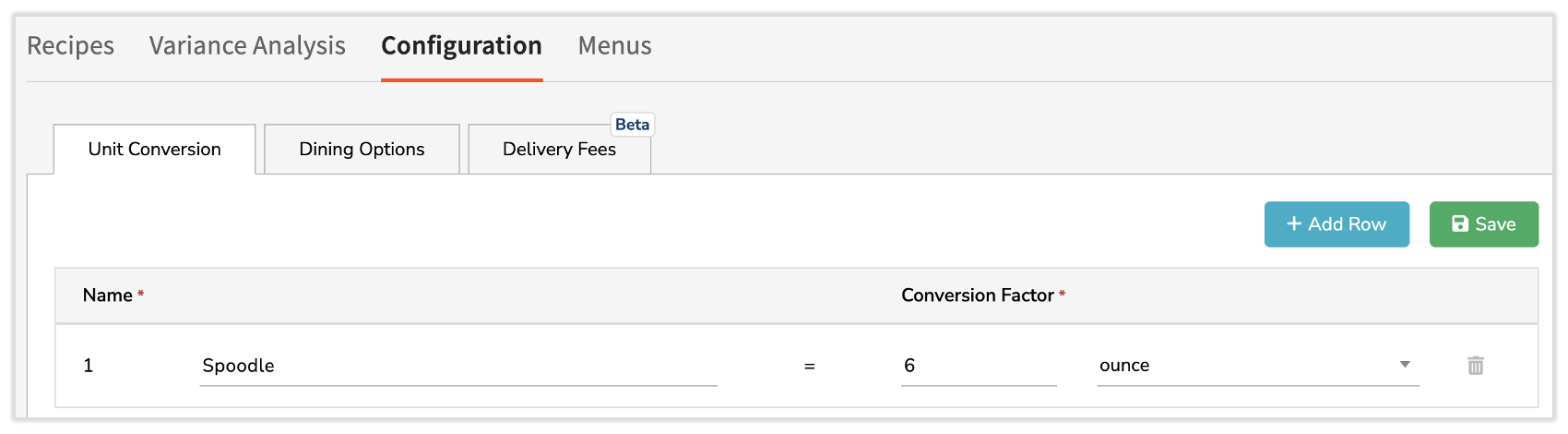
Let's say you use 'spoodle' as a unit of measurement in recipes. You know that 1 'spoodle' is equivalent to 6 weighted ounces. By defining 'spoodle' in your unit conversions, you are enabling xtraCHEF to use this as a unit of measurement in recipe and prep recipe functions.
You can create a new unit conversion by selecting the + Add Row button. You'll then enter your custom Unit Name, Conversion Factor (i.e. how many items are in your custom unit), and the Unit of Measurement (UOM). Select Save when you're ready and the new unit conversion will be added to the table.
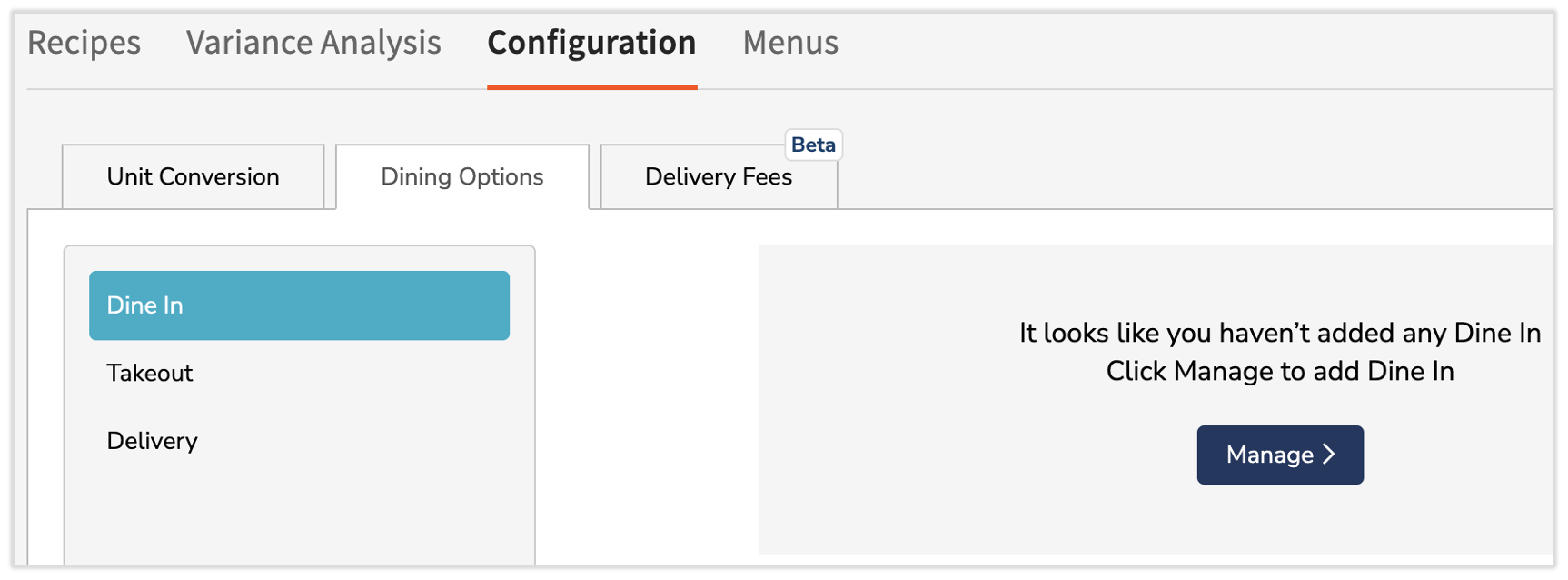
Let's say takeout is a significant part of your restaurant's day-to-day operation. You know that every item rung up on your Toast POS as takeout also gets napkins. By selecting the Dining Options tab, you can establish a default item and amount to factor in for every transaction.
There are three options for the dining option configurations: dine-in, takeout, and delivery. For each of the three dining options, you can customize default items or disposables to factor in for reporting.
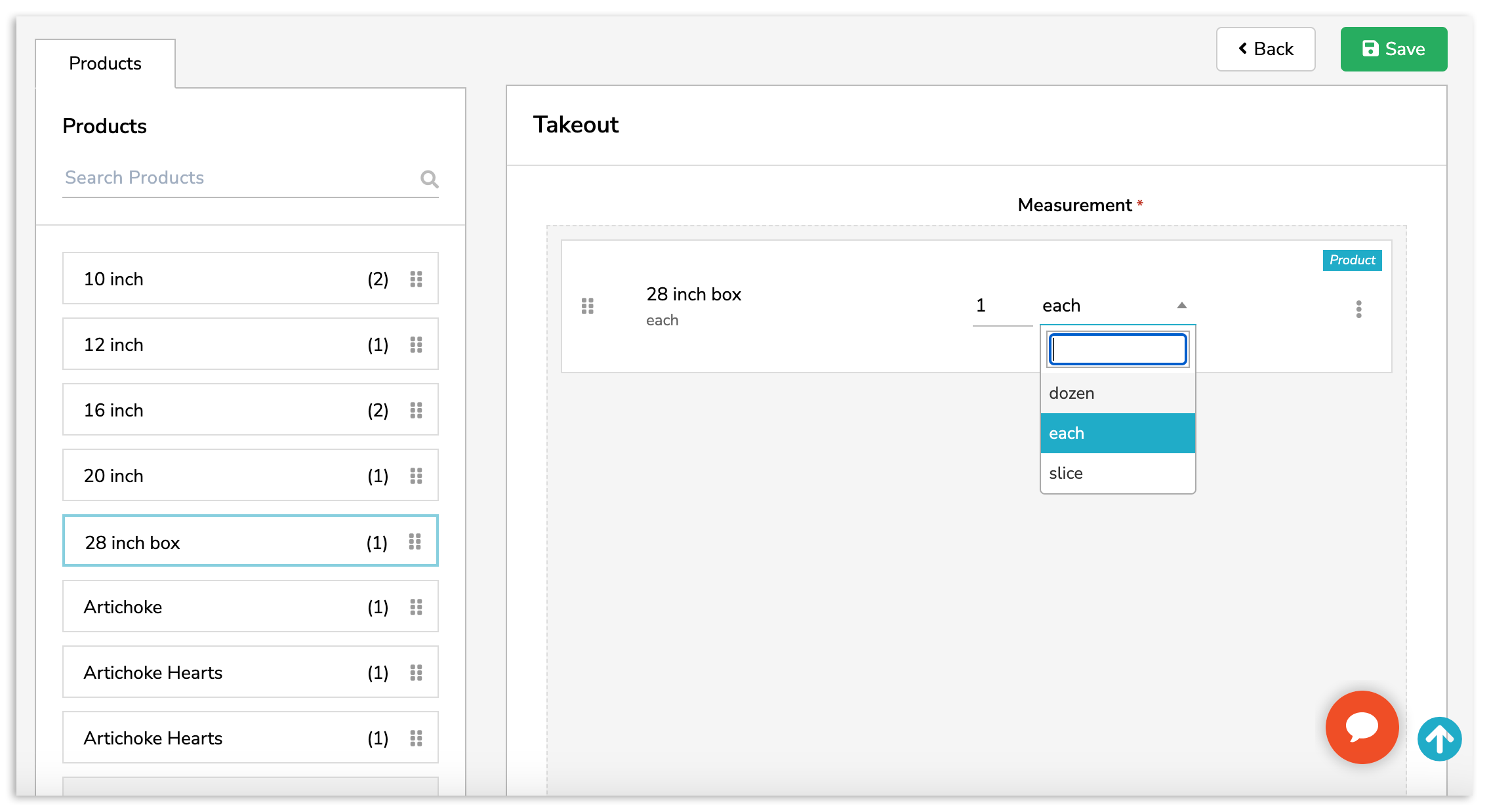
To add new options or edit your existing ones, select Manage >. This will open a new page where you can drag and drop items from the left column into the right.
If you are missing a product here, it's likely that a product has not been created and linked from an invoice item. For more information on creating products, hop over to .
Finally, select Save for your changes to take effect.
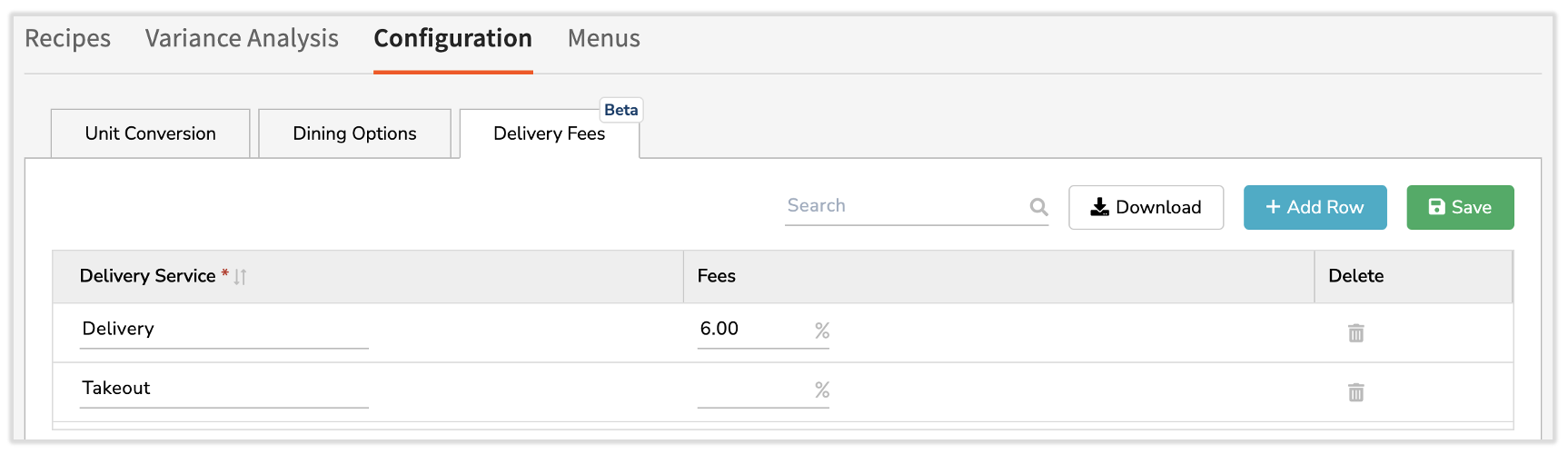
Delivery apps can charge fees that eat away at already narrow profit margins and running an in-house delivery fleet comes with its own set of potentially expensive liabilities. Utilizing Delivery Fees can help you better understand and offset these costs by establishing set percentage fees for delivery, catering, and other off-premise requests.
To do this, select the Delivery Fees tab. Under the Fees column, enter any percent upcharges that are associated with order style.
Once your fees are entered, select Save.