Get Help With Cash Drawers
Last updated: May 19, 2026, 9:22 AM
Cash Drawer Not Opening
When a cash drawer does not open, a connection issue, settings issue, or even a hardware issue may be present. Use these steps to narrow down the root cause of the cash drawer not opening:
- Does the cash drawer open using the key?
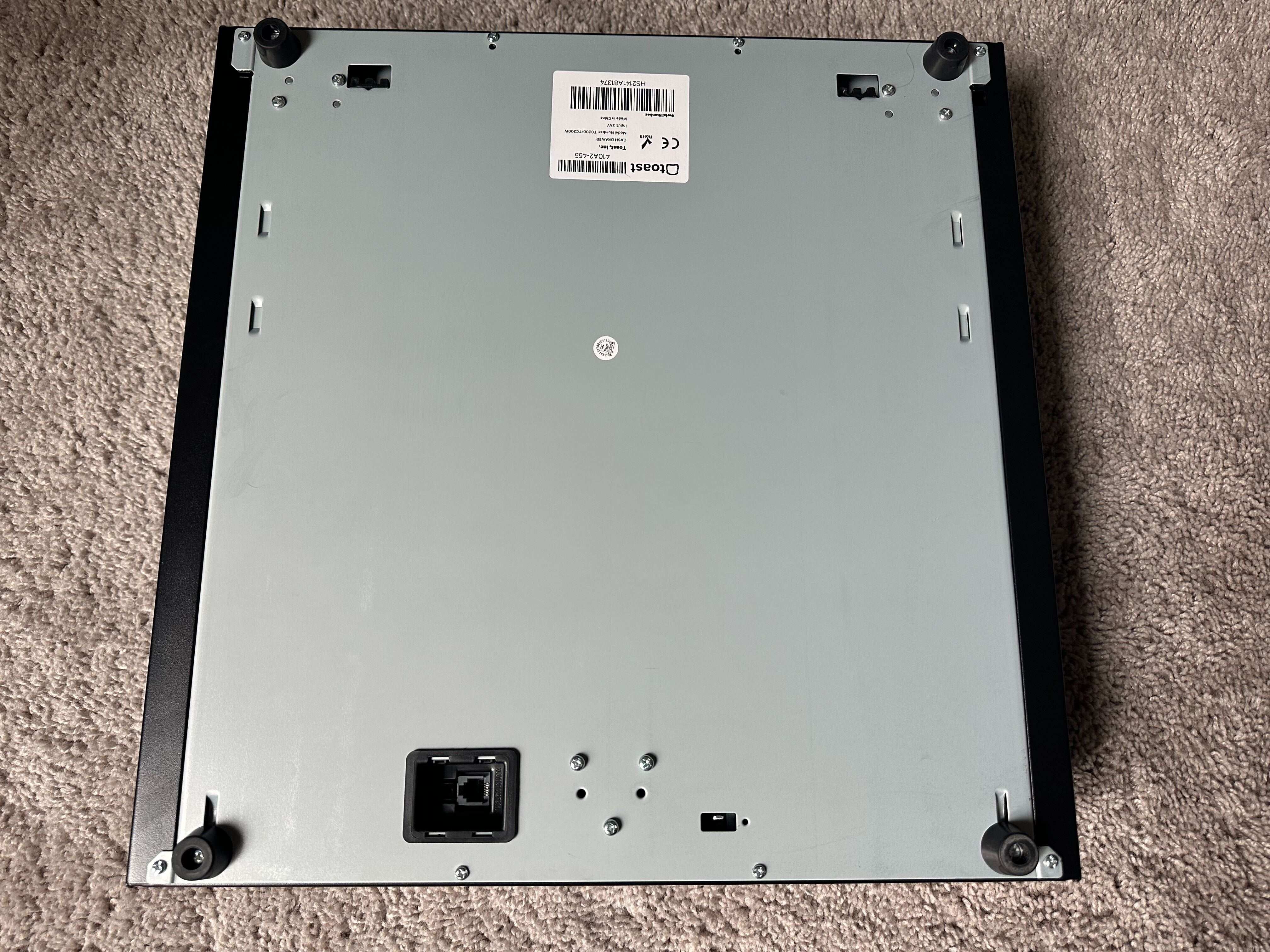
- All cash drawers come with keys taped to the bottom of the cash drawer.
- If the cash drawer doesn't open using the key, it's most likely that the mechanical mechanism is jammed or broken. If this is the case, contact Toast Customer Care.
- If the cash drawer opens while using the key, it means that it is not mechanical. Please continue to Printer Connections and Setup.
- All cash drawers come with keys taped to the bottom of the cash drawer.
- Another reason the cash drawer may not open is the key hole position
- A horizontal key hole means the drawer is locked.
- Vertical is physically unlocked, but will look like there are no issues via software.
- Are all cash drawers closed?
- Check to see if all cash drawers are closed. There may be times when a cash drawer would not open due to this reason. To resolve this, consider manually re-opening your cash drawer.
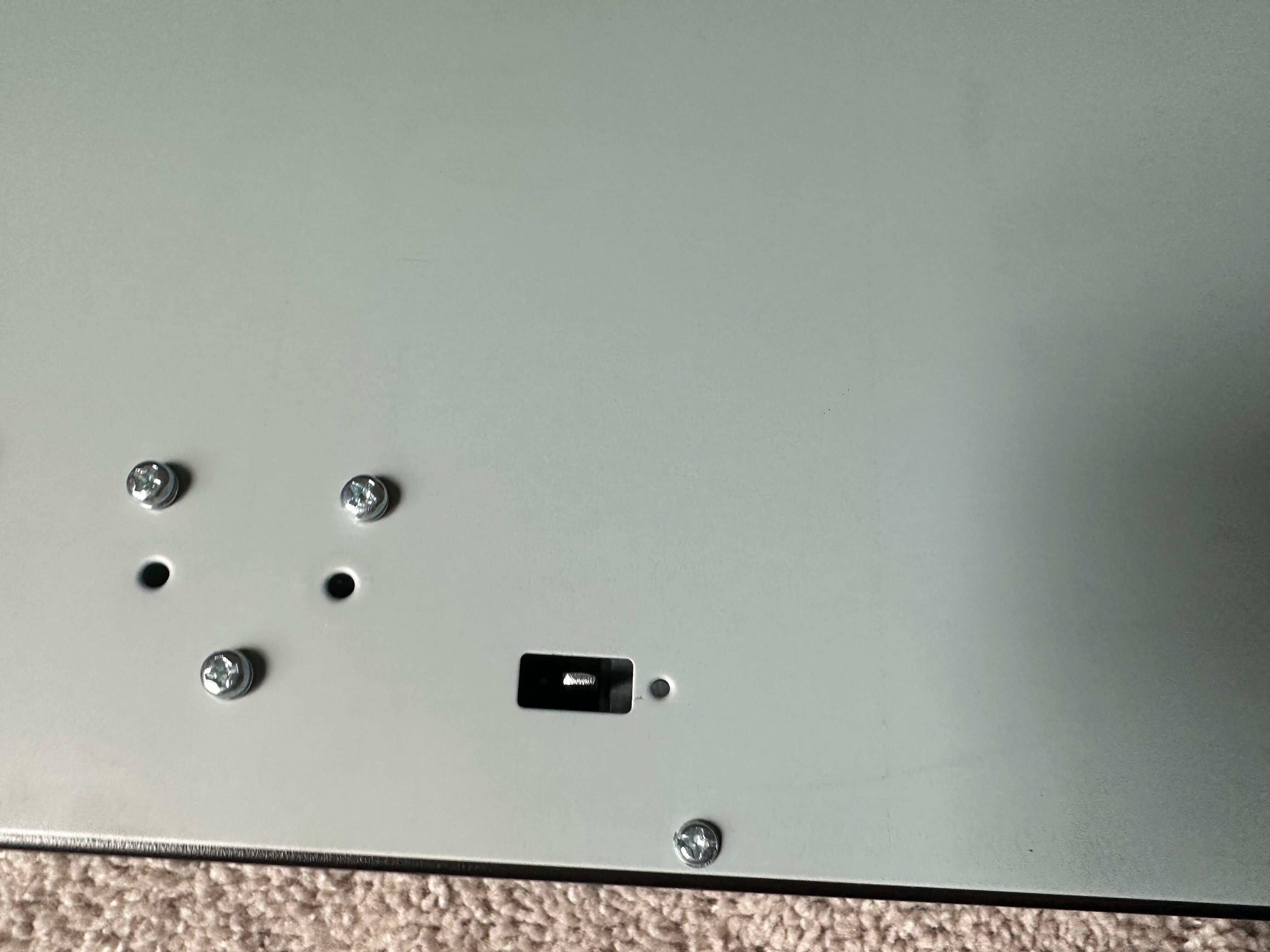
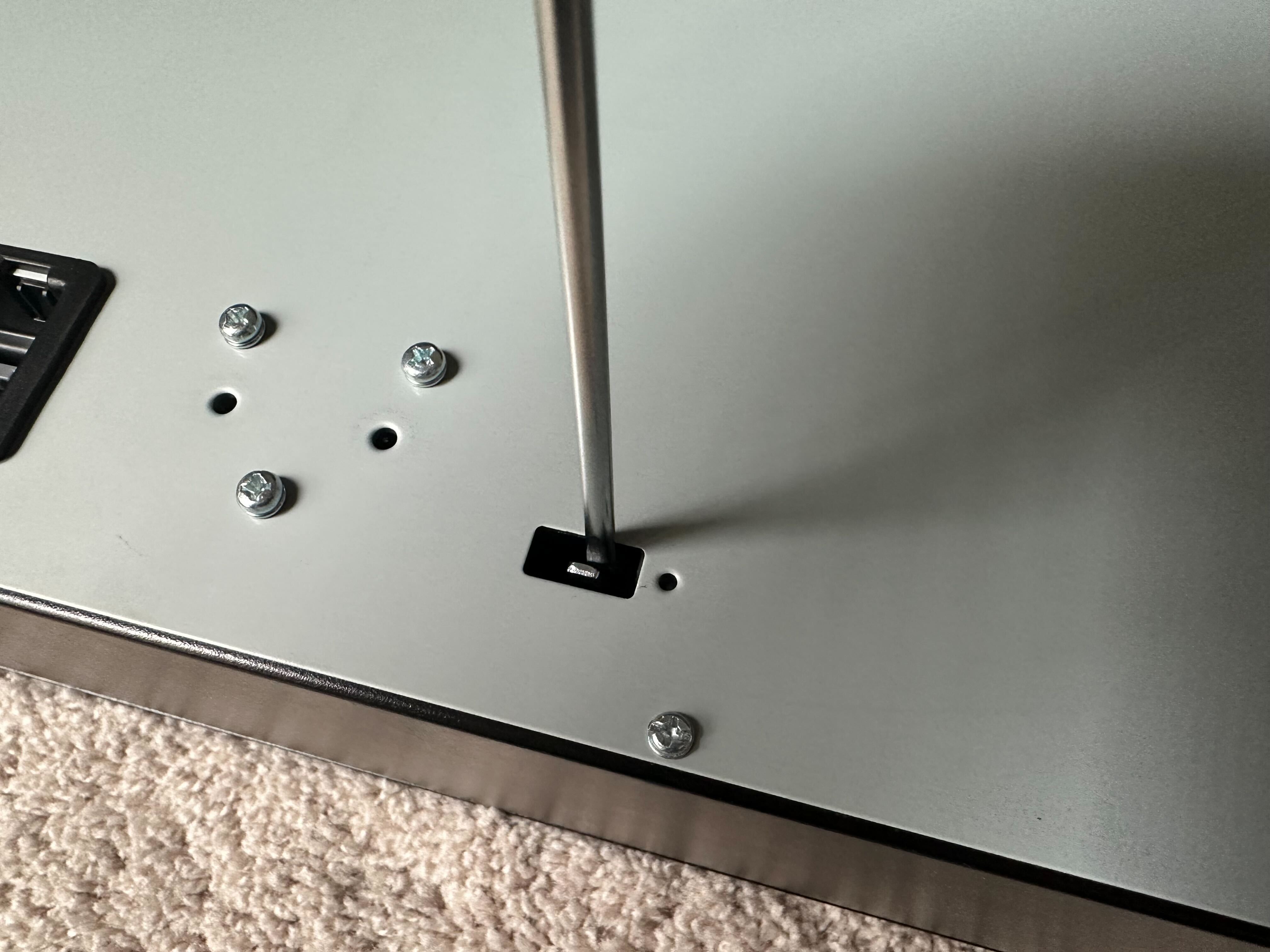
- If this is a Toast cash drawer (not APG)
- Check the bottom of the drawer for the manual release switch. Use a screwdriver or butter knife to move the release switch towards the middle of the drawer and the drawer should open.
Printer Connections and Setup
The cash drawer is connected to your printer using one of the following cables:
- Toast cash drawer comes with the Toast Cash Drawer Cable Black - TC200 (HSZ301), RJ12 Cable.
- APG 19x15 and APG 13x13 cash drawers come with the Cash Drawer Cable CD101-A Cable (APG301), RJ45 to RJ12 cable.
- APG Splitter is the Cash Drawer Splitter Cable CD101-B Cable (APG322), RJ12 to RJ12 Y splitter cable.
This cable needs to be fully seated on both ends in order for the cash drawer to open.
- Reseat (unplug and replug) both ends of the cable.
- Ensure the printer is turned on.
- The printer should be plugged into a power outlet that is functioning and working correctly.
- If the printer won't turn on using the current power outlet, move the printer to another power outlet.
- If the printer still won't turn on, it is most likely an issue with your printer or the printer's power cord. Contact Toast Customer Care.
If the printer is turned on, the cable is seated correctly, and the cash drawer will still not open, continue on to the Printer Setup section.
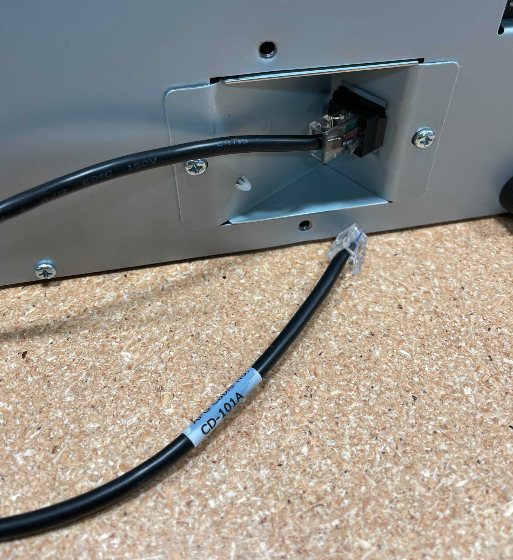
CD101-A cable in the cash drawer port.
Printer Setup
Note: The printer is the brain of the cash drawer; if this printer is not properly set up or is offline, the cash drawer will not open.
Settings in Toast Web need to be correct to ensure the printer knows there is a cash drawer connected to it. Follow these steps to ensure the printers are setup correctly in Toast Web:
- In Toast Web, navigate to Finance > Related > Settings > Printers & cash drawers.
- Select the printer that is attached to the POS.
- Scroll down to Cash Drawers Configuration.
- Ensure that a cash drawer is selected.
- Save and publish changes.
- If the printer is on and still presenting issues, power cycle (turn off and turn on) the printer to ensure the above changes went through.
Changing the printer settings should allow for the cash drawer to function correctly. If this is not the case, continue troubleshooting with Device Settings.
Device Settings
Every terminal set up for cash payments requires Device Setup settings to ensure the cash drawer will open when a cash payment is taken:
- On your POS, select the orange Toast icon in the top left-hand corner of the screen to navigate the the main menu.
- Select Device Setup from the Device section.
- Ensure the correct printer is selected for this POS.
- Ensure Allow Cash Payments is set to Yes.
- Ensure Open Cash Drawer is set to Yes.
- Run a test order using cash as the payment option.
Android network settings should only have one network connection (RJ45, USB-C, or Wi-Fi) turned on, and only handheld devices should use Wi-Fi. If the cash drawer still doesn’t open even after attempting the above steps, it may be related to user permissions. Please see the section on User Permissions.
User Permissions
User permissions are configured in Toast Web and there are a few settings that are tied to taking cash payments and opening the cash drawer. Below are the settings you'll want to check to ensure the user that you’re working with has the correct permissions to open the cash drawer:
- Log in to Toast Web.
- Navigate to Employees > Employee management > Employees.
- Select the pencil icon next to the employee who cannot open the drawer.
- Locate 1.6 Apply Cash Payments and ensure it has a green check mark next to it.
- Locate 1.7 Cash Drawer Access and ensure it has a green check mark next to it.
- If both permissions have a green check mark, toggle both permissions off and on again to refresh them.
- Save and Publish.
After completing the above setup, the cash drawer should open while taking a cash payment. If you're still facing an issue with the cash drawer not opening while taking cash payments, contact Toast Customer Care and reference each of the steps you have already taken.
Back to top
Check Network Connection
Some cash drawer issues can appear if your hard-wired devices are connected to Wi-Fi. To fix this issue, you'll need to turn off Wi-Fi on those devices. For instructions, see Disable Wi-Fi on Hard-Wired Devices.
Double Cash Drawer Issues
Some restaurants have two cash drawers connected to one printer. When these cash drawers have issues opening or operating correctly, use these steps to ensure you are set up correctly:
Printer Connections and Setup for Double Cash Drawer
- APG cash drawers are connected to the printer using a CD101-A cable for the first drawer, and a CD101-B and a splitter cable for the second drawer.
- For Toast cash drawers, you can use the same cable that comes with the purchase of a single drawer.
These cables need to be fully seated on both ends in order for the cash drawers to open.
- Reseat both ends of the cash drawer cable, including the splitter cable
.
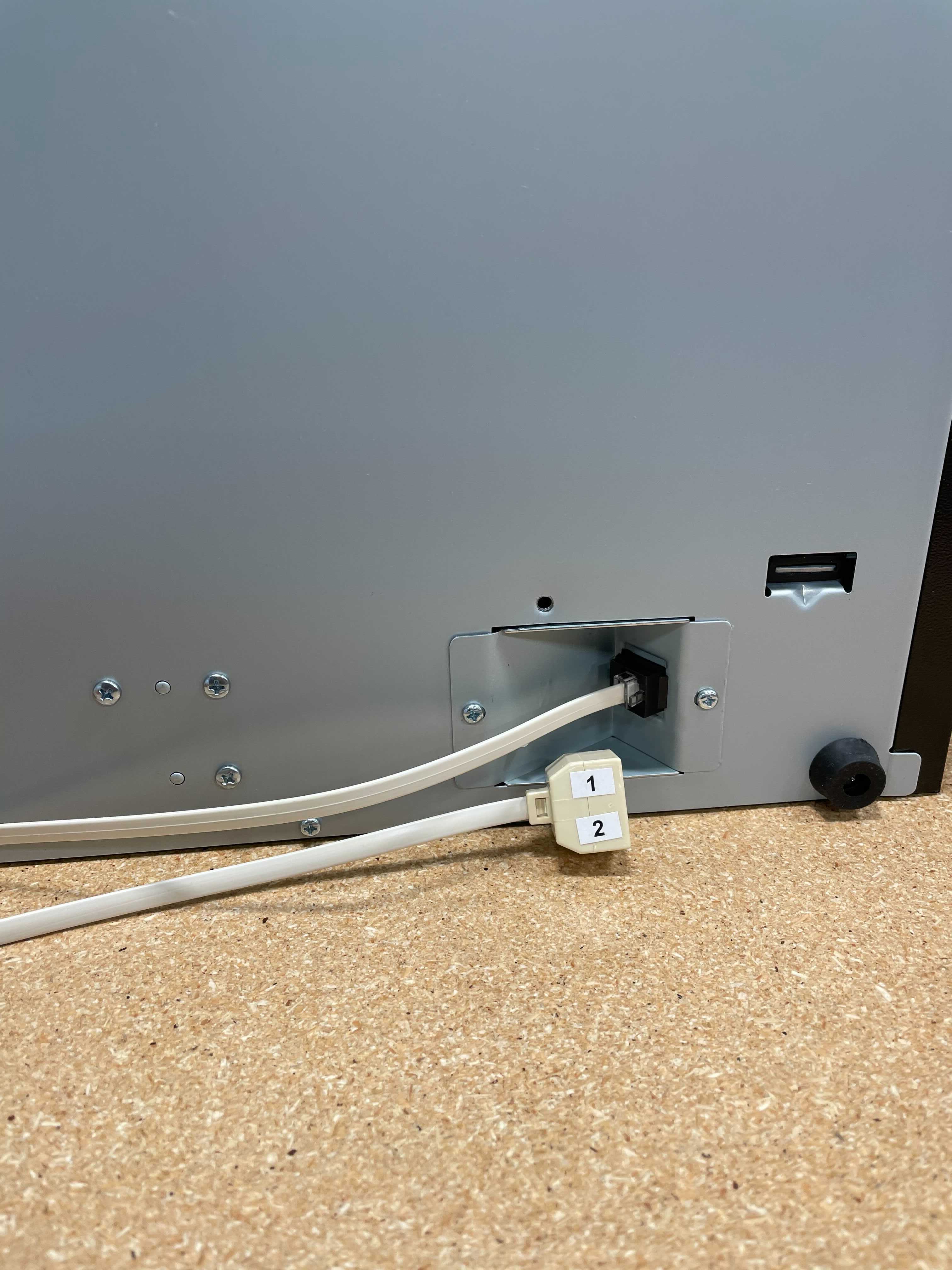
Cash drawer splitter for dual cash drawers.
- Ensure the printer is turned on.
- The printer should be plugged into a power outlet that is functioning and working correctly.
- If the printer won't turn on using the current power outlet, move the printer to another power outlet.
- If the printer still won't turn on, it is most likely an issue with your printer or the printer's power cord. Contact Toast Customer Care.
- You should have a CD101-A (APG cash drawer) or RJ12 (Toast cash drawer) cable and CD101-B (splitter) cable to have the cash drawers open at different times.
- The splitter kit comes in a separate box from the cash drawers and is sometimes overlooked.
- Additionally, ensure you're using the same cable that came with the cash drawers.
If the printer is turned on, all cables are all seated correctly, and the cash drawer will still not open, continue on to Printer Setup for Double Cash Drawers section.
Printer Setup for Double Cash Drawer
Settings in Toast Web need to be correct to ensure the printer knows there is a cash drawer connected to it. Follow these steps to ensure the printers are setup correctly in Toast Web:
- In Toast Web, navigate to Finance > Related > Settings > Printers & cash drawers.
- Select the printer that is attached to the POS.
- Scroll down to Cash Drawers Configuration.
- Ensure that Two Cash Drawers is selected
- Save and Publish any changes.
Changing the printer settings should allow for the cash drawers to function correctly. If you find that you have followed all above steps, and the cash drawer is still not functioning correctly, contact Toast Customer Care.
After a Power Outage
Toast has seen cases when cash drawers will not open from the assigned terminal after a power outage or where the wrong drawer is opened. This can be caused by multiple printers attempting to inherit an IP address at the same time and receiving the same IP address. To solve this:
- Unplug the printer(s) your cash drawers are connected to for 30 seconds. Plug them back in.
- Make sure you have an email and password that can log you into the Toast POS app before attempting this step. Log out of Toast POS by selecting the overflow menu (three dots) in the upper-right corner and selecting Logout.
- Log back in and attempt a no sale to confirm the issue was resolved.
- If the cash drawer is still experiencing problems, contact Customer Care.