Disable Wi-Fi on Hardwired Devices
Last updated: Sep 17, 2026, 12:15 PM
Question
How can I disable Wi-Fi on my hardwired devices?
Answer
Note: All devices should be on the latest Android version. If your device is not up-to-date, update it first before following the steps below. See Manually Update Firmware on Toast Flex or Manually Update Firmware on Elo V2.
for instructions.
It is best practice for terminals to be hard-wired to the Toast network via Ethernet. If a terminal is wired via Ethernet correctly, follow these steps to ensure Wi-Fi is disabled. Having both Wi-Fi and Ethernet active on the same device can cause network conflicts, potentially leading to syncing issues or interruptions:
Note: In addition to disabling Wi-Fi, it is best practice to ensure there are no saved Wi-Fi networks on any Toast device. This prevents terminals from automatically reconnecting if Wi-Fi is ever turned back on. For steps on how to remove saved networks, see Forget a Network on a Toast Device.
Disable Wi-Fi from Quick Settings
Android 12L devices (14" Toast Flex, 22" Toast Flex, Elo V4):
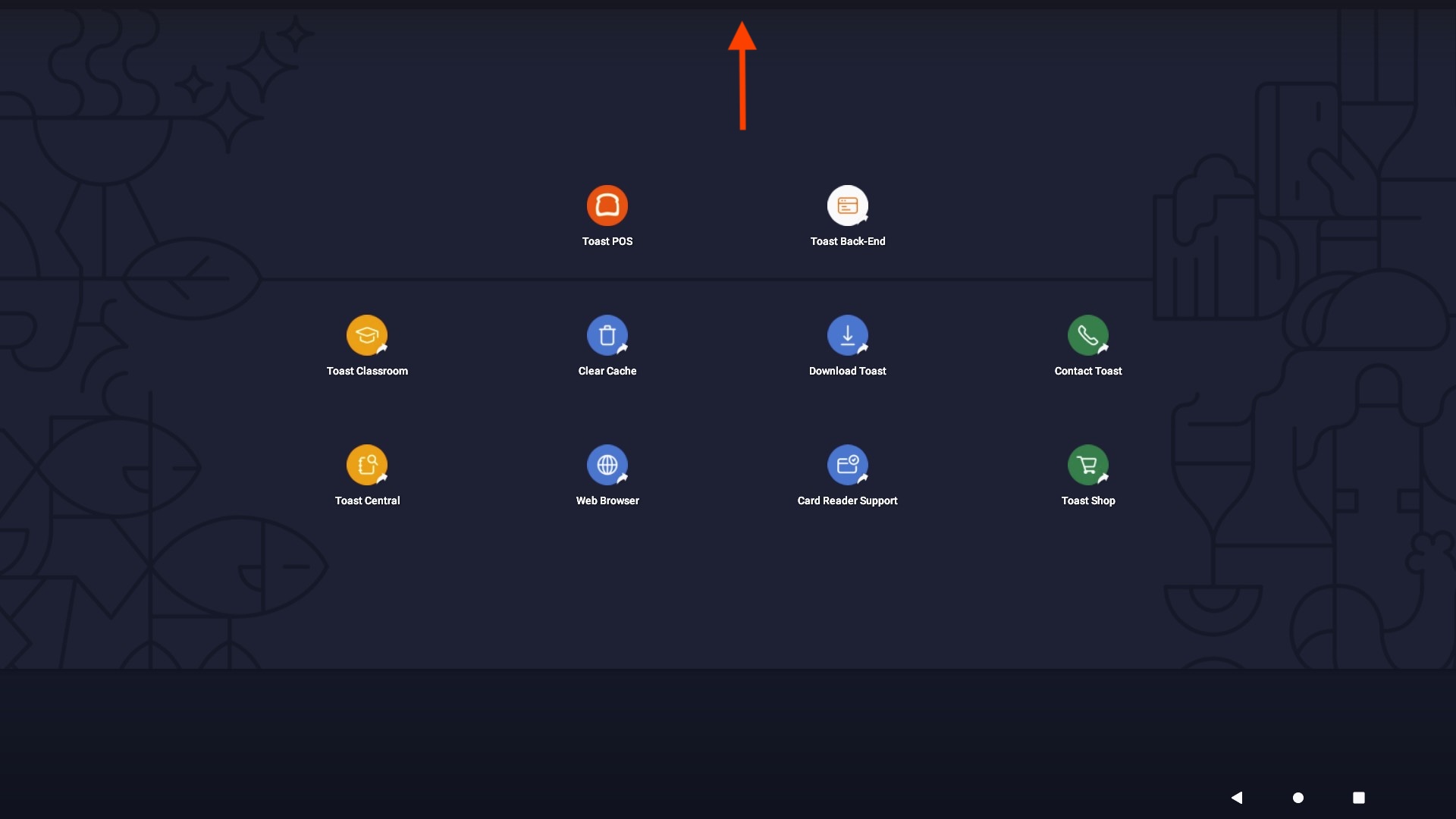
- Swipe down from anywhere along the top of the screen to open the Quick Settings menu.
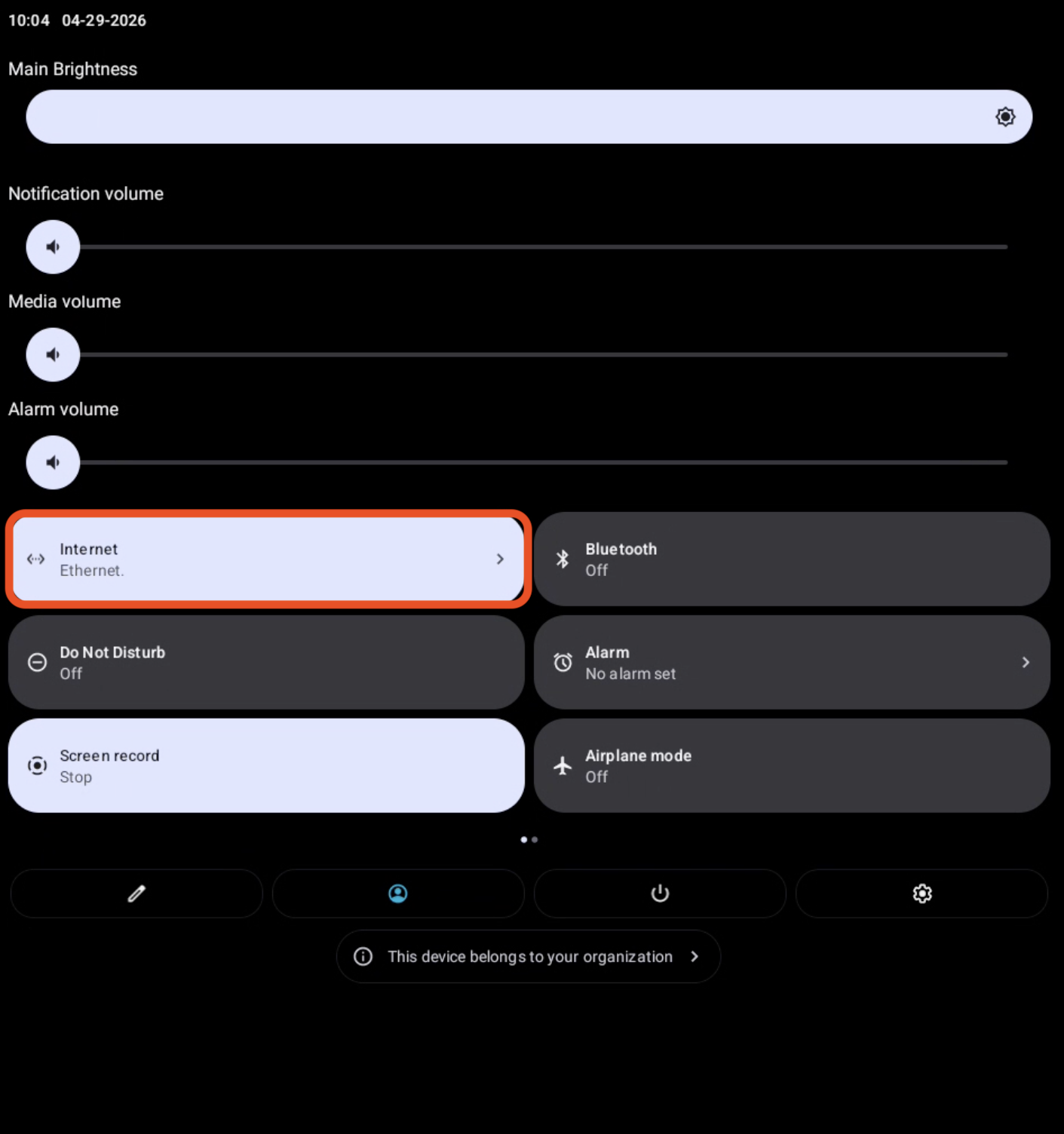
- Tap the Internet tile. This opens the Internet panel.
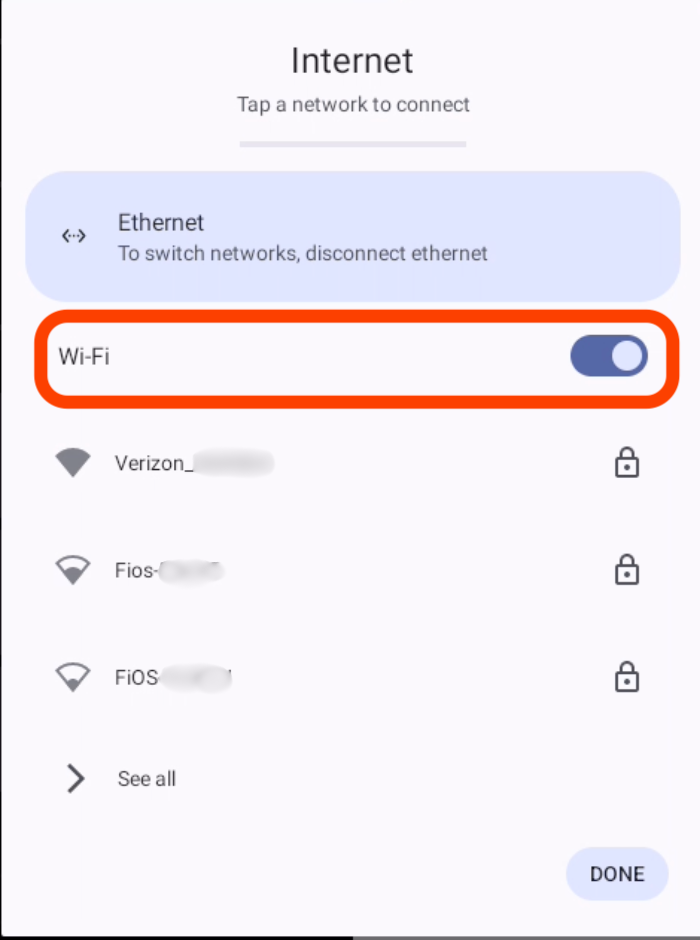
- If the Wi-Fi toggle is set to the right and the Internet panel says “Connected,” Wi-Fi is turned on.
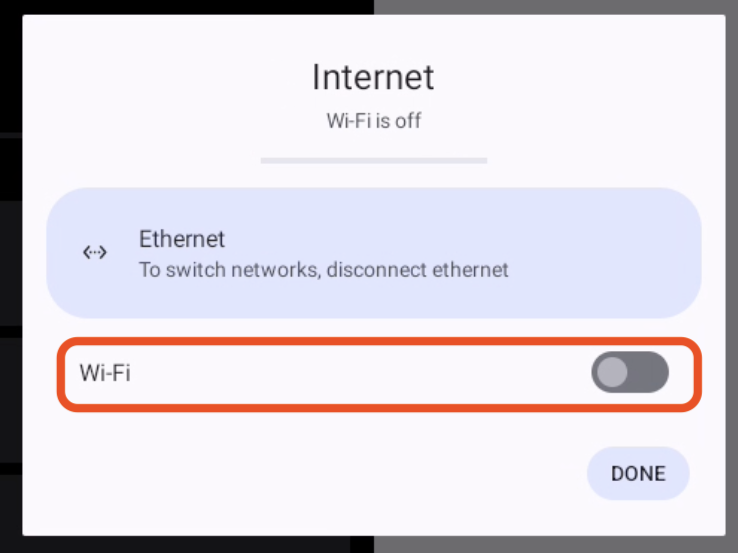
- If the Wi-Fi toggle is set to the left and the Internet panel says "Wi-Fi is off", then you're all set.
- If the Wi-Fi toggle is set to the right and the Internet panel says “Connected,” Wi-Fi is turned on.
- Tap the toggle once to turn Wi-Fi off.
- Tap the Done button, then swipe up from the bottom to close the Internet panel and Quick Settings.
Android 8.1 devices (Elo V3 only):
- Swipe down from the top of the screen to open the Quick Settings menu.
- Tap the Wi-Fi tile directly.
- If it’s blue, Wi-Fi is on.
- Tap once to turn it gray, which means Wi-Fi is off.
Disable Wi-Fi from the Full Settings Menu
Devices with the Toast Launcher (22" Toast Flex):
- From the Toast Launcher, tap Settings and Tools.
- If you are not at the Toast Launcher, swipe up from the bottom of the screen to display the navigation bar and tap the Home button (circle icon). This will return you to the Toast Launcher.
- Tap Device Settings to open the Android Settings app.
- Tap Network & Internet.
- Tap Internet, then use the Wi-Fi toggle to turn Wi-Fi off.
- Tap Ethernet RJ-45 to confirm it is on and displays an IP address.
Devices with the Android Launcher (14" Toast Flex, Elo V4, and Elo V3):
- From the Home screen, swipe up to open the App Drawer and tap the Settings app (gear icon).
- If you are not at the Home screen, swipe up from the bottom of the screen to display the navigation bar and tap the Home button (circle icon). This will return you to the Home screen.
- Tap Network & Internet.
- Android 12L (14" Toast Flex, Elo V4):
- Tap Wi-Fi, then use the Wi-Fi toggle to turn Wi-Fi off.
- Tap Ethernet to confirm it is on and displays an IP address.
- Note: 14" Toast Flex has two Ethernet options: Ethernet 0 (RJ-45) and Ethernet 1 (USB-C). Only one should be on and display an IP address. Check both.
- Note: Elo V4 has one Ethernet option: Ethernet RJ-45. Confirm it is on and displays an IP address.
- Android 8.1 (Elo V3):
- a. Use the Wi-Fi toggle directly on the Network & internet screen to turn Wi-Fi off.
- b. Tap Ethernet to confirm it is on and displays an IP address.
- Android 12L (14" Toast Flex, Elo V4):
Additional Information
For devices that don't rely on the Toast network for an internet connection, disable the Wi-Fi to protect your devices from vulnerabilities. In addition, doing this will also ensure proper printing and network syncing.
Toast recommends disabling Wi-Fi for any hard-wired piece of hardware. This includes any terminal or Kitchen Display System devices like an Elo or Toast Flex.
Not sure if you're connected to the internet correctly? Check out this Support Center article: Verify Your Internet Connection.