Customize Your Toast Online Ordering Page
Dernière mise à jour : 8 avr. 2026, 10 h 15
Key Features:
- Redesigned user experience
- Updated location picker page for multi-unit owners
- The ability to customize your online ordering page to your specific brand
- Quickly enable or disable your popular items
Not a Toast Online Ordering customer? You must subscribe to take advantage of the next generation of online ordering. Navigate to Toast Shop for more information.
- Access Your Branding and Configuration Page
- Online Order Page Customization
- Menu Page Configuration
- Settings
- Additional Resources
Access Your Branding and Configuration
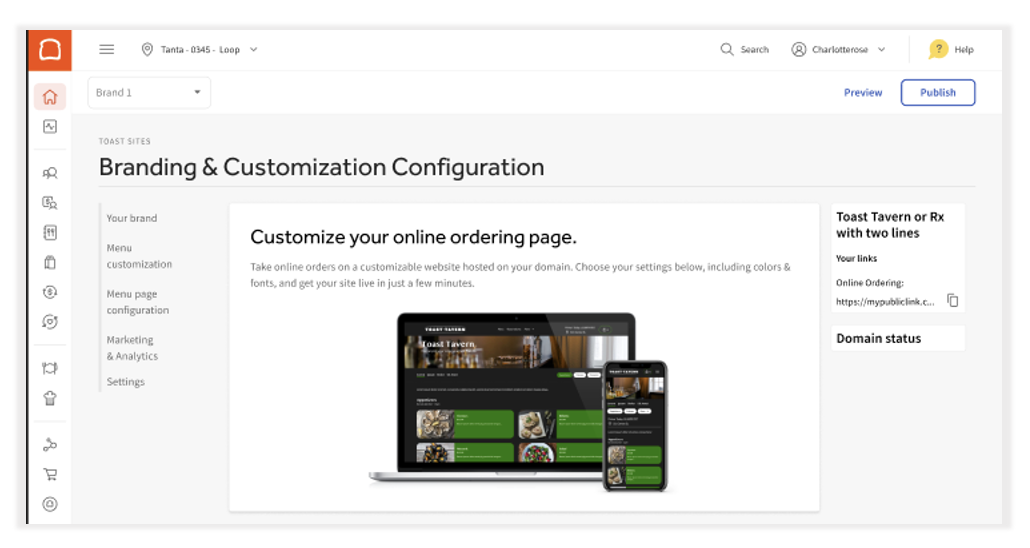
Log in to Toast Web and navigate to Takeout & Delivery > Branding & customization > Branding & customization configuration.
Online Ordering Page Customization
Once you have access to your page, a series of customizations will be available to you.
Your Brand
In this section, users can change certain aspects of their Online Ordering website to match their Brand by choosing a brand color and uploading a logo, favicon, and banner image.
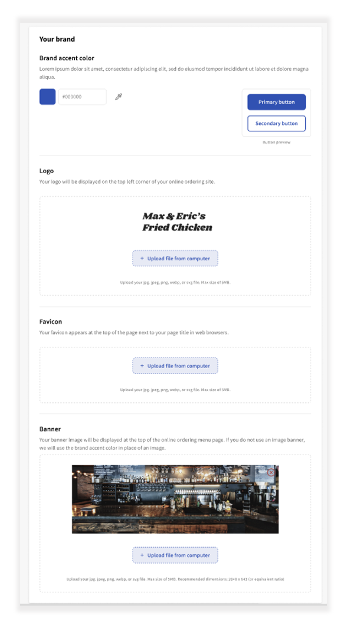
Favicon is the small icon that is displayed in the address bar of the browser or browser tab. By default, Toast will use your logo for the favicon, but you may want to use an optimized image for the small, square space.

Note: The logo, favicon, and banner images should be in jpg, jpeg, png, webp, or svg file format, and a max of 5MB.
Menu Customization
The next generation of Toast Online Ordering allows you to change the font for the Menu, Menu group, and items, and font color for the menu and menu group names on your online ordering page. These changes are global across the entire page.
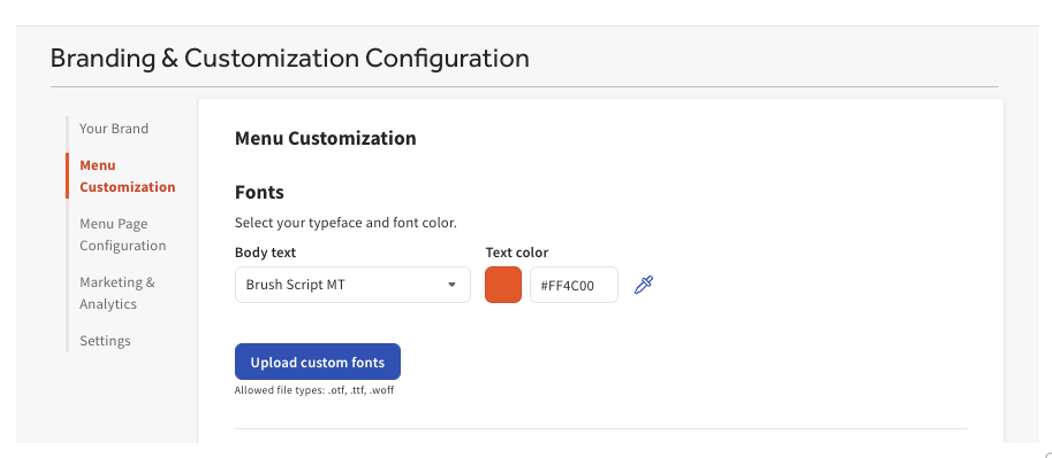
While multiple options are available, you can also choose to upload a custom font. You will upload these fonts directly from your computer.
For a more advanced approach, you can create and upload a custom font outside of the Toast with a platform such as Adobe Illustrator or a similar application with Google. Once created, the user downloads their font to the computer and uploads it into Toast.
Menu Page Configuration
This section will allow users to quickly toggle options that are seen on your Online Ordering page:
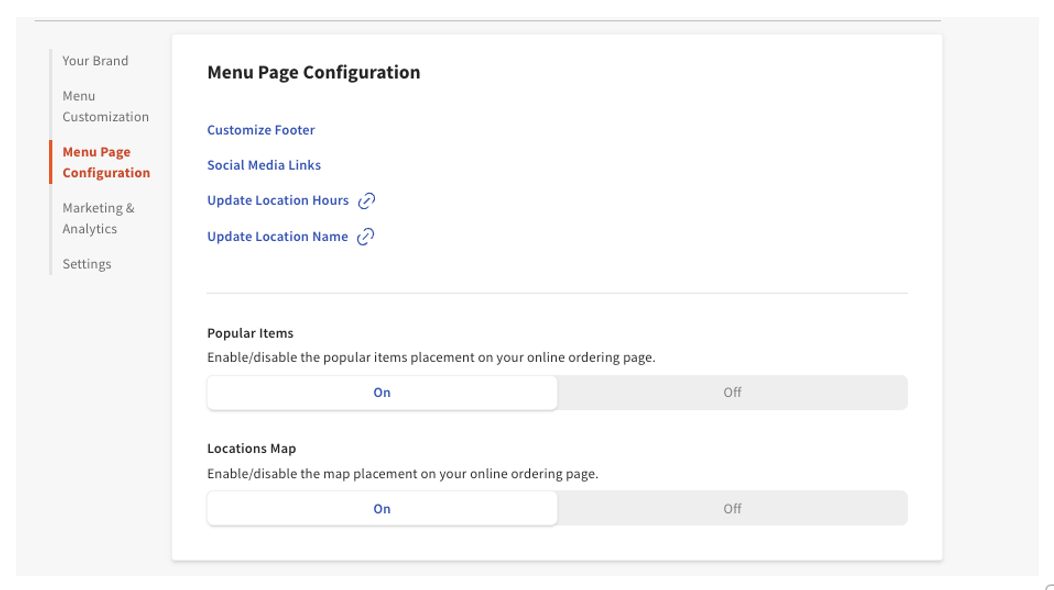
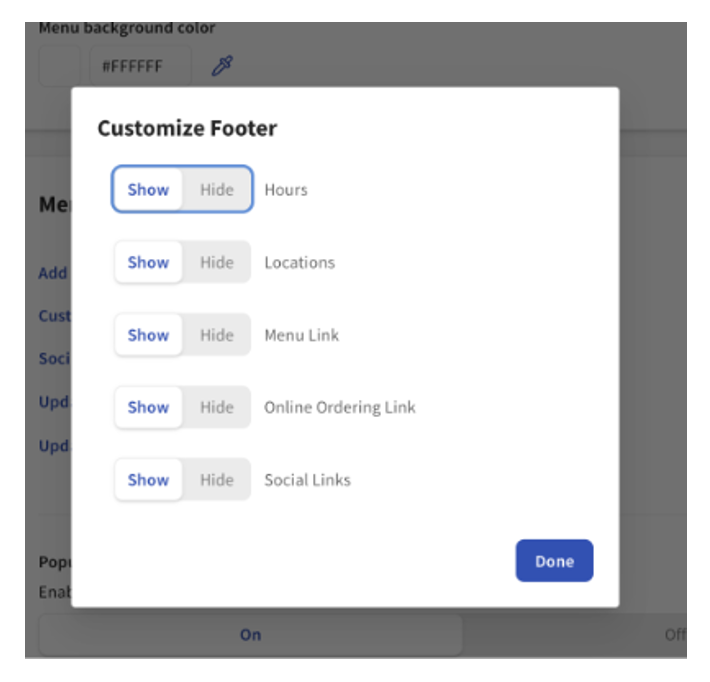
Customize Footer
This will allow users to show or hide specific information from the footer of their Online Ordering page. Simply click on the name 'Customize Footer' to access this pop up window, and toggle on or off the information as needed:
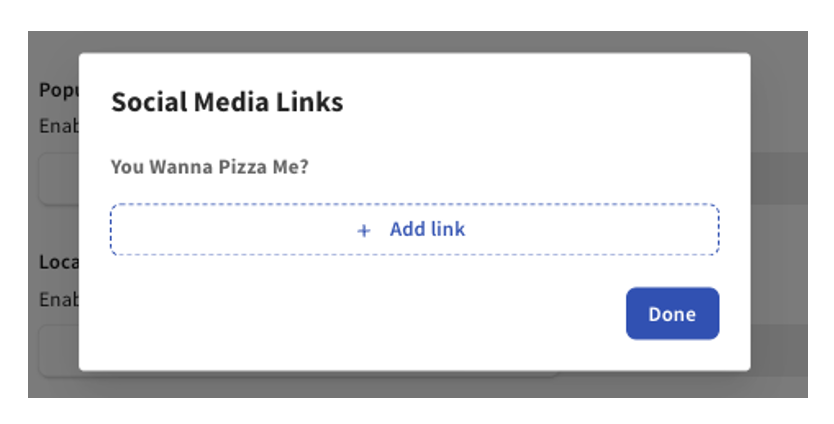
Social Media Links
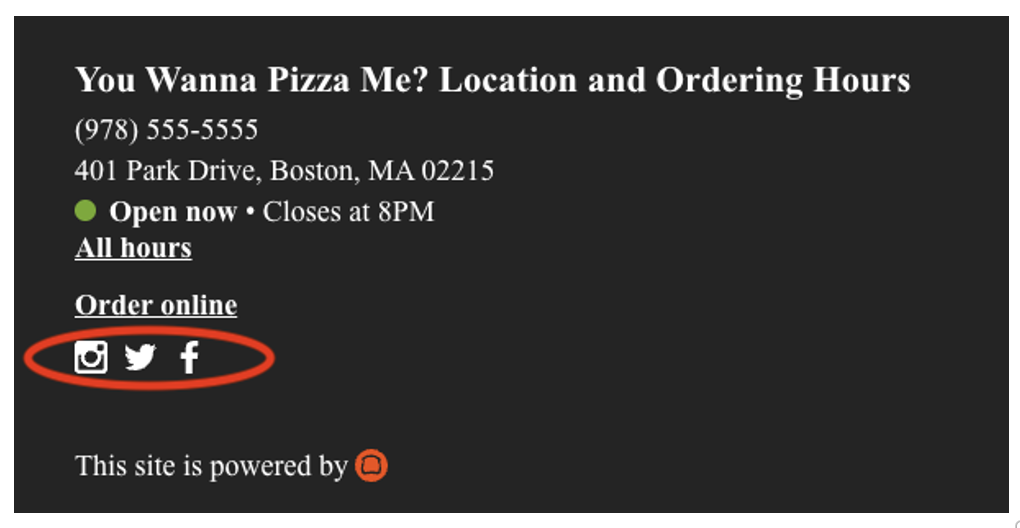
This section will allow users to add their social media links to the footer of their Online Ordering page. Users can host multiple links on their Online Ordering page. To add a link, select the name Social Media Links, and a pop-up window will appear. Select + Add link to enter your URL:
Once the changes are published, the Links will be visible in the footer of the Online Ordering page:
Other Settings
The remaining links allow users to configure the following settings:
- Update Location Hours - When selected, this link brings you to your 'Restaurant hours and Services' page, where they can update their hours of operation. You can navigate to their Online Ordering Schedule page to update the hours in which their Online Ordering is available.
- Update Location Name - When selected, this link brings you to your 'Restaurant Information' page, where they can update the location's name.
- Popular Items - Where you can toggle on or off the ability to show your popular items on your Online Ordering page.
- Locations Map - This allows you to show or hide a map in the upper right-hand corner of your Online Ordering page, showing your guests where your restaurant is located.
Back to top
Settings
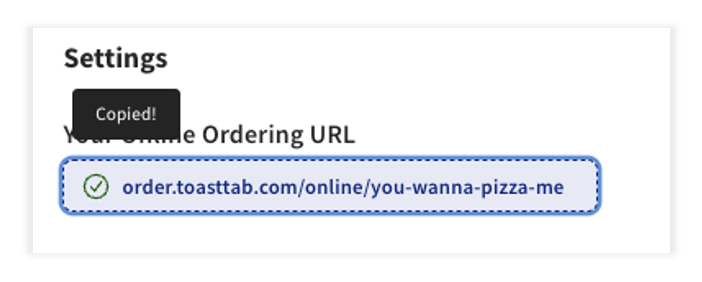
This section allows you to access your pre-configured URL provided by Toast and select the locations you'd like to associate with your specific brand.
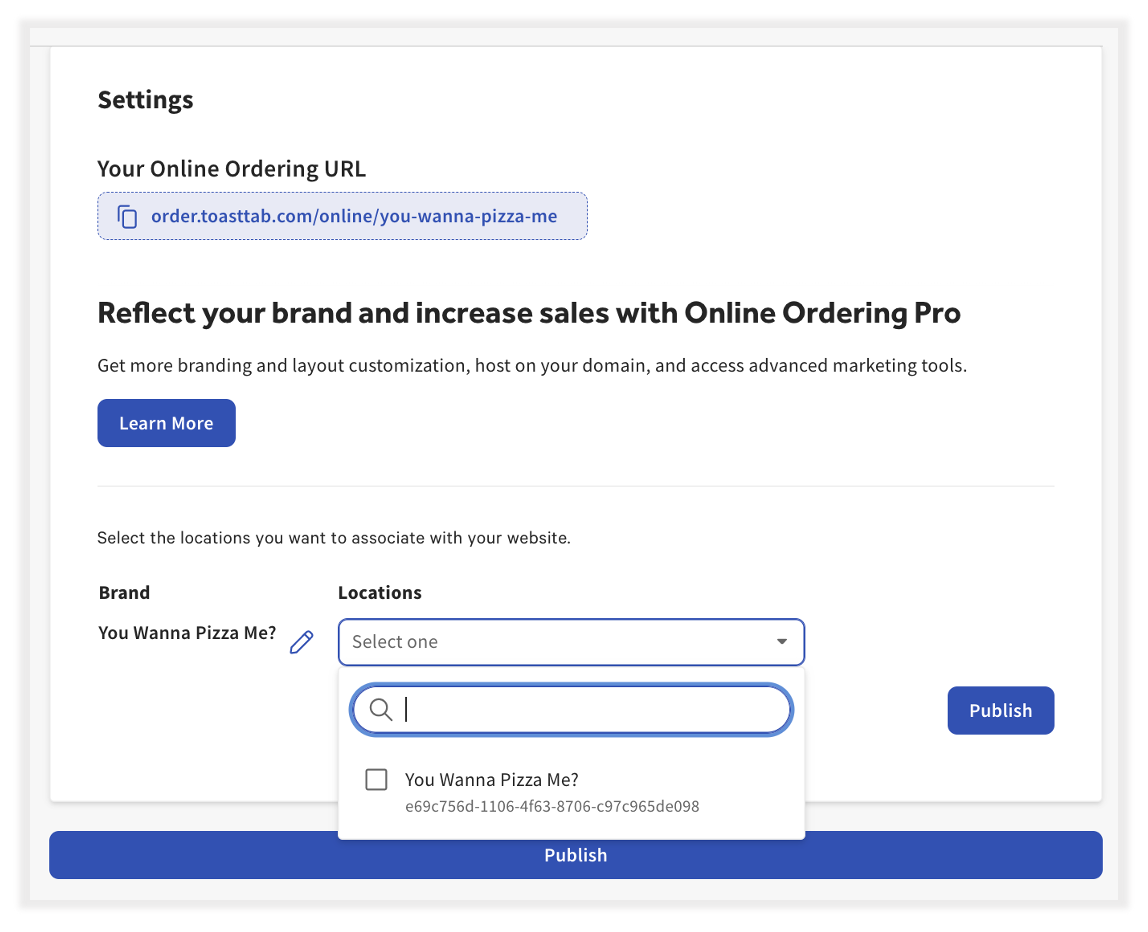
To copy your Toast Online Ordering URL, select the link. A popup window will let you know that you've successfully copied the link:
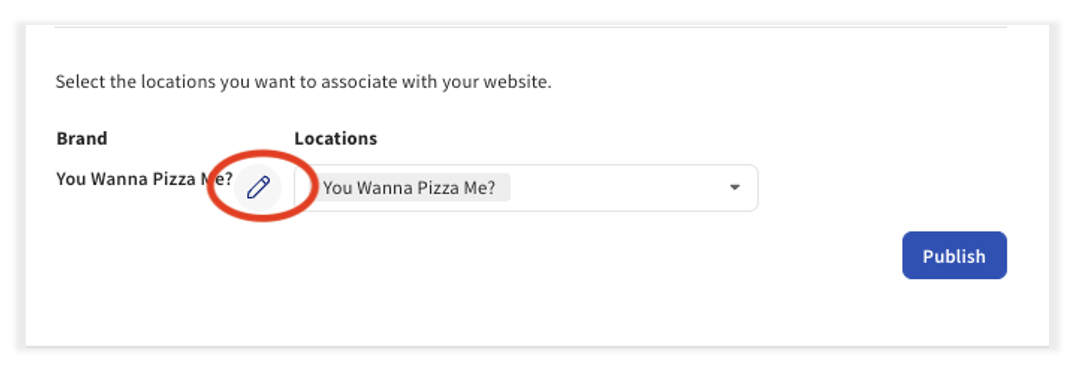
To add or remove locations from your Brand, click the drop-down to view your locations. Use the checkbox next to the location name to add or remove locations from your brand.
You can update the name of your Brand as it appears on your Online Ordering page by tapping the pencil icon:
Back to top