Get Started With Credit Card Surcharging
Dernière mise à jour : 8 avr. 2026, 10 h 14
This content is for informational purposes and is not intended as legal, tax, HR, or any other professional advice. You are responsible for your own compliance with laws and regulations, including card brand rules. Please contact an attorney or other professional for specific advice. Note that this article applies to U.S. and U.S. territories only.
The Credit Card Surcharging product offered by Toast allows you to automatically surcharge credit card transactions in eligible U.S. states to help offset the cost of your credit card processing fees. Toast Credit Card Surcharging is a solution designed to follow card brand surcharging rules and help you apply surcharges automatically to your guests’ credit card transactions in a way that complies with the rules.
Note: As required under card brand rules, Toast’s surcharging solution does not apply surcharges to debit, prepaid, or gift card transactions (or any payment method other than credit cards).
In this Article:
- Eligibility
- Supported Channels
- Set Up Credit Card Surcharging
- Remove Conflicting Service Charges for Online Channels
- Additional Resources
Eligibility for Toast's Credit Card Surcharging
Not all customers are eligible to use Toast’s Credit Card Surcharging product. You may not be eligible for surcharging under circumstances including the following:
- Merchants located in states where surcharging is prohibited - including Connecticut, Maine, and Massachusetts - are not eligible for Toast Credit Card Surcharging. Merchants located in New York are currently eligible for in-person point-of-sale or hand-keyed credit card surcharging only.
- Merchants based outside of the U.S. (including those in U.S. Territories) are not eligible for Toast Credit Card Surcharging.
- Merchants that have a direct Card Acceptance Agreement with American Express are not eligible for Toast Credit Card Surcharging. These agreements include provisions governing the merchant’s surcharging of American Express cards.
- Certain merchants that participate in American Express’ OptBlue program are not eligible for Toast Credit Card Surcharging.
Supported Channels for Credit Card Surcharging
Credit Card Surcharging is available on the following channels:
| Channel | All Eligible U.S. States (Except New York) | New York |
|---|---|---|
| POS/Handheld (including keyed transactions) | ✅ | ✅ |
| Mobile Order & Pay™ | ✅ (pre-auth not supported*) | ❌ |
| Scan to Pay | ✅ | ❌ |
| Online Ordering | ✅ | ❌ |
| Local by Toast | ✅ (iOS only) | ❌ |
| Kiosk | ✅ (new experience only**) | ❌ |
| Catering & Events | ❌ | ❌ |
| Toast Invoicing | ❌ | ❌ |
| Third-Party Ordering (DoorDash, Uber Eats, etc.) | ❌ | ❌ |
| Branded Mobile App | ❌ | ❌ |
Note on Gift Cards: Surcharges are applied to gift card purchases made with a credit card via POS/Handheld (including keyed transactions). Surcharges are not applied to gift card purchases online.
* Credit Card Surcharging is not available on Mobile Order & Pay™ if you are using the Tabs ordering experience and you have “gather payment details up front” (pre-auth) enabled.
** Learn more about the new Kiosk experience.
Learn more about Toast Credit Card Surcharging in New York.
Set Up Credit Card Surcharging
The process for setting up Credit Card Surcharging is outlined below.
If you have multiple locations, you’ll need to activate surcharging individually for each eligible restaurant location where you wish to surcharge credit cards. As noted above, some of your locations may not be eligible for Credit Card Surcharging at this time.
Additionally, if you decide to turn off Credit Card Surcharging in the future, you will remain subject to whatever pricing was in effect at that time. This includes any new pricing you may have been prompted to accept when signing up for Credit Card Surcharging.
Note: Access to 6.3 Payments Setup and 8.1 Financial Accounts modules is required to configure the credit card surcharging settings.
- Navigate to Payments > Credit card surcharging in Toast Web.
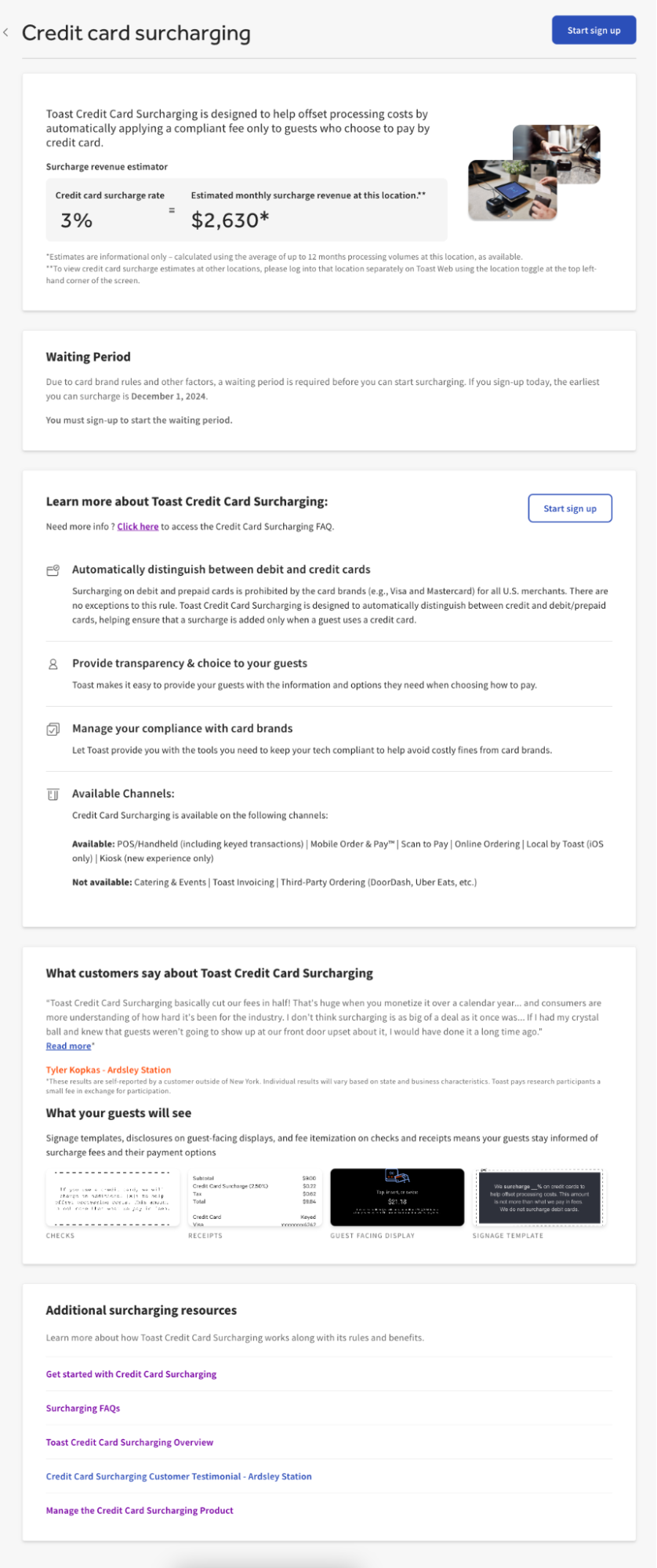
- You will then see the initial surcharge landing page, which includes information that you may find helpful before starting the sign-up process, including:
- Waiting Period: There is a required 30-to-60-day waiting period between signing up for surcharging and actually surcharging your guests. You will be shown the earliest date that you can start to surcharge your guests in the middle of your screen. After you complete the sign-up process, Toast will automatically enable your credit card surcharge on that date.
- The landing page also includes explanations of what a surcharge is, how Toast’s Credit Card Surcharging automatically does the work of adding surcharges to applicable credit card payments, and most importantly noting that surcharging is only applicable to credit card transactions. Surcharging cannot be applied to debit cards, gift cards, or other forms of payment as regulated by the card brands (Visa/Mastercard, etc.). Also included, is a description of the supported channels and a link to Credit Card Surcharging FAQ, as well as some visual examples of what your guests will see.
- To start the sign-up process, select Start sign up.
- You may be prompted to accept new card processing rates in order to use Credit Card Surcharging at your selected location.
- Please take note of the pricing structure shown on the screen (either Flat Rate or Cost-Plus), as it may be different from your current pricing structure. If you do not wish to accept the new pricing, select Back on the bottom of your screen or select X on the top right corner of your screen to cancel the sign-up process. Credit Card Surcharging will not be enabled and surcharges will not go into effect, and your existing rates will remain in effect.
- Note: Customers on Toast’s “Pay-as-you-Go” plan are not eligible for (and will not be prompted to accept) the new credit/debit flat rates. Pay-as-you-Go customers are required to keep their existing card processing rates if they choose to sign up for Credit Card Surcharging.
- Select Continue to view terms. You’ll be redirected to the Terms and Conditions webpage, which will also allow you to download a copy.
- Select I accept if you accept the Terms and Conditions and wish to proceed with signing up for Credit Card Surcharging.
- You’ll then see the Surcharge Settings page, which you will have to complete in order to finish the sign-up process. The Surcharge Settings page includes the following fields:
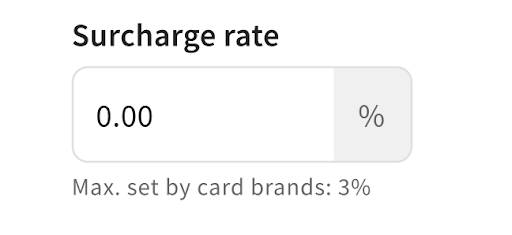
- Surcharge rate: This is the percentage rate to be added to applicable guest credit card transactions, excluding taxes and custom guest tips. The maximum percentage allowed by the card brands (Visa, Mastercard, etc.) is 3%. In order to comply with card brand rules, you should not enter a rate in excess of your cost of acceptance (up to the 3% cap).
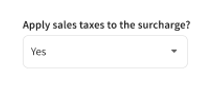
- Apply sales taxes to the surcharges? The dropdown defaults to Yes but you can select No from the dropdown if you do not want the sales tax to be applied to the surcharge.
- Select Yes to have sales tax apply to the total bill, including the surcharge fee.
- Example: $100 order with 10% sales tax and 3% credit card surcharge
- Surcharge = $3.00 (3% surcharge on $100 subtotal)
- Tax = $10.30 (10% tax on $100 subtotal + 10% tax on $3 surcharge)
- Example: $100 order with 10% sales tax and 3% credit card surcharge
- Select No to have sales tax apply only to the bill of goods, not including the surcharge fee.
- Example: $100 order with 10% sales tax and 3% credit card surcharge
- Surcharge = $3.00 (3% surcharge on $100 subtotal)
- Tax = $10.00 (10% tax on $100 subtotal + no tax on $3 surcharge)
- Example: $100 order with 10% sales tax and 3% credit card surcharge
- Note: Generally, credit card surcharges are subject to sales tax. However, credit card surcharges are not subject to sales tax in Colorado for merchants located in that state, so long as they are otherwise compliant. You may use this information to determine whether a credit card surcharge is subject to sales tax in the state where your restaurant is located. However, this information does not constitute the provision of tax advice by Toast, and you should consult a tax advisor if you have specific questions regarding the imposition of sales tax on a credit card surcharge.
- Select Yes to have sales tax apply to the total bill, including the surcharge fee.
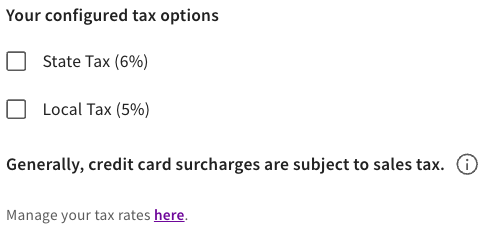
- Your configured tax options: If you select Yes to apply sales tax to surcharges, you must select the checkbox to include local or state tax or both and verify the applicable tax rates. You can amend tax rates by selecting “manage your tax rates here” in the explainer text below these checkboxes.
- This content is for informational purposes and is not intended as legal, tax, HR, or any other professional advice. Please contact an attorney or other professional for specific advice.
- Surcharge rate: This is the percentage rate to be added to applicable guest credit card transactions, excluding taxes and custom guest tips. The maximum percentage allowed by the card brands (Visa, Mastercard, etc.) is 3%. In order to comply with card brand rules, you should not enter a rate in excess of your cost of acceptance (up to the 3% cap).
- Once you’ve configured the Credit Card Surcharging settings, select Finish to complete the sign-up process.
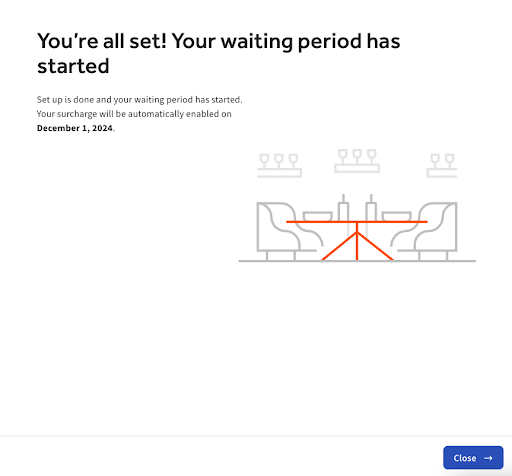
- You have now completed the sign-up process, and you will see a confirmation page explaining that your setup is done and the required waiting period has started. You can select Close to close the screen.
- Note: Toast will send you a confirmation email after you have signed up for Credit Card Surcharging and another email three days in advance of your effective date so you can prepare your restaurant and staff. Once you have reached your credit card surcharging effective date, as noted on the confirmation page, your configured surcharges will begin to automatically apply to your applicable ordering channels.
- Note: Toast will send you a confirmation email after you have signed up for Credit Card Surcharging and another email three days in advance of your effective date so you can prepare your restaurant and staff. Once you have reached your credit card surcharging effective date, as noted on the confirmation page, your configured surcharges will begin to automatically apply to your applicable ordering channels.
 | IMPORTANT: Once Credit Card Surcharging is enabled and actively being added to applicable guest orders, you will need to post signage and disclosures to notify your guests of your new surcharges. See Manage the Credit Card Surcharging Product for the next steps. |
Our product helps you comply with card brand requirements. You remain responsible for compliance with any additional disclosure or other legal requirements that may apply in your state.
Remove Conflicting Service Charges for Online Channels
If you accept orders through Toast Online Ordering or Local by Toast, and you have service charges or fees that are applied specifically to orders placed in either or both of these channels for the convenience of making such channel(s) available, you must remove them before your credit card surcharge takes effect. Per card brand rules, a “convenience fee” cannot be added to an order in addition to a credit card surcharge, so these fees must be removed in order to maintain compliance with card brand rules and avoid double-charging your guests. Learn how to remove a service charge here: Archive a Service Charge.
Our product helps you comply with card brand requirements. You remain responsible for compliance with any additional disclosure or other legal requirements that may apply in your state.
Additional Resources
- Manage the Credit Card Surcharging Product
- Credit Card Surcharging FAQ
- Surcharging Overview
- Access Permissions Reference Guide
Back to top