Set Up Scheduled Publishing With the Menu Manager
Last updated: Jul 9, 2026, 4:42 PM
| Scheduled publishing is only available for restaurants that use Toast Multilocation Management (MLM) or one of the Restaurant Management suites. Learn more about Toast Suites here: Toast Suites Overview. |
- Scheduled Publishing Overview
- Create a Scheduled Change Set
- Add Menu Manager Changes to Your Change Set
- Review Publishing Status of a Change Set
- View and Edit Change Sets
- Frequently Asked Questions
- Why did a change set show “partial publish” or “failed”?
- Can I publish changes to an item or modifier now if I have a change scheduled for a future date?
- What happens if one or more locations in my restaurant group doesn't have MLM - will they be impacted by scheduled publishing?
- What happens if you include an item in multiple change sets?
- Will a scheduled change set with no items in it still be published?
- Additional Resources
Scheduled Publishing Overview
Scheduled publishing works by using “change sets” to group together changes made in the menu manager that can be scheduled to publish at a specific date and time in the future. This can be helpful if you want to plan ahead for special events or pricing changes. You can create multiple change sets that include different pricing updates or are scheduled for different dates.
The basic workflow goes like this:
- Create a scheduled change set.
- Make your pricing changes in the menu manager and add them to a change set.
- Your changes will automatically be published on the date and time you selected.
Continue reading to learn how to utilize scheduled publishing for your restaurant group.
Note: At this time, only price and visibility changes can be scheduled.
Create a Scheduled Change Set
You must have the 6.4 Publishing and 6.7 Change sets permissions in order to access and edit change sets in the publishing center.
To create a change set, follow these steps:
- Navigate to the publishing center in Toast Web by selecting Toast account > Publishing > Publishing Center.
- Select + Add change set.
- NEW! When creating a change set, you can now set an Editable by field to control which users can modify the change set. Change sets will only be visible to users based on this ownership setting. To set ownership when creating a change set, navigate to Toast account > Publishing > Publishing Center > + Add change set. Enter a Name and Date, and select Editable by owner.
- Enter a Name for your change set.
- If known, enter the Date and Time you want these changes to be published. If you want to create a change set and add a date later (or manually publish the changes when you’re ready), you can check off the box that says I’ll schedule this later instead.
- Note: The time zone shown is the current time zone from your web browser. The changes will take place at the time set in that time zone. For example, if you’re located in the Pacific time zone and you schedule a change set for 7 a.m., a restaurant located in the Eastern time zone will see that change at 10 a.m. EST.
- Save your change set.
- You can select Continue to menu manager on the confirmation pop-up for quick access to the menu manager page.
You also have the option to create a change set from directly within the menu manager by selecting Schedule in the top right corner of the screen, and then selecting + Create change set on the pop-up window.
Note: Scheduled Publishing is only available when accessing the Items, Modifiers, and Price Levels tab in Menu Manager. This option does not appear under the Full Menu tab
Add Menu Manager Changes to Your Change Set
Once you have a change set created, navigate to the menu manager (Menu > Bulk management > Menu manager) and make the changes you’d like to add to your change set. For more information on how to search and filter items and modifiers using the menu manager, check out this Support Center article: Get Started with Menu Manager.
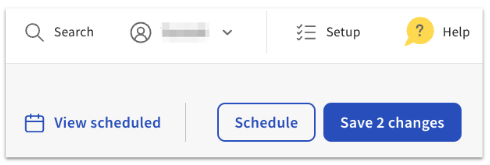
Select the Schedule button in the top right corner of the screen, or select Save changes and then Schedule for later.
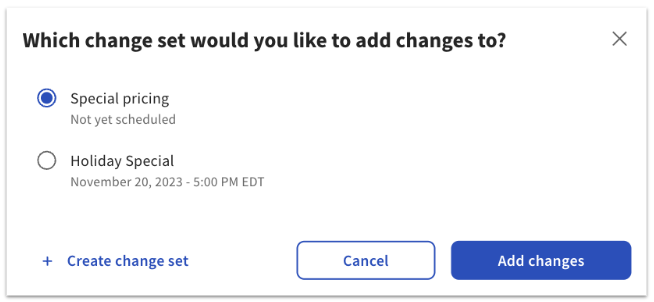
This will bring up a list of the change set you’ve created. Select your desired change set, and then select Add changes.
That’s it! If you chose a date and time for the change set, the updates will automatically be published at the specified date and time. You can continue to add more changes to the same change set, or to different change sets if you’d like.
Review Publishing Status of a Change Set
You can review the publishing status of a change set from the publishing center (Toast account > Publishing > Publishing Center).
The Schedule tab will show you a list of change sets, their date and time (if scheduled), and their status.
- Scheduled: Date and time has been set, and any changes included in this set will automatically be published at that time.
- Incomplete: No changes have been assigned to this set. There may or may not be a publish date.
- Not scheduled: Changes have been assigned to this set, but there is no publish date.
- In progress: The change set has started to save and publish.
- Published: All changes were successfully saved and published.
- Partial publish: Some changes were successfully saved and published, but some of them failed. A report will be available for download with more information.
- Failed: No changes were saved or published. A report will be available for download with more information.
View and Edit Change Sets
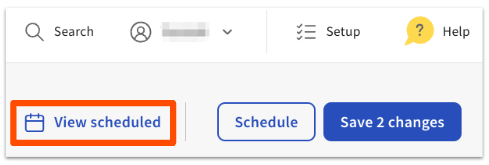
If you’re on the menu manager page, you can review the publishing status of your scheduled change sets by selecting View scheduled in the top right corner of the screen.
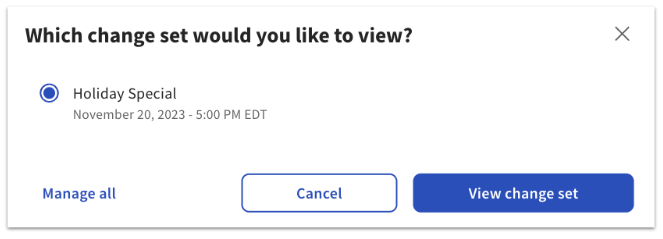
On the pop-up, you can select any of your scheduled change sets and select View change set, or you can select Manage all to go to the publishing center and see the list of all of your change sets (including those in the past, or those without a set date).
On the change set details page, you can review all of the changes included in the set. You can make updates if desired, or you can remove a change from the set by selecting the subtract (-) icon on a specific row. Select Update to save any changes to the change set.
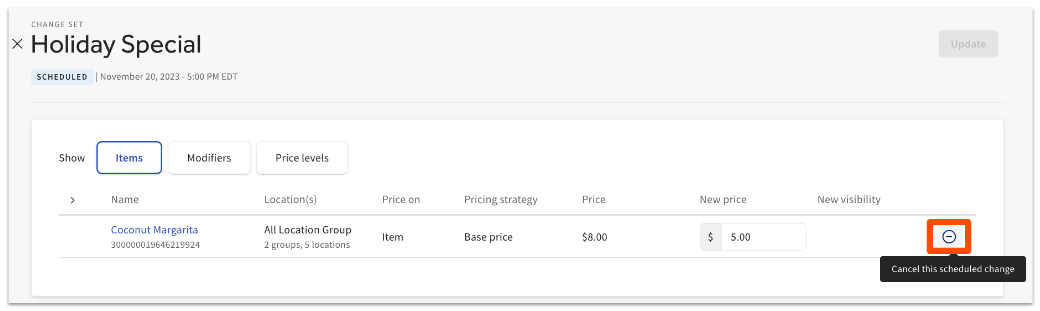
If you want to edit the date or time of a scheduled change, you can do so by navigating to the publishing center (Toast account > Publishing > Publishing Center) and selecting the pencil icon next to a change set.
Frequently Asked Questions About Scheduled Publishing
One common reason a scheduled publish isn’t fully successful is if you attempted to change the price of a modifier or price level that was not published at least once before being scheduled in a change set. For example, if you create price level A, you must publish that price level before you can schedule an edit to that price level at a future date and time.
Can I publish changes to an item or modifier now if I have a change scheduled for a future date?
Yes, you can publish changes now even if you have a future change scheduled. Let’s say you have a holiday special change set that is being published next week, and your hamburger menu item will have a price change to $10. If you want to change the price of the hamburger to $12 today, you can save and publish that change. Next week, when the change set goes into effect, the hamburger price will be updated to $10.
What happens if one or more locations in my restaurant group doesn't have MLM - will they be impacted by scheduled publishing?
No, locations without MLM will not be impacted by scheduled publishing. Scheduled publishing uses the Target of the menu item or modifier that has a scheduled change when deciding where to publish, so it won’t be possible to affect non-MLM locations with scheduled publishing.
What happens if you include an item in multiple change sets?
If you include an item in multiple change sets, the item will be updated every time it’s part of a scheduled change set.
If you added changes to the change set and then removed them all before the scheduled date, the change set will show a “published” status but nothing will have been changed. If you created a change set and never added any changes to it before the scheduled date, scheduled publishing will ignore that change set.
Additional Resources for Menus and Publishing
- Get Started With Menu Manager
- Publish Changes in Toast Web
- Platform guide: Understanding scheduled publishing and change sets